
Armitron Eclipse
Armitron Connect Eclipse Smartwatch User Manual
Model: Eclipse
Introduction
This manual provides detailed instructions for the setup, operation, and maintenance of your Armitron Connect Eclipse Smartwatch. Please read this manual thoroughly to ensure proper use and to maximize the functionality of your device.
Package Contents
Before proceeding, please verify that all items are present in your package:
- Armitron Connect Eclipse Smartwatch
- Charging Cable
- User Manual (this document)

Image: The Armitron Connect Eclipse Smartwatch presented in its retail box, showcasing the device and its packaging.
Device Overview
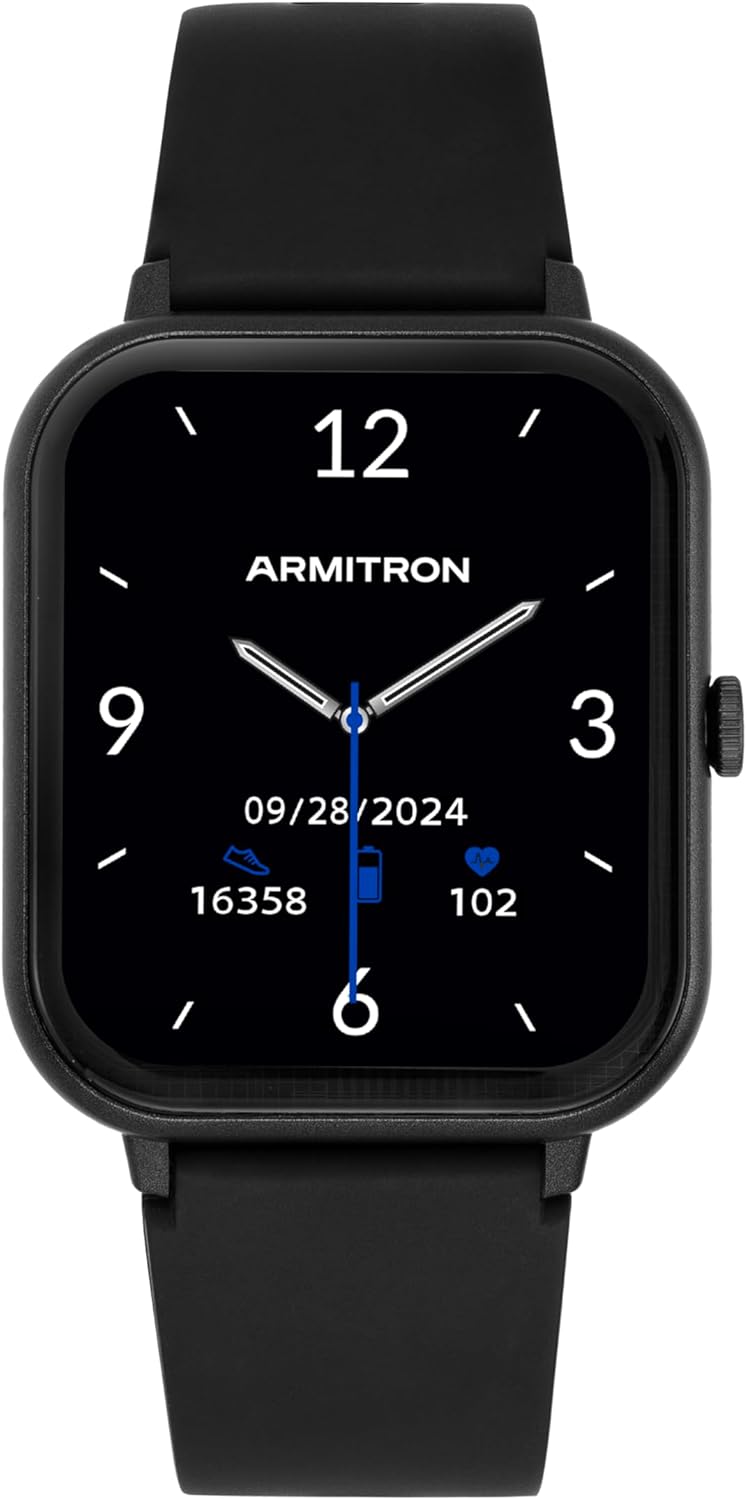
Image: Front view of the Armitron Connect Eclipse Smartwatch, displaying the time, date, step count, battery level, and heart rate on its black screen.

Image: Side view of the Armitron Connect Eclipse Smartwatch, highlighting the single physical button on the right side of the watch case.

Image: Back view of the Armitron Connect Eclipse Smartwatch, showing the watch strap and the metal buckle clasp.
Setup
1. Charging the Smartwatch
Before first use, fully charge your Armitron Connect Eclipse Smartwatch. Connect the provided charging cable to the charging port on the back of the watch and plug the USB end into a compatible power source (e.g., computer USB port, USB wall adapter). A full charge typically takes approximately 2 hours and provides up to four days of battery life.
2. Downloading the Armitron Connect App
The Armitron Connect Eclipse Smartwatch requires the Armitron Connect app for full functionality. Download the app from your device's app store:
- For Android devices (version 5.0 and above): Search for "Armitron Connect" on the Google Play Store.
- For iOS devices (version 9.0 and above): Search for "Armitron Connect" on the Apple App Store.
3. Pairing Your Smartwatch
- Ensure your smartwatch is charged and powered on.
- Enable Bluetooth on your smartphone.
- Open the Armitron Connect app.
- Follow the on-screen instructions within the app to search for and pair with your Armitron Connect Eclipse Smartwatch.
- Confirm the pairing request on both your smartphone and smartwatch if prompted.
4. Initial Customization
Once paired, use the Armitron Connect app to customize your watch settings, including:
- Watch Face: Select from various pre-installed watch faces or create a custom design.
- Personal Information: Enter your age, height, weight, and gender for accurate health and fitness tracking.
- Notifications: Configure which app notifications you wish to receive on your smartwatch.
- Goals: Set daily step, calorie, and activity goals.
Operating Instructions
Basic Navigation
- Touchscreen: Swipe left, right, up, or down to navigate through menus and features. Tap to select.
- Side Button: Press the side button to return to the home screen or wake the device. A long press may access power options or a specific shortcut depending on configuration.
Key Features

Image: An infographic showing various features of the smartwatch, represented by icons such as call alerts, music control, calorie tracking, sport modes, message notifications, heart rate, women's health, sleep tracking, GPS connection, voice assistant, sedentary reminders, step counter, camera control, watch locator, breathing exercises, hydration reminders, weather updates, and IP68 water resistance.
Health Monitoring
- Heart Rate Tracking: The smartwatch continuously monitors your heart rate. View real-time data on the watch or detailed trends in the app.
- Calorie Tracking: Estimates calories burned based on activity and personal data.
- Sleep Tracking: Monitors sleep patterns, including light, deep, and awake times. Access sleep analysis in the Armitron Connect app.
- Menstrual Cycle Tracking: For female users, track and predict menstrual cycles through the app.
Fitness and Activity Tracking
- Step Counter: Records your daily steps.
- Sport Modes: Select from various sport modes (e.g., running, walking, cycling) to track specific workouts with relevant metrics.
- Move Reminders: Receive alerts to encourage movement after periods of inactivity.
- Hydration Reminders: Set reminders to drink water throughout the day.
Communication and Smart Features
- Call Alerts: Receive incoming call notifications and make/receive calls directly from your smartwatch when connected to your phone.
- Message Notifications: View notifications from messages and social media apps.
- Contact Management: Save favorite contacts for quick access.
- Music Control: Control music playback on your paired smartphone.
- Camera Control: Use your smartwatch as a remote shutter for your smartphone camera.
- Voice Assistant: Access your smartphone's voice assistant through the watch.
- Weather Updates: Get current weather information.
Water Resistance (IP68)
The Armitron Connect Eclipse Smartwatch is IP68 water resistant, meaning it is protected against dust ingress and can withstand immersion in water up to 1.5 meters for up to 30 minutes. It is suitable for daily use, such as hand washing or light rain exposure. It is not recommended for swimming, diving, or high-pressure water activities.
Maintenance
Cleaning Your Smartwatch
Regular cleaning helps maintain the device's performance and appearance:
- Wipe the screen and watch body with a soft, lint-free cloth.
- For stubborn dirt, slightly dampen the cloth with water. Avoid using harsh chemicals or abrasive materials.
- Clean the charging contacts periodically to ensure proper charging.
- Ensure the watch is completely dry before charging.
Battery Care
- Avoid extreme temperatures, which can affect battery life.
- Charge the device regularly; do not let the battery completely drain for extended periods.
- Use only the provided charging cable.
Software Updates
Periodically check the Armitron Connect app for available software updates. Updates often include performance improvements, new features, and bug fixes. Follow the app's instructions to install updates.
Troubleshooting
| Problem | Solution |
|---|---|
| Smartwatch not turning on | Ensure the device is fully charged. Connect it to the charger for at least 30 minutes. |
| Unable to pair with smartphone |
|
| Inaccurate health/fitness data |
|
| Notifications not appearing |
|
| Short battery life |
|
Factory Reset
If issues persist, a factory reset may resolve them. This will erase all data on your smartwatch and restore it to its original settings. Consult the Armitron Connect app or device settings for the factory reset option.
Specifications
- Model: Armitron Connect Eclipse
- Compatibility: Android 5.0+ / iOS 9.0+
- Battery Life: Up to 4 days (typical usage)
- Water Resistance: IP68 (Dust tight, immersion up to 1.5m for 30 minutes)
- Connectivity: Bluetooth
- Sensors: Heart Rate Monitor, Accelerometer
- Display: Touchscreen
- Charging: Magnetic Charging Cable
Warranty and Support
Warranty Information
Your Armitron Connect Eclipse Smartwatch is covered by a manufacturer's warranty. Please refer to the warranty card included in your product packaging or visit the official Armitron website for detailed warranty terms and conditions.
Customer Support
For further assistance, technical support, or warranty claims, please contact Armitron customer service:
- Website: Visit www.armitron.com for FAQs and support resources.
- Contact Information: Refer to the Armitron website for current contact methods (phone, email, chat).
Related documentsEclipse


Ask a question about this manual
Ask about setup, troubleshooting, compatibility, parts, safety, or missing instructions. Manuals+ will review the question and use this page’s manual context to help answer it.