1. Introduction
This manual provides essential information for the safe and efficient operation of your Brother DCP-T536DW Wireless All-in-One Ink Tank Printer. Please read this manual thoroughly before using the printer and keep it for future reference.

Figure 1: Front view of the Brother DCP-T536DW printer, showing the paper input tray and control panel.
2. What's in the Box
Verify that all components are present in the packaging:
- Brother DCP-T536DW Printer Unit
- Ink Bottles (Black, Cyan, Magenta, Yellow)
- Power Cable
- User Guide (This manual)
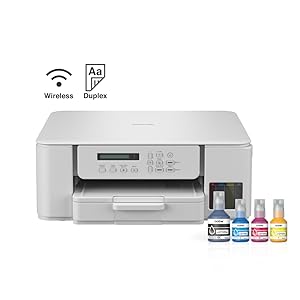
Figure 2: The Brother DCP-T536DW printer shown alongside the four included ink bottles.
3. Setup
3.1 Unpacking and Placement
- Remove all packing materials, tapes, and protective films from the printer.
- Place the printer on a flat, stable surface with adequate space for ventilation and paper handling.
- Ensure the printer is near a power outlet and within range of your Wi-Fi network if using wireless connectivity.
3.2 Filling the Ink Tanks
The DCP-T536DW features an integrated ink tank system designed for spill-free refilling.
- Open the ink tank cover located on the front right side of the printer.
- Identify the correct color tank for each ink bottle (Black, Cyan, Magenta, Yellow).
- Uncap the ink bottle and gently insert it into the corresponding tank's filling port. The ink will flow automatically.
- Once the tank is full, remove the bottle and securely close the tank cap.
- Repeat for all colors.
Important: Do not overfill the ink tanks. Use only genuine Brother ink bottles.
3.3 Power Connection
- Connect the power cable to the printer's power input.
- Plug the other end of the power cable into a grounded electrical outlet.
- Press the power button to turn on the printer.
3.4 Initial Setup and Driver Installation
Follow the on-screen instructions on the printer's LCD display for initial setup, including language selection and print head alignment.
For computer connectivity, install the printer drivers and software from the Brother support website or the included installation CD (if applicable). For mobile devices, download the Brother Mobile Connect App.

Figure 3: Steps for setting up and using the Brother Mobile Connect App for wireless printing and scanning.
4. Operating the Printer
4.1 Loading Paper
The printer supports various paper types and sizes up to A4. The maximum input sheet capacity is 150 sheets.
- Pull out the paper tray completely.
- Adjust the paper guides to the size of the paper you are loading.
- Load the paper print-side down.
- Gently push the paper tray back into the printer.

Figure 4: The Brother DCP-T536DW printer with paper correctly loaded in the front paper tray.
4.2 Printing
You can print from a computer, smartphone, or tablet via Wi-Fi or USB connection.
- From Computer: Select "Print" from your application, choose the Brother DCP-T536DW, and adjust settings as needed (e.g., paper size, print quality, duplex printing).
- From Mobile Device: Use the Brother Mobile Connect App to select documents or photos for printing.
- Duplex Printing: The printer supports automatic two-sided printing to save paper. Enable this option in your print settings.
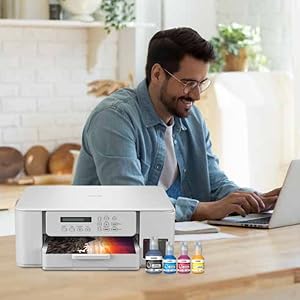
Figure 5: A user operating the Brother DCP-T536DW printer from a laptop, demonstrating typical usage.
4.3 Scanning
The printer allows scanning documents and photos to your computer or mobile device.
- Place the document face down on the scanner glass or use the Automatic Document Feeder (ADF) if available.
- From your computer, open the Brother scanning software. From the printer's control panel, select "Scan" and follow the prompts.
- Choose scan settings (e.g., resolution, color/grayscale, destination).
- Initiate the scan.
4.4 Copying
Use the printer's control panel to make copies.
- Place the document face down on the scanner glass.
- On the control panel, press the "Copy" button.
- Use the arrow keys to select the number of copies and adjust settings like quality or enlargement/reduction.
- Press "Start" (Mono or Colour) to begin copying.
5. Maintenance
5.1 Ink Tank Management
Monitor ink levels regularly using the printer's LCD display or the Brother software. Refill tanks promptly when ink levels are low to prevent air from entering the system.
Note: The ink tank system is designed for precise, spill-free refilling. Always use genuine Brother ink to ensure optimal performance and prevent damage.
5.2 Print Head Cleaning
If print quality degrades (e.g., streaks, missing colors), perform a print head cleaning cycle from the printer's maintenance menu or through the printer driver software. The printer also features built-in self-cleaning technology to optimize print head maintenance.
5.3 Regular Cleaning
Wipe the exterior of the printer with a soft, lint-free cloth. Clean the scanner glass periodically with a non-abrasive glass cleaner to ensure clear scans and copies.
6. Troubleshooting
This section addresses common issues you might encounter.
| Problem | Possible Cause / Solution |
|---|---|
| Printer not turning on | Ensure the power cable is securely connected to both the printer and a working electrical outlet. |
| Printer not printing | Check if the printer is connected to the computer/network. Verify ink levels and paper supply. Check for error messages on the LCD. |
| Poor print quality | Perform a print head cleaning. Check ink levels. Ensure you are using appropriate paper for the print settings. |
| Wireless connection issues | Ensure the printer is within range of your Wi-Fi router. Restart both the printer and the router. Reconfigure wireless settings if necessary. |
| Paper jams | Carefully remove any jammed paper following the instructions in the printer's LCD or the full online manual. Ensure paper is loaded correctly. |
For more detailed troubleshooting, refer to the comprehensive online support resources available on the Brother official website.
7. Specifications
| Feature | Detail |
|---|---|
| Model Name | DCP-T536DW |
| Product Dimensions | 34.3D x 39W x 149H centimeters |
| Item Weight | 7.2 Kilograms |
| Connectivity Technology | Wi-Fi, USB |
| Printing Technology | Inkjet |
| Printer Output | Color |
| Maximum Printer Media Size | A4 |
| Max Input Sheet Capacity | 150 sheets |
| Maximum Color Print Resolution | 1200 x 6000 dpi |
| Max. Monochrome Printing Speed | 16 ppm |
| Maximum Print Speed (Colour) | 9 ppm |
| Max Copy Speed (Black & White) | 3.5 Images per Minute |
| Dual-sided Printing | Yes (Automatic Duplex) |
| Display Type | LCD |
| Compatible Devices | Smartphones, PC, Tablets, Laptops |
| Special Features | Auto-Duplex, Refillable Ink Tank, Borderless Printing |
| Color | White |
8. Warranty and Support
Your Brother DCP-T536DW printer comes with a standard manufacturer's warranty. Please refer to the warranty card included in your product packaging for specific terms and conditions, or visit the official Brother website for detailed warranty information.
For technical support, driver downloads, FAQs, and additional resources, please visit the Brother Official Store or their global support website.