
Introduction
The CarlinKit AIBOX-Lite 3-in-1 Adapter transforms your car's wired CarPlay or Android Auto system into a wireless multimedia hub. This device allows you to enjoy wireless CarPlay, wireless Android Auto, and access popular streaming applications like YouTube and Netflix directly on your car's display. It is designed for ease of use, integrating seamlessly with your vehicle's existing controls.
Pre-Purchase Information & Compatibility
Before purchasing and using the CarlinKit AIBOX-Lite, please ensure your vehicle meets the following requirements:
- Your car must be equipped with wired CarPlay or wired Android Auto from the factory.
- This product is not applicable to BMW models.
- It is not recommended for non-touchscreen vehicles.
- The device does not support SIM cards and does not have built-in GPS.
- iPhone compatibility: iPhone 6+ with iOS 10+ or newer.
- Android phone compatibility: Android 11.0+ or newer. (Note: Huawei, and most Redmi/Xiaomi phones are not compatible).

Image: Compatibility chart for CarlinKit AIBOX-Lite, detailing supported car brands (e.g., VW, Benz, Ford, Toyota) and phone operating systems (iPhone 6+ with iOS 10+, Android 11.0+). It also highlights that BMW models are not suitable and some Android phones are incompatible.
Product Features
- Wireless CarPlay & Android Auto: Seamlessly convert your wired car system to wireless for both Apple CarPlay and Android Auto.
- Dual WiFi Design: Allows simultaneous connection to CarPlay/Android Auto and other WiFi networks, keeping the device online.
- Integrated GMS Service: Supports official download and installation of apps like Netflix, YouTube, and more.
- HD Output Port: Connect to external high-definition screens for shared viewing, supporting split-screen display without interfering with driving.
- Plug and Play: Easy installation without modifying original car equipment.
- Original Car Control Support: Compatible with your car's original buttons and knob operations for convenient smart driving.
- TF Card Expansion: Supports TF card expansion for additional storage.

Image: The CarlinKit TBOX LITE S device in a car interior, showcasing its ability to transform wired CarPlay/Android Auto into wireless multimedia functions. The image displays various entertainment apps like YouTube, Netflix, and Hulu, along with examples of CarPlay and Android Auto interfaces.

Image: A car's multimedia screen displaying various applications such as BT Phone, Car, BT Music, YouTube, and FOTA Update. Below, the CarlinKit device is shown connected, with separate sections illustrating the interfaces for wireless CarPlay and wireless Android Auto.
Setup Instructions
Follow these steps to set up your CarlinKit AIBOX-Lite:
- Step 1: Connect the Device. Plug the CarlinKit AIBOX-Lite into your car's USB port using the provided data cable. Ensure the connection is secure.
- Step 2: Connect to Phone Hotspot. Connect your phone's Wi-Fi hotspot to the CarlinKit device. This will allow the device to access the internet and utilize its Android system.
- Step 3: Launch AutoKit App. On your car's screen, open the "AutoKit" application. Connect to your phone via Bluetooth to enable wireless CarPlay or Android Auto.
- Note for App Installation: If you need to install or download other applications, navigate to your car's system settings, find "Other" or "System" settings, and enable "Allow installation of apps from unknown sources" or "Consent download app from third parties."
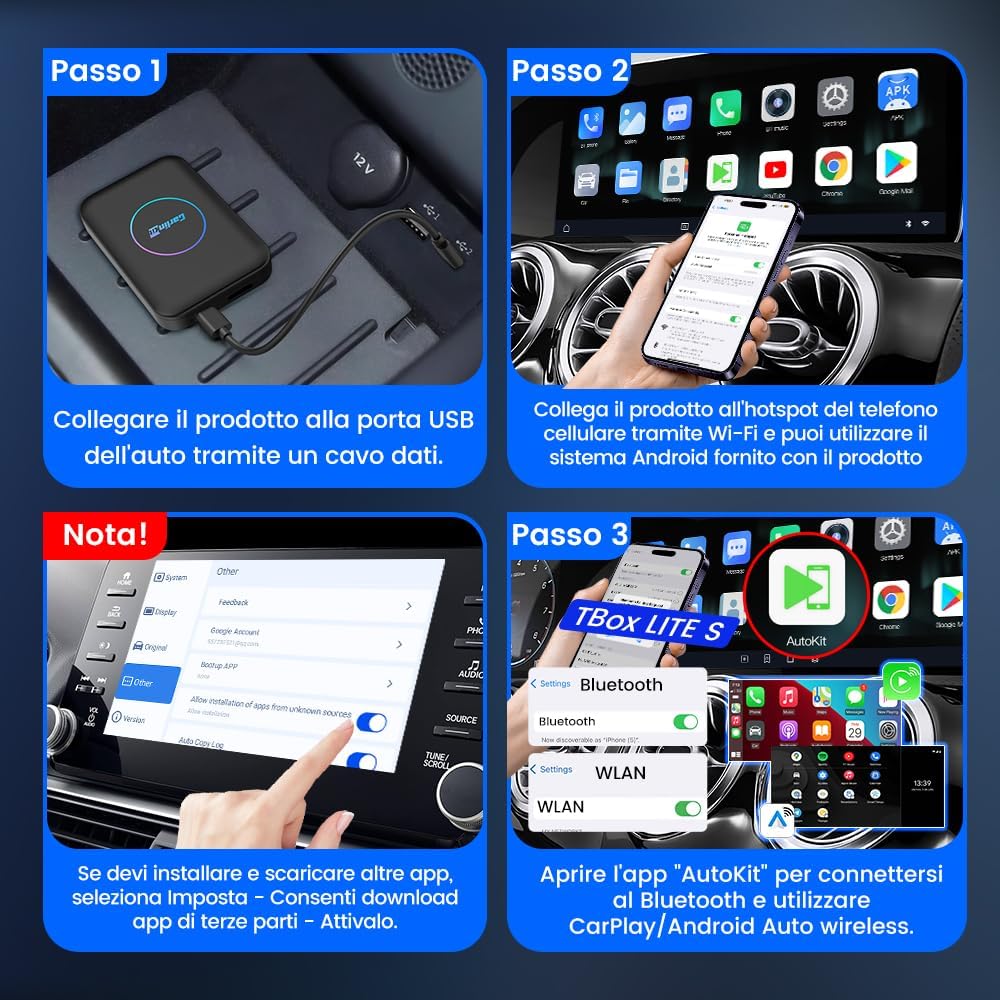
Image: A visual guide to setting up the CarlinKit AIBOX-Lite. Panel 1 shows connecting the device to the car's USB port. Panel 2 illustrates connecting a phone's Wi-Fi hotspot. Panel 3 demonstrates opening the "AutoKit" app and connecting via Bluetooth. Panel 4 provides a note on enabling third-party app installations in the car's settings.
Device Ports and Mode Switching
The CarlinKit AIBOX-Lite features several ports and a mode switching function:
- USB Port: Can be used to connect a mouse for non-touch screens, or for connecting a USB drive and other devices.
- Type-C Port: Connects to the car's original USB port to power the device.
- HD Output Port: For connecting to other HD-enabled displays via an HDMI cable.
- Mode Switching: To switch between CarPlay and Android Auto modes, press and hold the small hole next to the USB power socket with a card pin for 2-3 seconds.

Image: A detailed diagram of the CarlinKit AIBOX-Lite device, highlighting its various ports and functions. It shows the USB port, Type-C power port, HD output port, and the mode switching button, along with descriptions for each.
Operating Instructions
Once the CarlinKit AIBOX-Lite is set up, you can begin using its features:
- Wireless CarPlay/Android Auto: After initial Bluetooth pairing via the "AutoKit" app, your phone will automatically connect wirelessly to CarPlay or Android Auto when the device is powered on.
- Accessing Streaming Apps: Utilize the integrated GMS service to download and install applications like YouTube, Netflix, and others directly onto the device. Ensure the device is connected to a Wi-Fi hotspot for internet access.
- Using Original Car Controls: Navigate through the device's interface and applications using your car's existing buttons, knobs, or touchscreen.
- External Display Output: Connect an external monitor to the HD output port for a shared viewing experience. The device supports split-screen functionality, allowing different content to be displayed without affecting the driver's view.
- TF Card Usage: Insert a TF card into the designated slot for expanded storage, allowing you to store media files or applications.
Maintenance
To ensure the longevity and optimal performance of your CarlinKit AIBOX-Lite, follow these maintenance guidelines:
- Keep Clean: Regularly wipe the device with a soft, dry cloth. Avoid using harsh chemicals or abrasive materials.
- Avoid Extreme Temperatures: Do not expose the device to extreme heat or cold, as this can affect its internal components.
- Proper Storage: When not in use for extended periods, disconnect the device and store it in a cool, dry place.
- Software Updates: Periodically check for firmware updates to ensure the device has the latest features and bug fixes. Updates can typically be found within the device's settings or via the manufacturer's website.
- Handle with Care: Avoid dropping or subjecting the device to strong impacts.
Troubleshooting
If you encounter issues with your CarlinKit AIBOX-Lite, refer to the following common solutions:
| Problem | Possible Solution |
|---|---|
| Device does not power on. |
|
| Cannot connect to wireless CarPlay/Android Auto. |
|
| Streaming apps (YouTube, Netflix) are not working. |
|
| Poor performance or lag. |
|
Specifications
- Model: AIBOX-Lite
- Brand: Carlinkit
- Special Feature: Wireless CarPlay and Android Auto, seamless integration with original car controls.
- Connectivity Technology: Aux, USB
- Power Source: Corded Electric
- Item Weight: 33 Grams
- Compatibility: Wired CarPlay/Android Auto equipped cars (excluding BMW), iPhone 6+ (iOS 10+), Android 11.0+ (some models excluded).
Warranty and Support
The CarlinKit AIBOX-Lite has been carefully designed and manufactured by CarlinKit. For any compatibility or usage issues, please do not hesitate to contact CarlinKit customer service through the Amazon platform. We provide professional support to ensure your device is always in the best condition.
For further assistance, please visit the CarlinKit Store on Amazon.