
1. Introduction
This manual provides detailed instructions for the installation, operation, and maintenance of your Roinvou Single Din Car Radio. This unit features a 6.86-inch IPS touchscreen, Wireless Apple CarPlay, Android Auto, Bluetooth, FM/RDS radio, MirrorLink, dual USB ports, Type-C connectivity, fast charging, steering wheel control support, and a backup camera input. Please read this manual thoroughly before using the product to ensure proper functionality and safety.

Image 1.1: Roinvou Single Din Car Radio with its main components including a backup camera and remote control.
2. Package Contents
Verify that all items listed below are included in your package:
- 1 x Car Player (Main Unit)
- 1 x Power Cord
- 1 x GPS Cable
- 1 x 6P USB Cable
- 1 x Instruction Manual (this document)
- 1 x Rear Camera Input Cable
- 1 x RCA Cable
- 1 x Accessories (mounting brackets, screws)

Image 2.1: Visual representation of the complete package contents, including the main unit, cables, and accessories.
3. Product Overview
The Roinvou Single Din Car Radio is designed to enhance your in-car entertainment and connectivity. Key features include:
- 6.86-inch IPS Touchscreen: High-definition 1280x480 resolution for clear visuals, day or night.
- Physical Knob: Dedicated knob for volume control.
- Wireless Apple CarPlay & Android Auto: Seamless integration with your smartphone for navigation, music, calls, and messages via voice commands (Siri/Google Assistant).
- MirrorLink: Mirror your iOS or Android phone screen directly onto the radio display.
- FM/RDS Radio: High-quality stereo radio with automatic and semi-automatic channel search, and traffic information.
- Equalizer (EQ): Adjustable audio settings for customized sound quality.
- Multi-function Interface: Dual USB input, Type-C port for charging and media access.
- Memory: 1GB RAM and 32GB storage for applications and data.
- Backup Camera Support: Automatic display of reverse image when backing up.
- Steering Wheel Control (SWC): Compatible with existing steering wheel controls for convenience.
4. Setup and Installation
Proper installation is crucial for optimal performance. It is recommended to have this unit installed by a qualified professional.
4.1 Wiring Diagram
Refer to the detailed wiring diagram for correct connections. Ensure all connections are secure to prevent malfunctions.

Image 4.1: Comprehensive wiring diagram illustrating connections for power, speakers, USB, camera, and other accessories.
4.2 Component Identification
Familiarize yourself with the ports and buttons on the unit:
- IR (Infrared Receiver)
- MIC (Microphone Input)
- USB Slot (for media and charging)
- Power Button
- RES (Reset Button)
- Sound Adjust (Volume Knob)
- Next/Previous Track Buttons
- Return Button
- Type-C Port (for media and charging)
Rear connections typically include:
- Power Cable Connector
- RCA Input/Output Cables
- GPS Antenna Input
- Radio Antenna Input
- Rear Camera Input
- Steering Wheel Control (KEY1, KEY2)
5. Operating Instructions
5.1 Power On/Off
Press the Power button to turn the unit on or off. The unit will typically power on automatically with the vehicle's ignition.
5.2 Wireless Apple CarPlay & Android Auto
Connect your compatible iPhone or Android smartphone wirelessly to access navigation, music, calls, and messages directly on the car radio's display. Follow the on-screen prompts to pair your device via Bluetooth and Wi-Fi.
- Ensure Bluetooth is enabled on your phone and the car radio.
- Search for the car radio's Bluetooth name on your phone and pair.
- Once paired, the system will prompt you to enable CarPlay or Android Auto.
- Use voice commands (Siri or Google Assistant) for hands-free operation.
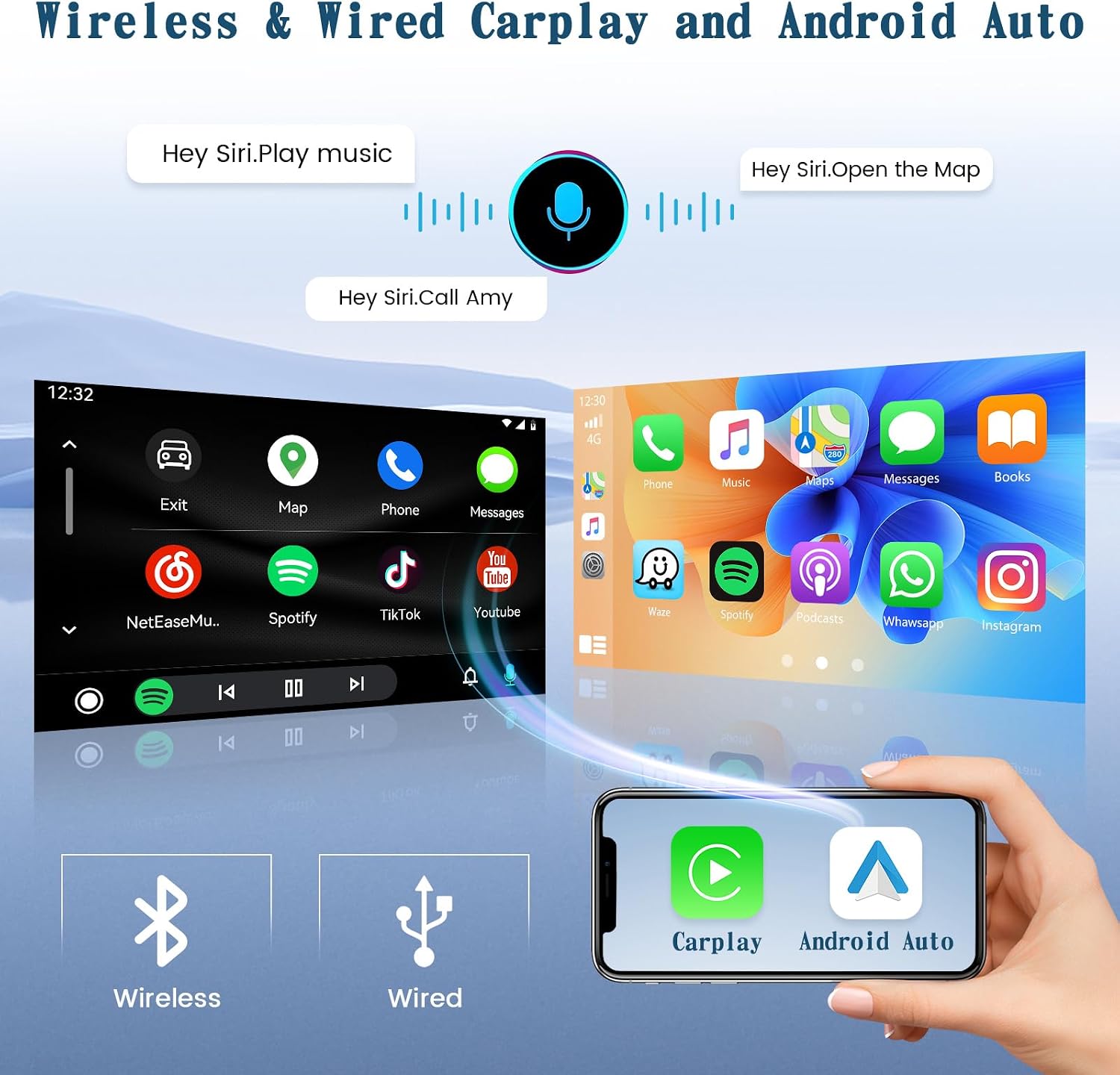
Image 5.1: Demonstration of wireless CarPlay and Android Auto functionality, including voice command integration.

Image 5.2: Various screen layouts for Wireless CarPlay and Android Auto, showcasing navigation and media apps.
5.3 MirrorLink Function
MirrorLink allows you to display your smartphone's screen on the car radio. This feature supports both iOS and Android devices.
- Connect your phone to the unit via USB.
- Select the MirrorLink option on the car radio.
- Follow any on-screen instructions on your phone to grant permission for screen mirroring.

Image 5.3: Illustration of MirrorLink functionality, displaying a smartphone's content on the car radio screen.
5.4 FM/RDS Radio
Access the FM radio function to listen to local broadcasts. The RDS (Radio Data System) feature provides additional information like station name and traffic updates.
- Select the 'Radio' icon from the main menu.
- Use the 'Search' function for automatic or semi-automatic channel scanning.
- Manually tune frequencies using the on-screen controls.

Image 5.4: FM/RDS radio interface showing available frequencies and station information.
5.5 Equalizer Adjustment
Customize your audio experience using the built-in equalizer. Adjust settings for bass, midrange, and treble to suit your preferences.
- Navigate to the 'EQ' or 'Sound Settings' menu.
- Choose from preset equalizer modes or manually adjust individual frequency bands.
5.6 Media Playback & Charging
The unit supports media playback from USB flash drives and offers charging capabilities via its dual USB and Type-C ports.
- Insert a USB flash drive into the designated USB slot to play audio or video files.
- Connect your smartphone or other devices to the USB or Type-C ports for fast charging.

Image 5.5: Connectivity options for USB flash drives, USB charging, and Type-C charging.

Image 5.6: High-definition video playback on the 1280x480 resolution screen.
5.7 Bluetooth Hands-free Calling
Pair your phone via Bluetooth to make and receive calls hands-free.
- Ensure Bluetooth is enabled on both your phone and the car radio.
- Search for and select the car radio's Bluetooth name on your phone.
- Once connected, you can dial numbers, answer calls, and access your phonebook through the car radio interface.

Image 5.7: Illustration of music playback and hands-free calling features.
5.8 Steering Wheel Control (SWC)
If your vehicle supports it, you can connect the car radio to your existing steering wheel controls for convenient operation.
- Connect the SWC wires (KEY1, KEY2) from your vehicle to the car radio.
- Access the 'Steering Wheel Control' settings in the car radio's menu.
- Follow the on-screen instructions to program each button on your steering wheel to the desired function.

Image 5.8: Visuals demonstrating rear view camera display and steering wheel control setup.
5.9 Rear View Camera
When a compatible rear view camera is connected, the display will automatically switch to the camera feed when the vehicle is put into reverse gear.
- Ensure the rear camera is correctly installed and connected to the 'Rear Camera Input' on the car radio.
- The camera feed will appear automatically when reversing.
5.10 User Interface (UI) and Lighting
The unit features a customizable user interface and supports 7 colorful light options for the physical buttons.
- Navigate through the various UI screens by swiping or using the navigation buttons.
- Access the 'Settings' menu to customize the button backlight color.

Image 5.9: Examples of the car radio's user interface and the customizable 7-color button lighting.
6. Maintenance
To ensure the longevity and optimal performance of your Roinvou car radio, follow these maintenance guidelines:
- Cleaning the Screen: Use a soft, lint-free cloth to gently wipe the touchscreen. For stubborn smudges, slightly dampen the cloth with water or a screen-safe cleaner. Avoid harsh chemicals or abrasive materials.
- General Cleaning: Keep the unit free from dust and debris. Use a soft brush or compressed air to clean around buttons and ports.
- Temperature: Avoid exposing the unit to extreme temperatures, both hot and cold, for extended periods.
- Liquid Exposure: Prevent liquids from entering the unit. In case of accidental spills, power off the unit immediately and allow it to dry completely before use.
- Firmware Updates: Periodically check the Roinvou official website for any available firmware updates to ensure the unit has the latest features and bug fixes.
7. Troubleshooting
If you encounter issues with your car radio, refer to the following common problems and solutions:
| Problem | Possible Cause | Solution |
|---|---|---|
| Unit does not power on. | No power supply; Blown fuse; Incorrect wiring. | Check power connections. Inspect vehicle's fuse box and the unit's fuse. Verify wiring according to the diagram. |
| No sound. | Volume too low; Mute activated; Speaker wiring issue. | Increase volume. Check if mute is active. Verify speaker connections. |
| Bluetooth not connecting. | Bluetooth off; Incorrect pairing; Interference. | Ensure Bluetooth is enabled on both devices. Delete previous pairings and re-pair. Move away from other wireless devices. |
| CarPlay/Android Auto not starting. | Incorrect connection; Phone settings; App issues. | Ensure proper wireless or wired connection. Check phone settings for CarPlay/Android Auto permissions. Restart phone and unit. |
| Rear camera image not displaying. | Camera not connected; Reverse trigger wire issue; Faulty camera. | Verify camera connection. Check the reverse trigger wire connection. Test camera functionality. |
| Touchscreen unresponsive. | System freeze; Software glitch. | Press the RES (Reset) button with a thin object (e.g., paperclip). Restart the unit. |
8. Specifications
- Model Name:
- Roinvou
- Display Size:
- 6.86 Inches
- Screen Resolution:
- 1280x480 IPS
- Operating System:
- Proprietary (supports Wireless CarPlay & Android Auto)
- Memory:
- 1GB RAM, 32GB Storage
- Connectivity:
- Bluetooth, USB, Wi-Fi, Type-C
- Audio Output Mode:
- Stereo
- Special Features:
- FM/RDS, EQ, Mirror Link, HD Video Playback, Wireless Apple CarPlay and Android Auto, USB Charging, Dual USB Input, Type C Input, IPS Screen, Physical Knob, 1280*480 Resolution
- Mounting Type:
- Single Din Dashboard Mount
- Item Weight:
- 2.66 pounds
- Package Dimensions:
- 8.31 x 7.4 x 3.86 inches
9. Warranty and Support
The Roinvou Single Din Car Radio comes with a 1-Year Warranty from the date of purchase, covering manufacturing defects.
For technical support, warranty claims, or further assistance, please contact Roinvou customer service through the retailer where the product was purchased or visit the official Roinvou website.
Extended protection plans may be available for purchase separately:
- 2-Year Protection Plan
- 3-Year Protection Plan
