1. Introduction
This manual provides detailed instructions for the installation, operation, and maintenance of your Haloview Byte Tango BT6 Touch RV Backup Camera System. Please read this manual thoroughly before using the product to ensure proper function and safety.
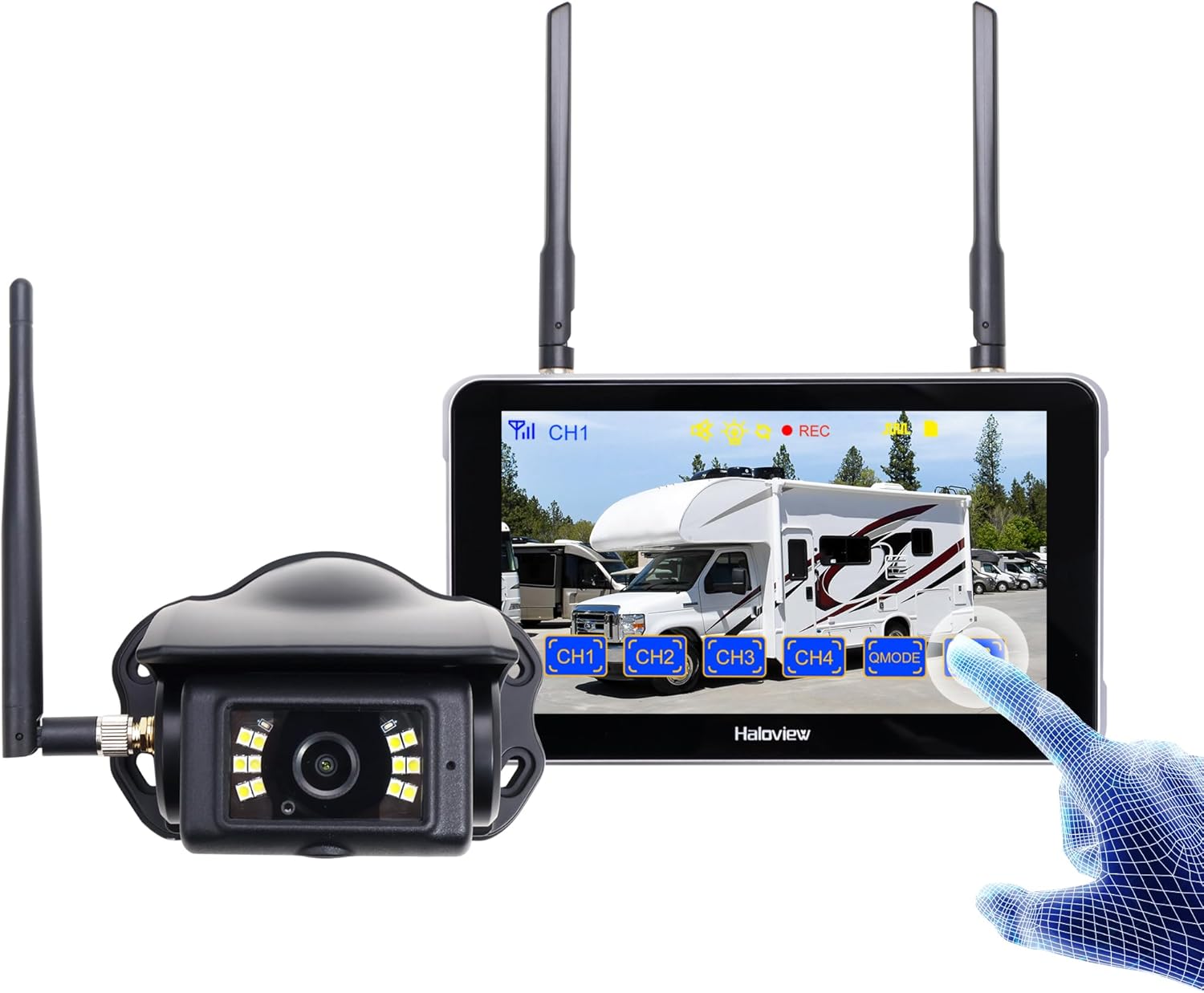
Image 1.1: Haloview Byte Tango BT6 Touch RV Backup Camera System components, including the 5.5-inch touch screen monitor and the wireless camera.
Key Features:
- 2.5D Curved Glass 5.5'' Touch Screen: Offers a smooth and responsive user interface.
- Low Latency Wireless Technology: Ensures minimal lag and interference-free signal transmission, supporting vehicles up to 65ft in length (e.g., RVs, travel trailers, trucks, campers, vans, pickups, tractors, fifth wheels, motorhomes).
- Full-Color Dim-Light Night Vision: Advanced image sensors provide full-color video even in low-light conditions. Night Vision Fill Lights can be activated or deactivated remotely via the monitor.
- Audio Capture: Built-in speaker alerts users to pedestrians, animals, or unusual sounds in the surroundings.
- Built-in DVR: Supports real-time recording and video playback with 1080P@30fps FHD resolution.
2. What's in the Box
Verify that all items listed below are included in your package:

Image 2.1: All components included in the Haloview Byte Tango BT6 Touch system package.
- BT6 Touch Screen Monitor
- BTC128 Camera
- Suction Cup Mount Bracket
- 3M Mount Bracket
- Type-C Cable
- Camera Conversion Cable
- Power Adapter for Furrion Pre-wired RV
- Pairing Cable
- Cigarette Lighter Power Adapter
3. Setup and Installation
3.1 Camera Installation
- Choose a Mounting Location: Select a suitable surface mount location at the rear of your vehicle, ensuring a clear view and protection from direct impact.
- Secure the Camera: Mount the BTC128 camera securely using appropriate fasteners. Ensure the antenna is positioned for optimal signal reception.
- Power Connection: Connect the camera to a 12V DC power source. If your RV is pre-wired for Furrion, use the provided power adapter. Otherwise, connect to your vehicle's reverse light circuit or another suitable 12V power source.
3.2 Monitor Installation
- Mount the Monitor: Attach the 5.5-inch monitor to your dashboard or windshield using either the suction cup mount bracket or the 3M adhesive mount bracket. Ensure the monitor is positioned for easy viewing without obstructing your driving view.
- Power the Monitor: Connect the monitor to power using the provided cigarette lighter power adapter or the Type-C cable for USB power.
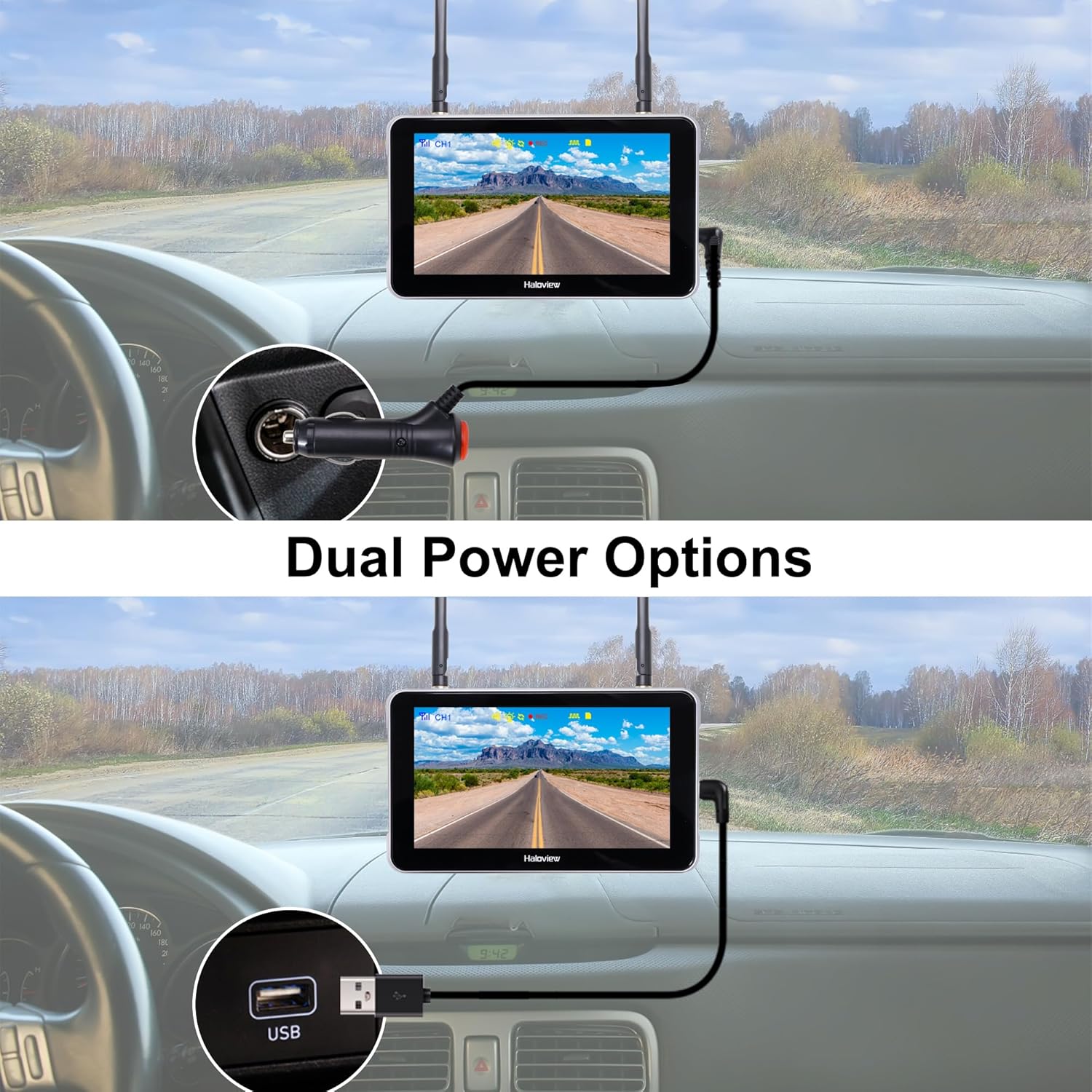
Image 3.1: The monitor can be powered via a cigarette lighter adapter or a USB Type-C cable.
3.3 Pairing the Camera and Monitor
The camera and monitor are typically pre-paired from the factory. If no image appears or you are adding additional cameras, follow these steps:
- Power on both the camera and the monitor.
- On the monitor, navigate to the pairing menu (refer to the operating section for menu access).
- Select an available channel for pairing.
- Press the pairing button on the camera (if applicable, consult camera-specific instructions) or follow the on-screen prompts on the monitor to initiate pairing.
- Once paired, the camera's video feed will appear on the monitor.

Image 3.2: Wireless signal transmission between the camera and monitor.
4. Operating Instructions
4.1 Basic Operation
- Power On/Off: Press and hold the power button on the monitor to turn it on or off.
- Touch Screen Interface: Navigate through menus and settings by tapping and swiping on the 5.5-inch touch screen.
- Channel Switching: If multiple cameras are connected, tap the channel buttons (CH1, CH2, etc.) on the screen to switch between camera views.

Image 4.1: The touch screen allows for intuitive control of the system.
4.2 Advanced Features
- Image Flip: Access the settings menu to adjust the image orientation (horizontal/vertical flip) to match your camera's mounting position.

Image 4.2: The image flip function allows for various display orientations.
- Night Vision: The system automatically adjusts for low-light conditions. Night Vision Fill Lights can be manually controlled via the monitor settings if ambient light is extremely low.

Image 4.3: The camera provides full-color images even in dim light conditions.
- DVR Recording: Insert a Micro-SD card (not included) into the monitor's slot to enable continuous recording. Access recorded footage through the playback menu. The system records in 1080P at 30 frames per second.

Image 4.4: The monitor supports Micro-SD card recording for continuous video capture.
- Rear Assist Marker Lines: Customizable parking guidelines can be activated and adjusted via the monitor settings to aid in reversing and parking maneuvers.
Image 4.5: Customizable rear assist marker lines for precise maneuvering.
5. Maintenance
- Cleaning: Use a soft, dry cloth to clean the monitor screen and camera lens. For stubborn dirt, slightly dampen the cloth with water. Avoid abrasive cleaners or solvents.
- Cable Connections: Periodically check all cable connections for tightness and signs of wear. Ensure power cables are securely plugged in.
- Camera Lens: Keep the camera lens clear of dirt, snow, or ice to maintain optimal image quality.
- Antennas: Ensure antennas on both the camera and monitor are securely attached and positioned for best signal.
6. Troubleshooting
- No Image on Monitor:
- Ensure both the camera and monitor are powered on.
- Check all power connections.
- Verify that the camera and monitor are properly paired (refer to Section 3.3).
- Check for obstructions between the camera and monitor that might block the wireless signal.
- Poor Image Quality:
- Clean the camera lens.
- Ensure the camera is securely mounted and not vibrating.
- Check for strong interference sources nearby.
- Recording Issues:
- Ensure a compatible Micro-SD card is inserted correctly.
- Check if the Micro-SD card is full; format it if necessary (this will erase all data).
- Verify recording settings in the monitor menu.
- Monitor Not Responding to Touch:
- Restart the monitor by powering it off and on again.
- Ensure the screen is clean and free of debris.
7. Specifications
| Feature | Specification |
|---|---|
| Product Dimensions (Monitor) | 6.1 x 1 x 8.8 inches (155mm L x 25mm W x 88mm H) |
| Item Weight | 2.7 pounds |
| Screen Size | 5.5 Inches |
| Display Technology | LCD |
| Wireless Connectivity | 2.4G Digital Wireless |
| Compatible Devices | BTC128, BTC129, BTC126, BTC125, BTC131 |
| Installation Type | Surface Mount |
| Operating Voltage | 12 Volts (DC) |
| Optical Sensor Technology | CMOS |
| Lens Type | Fixed Wide Angle |
| Real Angle of View | 120 Degrees |
| Video Recording Resolution | 1080P@30fps FHD |

Image 7.1: Physical dimensions of the Haloview monitor and a summary of key features.
8. Warranty and Support
8.1 Warranty Information
Haloview products are covered by a limited warranty. Please refer to the warranty card included with your product or visit the official Haloview website for detailed warranty terms and conditions. Keep your purchase receipt as proof of purchase for warranty claims.
8.2 Customer Support
For technical assistance, troubleshooting, or product inquiries, please contact Haloview customer support through the following channels:
- Website: Visit the official Haloview website for FAQs, support resources, and contact forms.
- Email: Refer to your product packaging or the Haloview website for the customer support email address.
- Phone: Contact numbers may be available on the official website for direct support.
When contacting support, please have your product model (BT6 Touch) and purchase information ready.


