
Introduction
The BFADEHA MFi Certified Bluetooth Smart Card Tracker is designed to help you locate your valuable items quickly and efficiently using the Apple Find My network. This ultra-thin, durable tracker fits seamlessly into wallets, passport holders, or attaches to keychains, providing peace of mind with its long-lasting battery and robust tracking features.
What's in the Box
- 1x BFADEHA Smart Tracker Tag
- 1x User Manual
Safety Information
- Do not attempt to disassemble, open, crush, heat, or incinerate the device.
- Keep the device away from water and moisture.
- Avoid exposing the device to extreme temperatures.
- Dispose of the device and its battery responsibly according to local regulations.
- This device is designed for iOS devices only and is MFi Certified.
Setup
Follow these steps to set up your BFADEHA Smart Card Tracker with the Apple Find My app:
- Ensure your iPhone or iPad has the Find My app installed and Bluetooth is enabled.
- Open the Find My app on your iOS device.
- Tap the "Items" tab at the bottom of the screen.
- Tap the "+" icon and select "Add New Item" or "Other Supported Item".
- Press and hold the function button on your BFADEHA Smart Card Tracker for 5 seconds until you hear a confirmation sound.
- Your device will appear in the app. Tap "Connect" and follow the on-screen prompts to link it to your Apple ID.
- Once connected, you can name your item (e.g., "Wallet," "Keys," "Passport").

Image: Easy pairing process with the Apple Find My app.
Video: BFADEHA Smart Tag - Track. Trust. Triumph. This video demonstrates the general functionality and ease of use of the smart tracker.
Operating Instructions
Locating Your Item
To find your item when it's nearby:
- Open the Find My app.
- Select your BFADEHA Smart Card Tracker from the "Items" list.
- Tap "Play Sound" to make the tracker emit a loud sound (up to 80-100 dB), helping you pinpoint its exact location.

Image: Using the "Play Sound" feature in the Find My app to locate your tracker.
Finding a Lost Item (Far Away)
If your item is not nearby, the Find My app will show its last known location on a map. You can then use the "Directions" feature to navigate to that location.
- Open the Find My app.
- Select your BFADEHA Smart Card Tracker.
- Tap "Directions" to get navigation instructions to the item's last recorded location.

Image: Navigating to a lost item's location using the Find My app.
Left-Behind Alerts
Enable "Notify When Left Behind" in the Find My app settings for your tracker to receive an alert on your iPhone or iPad if you leave your item behind.
Image: Example of a "Left Behind" notification from the Find My app.
Lost Mode
If your item is truly lost, you can activate "Lost Mode" in the Find My app. This allows you to:
- Display a message and contact information to anyone who finds your item.
- Receive a notification when your item's location is updated.
Image: Activating Lost Mode in the Find My app.
Video: Application scenario of BFADEHA Tag. This video illustrates various uses and features of the tracker, including finding items and left-behind reminders.
Maintenance
Battery
The BFADEHA Smart Card Tracker is designed for ultra-low power consumption, offering a battery life of 5-10 years on a single, replaceable battery. No charging is required. When the battery is low, the Find My app will notify you.
Cleaning
Wipe the tracker with a soft, dry cloth. Avoid using harsh chemicals or abrasive materials.
Durability
Constructed from premium ABS material, the tracker is ultra-thin (0.1 inches / 2.5mm) and durable, designed to withstand daily use. It is also IP67 waterproof, offering protection against dust and temporary immersion in water.
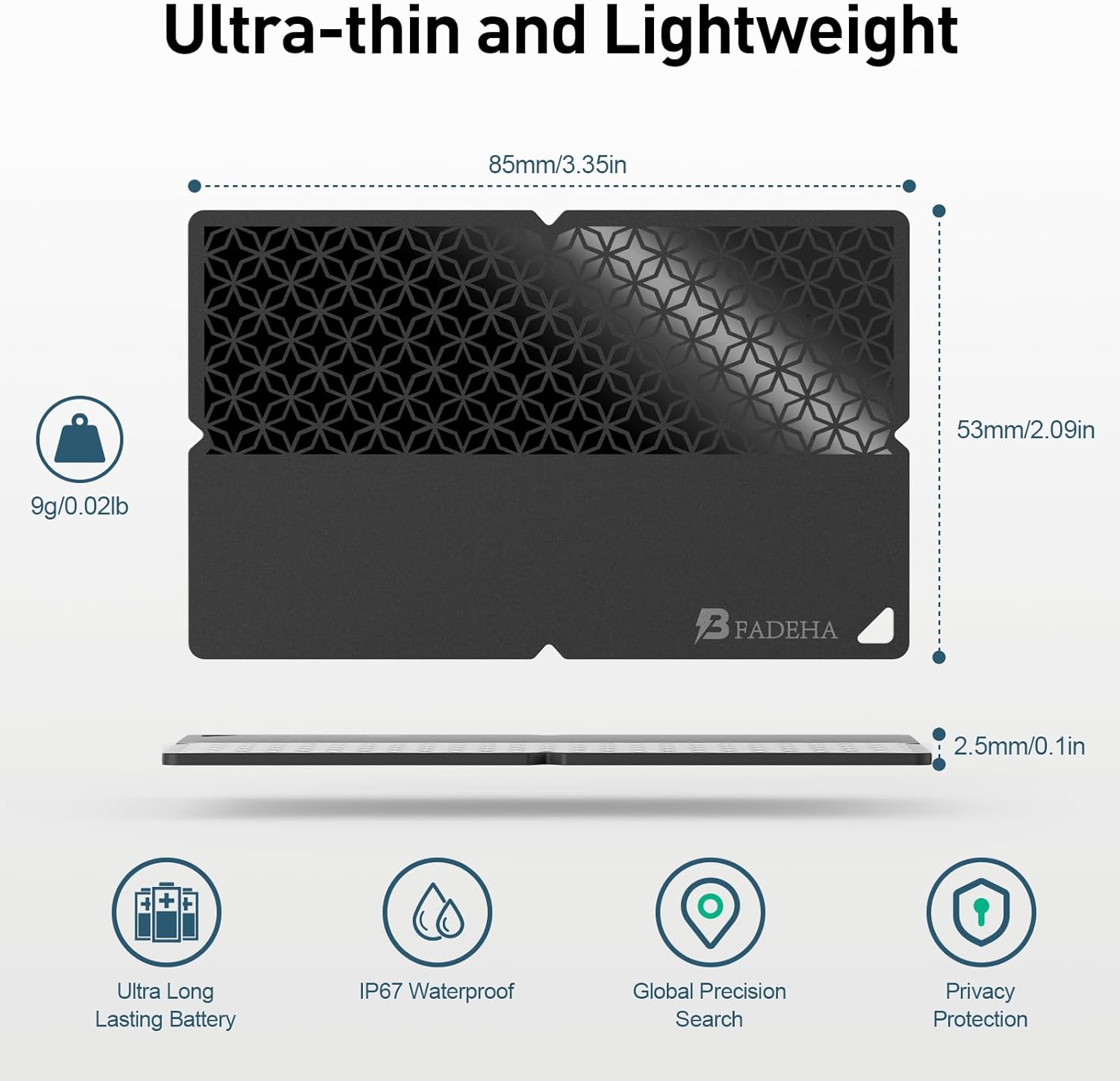
Image: Dimensions and key features of the ultra-thin and lightweight tracker.
Troubleshooting
Tracker Not Connecting to Find My App
- Ensure Bluetooth is enabled on your iOS device.
- Make sure the tracker's battery is not depleted.
- Try restarting your iOS device and the Find My app.
- If the issue persists, try re-pairing the tracker by following the "Setup" instructions.
Sound Not Playing or Too Faint
- Ensure your iOS device is within Bluetooth range of the tracker.
- Check for any obstructions that might muffle the sound.
- Verify that the volume on your iOS device is turned up.
Inaccurate Location Information
- Location accuracy depends on the Apple Find My network. In areas with fewer Apple devices, location updates might be less frequent or precise.
- Ensure your iOS device has a stable internet connection (Wi-Fi or cellular data).
Specifications
| Feature | Detail |
|---|---|
| Model Number | B-001 |
| Dimensions | 3.35 x 2.09 x 0.1 inches (85 x 53 x 2.5 mm) |
| Connectivity | Bluetooth |
| Compatibility | iOS devices (Apple Find My network) |
| Battery Life | 5-10 years (replaceable, non-rechargeable) |
| Material | Premium ABS Plastic |
| Water Resistance | IP67 |
| Alarm Volume | Up to 80-100 dB |
Warranty and Support
Warranty Information
This BFADEHA Smart Card Tracker comes with a 3-year warranty from the date of purchase, covering manufacturing defects. Please retain your proof of purchase for warranty claims.
Customer Support
For technical assistance or warranty inquiries, please contact BFADEHA customer support through the retailer where you purchased the product or visit the official BFADEHA website for contact details.
