Introduction
The EliteBloom T5 Smart Voice Translator is a portable, real-time multi-language speech interactive device designed to facilitate communication across language barriers. It supports translation between over 40 languages, making it suitable for business, travel, and international communication.
This manual provides essential information on setting up, operating, maintaining, and troubleshooting your T5 translator.

Image: EliteBloom T5 Smart Voice Translator. This image displays the device's front view with its screen and a subtle background, highlighting its modern design.
Product Specifications
| Product Model | T5 |
| Operating System | Android |
| Screen Size | 2.4 inches |
| Data Interface | Mini 5pin |
| Voice Output | Microsoft SR |
| Translation Engine | Microsoft |
| Networking Mode | WIFI |
| Battery Capacity | 1450mAh |
| Dimensions (Approx.) | Width: 54.8mm, Thickness: 14.6mm |
| Supported Languages | Over 40 languages |

Image: EliteBloom T5 Smart Voice Translator with dimensions. This image illustrates the physical dimensions of the device, showing its width and thickness.
Setup Guide
- Charge the Device: Before first use, fully charge the T5 translator using the provided Mini 5pin USB cable and a compatible power adapter. The charging indicator will typically show progress and turn off when fully charged.
- Power On/Off: Press and hold the power button (usually located on the side) for a few seconds to turn the device on or off.
- Initial Setup: Upon first power-on, follow the on-screen prompts to select your preferred system language and connect to a Wi-Fi network. A stable Wi-Fi connection is essential for real-time translation.
- Language Selection: Navigate to the language settings to select the source and target languages for translation. The device supports a wide range of languages for mutual translation.
Operating Instructions
Real-Time Voice Translation
The T5 translator features dual microphones for accurate voice pickup, ensuring clear input for translation.
- Select Languages: On the main screen, ensure the correct source and target languages are selected.
- Initiate Translation: Press and hold the designated translation button (often marked with a microphone icon or a specific color) corresponding to the language you are speaking.
- Speak Clearly: Speak naturally and clearly into the device's microphone. Release the button once you have finished speaking.
- Receive Translation: The device will process your speech and provide the translation in the selected target language, both audibly and visually on the screen.
Language Coverage
The T5 supports real-time translation across more than 40 languages, covering major regions globally. This includes translation between various foreign languages as well as between Chinese and foreign languages.

Image: Instant translation in more than 40 languages. This image displays a world map highlighting regions and languages supported by the T5 translator, indicating its global coverage.
Maintenance
Battery Care
- The built-in 1450mAh lithium battery provides extended usage time.
- To prolong battery life, avoid extreme temperatures and fully discharge/recharge the device periodically.
- Use only the specified charging cable and adapter.
Software Updates
The T5 translator supports online automatic upgrades. When a new system update is available, the device will automatically prompt or perform a background update when connected to Wi-Fi. Ensure your device is connected to a stable Wi-Fi network during updates.
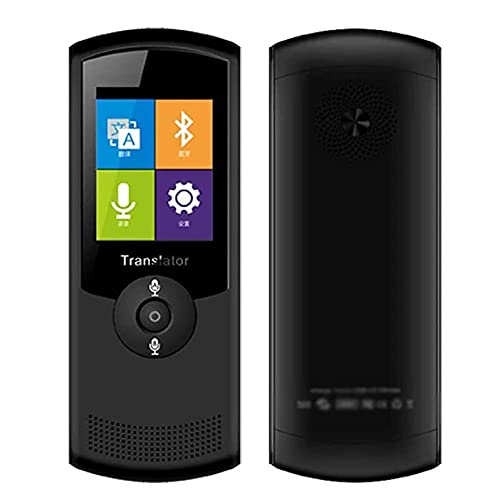
Image: Background push online automatic upgrade. This image illustrates the device's capability for automatic software updates via background push when connected to the internet.
Cleaning
- Wipe the device with a soft, dry cloth.
- Do not use liquid cleaners or aerosols directly on the device.
- Keep the device away from water and excessive moisture.
Troubleshooting
- Device Not Powering On: Ensure the battery is sufficiently charged. Connect the device to a power source and try again.
- Translation Not Working:
- Verify that the device is connected to a stable Wi-Fi network.
- Check if the correct source and target languages are selected.
- Ensure you are pressing and holding the correct translation button while speaking.
- Speak clearly and at a moderate pace directly into the microphone.
- Inaccurate Translation:
- Ensure your speech is clear and free from background noise.
- Confirm the selected languages are correct for the conversation.
- The accuracy can sometimes depend on complex sentence structures or specific dialects.
- Device Freezing/Unresponsive: Press and hold the power button for an extended period (e.g., 10-15 seconds) to force a restart.
Warranty and Support
Specific warranty information and details regarding customer support are typically provided with the product packaging or can be found on the official EliteBloom website. Please refer to these resources for comprehensive warranty terms, service contact information, and additional support.