
Introduction
This manual provides detailed instructions for the setup, operation, and maintenance of your Twisted Minds TM-FUSION-X 4-in-1 Gaming Accessories Kit. This kit includes an 87-key wired mechanical keyboard, a 4-level adjustable DPI gaming mouse, an LED gaming headset, and a large fabric gaming mousepad. Please read this manual carefully before using the product to ensure optimal performance and longevity.

Image: The complete Twisted Minds 4-in-1 Gaming Accessories Kit, including the mechanical keyboard, gaming mouse, LED headset, and large mousepad, set up with a monitor for a full gaming experience.
Setup Instructions
1. Mechanical Keyboard
Connect the USB cable of the mechanical keyboard to an available USB port on your computer. The keyboard is plug-and-play and should be recognized automatically by most Windows operating systems (XP/Vista/7/8/10).

Image: A close-up view of the Twisted Minds 87-key wired mechanical keyboard, highlighting its compact design, blue mechanical switches, and dynamic RGB backlighting.
2. Gaming Mouse
Connect the USB cable of the gaming mouse to an available USB port on your computer. The mouse is also plug-and-play. Drivers will install automatically.

Image: The Twisted Minds gaming mouse, showcasing its ergonomic design, 4-level adjustable DPI button, and vibrant 7-color LED lighting effects.
3. LED Gaming Headset
Connect the headset's 3.5mm audio jack(s) and USB cable (for LED lighting) to the corresponding ports on your computer. Ensure the microphone is positioned correctly for clear communication.
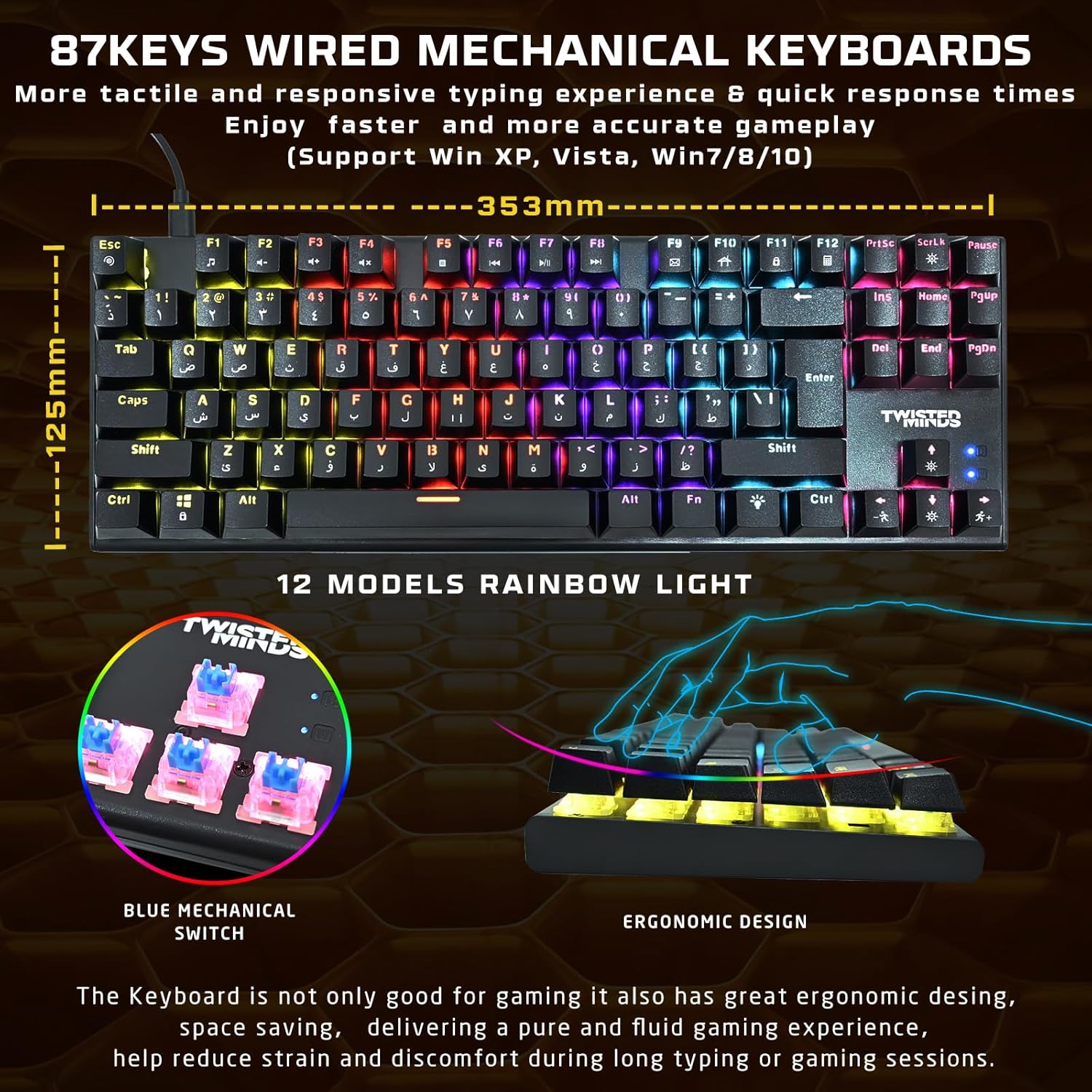
Image: The Twisted Minds LED gaming headset, featuring static rainbow RGB lighting on the earcups, a flexible omnidirectional microphone, and soft PU ear covers for comfort.
4. Gaming Mousepad
Unroll the mousepad and place it on a flat, clean surface. Ensure there are no obstructions for optimal mouse movement.

Image: The Twisted Minds comfy fabric gaming mousepad, illustrating its large dimensions (900mm x 400mm), 3mm extra-thick design, durable edge, RoHS certification, and natural rubber base.
Operating Instructions
1. Mechanical Keyboard
- Key Switches: The keyboard features 87 tactile blue mechanical switches for responsive feedback.
- RGB Lighting: Cycle through 12 dynamic rainbow lighting modes using the dedicated lighting control keys (refer to keyboard layout for specific keys, often Fn + a specific key).
- Anti-Ghosting: The 25-key anti-ghosting feature ensures that multiple simultaneous key presses are registered accurately during intense gaming.
2. Gaming Mouse
- DPI Adjustment: Use the DPI button (usually located behind the scroll wheel) to switch between 4 sensitivity levels: 1200, 1800, 2400, and 3600 DPI. Adjust according to your preference for different games or tasks.
- LED Lighting: The mouse features a 7-color LED backlight that changes automatically.
3. LED Gaming Headset
- Audio: Enjoy rich stereo sound through the 40mm drivers.
- Microphone: The flexible omnidirectional microphone allows for clear voice communication. Adjust its position for optimal pickup.
- Volume Control: Use the in-line volume control to adjust audio levels.
- LED Lighting: The headset features static rainbow RGB LED lights, powered via the USB connection.
Maintenance
- Cleaning: Use a soft, dry cloth to clean the surfaces of the keyboard, mouse, and headset. For the keyboard, you may use compressed air to remove dust and debris from between the keys.
- Mousepad: The fabric mousepad can be gently wiped with a damp cloth and mild soap if necessary. Allow it to air dry completely before use.
- Avoid Liquids: Do not immerse any electronic components in water or other liquids.
- Storage: Store the accessories in a cool, dry place away from direct sunlight and extreme temperatures when not in use.
Troubleshooting
Keyboard/Mouse Not Responding
- Ensure the USB cables are securely connected to your computer.
- Try connecting to a different USB port.
- Restart your computer.
Headset Audio Issues
- Check if the 3.5mm audio jack(s) are fully plugged into the correct ports (audio out, mic in).
- Verify that the in-line volume control is not set to minimum or muted.
- Ensure the headset is selected as the default audio device in your computer's sound settings.
LED Lights Not Working
- For the keyboard, ensure you have cycled through the lighting modes using the dedicated keys.
- For the headset, ensure the USB cable is connected to provide power for the LEDs.
- Check USB connections for all devices.
Specifications
| Component | Specification |
|---|---|
| Keyboard | ABS material, 87 keys, 12 RGB modes, 25-key anti-ghosting. Compatible with Win XP/Vista/7/8/10. QWERTY layout. |
| Mouse | 1200-3600 DPI (4 levels), 7-color LED, 1.5m braided cable. |
| Headset | φ40mm drivers, Omnidirectional microphone (φ60 × 50mm), Static RGB light. |
| Mousepad | 900 × 400 × 3mm (Length × Width × Height), Rubber base + Fabric surface. |
| Connectivity | USB (Wired) |
| Color | Black |
| Power Source | Corded Electric |
| Batteries Required | No |
Warranty Information
Please refer to the warranty card included with your product or contact your retailer for specific warranty terms and conditions. Keep your proof of purchase for any warranty claims.
Support
For technical assistance or further inquiries, please contact the Twisted Minds customer support team or your product retailer. Contact information can typically be found on the product packaging or the official Twisted Minds website.
Product Demonstration
Video: A product demonstration video showcasing the features and functionality of the Twisted Minds 4-in-1 Gaming Accessories Kit.