
Oraimo OTW-630
Contents
Oraimo SpaceBuds OTW-630 Wireless Earbuds User Manual
Your comprehensive guide to setting up, operating, and maintaining your Oraimo SpaceBuds OTW-630 Hybrid ANC TWS Earbuds.
1. Product Overview
The Oraimo SpaceBuds OTW-630 are advanced True Wireless Stereo (TWS) earbuds featuring Hybrid Active Noise Cancellation (ANC) and a unique Lunar Eclipse-inspired design. They are engineered to deliver high-quality audio with deep bass, clear calls, and a comfortable fit for extended listening sessions.
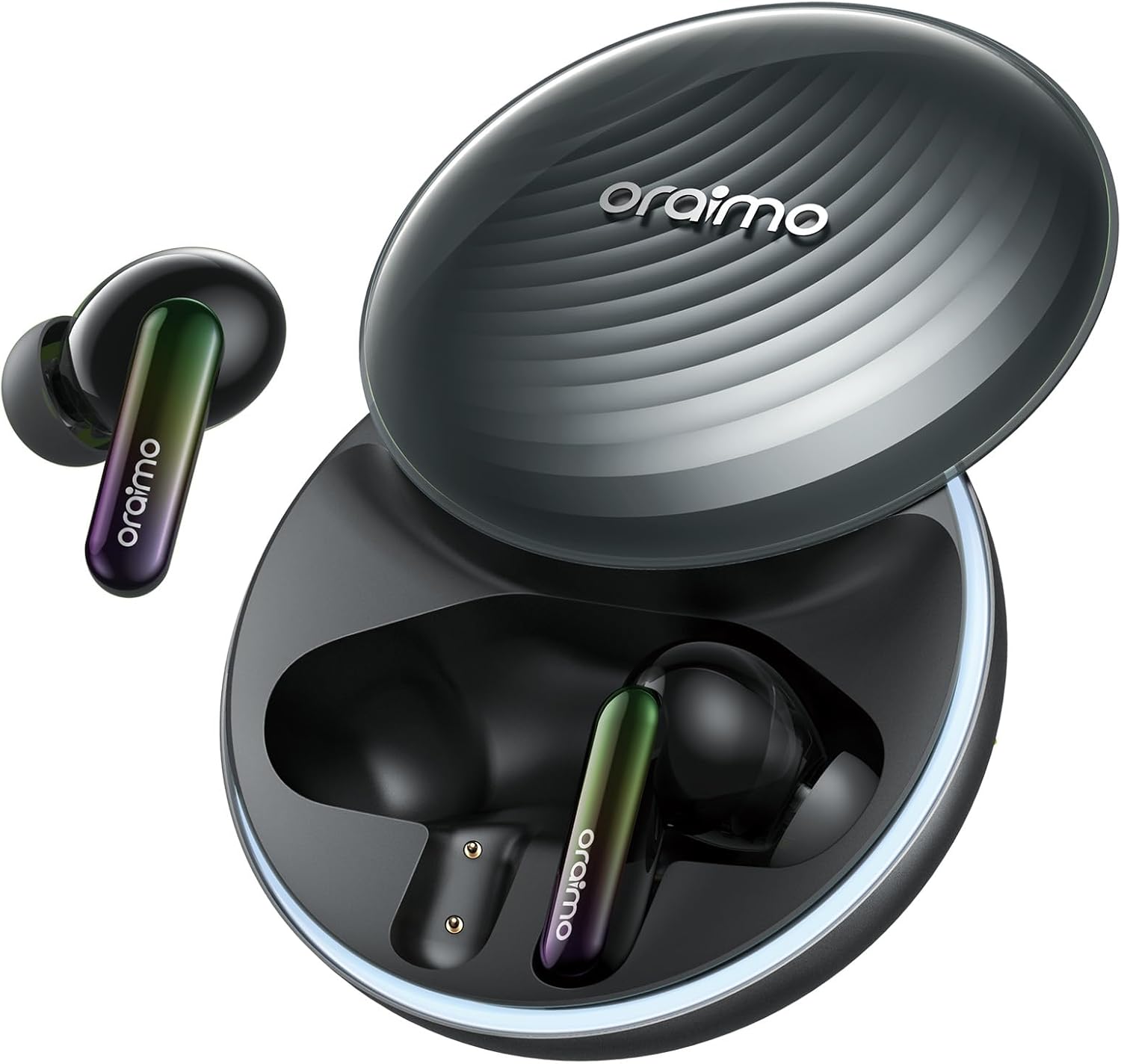
Image: Oraimo SpaceBuds OTW-630 Earbuds and Charging Case.
2. Setup Guide
2.1. What's in the Box
Before you begin, ensure all components are present in the package:
- Oraimo OTW-630 SpaceBuds Earbuds (Left and Right)
- Charging Case
- USB Type-C Charging Cable
- User Manual
- Additional Ear Tips (Small, Medium, Large sizes)

Image: All items included in the Oraimo SpaceBuds OTW-630 retail package.
2.2. Charging Your Earbuds and Case
For optimal performance, fully charge your SpaceBuds and the charging case before first use.
- Place the earbuds into the charging case. Ensure they are correctly seated in their respective slots.
- Connect the USB Type-C charging cable to the charging port on the case and the other end to a compatible USB power source.
- The indicator lights on the case will show the charging status. A full charge for the case takes approximately 1.5 hours.
The earbuds provide up to 11 hours of playtime on a single charge (ANC off) and a total of 40 hours with the charging case. With ANC on, you get up to 8 hours from the earbuds and 29 hours total with the case.

Image: Visual representation of the Oraimo SpaceBuds OTW-630 battery life and charging capabilities.
2.3. Pairing with Your Device
The SpaceBuds support Google Fast Pair for quick and seamless connection.
- Open the charging case. The earbuds will automatically enter pairing mode.
- On your device (smartphone, tablet, etc.), enable Bluetooth.
- For Android devices, a Google Fast Pair pop-up notification should appear. Tap to connect.
- For other devices, select "Oraimo SpaceBuds OTW-630" from the list of available Bluetooth devices.
- Once connected, the earbuds will indicate successful pairing with a voice prompt.

Image: Google Fast Pair notification appearing on a smartphone screen, prompting connection to Oraimo SpaceBuds.
3. Operating Instructions
3.1. Touch Controls (Wide Area Tap)
The SpaceBuds feature intuitive wide-area tap controls on the earbuds themselves. Tap according to the diagram for various functions:
- Double Tap: Play/Pause music, Answer/End call.
- Triple Tap: Switch Active Noise Cancellation (ANC) modes (ANC On/Transparency/ANC Off).
- Specific controls for skipping tracks or activating voice assistant can be customized via the Oraimo Sound App.

Image: Illustration of the wide area tap control on the Oraimo SpaceBuds, indicating the touch-sensitive region.
3.2. Hybrid Active Noise Cancellation (ANC) and Smart Chat Mode
Experience pure tranquility with up to 50dB Hybrid ANC, effectively eliminating distractions. The Smart Chat Mode offers seamless integration between music and speech. When your voice is detected, the earbuds automatically switch to Transparency Mode and pause music, allowing you to engage in conversations effortlessly. Note that Smart Chat Mode may be triggered by chewing, swallowing, coughing, or other unusual noises. This feature can be activated and managed through the Oraimo Sound App.

Image: Visual representation of the 50dB Hybrid Noise Cancelling capability of the Oraimo SpaceBuds.

Image: Comparison showing ANC Mode for immersive listening and Transparency Mode for engaging in conversations with Smart Chat Mode.
3.3. Oraimo Sound App Customization
Unlock the full potential of your SpaceBuds with the Oraimo Sound App. This companion app allows for extensive personalization and control:
- Custom Voice Prompts: Personalize the audio guides that accompany your listening journey.
- Equalizer Settings: Adjust audio profiles with various presets (e.g., HavyBass™) or create your own custom EQ.
- Personalized Lighting Effect: Choose from a range of colors for the charging case's LED lights to match your mood or style.
- Noise Control Mode: Fine-tune ANC and Transparency settings.
Download the Oraimo Sound App by scanning the QR code or visiting static-ie.oraimo.com/oraimoSound.htm.

Image: Screenshot of the Oraimo Sound App interface, highlighting equalizer settings and a QR code for download.

Image: The Oraimo SpaceBuds charging case demonstrating various personalized lighting effects.
3.4. Dual Device Connection
The SpaceBuds can connect to two devices simultaneously, allowing you to seamlessly switch between them. For example, you can play games on your tablet and still receive calls from your phone without needing to manually disconnect and reconnect.

Image: Oraimo SpaceBuds demonstrating dual device connection, showing a tablet for gaming and a smartphone for calls.
3.5. Immersive Gaming Mode
Enjoy instant audio and video synchronization for an immersive gaming experience. The 11mm dynamic drivers with HavyBass™ Active technology deliver powerful and precise sound, enhancing your gameplay.

Image: A user playing a mobile game with Oraimo SpaceBuds, illustrating instant audio and video synchronization.
3.6. Official Product Video
Video: Official product video showcasing the features and design of the Oraimo SpaceBuds Hybrid ANC earbuds.
4. Maintenance
4.1. Cleaning
To ensure longevity and optimal performance, regularly clean your earbuds and charging case:
- Gently wipe the earbuds and charging case with a soft, dry, lint-free cloth.
- Remove ear tips and clean them with mild soap and water if necessary, then dry thoroughly before reattaching.
- Use a dry cotton swab to carefully clean the charging contacts on both the earbuds and inside the case.
- Avoid using abrasive materials, alcohol, or chemical cleaners.
4.2. Water Resistance (IPX4)
The Oraimo SpaceBuds are rated IPX4 water-resistant, meaning they are protected against splashing water from any direction. This makes them suitable for workouts and light rain. However, they are not designed for swimming or submersion in water. The charging case is not water-resistant.

Image: Oraimo SpaceBuds shown with water splashes, illustrating their IPX4 water resistance.
4.3. Storage
When not in use, always store your SpaceBuds in their charging case to protect them and keep them charged. Store the case in a cool, dry place away from extreme temperatures and direct sunlight.
5. Troubleshooting
If you encounter any issues with your Oraimo SpaceBuds, try the following solutions:
| Problem | Solution |
|---|---|
| Earbuds not pairing/connecting |
|
| No sound or low volume |
|
| Charging issues |
|
| ANC not working effectively |
|
For more detailed troubleshooting or advanced settings, refer to the Oraimo Sound App or contact customer support.
6. Specifications
| Feature | Detail |
|---|---|
| Model Name | OTW-630 |
| Connectivity Technology | Wireless (Bluetooth 5.4) |
| Wireless Range | 10 meters |
| Driver Size | 11mm Dynamic Driver with HavyBass™ Active Technology |
| Noise Control | Hybrid Active Noise Cancellation (up to 50dB) |
| Earbuds Battery Capacity | 76 mAh (each) |
| Playtime (ANC Off) | Up to 11 hours (earbuds only), 40 hours total with case |
| Playtime (ANC On) | Up to 8 hours (earbuds only), 29 hours total with case |
| Charging Time | Approx. 1.5 hours (case) |
| Charging Case Input | USB Type-C |
| Water Resistance | IPX4 (earbuds only) |
| Microphones | 4 AI Noise Cancelling Microphones |
| Impedance | 35 Ohms |
| Product Dimensions | 15 x 10 x 12 cm; 20 grams |
7. Warranty and Support
Oraimo SpaceBuds OTW-630 come with a 365-day warranty from the date of purchase. Please retain your proof of purchase for warranty claims.

Image: Oraimo 365 Days Warranty badge.
For technical support, warranty inquiries, or further assistance, please contact Oraimo customer service through their official website or the contact information provided in your product packaging.
Manufacturer: Shenzhen Mosheng Innovation Technology Co., Ltd
Manufacturer Address: Building A, Fencheng Zhigu, No. 60 Tiezi Road, Xiang Street, Bao'an District, Shenzhen, Guangdong
EU REP: eWatmaster Consulting GmbH
Address: Rafflen Street 2B13 63110 Rodgau Hessen Germany
Email: contact@evatmaster.com

Image: Product label showing manufacturer and EU representative contact information.
Documents and downloads
Ask a question about this manual
Ask about setup, troubleshooting, compatibility, parts, safety, or missing instructions. Manuals+ will review the question and use this page’s manual context to help answer it.