1. Introduction
This manual provides detailed instructions for the setup, operation, and maintenance of your Samsers Foldable Keyboard and Mouse Combo (Model: KM01X). Please read this manual thoroughly before using the product to ensure optimal performance and longevity.
2. Package Contents
Upon unboxing, please verify that all the following items are included in your package:
- Samsers Foldable Keyboard
- Samsers Wireless Mouse
- Portable Carrying Case
- 2.4G USB Receiver (stored inside the mouse)
- USB-C Charging Cable
- Phone Holder
- User Manual (this document)

Image: All components of the Samsers Foldable Keyboard and Mouse Combo, including the keyboard, mouse, portable case, phone holder, and USB receiver.
3. Product Features
- Full-size Foldable Keyboard: Designed with standard dimensions (13.5 x 4.5 inches unfolded) and 0.63-inch standard keys for comfortable typing. Features a numeric keypad and multimedia shortcuts with Fn lock function.
- Adjustable Backlight: Laser-etched backlit keys with 7 captivating colors and 4 levels of brightness (High-Medium-Low-Off).
- Multi-Device Connectivity: Supports simultaneous connection to up to 3 devices via one 2.4G USB receiver and two Bluetooth 5.0 channels. Allows stable connection and quick switching between devices.
- Rechargeable Battery: Built-in rechargeable battery provides up to 90-120 days standby time after a 2-3 hour charge.
- Portable Design: The keyboard and mouse, along with the phone holder and charging cable, fit neatly into a sturdy and stylish portable case, weighing only 21 ounces.
- Quiet Operation: Keyboard features silent scissor switch keys. Mouse offers whisper-quiet clicks.
- Adjustable Mouse DPI: Mouse has 3-level DPI settings (800/1200/1600) for precise cursor control and 11 lighting effects.
- Durable Construction: Innovative seamless metal hinge design for the keyboard and non-slip PU leather bottom.
- Wide Compatibility: Compatible with Windows, Mac OS, iOS, and Android operating systems, suitable for laptops, personal computers, smartphones, and tablets.
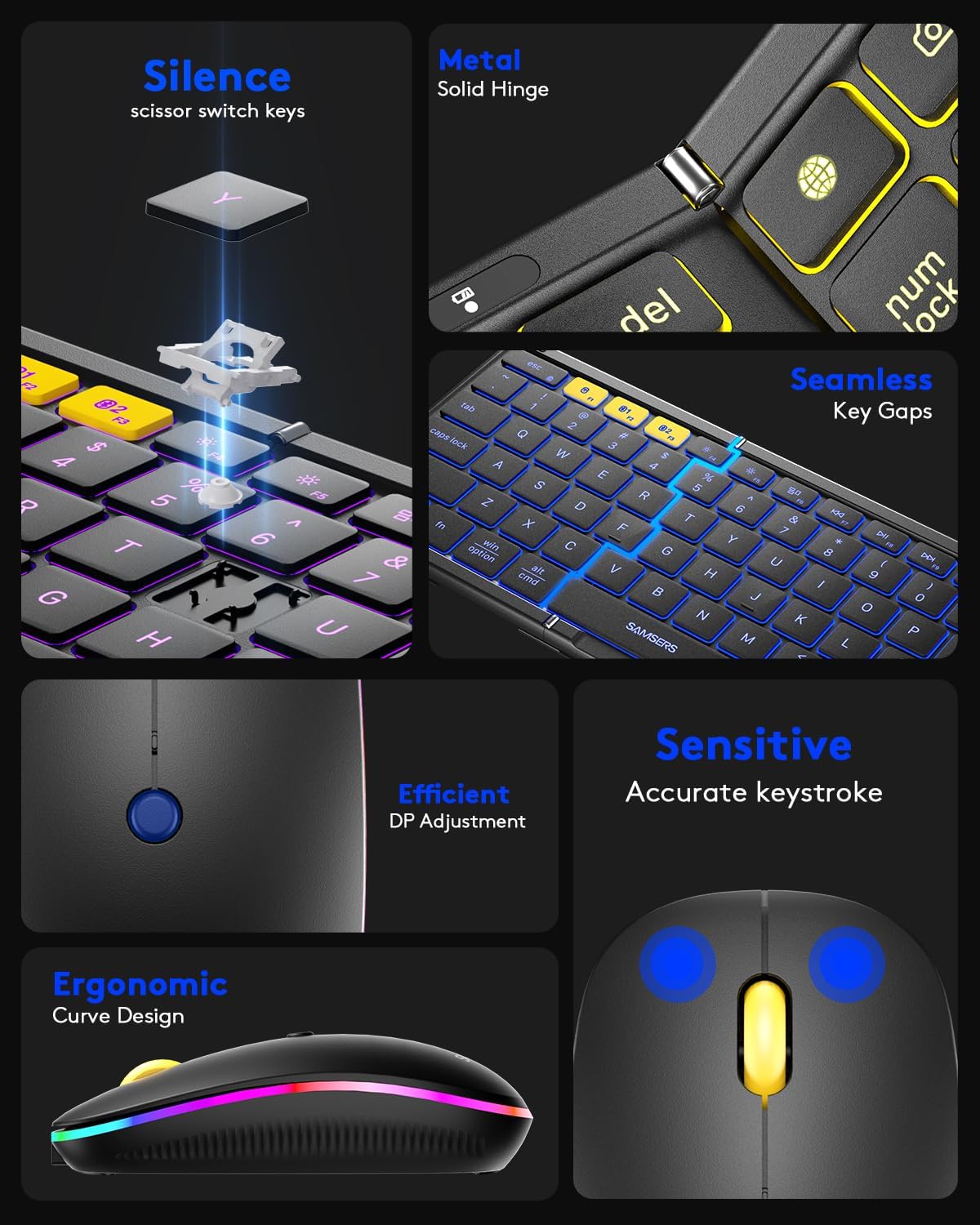
Image: Close-up view highlighting key features such as silent scissor switch keys, metal hinge, seamless key gaps, efficient DPI adjustment, sensitive click, and ergonomic curve design.
4. Setup Guide
4.1. Charging the Devices
Before initial use, ensure both the keyboard and mouse are fully charged. Use the provided USB-C charging cable.
- Connect the USB-C end of the cable to the charging port on the keyboard (located on the side when unfolded) and the mouse (located at the front).
- Connect the USB-A end to a power source (e.g., computer USB port, USB wall adapter).
- Charging indicators will illuminate during charging and turn off or change color when fully charged. A full charge typically takes 2-3 hours.
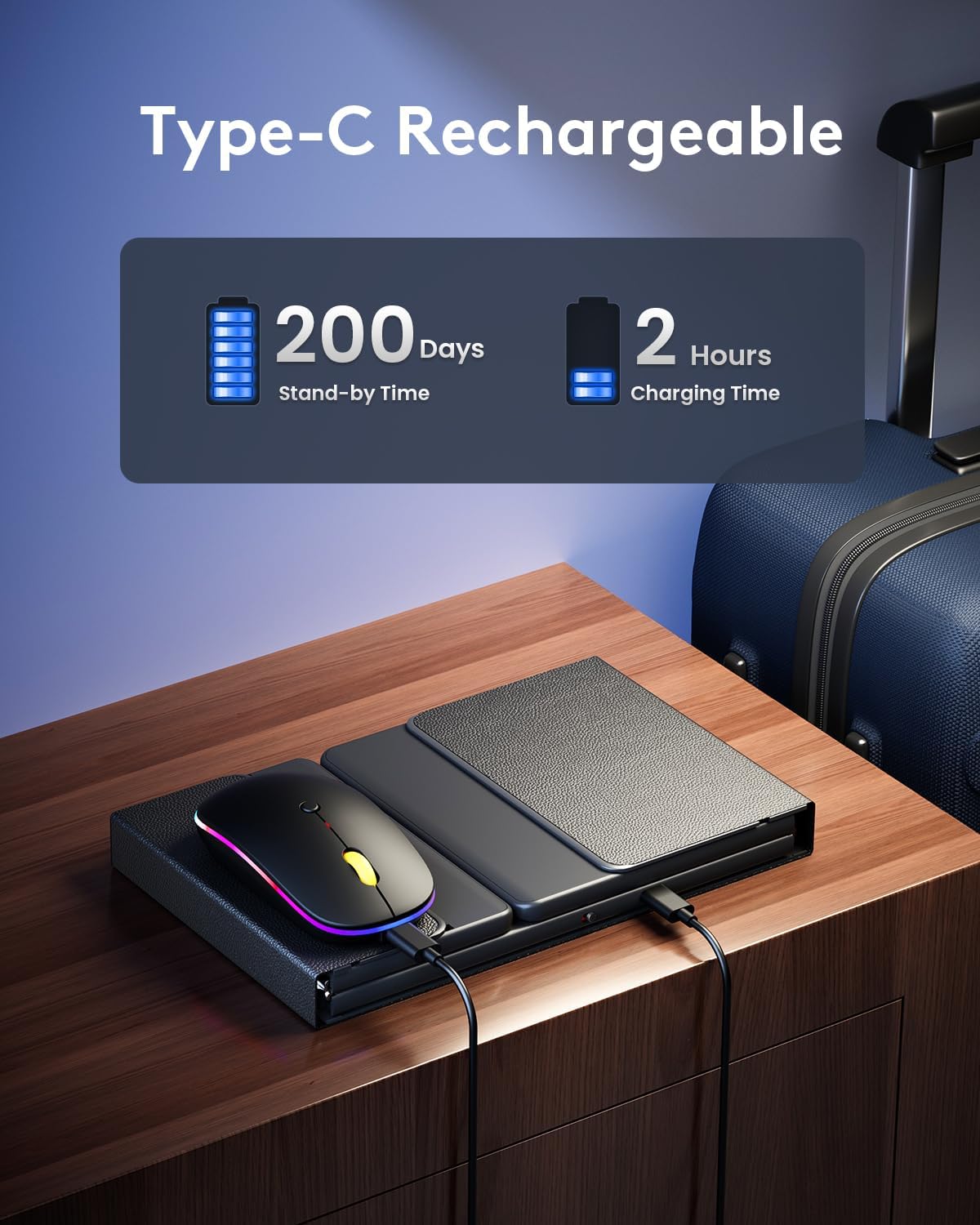
Image: The keyboard and mouse connected to charging cables, illustrating the Type-C rechargeable feature.
4.2. Keyboard Connection
The keyboard supports both 2.4G wireless and Bluetooth connections.
- Power On: Unfold the keyboard to automatically power it on. A small indicator light will briefly illuminate.
- 2.4G Wireless Connection:
- Locate the 2.4G USB receiver (usually stored in the mouse or a dedicated slot in the case).
- Plug the 2.4G USB receiver into an available USB port on your computer or device.
- The keyboard should automatically connect. If not, press Fn + 2.4G key (often labeled with a wireless icon) to activate 2.4G mode.
- Bluetooth Connection (BT1 / BT2):
- Press and hold Fn + BT1 or Fn + BT2 for 3-5 seconds until the corresponding indicator light flashes rapidly, indicating pairing mode.
- On your device (smartphone, tablet, laptop), enable Bluetooth and search for "Samsers Keyboard" or similar.
- Select the keyboard from the list of available devices to pair. Follow any on-screen prompts.
- Once paired, the indicator light will stop flashing and remain solid for a few seconds.
4.3. Mouse Connection
The mouse also supports both 2.4G wireless and Bluetooth connections.
- Power On: Locate the power switch on the bottom of the mouse and slide it to the "ON" position.
- 2.4G Wireless Connection:
- Ensure the 2.4G USB receiver is plugged into your device.
- Slide the mode switch on the bottom of the mouse to the 2.4G icon. The mouse should automatically connect.
- Bluetooth Connection (BT1 / BT2):
- Slide the mode switch on the bottom of the mouse to BT1 or BT2.
- Press and hold the pairing button (often located near the mode switch) for 3-5 seconds until the indicator light flashes rapidly.
- On your device, enable Bluetooth and search for "Samsers Mouse" or similar.
- Select the mouse from the list of available devices to pair.
- Once paired, the indicator light will stop flashing.

Image: The keyboard and mouse simultaneously connected to a laptop, tablet, and smartphone, demonstrating the multi-device switching capability.
5. Operating Instructions
5.1. Keyboard Operation
- Folding/Unfolding: The keyboard automatically powers on when unfolded and powers off when folded. Ensure it is fully unfolded for stable use.
- Backlight Adjustment:
- Press the backlight key (often labeled with a light bulb icon) to cycle through 7 colors.
- Press Fn + Backlight Key to adjust brightness levels (High, Medium, Low, Off).
- Multimedia Shortcuts: Use the Fn key in combination with the F-keys (F1-F12) for various multimedia functions (e.g., volume control, media playback).
- Fn Lock Function: Some keyboards allow locking the Fn key to directly access multimedia functions without pressing Fn. Refer to specific keyboard markings for this feature.
- Numeric Keypad: The integrated numeric keypad on the right side provides convenient numeric input.

Image: The keyboard illuminated with a purple backlight, demonstrating the "Type Day or Night" feature with adjustable brightness and multiple color options.
5.2. Mouse Operation
- DPI Adjustment: Press the DPI button (usually located below the scroll wheel) to cycle through 3 DPI levels (800/1200/1600) for varying cursor sensitivity.
- Lighting Effects: The mouse features 11 lighting effects. These can typically be cycled through by pressing a dedicated button or a combination of buttons (refer to mouse-specific instructions if available).
- Quiet Clicks: The mouse is designed for silent operation, minimizing click noise.

Image: The Samsers mouse displaying its colorful lighting effects, emphasizing its quiet click design and adjustable DPI settings.
5.3. Multi-Device Switching
To switch between connected devices:
- Keyboard: Press Fn + 2.4G, Fn + BT1, or Fn + BT2 to quickly switch to the desired connected device.
- Mouse: Slide the mode switch on the bottom of the mouse to the corresponding 2.4G, BT1, or BT2 position.
6. Maintenance
- Cleaning: Use a soft, dry cloth to clean the surfaces of the keyboard and mouse. For stubborn dirt, slightly dampen the cloth with water or a mild cleaning solution. Avoid excessive moisture.
- Battery Care:
- To prolong battery life, avoid fully discharging the devices frequently.
- Charge the devices regularly, even if not in constant use.
- Store in a cool, dry place when not in use for extended periods.
- Storage: Always fold the keyboard and place both devices in the portable carrying case when traveling or not in use to protect them from damage.
7. Troubleshooting
| Problem | Possible Cause | Solution |
|---|---|---|
| Device not connecting. | Low battery; incorrect connection mode; device not in pairing mode; interference. | Charge the device. Ensure correct mode (2.4G/BT1/BT2) is selected. Re-enter pairing mode. Move closer to the device or away from interference sources. |
| Keyboard/Mouse unresponsive. | Device powered off; low battery; connection lost. | Ensure device is powered on. Charge the device. Re-establish connection. |
| Backlight not working. | Backlight turned off; low battery. | Press the backlight key to turn it on or adjust brightness. Charge the keyboard. |
| Mouse cursor erratic/slow. | Incorrect DPI setting; dirty sensor; uneven surface. | Adjust DPI. Clean the mouse sensor. Use on a smooth, even surface. |
If you encounter issues not listed here or if the problem persists, please contact Samsers customer support for assistance.
8. Specifications
| Feature | Detail |
|---|---|
| Model Number | KM01X |
| Connectivity | Bluetooth 5.0 (x2), 2.4G Wireless |
| Keyboard Layout | Full-size, Foldable, Numeric Keypad |
| Keyboard Dimensions (Unfolded) | 13.5 x 4.5 inches |
| Key Type | Scissor Switch |
| Keyboard Backlight | 7 Colors, 4 Brightness Levels |
| Mouse DPI Settings | 800/1200/1600 |
| Mouse Lighting Effects | 11 Effects |
| Battery Type | Rechargeable (Nonstandard Battery included) |
| Standby Time | 90-120 days |
| Charging Time | 2-3 hours |
| Item Weight (Combo) | 1.38 pounds (approx. 21 ounces) |
| Compatible Devices | Laptop, Personal Computer, Smartphone, Tablet |
| Operating Systems | Windows, Mac OS, iOS, Android |
9. Warranty and Support
Samsers is committed to providing high-quality products and excellent customer service.
- Warranty: Your Samsers Foldable Keyboard and Mouse Combo is covered by a 12-month worry-free warranty from the date of purchase.
- Return Policy: Enjoy a 30-day free return or replacement policy.
- Technical Support: Our professional guide support team is available 7 days a week, 24 hours a day, to assist you with any questions or issues.
- Lifetime Service: Samsers provides lifetime technical service and support for this product.
For support, please refer to the contact information provided on the Samsers official website or the product packaging.


