
1. Introduction
This manual provides detailed instructions for the Phomemo M832 Wireless Portable Thermal Printer. It covers essential information regarding product setup, operation, maintenance, and troubleshooting to ensure optimal performance and longevity of your device. Please read this manual thoroughly before using the printer.

Image 1.1: Phomemo M832 Printer with included thermal paper rolls.
2. Product Overview
Familiarize yourself with the components and controls of your Phomemo M832 printer.

Image 2.1: Overview of the Phomemo M832 Portable Printer with key components labeled.
- 1. Power Button: Press and hold for 3 seconds to turn the printer on or off.
- 2. Open Cover Button: Press on both sides simultaneously to open the printer cover for paper loading.
- 3. Power Port: Insert the USB-C cable here for charging the printer.
- 4. Reset Button: Press to reset the device if it becomes unresponsive.
3. Setup
3.1 Unboxing
Upon opening the package, ensure all items are present:
- Phomemo M832 Portable Thermal Printer
- USB-C Charging Cable
- Thermal Paper Rolls (typically 4 rolls of 8.5" x 11" US Letter size)
- User Manual (this document)
3.2 Charging the Printer
Before initial use, fully charge the printer. Connect the provided USB-C cable to the printer's power port (3) and the other end to a compatible USB power adapter or computer. The built-in 2600mAh rechargeable battery allows for extended use.
3.3 Loading Thermal Paper
The Phomemo M832 printer uses thermal paper and supports various types, including single sheets, continuous rolls, and thermal paper rolls with an adjustable guide.
- Press the Open Cover Buttons (2) on both sides of the printer to open the top cover.
- Insert the thermal paper roll or stack into the paper compartment, ensuring the printable side is facing the print head.
- Adjust the paper guides to fit the width of your paper securely.
- Pull a small portion of the paper out beyond the print head.
- Close the top cover firmly until it clicks into place.

Image 3.1: The Phomemo M832 supports various thermal paper types and sizes, including 8.5" x 11" US Letter.

Image 3.2: Dimensions of the 8.5" x 11" (216mm) US Letter rolled thermal paper.
4. Operating the Printer
4.1 Power On/Off
To power on the printer, press and hold the Power Button (1) for approximately 3 seconds until the indicator light illuminates. To power off, press and hold the Power Button again for 3 seconds.
4.2 Connecting to Devices
The Phomemo M832 offers two primary connection methods:
- Bluetooth Connection (for Mobile Phones & Tablets):
- Download the "Phomemo" App from your device's app store.
- Enable Bluetooth on your mobile phone or tablet.
- Open the "Phomemo" App and follow the in-app instructions to connect to your M832 printer via Bluetooth.
- USB-C Cable Connection (for Laptops & Computers):
- Connect the printer to your laptop or computer using the provided USB-C cable.
- Visit M832.phomemo.com to download and install the appropriate printer driver for your operating system (Windows, macOS, Chrome OS, Linux).
Note: Bluetooth wireless connection is exclusively for mobile phones and tablets, not for laptops or desktop computers.

Image 4.1: Connectivity options for the Phomemo M832, including Bluetooth for mobile devices and USB-C for computers.
4.3 Printing
The Phomemo M832 utilizes advanced thermal technology, eliminating the need for ink, toner, or ribbons. This ensures a clean, hassle-free printing experience.
- Inkless Operation: Only thermal paper is required for printing.
- Print Quality: The printer delivers clear 300DPI print quality for documents.
- Portability: Its compact size and wireless capabilities allow you to print documents such as contracts, invoices, and boarding passes from various locations, including during travel, outdoors, in the office, or on campus.

Image 4.2: Explanation of the inkless thermal printing technology used by the M832.

Image 4.3: The Phomemo M832 printer offers the flexibility to print from anywhere.
5. Maintenance
5.1 Cleaning the Printer
To maintain print quality and prolong the life of your printer:
- Ensure the printer is powered off and unplugged before cleaning.
- Gently wipe the exterior of the printer with a soft, dry, lint-free cloth.
- For the print head, use a cotton swab lightly dampened with isopropyl alcohol. Allow it to dry completely before closing the cover and powering on.
- Avoid using harsh chemicals, abrasive cleaners, or solvents.
5.2 Thermal Paper Handling
Proper storage and handling of thermal paper are crucial for optimal print results:
- Store thermal paper in a cool, dry place away from direct sunlight, heat, and humidity.
- Avoid contact with oils, plastics, and adhesives that can degrade the thermal coating.
- Always use Phomemo-approved thermal paper for best results.
6. Troubleshooting
If you encounter issues with your Phomemo M832 printer, refer to the following common problems and solutions:
| Problem | Possible Cause | Solution |
|---|---|---|
| Printer does not power on | Low battery; Power button not held long enough | Charge the printer; Press and hold the Power Button for 3 seconds. |
| Cannot connect via Bluetooth | Bluetooth off; App not open; Incorrect device selected; Attempting to connect from PC | Ensure Bluetooth is on; Open Phomemo App; Select M832; Bluetooth is for mobile/tablet only. |
| Poor print quality / Blank prints | Paper loaded incorrectly; Non-thermal paper used; Print head dirty | Reload paper with printable side up; Use thermal paper; Clean the print head. |
| Printer not responding | Temporary software glitch | Press the Reset Button (4) to restart the device. |
If the issue persists after attempting these solutions, please contact Phomemo customer support for further assistance.
7. Specifications
Key technical specifications for the Phomemo M832 Wireless Portable Thermal Printer:
- Model: M832
- Printing Technology: Direct Thermal
- Print Resolution: 300 DPI
- Connectivity: Bluetooth (for mobile/tablet), USB-C (for PC/laptop)
- Battery: Built-in 2600mAh rechargeable battery
- Battery Life: Approximately 150 sheets continuously on a single charge
- Paper Type: Thermal paper (e.g., 8.5" x 11" US Letter size)
- Dimensions: 10.39" x 1.77" x 3.07" (approximate)
- Weight: 1.5 lbs (approximate)
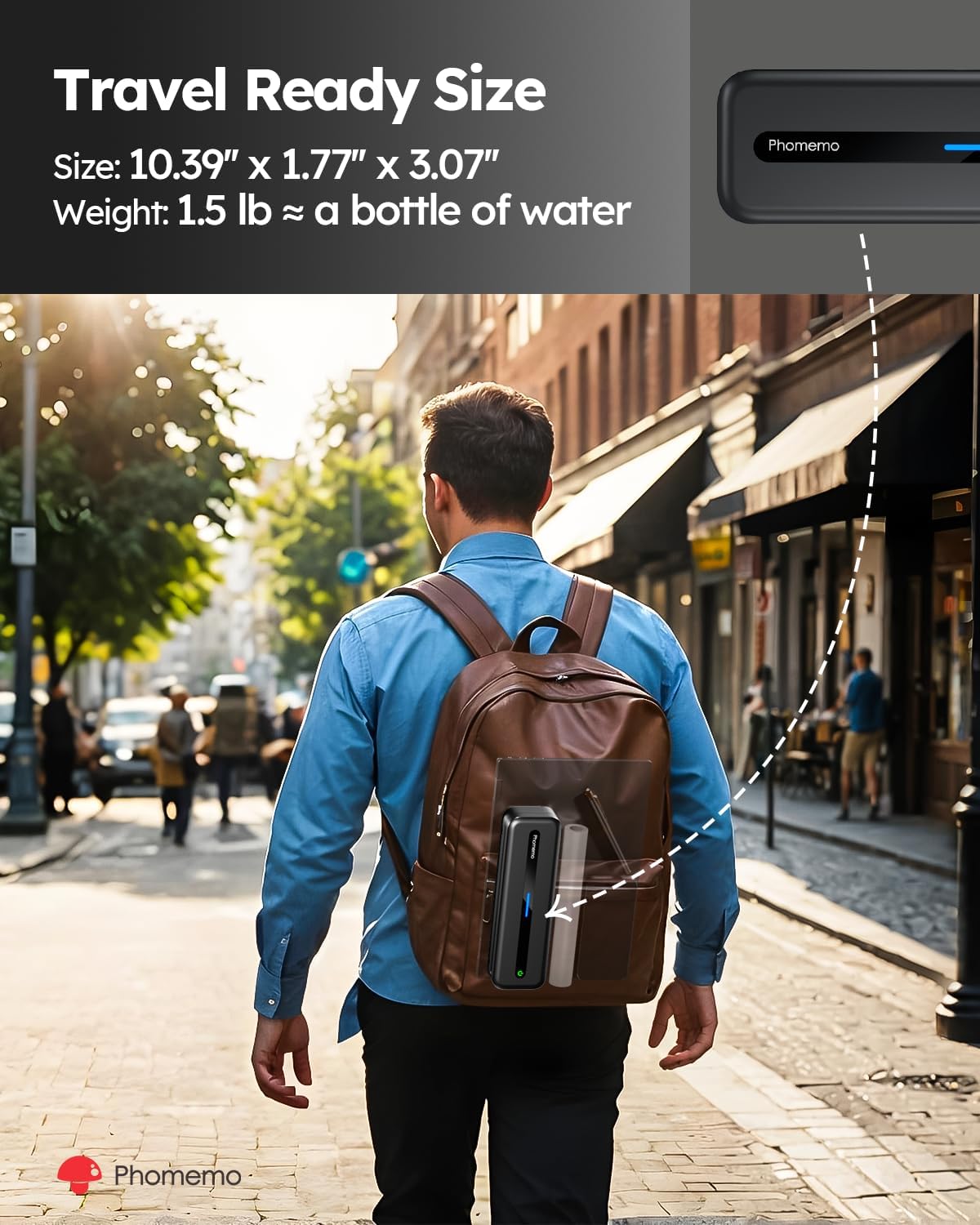
Image 7.1: The Phomemo M832's compact size makes it ideal for travel.

Image 7.2: The M832 offers enhanced 300DPI print quality for clearer results.
8. Warranty and Support
Phomemo products are designed for reliability and performance. For information regarding warranty coverage, technical support, or service inquiries, please refer to the warranty card included with your product or visit the official Phomemo website. Our customer support team is available to assist you with any questions or concerns.
Official Phomemo Website: www.phomemo.com


