
HUAWEI WS8800
Contents
HUAWEI WiFi Mesh 7 AX6600 Whole Home Mesh WiFi System User Manual
Model: WS8800 | Brand: HUAWEI
1. Introduction
This manual provides comprehensive instructions for setting up, operating, maintaining, and troubleshooting your HUAWEI WiFi Mesh 7 AX6600 Whole Home Mesh WiFi System. Designed for seamless whole-home coverage, this system offers high-speed connectivity and intelligent management features.
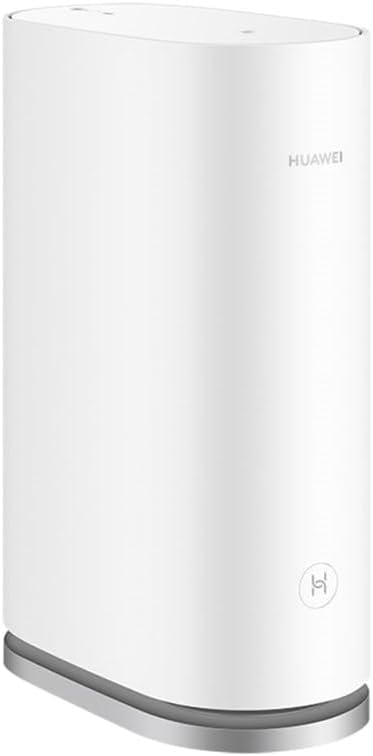
Figure 1.1: Front view of the HUAWEI WiFi Mesh 7 AX6600 router.
Key Features:
- Seamless Roaming: HarmonyOS Mesh+ ensures devices stay connected to the optimal Wi-Fi signal for stable, high-speed networking throughout your home.
- One-Touch Connect: Easily connect NFC-enabled Android phones by tapping the device.
- Visualized Wi-Fi Coverage: Manage your network and troubleshoot issues using the HUAWEI AI Life app, which provides a detailed coverage map.
- HUAWEI AI Life App: Control connected devices, set speed limits, manage guest access, and implement parental controls.
- High Performance: Supports up to 6600 Mbps and connects over 250 devices.
2. What's Included
Verify that all items are present in your package:
- HUAWEI Mesh 7 Router(s) (1 pc per pack)
- Power adapter
- Quick start guide
- Ethernet cable
3. Setup Guide
3.1. Physical Connection
- Positioning: Place your HUAWEI WiFi Mesh 7 router in a central location in your home, away from obstructions and other electronic devices that may cause interference. For multi-pack systems, strategically place additional units to maximize coverage.
- Connect Power: Plug the power adapter into the router's power port and then into a wall outlet. The indicator light will turn on.
- Connect to Internet: Connect one end of the provided Ethernet cable to the WAN/LAN port (usually marked in blue or distinct from others) on your HUAWEI WiFi Mesh 7 router, and the other end to your modem or existing router's LAN port.
- Connect Devices (Optional): For wired connections, use additional Ethernet cables to connect your computers or other devices to any of the available LAN ports on the router.

Figure 3.1: Rear view of the router showing power, WAN/LAN, and LAN ports.
3.2. Initial Configuration using HUAWEI AI Life App
The HUAWEI AI Life app simplifies the setup process:
- Download App: Scan the QR code in the Quick Start Guide or search for "HUAWEI AI Life" in your device's app store (available for iOS and Android).
- Connect to Default Wi-Fi: On your smartphone or tablet, connect to the default Wi-Fi network broadcast by the router (usually named "HUAWEI-XXXX" with no password).
- Launch App: Open the HUAWEI AI Life app. It should automatically detect your new router.
- Follow On-Screen Instructions: The app will guide you through setting up your new Wi-Fi name (SSID) and password, as well as an administrator password for router management.
- Complete Setup: Once configured, your devices will automatically connect to the new Wi-Fi network.

Figure 3.2: HUAWEI AI Life app guiding through the router setup.
4. Operating Your Mesh System
4.1. HUAWEI AI Life App Management
The AI Life app is your central hub for managing your HUAWEI WiFi Mesh 7 system:
- Device Management: View connected devices, set speed limits, and block unwanted devices.
- Guest Wi-Fi: Create a separate Wi-Fi network for guests without sharing your main password.
- Parental Controls: Set internet access schedules and content filters for children's devices.
- Wi-Fi Timing: Schedule when your Wi-Fi network is active.
- Network Health: Monitor network status and perform smart diagnostics.

Figure 4.1: Managing your Wi-Fi with the HUAWEI AI Life App.
4.2. One-Touch Connect (NFC)
For NFC-enabled Android phones, connecting to your Wi-Fi is as simple as a tap:
- Ensure NFC is enabled on your Android smartphone.
- Tap your phone to the NFC-sensing area on the top of the HUAWEI WiFi Mesh 7 router.
- Confirm the connection prompt on your phone. Your device will automatically connect to the Wi-Fi network without needing to enter the password.

Figure 4.2: Using One-Touch Connect for instant Wi-Fi access.
4.3. Whole Home Coverage with HarmonyOS Mesh+
The HUAWEI WiFi Mesh 7 system utilizes HarmonyOS Mesh+ to provide seamless and stable Wi-Fi coverage throughout your home. This technology intelligently switches your devices to the strongest signal as you move, ensuring uninterrupted connectivity for streaming, gaming, and video calls.

Figure 4.3: Visualized Wi-Fi Coverage Map for optimal placement and troubleshooting.
The system supports tri-band networking (2.4GHz, 5GHz Low Band, 5GHz High Band) and features 8 power amplifiers for strong signal penetration and extended range.

Figure 4.4: Tri-band Super Networking for optimal mesh performance.
The system is designed to support over 250 connected devices simultaneously, ensuring stable performance even in busy smart homes.

Figure 4.5: Supporting 250+ connected devices for a comprehensive smart home experience.
For larger homes, multiple units can be deployed to extend coverage:

Figure 4.6: A single pack covers approximately 300 square meters (3200 sqft).

Figure 4.7: A two-pack system covers approximately 600 square meters (6400 sqft).

Figure 4.8: A three-pack system covers approximately 900 square meters (9600 sqft).
4.4. Official Product Video
Video 4.1: An official overview of the HUAWEI WiFi Mesh 7 system, highlighting its features and benefits, including seamless roaming, tri-band networking, and support for multiple devices. This video is provided by the seller, FIVE-C IT.
5. Maintenance
- Firmware Updates: Regularly check for and install firmware updates via the HUAWEI AI Life app to ensure optimal performance, security, and access to new features.
- Cleaning: Use a soft, dry cloth to clean the router's exterior. Do not use liquid cleaners or aerosols.
- Ventilation: Ensure the router is placed in a well-ventilated area to prevent overheating. Do not cover ventilation openings.
- Restarting: If you experience minor network issues, try restarting the router by unplugging it from the power outlet for 10 seconds and then plugging it back in.
6. Troubleshooting
| Problem | Possible Cause | Solution |
|---|---|---|
| No Internet Connection | Incorrect cable connection, modem issue, ISP outage. | Check Ethernet cable connections. Restart modem and router. Contact your Internet Service Provider (ISP). |
| Weak Wi-Fi Signal | Router placement, interference, too many devices. | Relocate router to a central area. Minimize interference from other electronics. Consider adding another mesh unit for larger homes. |
| Cannot Connect to Wi-Fi | Incorrect password, device issue, router not broadcasting. | Verify Wi-Fi password. Restart your device. Check router's indicator light. Use One-Touch Connect if applicable. |
| AI Life App Not Detecting Router | Not connected to default Wi-Fi, app permissions. | Ensure your phone is connected to the router's default Wi-Fi. Check app permissions for local network access. Restart the app. |
For more detailed troubleshooting, refer to the HUAWEI AI Life app's diagnostic tools or visit the official HUAWEI support website.
7. Specifications
| Feature | Detail |
|---|---|
| Brand | HUAWEI |
| Model Name | WS8800 |
| Connectivity Technology | Wi-Fi |
| Wireless Communication Standard | 802.11n, 802.11ax, 802.11b, 802.11a, 802.11g |
| Frequency Band Class | Tri-Band (2.4GHz, 5GHz Low Band, 5GHz High Band) |
| Frequency | 5 GHz |
| Max Speed | Up to 6600 Mbps |
| Recommended Uses | Home |
| Compatible Devices | iPhone, Personal Computer, Tablet, Smartphone |
| Special Features | Guest Mode, Internet Security, WPS, Parental Control, NFC One-Touch Connect |
| Item Weight | 3.5 pounds |
| Package Dimensions | 9.65 x 6.54 x 5.98 inches |
8. Warranty and Support
HUAWEI provides a limited warranty for its products. Please refer to the warranty card included in your product packaging or visit the official HUAWEI support website for detailed warranty terms and conditions specific to your region.
For technical support, product registration, or to download the latest drivers and manuals, please visit the official HUAWEI support website or contact their customer service. Keep your purchase receipt and product serial number handy when seeking support.
Official HUAWEI Support: consumer.huawei.com/en/support/
Ask a question about this manual
Ask about setup, troubleshooting, compatibility, parts, safety, or missing instructions. Manuals+ will review the question and use this page’s manual context to help answer it.