
ULTIMEA U2621
Contents
ULTIMEA 7.1ch Sound Bar with Dolby Atmos
Model: Aura A60 (U2621)
Introduction
Welcome to the ULTIMEA 7.1ch Sound Bar with Dolby Atmos, Aura A60 (U2621). This sound system is designed to provide an immersive audio experience for your home theater. Featuring 7.1 channels, Dolby Atmos support, four surround speakers, a wired subwoofer with BassMX technology, and app control, it delivers rich, dynamic sound for movies, music, and games.
This manual provides detailed instructions for setting up, operating, and maintaining your sound bar system. Please read it thoroughly before use to ensure proper functionality and to maximize your audio experience.
Package Contents
Before you begin, please verify that all items are present in the package:
- 1 x Soundbar
- 1 x Subwoofer
- 4 x Surround Speakers
- 1 x Remote Control (Battery not included)
- 1 x User Manual
- 1 x Soundbar Power Adapter
- 1 x Surround Speaker Power Adapter
- 1 x Rear Surround Cable (6m)
- 1 x Front Left Surround Cable (2m)
- 1 x Front Right Surround Cable (2m)
- 1 x HDMI eARC Cable
- 1 x Digital Optical Cable
- 12 x Wall Mount Kit
- 6 x Wall Bracket
- 6 x Mounting Screw on Speakers

Image: All components included in the ULTIMEA Aura A60 Sound Bar system package, including the soundbar, subwoofer, four surround speakers, remote control, and various cables and mounting accessories.
Safety Information
Please read and understand all safety instructions before using this product. Failure to follow these instructions may result in electric shock, fire, or other hazards.
- Do not expose this appliance to dripping or splashing.
- Do not place objects filled with liquids, such as vases, on the apparatus.
- Ensure proper ventilation. Do not block any ventilation openings.
- Do not install near any heat sources such as radiators, heat registers, stoves, or other apparatus (including amplifiers) that produce heat.
- Protect the power cord from being walked on or pinched, particularly at plugs, convenience receptacles, and the point where they exit from the apparatus.
- Only use attachments/accessories specified by the manufacturer.
- Unplug this apparatus during lightning storms or when unused for long periods of time.
- Refer all servicing to qualified service personnel. Servicing is required when the apparatus has been damaged in any way.
Setup
1. Speaker Placement
Optimal speaker placement is crucial for achieving the best 7.1 channel surround sound experience. The recommended room size for this system is 108 to 270 ft² (10-25 m²).
- Soundbar: Place the soundbar centrally below your TV.
- Subwoofer: Position the wired subwoofer on the floor, ideally near the soundbar or in a corner for enhanced bass.
- Front Surround Speakers: Place the two wired front surround speakers to the left and right of your TV, slightly in front of your listening position.
- Rear Surround Speakers: Place the two wireless rear surround speakers behind your main listening position, to the left and right. These speakers connect wirelessly to the soundbar.

Image: A diagram illustrating the recommended placement of the soundbar, subwoofer, and four surround speakers for a 7.1 channel Dolby Atmos setup, showing sound paths for an immersive experience.
2. Wiring and Power Connection
Connect the speakers and power adapters as follows:
- Connect the wired front surround speakers to the soundbar using the provided 2m cables.
- Connect the wired subwoofer to the soundbar.
- Connect the rear surround speakers to their dedicated power adapter. The rear right surround speaker will wirelessly pair with the soundbar.
- Connect the soundbar power adapter to the soundbar and a power outlet.
- Connect the surround speaker power adapter to the rear surround speakers and a power outlet.

Image: A visual guide demonstrating the power and wiring connections for the ULTIMEA Aura A60 system, including the soundbar, subwoofer, and wireless rear speakers, with recommended room size.
3. Connecting to Your TV
The Aura A60 offers multiple connectivity options. HDMI eARC is recommended for the highest quality audio transmission, including Dolby Atmos.
HDMI eARC Connection (Recommended)
- Insert one end of the provided HDMI eARC cable into your TV's "HDMI eARC" port.
- Insert the other end of the HDMI eARC cable into the soundbar's "HDMI TO TV (eARC)" port.
- Press the 'eARC' button on the remote control to select "eARC" mode.

Image: A three-step visual guide demonstrating how to connect the soundbar to a TV using an HDMI eARC cable, including identifying the correct ports and selecting the input mode on the remote.
Optical Connection
- Remove the protective caps from the provided digital optical cable and insert one end into the "OPT" port of your TV.
- Insert the other end of the optical cable into the soundbar's "OPTICAL" port.
- Press the 'OPT' button on the remote control to select "OPT" mode.

Image: A three-step visual guide demonstrating how to connect the soundbar to a TV using a digital optical cable, including removing protective caps, identifying the correct ports, and selecting the input mode on the remote.
Other Connections
The soundbar also supports AUX and USB connections for other audio sources. Refer to the port diagram for connection points.

Image: A detailed view of the rear panel of the ULTIMEA Aura A60 soundbar, highlighting all available input ports including HDMI (eARC), Optical, USB, AUX, and outputs for front and rear speakers, and subwoofer.
Operating Instructions
1. Power On/Off
Press the power button on the soundbar or the remote control to turn the system on or off.
2. Input Selection
Use the input selection buttons on the remote control (e.g., HDMI, OPT, AUX, BT) to switch between different audio sources.
3. Volume Control
Adjust the volume using the '+' and '-' buttons on the soundbar or the remote control.
4. App Control
The ULTIMEA App provides advanced control over your sound system, including EQ settings and preset matrices.
- Download the "ULTIMEA" app from your smartphone's app store.
- Connect your smartphone to the soundbar via Bluetooth.
- Use the app to access 10-band equalizer settings, 121 preset EQ matrices (Bass, Pop, Classical, Rock), and 6 tailored EQ modes (Movie, Music, Voice, Sport, Game, Night).

Image: A series of smartphone screenshots demonstrating the ULTIMEA smart app control interface, showing options for 10-band equalizer settings, 121 preset EQ matrices, and overall system management.

Image: A hand holding the remote control, pointing towards the ULTIMEA soundbar system and TV, illustrating the "One for All" feature where a single remote can control both devices.
5. Dolby Atmos and Surround Sound
The system supports Dolby Atmos for a truly immersive, three-dimensional audio experience. Ensure your content and TV settings are configured for Dolby Atmos output when using the HDMI eARC connection.
The 7.1 channel configuration, with its dedicated front and rear surround speakers, creates an expansive sound field that places you in the center of the action.
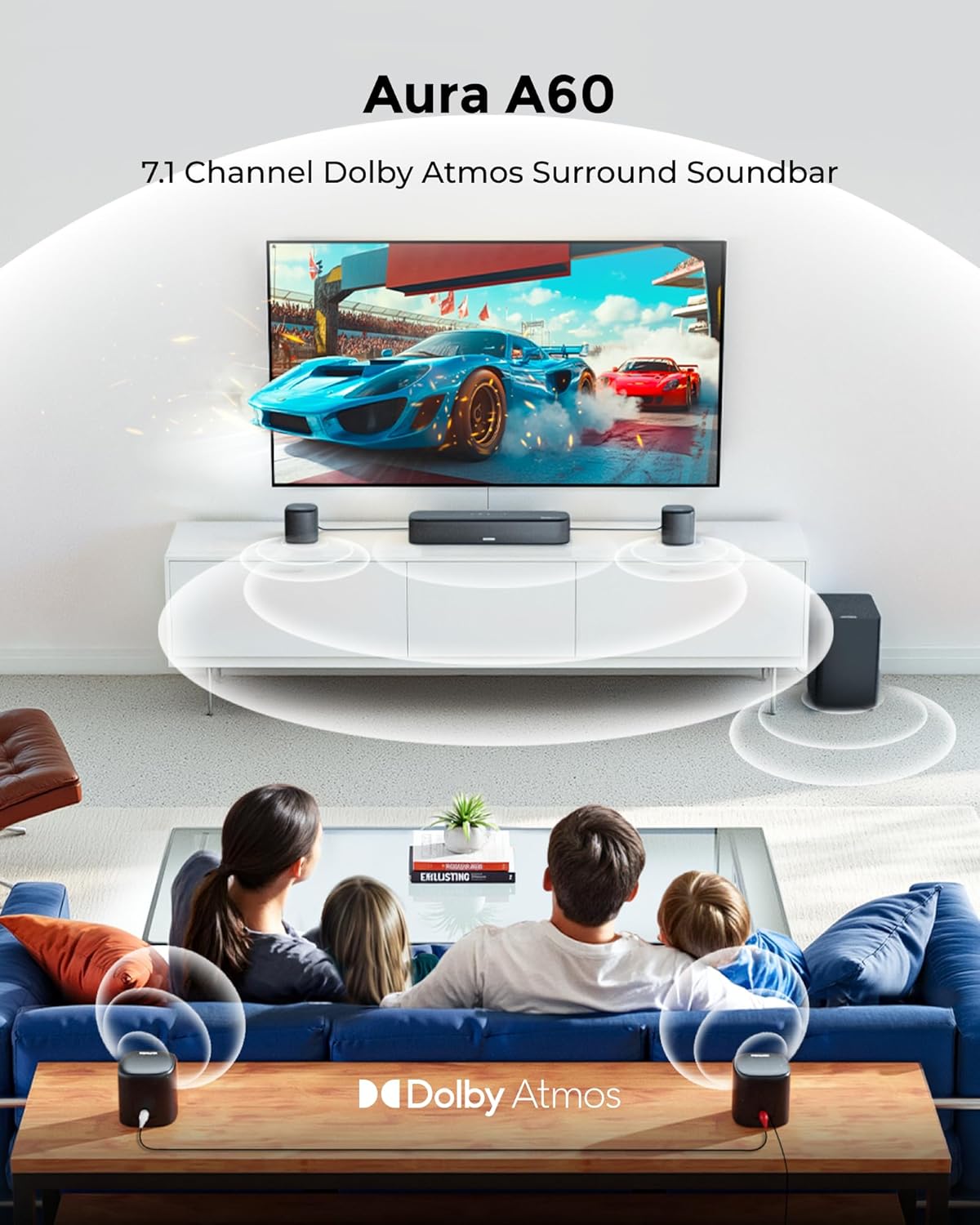
Image: A family enjoying a movie with the ULTIMEA Aura A60 sound system, visually representing the 7.1 channel Dolby Atmos surround sound experience with sound waves emanating from the speakers.

Image: A graphic illustrating the SurroundX Technology, showing sound waves creating an immersive audio dome around the listening area, enhancing the surround sound experience.
6. BassMX Technology
The 4-inch wired subwoofer utilizes BassMX technology to deliver rich, resonant bass. This technology optimizes the magnetic circuit and diaphragm for enhanced low-frequency sound.

Image: The ULTIMEA subwoofer on a floor, with visual effects indicating the powerful bass output generated by its BassMX technology.
7. Firmware Updates
The system supports OTA (Over-The-Air) firmware updates via the ULTIMEA app to ensure optimal performance and access to new features.
Maintenance
Proper maintenance ensures the longevity and optimal performance of your ULTIMEA sound system.
- Cleaning: Use a soft, dry cloth to clean the surfaces of the soundbar, speakers, and subwoofer. Do not use liquid cleaners or aerosol sprays.
- Ventilation: Ensure that all ventilation openings are clear and not obstructed to prevent overheating.
- Storage: If storing the system for an extended period, disconnect it from power and store it in a cool, dry place.
- Cable Management: Periodically check all cables for any signs of wear or damage. Replace damaged cables immediately.
Troubleshooting
If you encounter issues with your ULTIMEA sound system, refer to the following common troubleshooting steps:
| Problem | Possible Cause | Solution |
|---|---|---|
| No sound from the soundbar. |
|
|
| No sound from surround speakers. |
|
|
| Remote control not working. |
|
|
| Poor sound quality or distortion. |
|
|

Image: A screenshot of a TV's expert audio settings menu, showing options like Balance, Equalizer, HDMI-eARC Mode, Digital Output Audio Format, Digital Output Audio Delay, Dolby Atmos Compatibility, and Auto-Volume, with "Pass-Through" selected for Dolby Atmos.
Specifications
| Feature | Detail |
|---|---|
| Model Name | Aura A60 (U2621) |
| Speaker Type | 7.1ch Surround Sound with Dolby Atmos |
| Speaker Maximum Output Power | 350 Watts |
| Subwoofer Diameter | 4 Inches |
| Connectivity Technology | HDMI-eARC, Bluetooth 5.3, Optical, AUX |
| Bluetooth Range | 15 Meters |
| Signal-to-Noise Ratio | 96 dB |
| Frequency Response | 45 Hz |
| Control Method | App, Remote |
| Product Dimensions | 16"D x 4"W x 3"H (Soundbar) |
| Item Weight | 13.42 pounds (Total System) |
| Recommended Room Size | 108 to 270 ft² (10-25 m²) |
Official Product Video
Watch the official product video for an overview of the ULTIMEA Aura A60's features and capabilities.
Video: An official product video showcasing the ULTIMEA 7.1ch Sound Bar with Dolby Atmos, Aura A60, highlighting its immersive sound, SurroundX technology, app control, and easy setup.
Warranty and Support
For warranty information and technical support, please refer to the official ULTIMEA website or contact their customer service directly. The user manual included in your package also contains specific warranty details.
Visit the ULTIMEA Store on Amazon for more product information and support resources.
Ask a question about this manual
Ask about setup, troubleshooting, compatibility, parts, safety, or missing instructions. Manuals+ will review the question and use this page’s manual context to help answer it.