
Introduction
This manual provides instructions for the setup, operation, maintenance, and troubleshooting of your JeDEL WD131P Wireless and Bluetooth Rechargeable Mouse. Please read this manual carefully before using the product to ensure proper function and longevity.
The JeDEL WD131P mouse offers dual-mode connectivity (2.4GHz wireless and Bluetooth), adjustable DPI settings, and a rechargeable battery, designed for versatile use across various devices and operating systems.
Package Contents
- JeDEL WD131P Wireless & Bluetooth Mouse
- USB-C Charging Cable
- USB 2.4GHz Receiver (stored inside the mouse)
- User Manual (this document)
Setup
1. Charging the Mouse
Before initial use, fully charge the mouse. Connect the provided USB-C charging cable to the mouse's charging port and the other end to a USB power source (e.g., computer USB port, USB wall adapter).

Image: The USB-C charging port is located at the front of the mouse. A full charge ensures optimal battery life.
The LED indicator will show charging status (specific behavior not detailed in product info, assume standard charging light).
2. Connecting the Mouse
The JeDEL WD131P supports two connection modes: 2.4GHz Wireless and Bluetooth.
2.1. 2.4GHz Wireless Mode
- Locate the USB 2.4GHz receiver. It is typically stored in a compartment on the underside of the mouse.
- Insert the USB receiver into an available USB port on your computer or device.
- Turn on the mouse using the power switch on its underside.
- The mouse should connect automatically. No additional drivers are usually required for plug-and-play functionality.
Image: The USB 2.4GHz receiver is conveniently stored within the mouse body for portability and to prevent loss.
2.2. Bluetooth Mode
- Ensure your device has Bluetooth enabled.
- Turn on the mouse using the power switch.
- Switch the mouse to Bluetooth mode (refer to the switch on the underside of the mouse, if present, or a mode button).
- On your device, go to Bluetooth settings and search for new devices.
- Select "JeDEL WD131P" (or similar name) from the list of available devices to pair.
- Once paired, the mouse is ready for use.
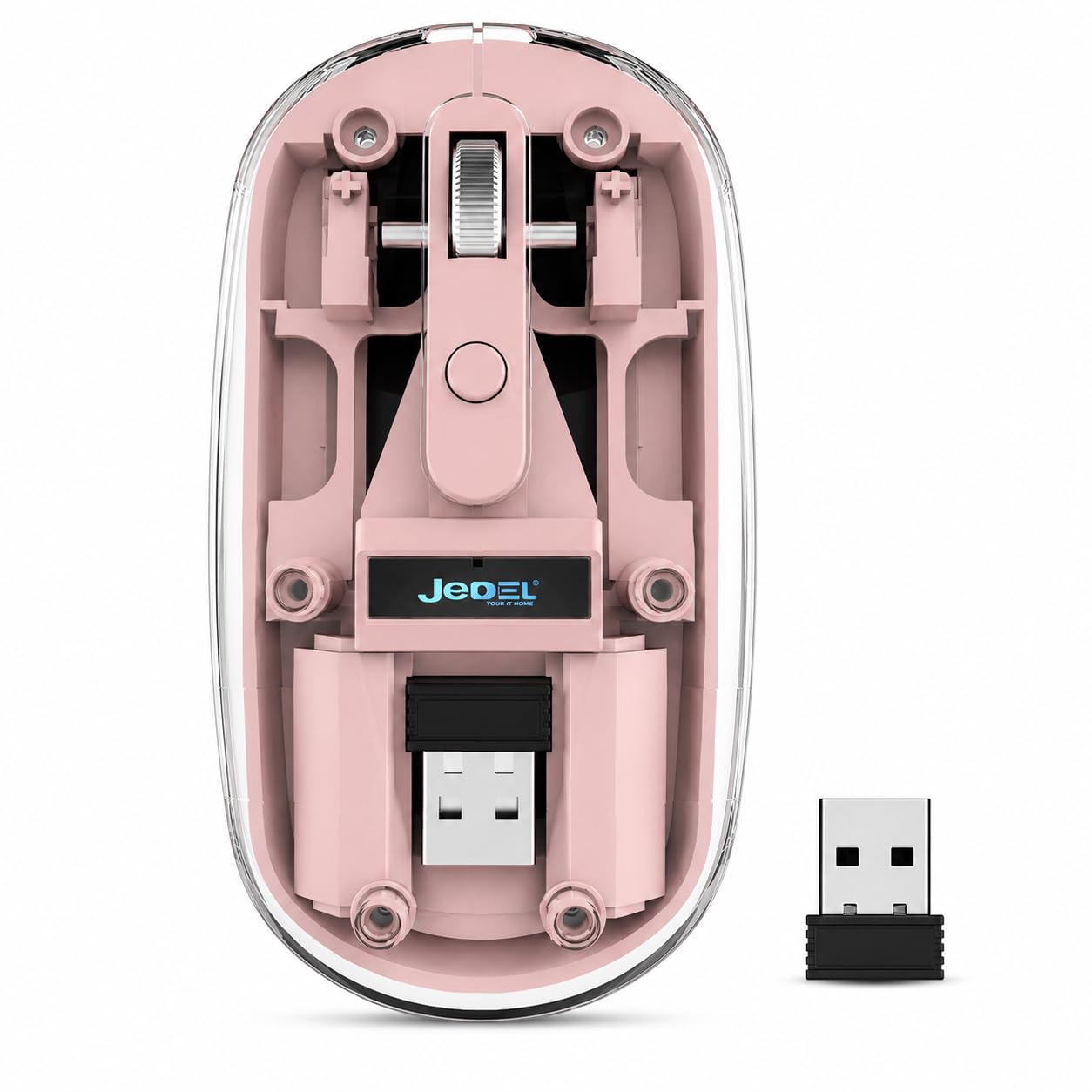
Image: The mouse supports both Bluetooth and 2.4GHz wireless connections, offering wide compatibility with various operating systems and devices.
Operating Instructions
1. DPI Adjustment
The JeDEL WD131P mouse features adjustable DPI settings (800/1200/1600 DPI) to suit your preference for cursor speed and precision. The default setting is 1200 DPI.
To change the DPI, press the DPI button (usually located near the scroll wheel). Each press cycles through the available DPI settings.
2. Button Functions
The mouse has 4 buttons:
- Left Click: Standard selection and interaction.
- Right Click: Context menu access.
- Scroll Wheel (Middle Click): Scrolling and middle-click function.
- DPI Button: Adjusts cursor sensitivity (DPI).

Image: The scroll wheel provides smooth and precise navigation for documents and web pages.
3. LED Indicator
The LED indicator provides visual feedback on the mouse's status, such as connectivity and battery level (specific LED behaviors are not detailed in the product information, refer to general mouse behavior).
4. Ergonomic Design
The mouse is designed with an ergonomic contour to fit comfortably in your hand, reducing fatigue during extended use. This promotes a natural wrist position.

Image: The ergonomic design of the mouse supports a natural hand position, contributing to comfort and reducing strain.
5. Magnetic Cover Plate
The mouse features a magnetic cover plate, allowing easy access to the internal compartment where the USB receiver is stored. This design ensures the receiver is securely held and easily retrievable.

Image: The magnetic cover plate provides convenient access to the USB receiver and internal structure of the mouse.
Maintenance
1. Cleaning
- Use a soft, dry cloth to wipe the surface of the mouse.
- For stubborn dirt, slightly dampen the cloth with water or a mild cleaning solution, then wipe dry immediately.
- Avoid using harsh chemicals, abrasives, or solvents.
- Do not immerse the mouse in water or any liquid.
2. Battery Care
- To prolong battery life, avoid fully discharging the mouse frequently.
- Charge the mouse when the battery indicator suggests low power.
- If storing the mouse for an extended period, charge it to about 50% before storage.
- Use only the provided USB-C cable or a certified equivalent for charging.
Troubleshooting
Mouse Not Responding
- Check Battery: Ensure the mouse is charged. Connect it to the USB-C cable and allow it to charge for a few minutes.
- Power Switch: Verify the mouse is turned on.
- Connection Mode: Ensure the mouse is in the correct mode (2.4GHz or Bluetooth) for your connection type.
- 2.4GHz Connection:
- Try plugging the USB receiver into a different USB port on your device.
- Ensure the receiver is not too far from the mouse (within 10 meters).
- Bluetooth Connection:
- Unpair and re-pair the mouse in your device's Bluetooth settings.
- Ensure your device's Bluetooth is enabled and working correctly.
- Restart Device: Sometimes, restarting your computer or device can resolve connectivity issues.
Cursor Movement is Erratic or Inaccurate
- Surface: Use the mouse on a clean, non-reflective, and uniform surface. Avoid glass or highly reflective surfaces.
- DPI Setting: Adjust the DPI setting to a level that feels more comfortable and accurate for your use.
- Sensor Cleanliness: Check the optical sensor on the underside of the mouse for any dust or debris and clean it gently.
Specifications
| Model Name | WD131P |
| Connectivity Technology | 2.4GHz Wireless, Bluetooth |
| DPI Settings | 800 / 1200 (default) / 1600 DPI |
| Number of Buttons | 4 |
| Battery Type | Rechargeable (3.7V 300mAh) |
| Charging Port | USB-C |
| Working Distance | Up to 10 meters (33 feet) |
| Compatible Devices | Personal Computer, Smartphone, Tablet |
| Compatible Platforms | Windows, macOS, iOS, Android |
| Dimensions (L x W x H) | 109 x 60 x 32 mm |
| Weight | 69 ± 5g (without battery) |
| Manufacturer | JeDEL |
Safety Information
- Do not attempt to disassemble or modify the mouse. This may void the warranty and cause damage.
- Keep the mouse away from water, moisture, and extreme temperatures.
- Avoid dropping or subjecting the mouse to strong impacts.
- Dispose of the battery according to local regulations. Do not dispose of it in household waste.
Warranty and Support
This product comes with a standard manufacturer's warranty. For specific warranty terms and conditions, please refer to the documentation provided at the time of purchase or contact your retailer.
For technical support or further assistance, please contact the manufacturer or your point of purchase.


