
HUAWEI 55020EEL
HUAWEI Band 10 Smartwatch User Manual
Model: 55020EEL | Brand: HUAWEI
1. Introduction
Thank you for choosing the HUAWEI Band 10 Smartwatch. This manual provides essential information for setting up, operating, and maintaining your device. The HUAWEI Band 10 features a sleek aluminum alloy case, long battery life, and comprehensive health and fitness tracking capabilities.
What's in the Box:
- HUAWEI Band 10 Smartwatch x 1
- Charging cable x 1
- User Guide & Safety Information & Warranty Card x 1

Image: The HUAWEI Band 10 Smartwatch in a vibrant pink color, displaying the time, date, and activity metrics on its screen.
2. Setup
2.1 Charging the Device
Before first use, fully charge your HUAWEI Band 10. Connect the charging cable to the charging port on the back of the band and to a USB power source. A full charge takes approximately 45 minutes. A quick 5-minute charge can provide up to 2 days of typical use.

Image: The HUAWEI Band 10 connected to its charging cable, with the screen indicating 98% battery charge, highlighting its fast charging capability.
2.2 Pairing with Your Smartphone
To unlock the full potential of your HUAWEI Band 10, pair it with your smartphone using the HUAWEI Health app. The app is available for both iOS and Android devices.
- Download and install the HUAWEI Health app from your device's app store (App Store for iOS, Google Play Store or HUAWEI AppGallery for Android).
- Open the HUAWEI Health app and follow the on-screen instructions to create or log in to your HUAWEI ID.
- Navigate to the 'Devices' section in the app and tap 'Add device'.
- Select 'Smart bands' and choose 'HUAWEI Band 10' from the list.
- Follow the prompts to complete the pairing process. Ensure Bluetooth is enabled on your smartphone.

Image: A smartphone screen showing the HUAWEI Health app interface, positioned next to a HUAWEI Band 10, illustrating the connection between the device and its companion application.
3. Operating Your HUAWEI Band 10
3.1 Navigation and Watch Faces
The HUAWEI Band 10 features a responsive touch screen for easy navigation. Swipe up, down, left, or right to access different functions and menus. You can customize your watch face through the HUAWEI Health app, choosing from various styles including emotion-themed designs and Always on Display (AOD) options.

Image: Two HUAWEI Band 10 devices, one with a yellow strap and the other with a pink strap, demonstrating the variety of available colors and customizable watch faces.
3.2 Fitness Monitoring
The band offers AI-powered fitness monitoring with over 100 sports modes. It provides detailed data for various activities, including highly accurate swimming data with 5 ATM water resistance.
- 100 Workout Modes: Track a wide range of activities from running to swimming.
- AI-Powered Tracking: Advanced 9-axis sensor and AI-enhanced stroke identification for precise data.
- Water Resistance: 5 ATM water resistance ensures durability during water-based activities.

Image: Individuals participating in different sports, such as basketball and gym workouts, while wearing the HUAWEI Band 10, emphasizing its support for 100 workout modes.
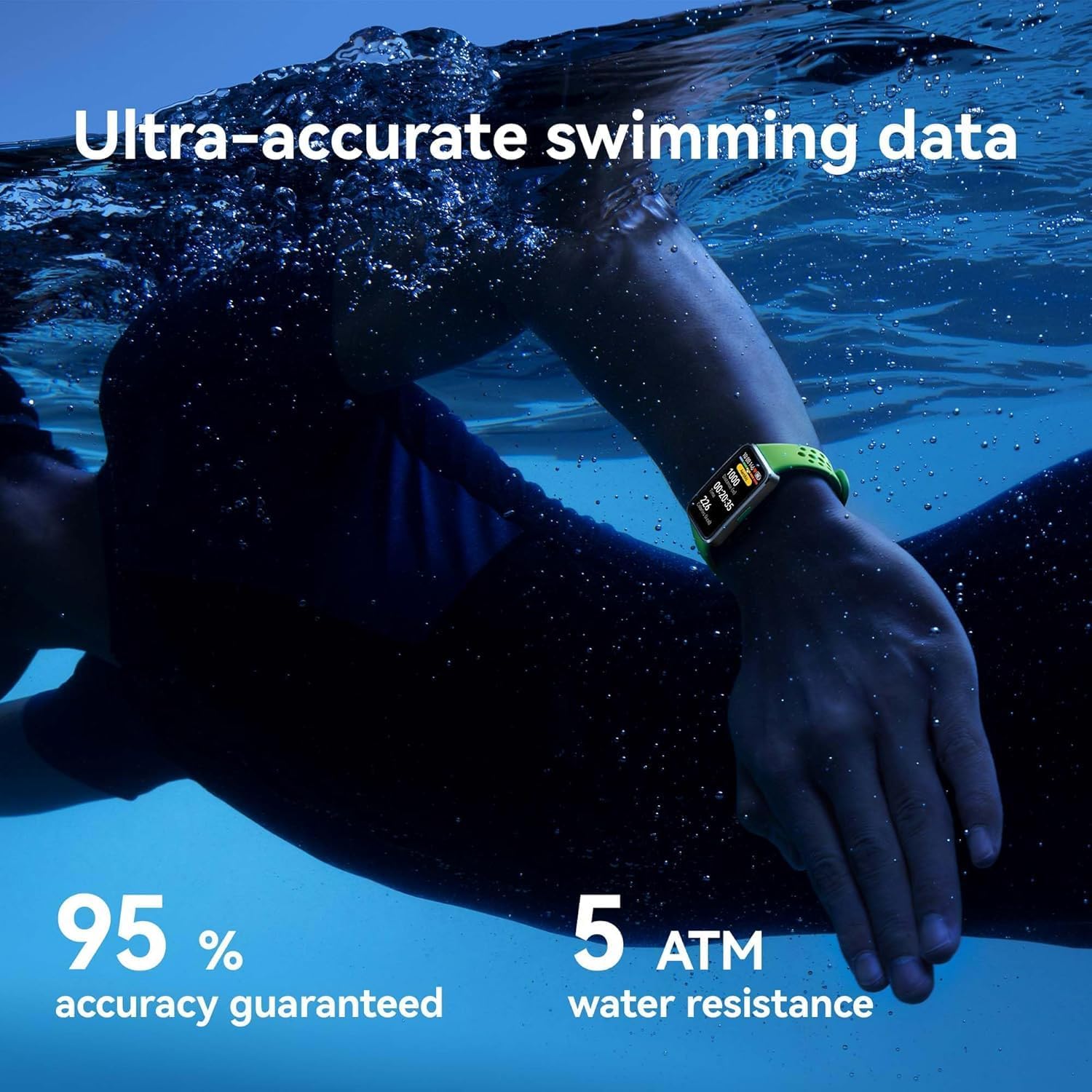
Image: A person swimming underwater with the HUAWEI Band 10 visible on their wrist, highlighting the device's capability to provide ultra-accurate swimming data and its 5 ATM water resistance.
3.3 Sleep and Health Monitoring
The HUAWEI Band 10 provides pro-level sleep analysis and monitors various health metrics to help you understand your well-being.
- New Sleep Metrics: Gain insights into your sleep and lifestyle habits with average sleep HRV (Heart Rate Variability).
- Pro-Level Sleep Analysis: Tracks heart rate, SpO2, respiratory rate, and abnormal breathing. Provides insights on sleep duration, quality rating, and deep sleep ratio.
- Emotional Wellbeing Assistant: The Emotional wellbeing app offers timely tips and perceptive pet-themed watch faces to reflect your mood.
- Bedtime Reminders: Features like Sleep mode and meditation content help promote restful sleep.

Image: A person sleeping, with an overlay of the HUAWEI Band 10's screen displaying detailed sleep analysis data, including deep sleep continuity, times wake up, breathing quality, HR, HRV, SpO2, and respiratory rate.
4. Maintenance
4.1 Cleaning and Care
To ensure the longevity and proper functioning of your HUAWEI Band 10, follow these care instructions:
- Regularly clean the band and the device body with a soft, damp cloth.
- Avoid using harsh chemicals or abrasive cleaners, as they may damage the materials.
- Ensure the charging contacts are clean and dry before charging to prevent corrosion.
- If the band gets wet, dry it thoroughly before wearing it again, especially after swimming.
4.2 Battery Life Optimization
The HUAWEI Band 10 is designed for robust battery life, offering up to 14 days under typical usage. To maximize battery life:
- Reduce screen brightness.
- Limit the use of Always on Display (AOD).
- Disable continuous heart rate monitoring if not needed constantly.
- Turn off notifications for apps you don't frequently check on your band.
5. Troubleshooting
Common Issues and Solutions:
- Device not turning on: Ensure the device is fully charged. Connect it to the charger for at least 10 minutes.
- Cannot pair with phone:
- Ensure Bluetooth is enabled on your phone.
- Make sure the HUAWEI Health app is updated to the latest version.
- Restart both your phone and the HUAWEI Band 10.
- Ensure the band is not paired with another device.
- Inaccurate data:
- Ensure the band is worn snugly on your wrist, about one finger's width above your wrist bone.
- Clean the sensors on the back of the device.
- Calibrate the device through the HUAWEI Health app if available for specific metrics.
- Notifications not appearing:
- Check notification settings in the HUAWEI Health app.
- Ensure the app has necessary permissions on your phone (e.g., notification access).
- Verify that your phone's Bluetooth connection is stable.
6. Specifications
| Feature | Detail |
|---|---|
| Model Number | 55020EEL |
| Dimensions | 43.45 × 24.86 × 8.99 mm (1.69 x 1.18 x 0.96 inches) |
| Weight | 14 Grams (0.494 ounces) |
| Screen Size | 1.47 Inches |
| Battery Life (Typical) | Up to 14 days |
| Battery Capacity | 180 Milliamp Hours |
| Water Resistance | 5 ATM |
| Connectivity | Bluetooth |
| Operating System | Android Wear (Compatible with iOS & Android) |
| Special Features | Water resistant, Activity Tracker, Alarm Clock, Sleep Monitoring, HRV, SpO2 |

Image: The HUAWEI Band 10 highlighting its streamlined metallic design, emphasizing its ultra-thin (8.99 mm) and ultra-light (15 g) profile for comfortable all-day wearing.
7. Warranty and Support
Your HUAWEI Band 10 comes with a standard manufacturer's warranty. Please refer to the 'Warranty Card' included in your product packaging for detailed terms and conditions, including warranty period and coverage.
Customer Support:
For technical assistance, troubleshooting, or warranty claims, please contact HUAWEI customer support through their official website or the contact information provided in your warranty documentation. You can also find FAQs and support resources on the HUAWEI Health app.
Visit the official HUAWEI support website for the latest information and assistance: consumer.huawei.com/en/support/
Related documents55020EEL


Ask a question about this manual
Ask about setup, troubleshooting, compatibility, parts, safety, or missing instructions. Manuals+ will review the question and use this page’s manual context to help answer it.