
1. Introduction
The DOOGEE Blade GT Play is a robust 5G rugged smartphone designed for durability and performance. It features a slim profile, a vibrant 120Hz display, a powerful processor, and a long-lasting battery, making it suitable for various environments and demanding tasks. This manual provides essential information for setting up, operating, and maintaining your device.
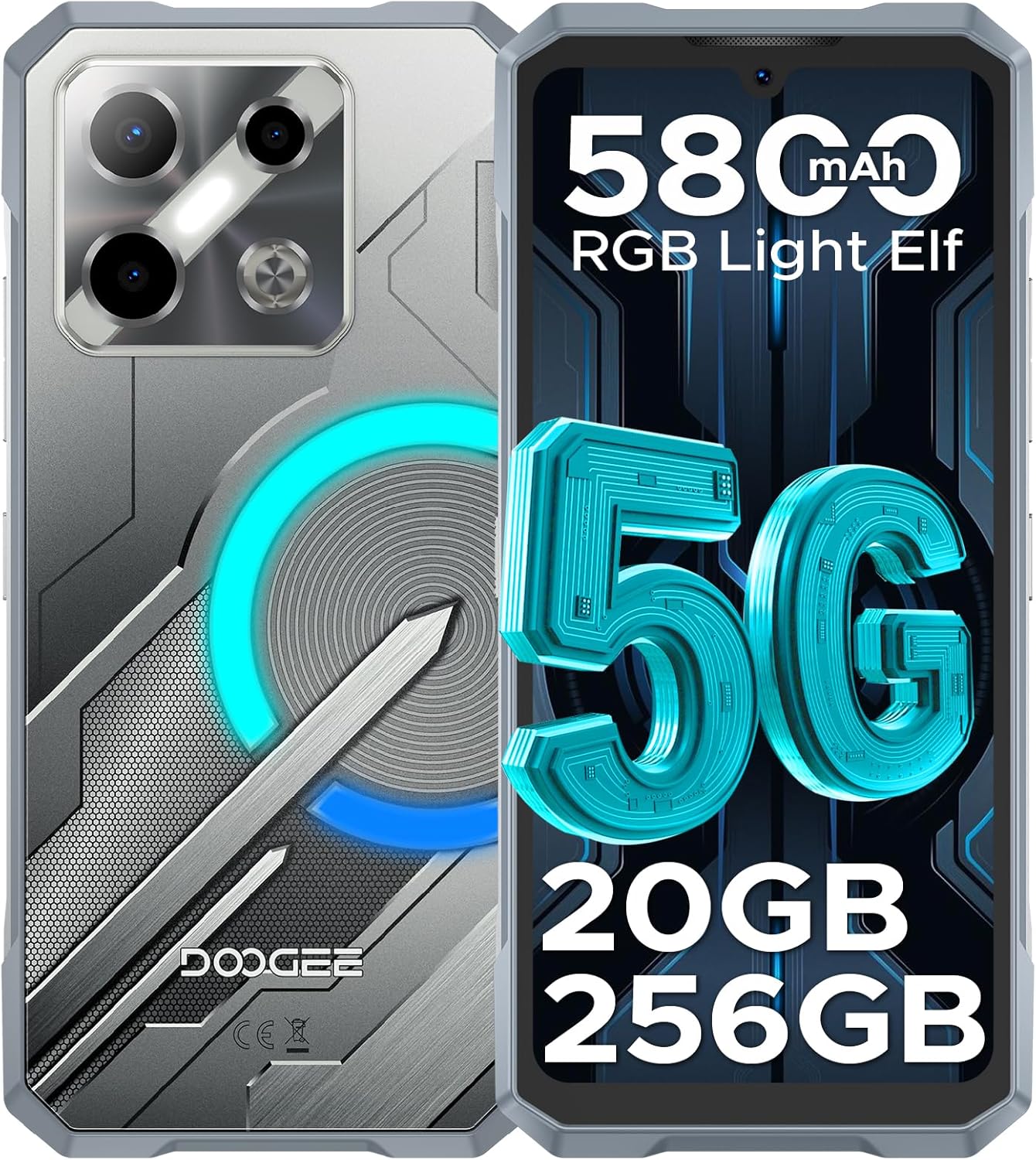
Image: Front and back view of the DOOGEE Blade GT Play 5G Rugged Smartphone, highlighting its design and key features like 5G connectivity, 5800mAh battery, 20GB RAM, and 256GB storage.
2. Package Contents
Verify that all items are present in your product package:
- 1 x DOOGEE Blade GT Play Rugged Smartphone
- 1 x Type-C USB Cable
- 1 x 18W Charger
- 1 x User Manual
- 1 x Warranty Card
- 1 x Anti-Explosion Film (Screen Protector)
- 1 x Phone Case
- 1 x Packing Box

Image: All components included in the DOOGEE Blade GT Play retail package, neatly arranged.
3. Device Layout
The DOOGEE Blade GT Play features a thoughtful design for both aesthetics and functionality. Key physical components include:
- Front: 6.72-inch FHD+ IPS display, 16MP front camera, earpiece.
- Rear: 50MP main camera, 2MP macro camera, LED flash, RGB LED light effect panel.
- Sides: Power button (integrated with fingerprint sensor), volume up/down buttons, USB Type-C port, dual SIM/TF card slot.

Image: The DOOGEE Blade GT Play showcasing its ultra-slim 10.5mm thickness and ergonomic design, emphasizing its comfortable grip and light weight of 260g.
4. Initial Setup
4.1. Installing SIM/TF Card
- Locate the SIM/TF card slot on the side of the device.
- Use the provided SIM ejector tool to open the tray.
- Carefully place your Nano-SIM card(s) and/or TF card into the designated slots on the tray. Ensure correct orientation.
- Gently push the tray back into the device until it is flush.
4.2. Powering On/Off
- To Power On: Press and hold the Power button (located on the side) until the DOOGEE logo appears.
- To Power Off: Press and hold the Power button, then select 'Power off' from the options on the screen.
- To Restart: Press and hold the Power button, then select 'Restart' from the options.
4.3. Initial Configuration
Upon first power-on, follow the on-screen prompts to set up your device. This includes selecting your language, connecting to Wi-Fi, setting up your Google account, and configuring security features like fingerprint and face unlock.
5. Operating Instructions
5.1. Android 14 Operating System
Your DOOGEE Blade GT Play runs on Android 14, offering a secure, smooth, and responsive user experience. It includes features such as App Cloning, Anti-Peeping mode, Anti-theft Alarm, and Fingerprint App Lock for enhanced privacy and security.

Image: Multiple screens of the Android 14 interface on the DOOGEE Blade GT Play, demonstrating various applications and system features.
5.2. RGB LED Light Effect
The device features an RGB LED light effect panel on the rear, offering 8 lighting modes and 3 flashing styles. These can be customized via the 'Cyber Aura' app to sync with music, notifications, calls, messages, gaming, and charging status. You can also adjust brightness and lighting speed.
- Customization: Access the 'Cyber Aura' app to select lighting modes (e.g., Call, Message, Music, Gaming, Charging), color combinations, and notification styles (Flicking, Breathing, Flowing).
- Brightness & Speed: Adjust the intensity and speed of the light effects within the app settings.

Image: Illustration of the DOOGEE Blade GT Play's smart RGB lighting effects, showing various customization options for calls, messages, games, music, charging, and brightness.
5.3. Camera Operation
The DOOGEE Blade GT Play is equipped with a 50MP AI main camera, a 2MP macro lens, and a 16MP front camera. The camera app provides various modes and AI features to enhance your photography.
- Main Camera (50MP): For high-resolution photos in various conditions.
- Macro Camera (2MP): For detailed close-up shots of small objects.
- Front Camera (16MP): For selfies and video calls, with AI beauty features.
- Camera Modes: Explore modes like Night Mode, Beauty Mode, Time-lapse, and Portrait Mode for different photographic effects.
- AI Features: Utilize AI Recognition for automatic scene detection and Google Intelligent Camera features like View Search, E-commerce Search, Plant & Animal Identification, Text Extraction & Translation, and Homework Analysis.

Image: Diagram illustrating the camera setup of the DOOGEE Blade GT Play, highlighting the 50MP main camera, 2MP macro camera, and 16MP selfie camera.

Image: Examples of different camera modes available on the DOOGEE Blade GT Play, including Night Mode, Beauty Mode, Time-lapse, and Portrait Mode.
5.4. Security Features
The device offers multiple security options for quick and secure access:
- Side Fingerprint ID: Register your fingerprint for fast unlocking and app access.
- Face Unlock: Use facial recognition for convenient unlocking.
- NFC: Supports Google Pay and mobile ID for contactless transactions.

Image: Visual representation of the DOOGEE Blade GT Play's convenient NFC for payments, face and side fingerprint unlock, and the dual-card slot.
6. Durability and Care
The DOOGEE Blade GT Play is built to withstand challenging conditions, featuring:
- IP68/IP69K Certification: Provides resistance against dust, dirt, and water immersion.
- MIL-STD-810H Standard: Military-grade durability for shock and drop protection.
- Reinforced Construction: Four-corner tire-style design and reinforced rubber for superior impact protection.
6.1. General Care
- Keep all ports and covers securely closed to maintain water and dust resistance.
- Clean the device with a soft, damp cloth. Avoid harsh chemicals.
- Avoid exposing the device to extreme temperatures for prolonged periods.

Image: Demonstrations of the DOOGEE Blade GT Play's IP68 & IP69K waterproof, drop-proof, and dust-proof capabilities in various outdoor settings.
7. Technical Specifications
| Feature | Specification |
|---|---|
| Model Name | BLADEGTPLAY |
| Operating System | Android 14 |
| Processor | MediaTek Dimensity 7025 Octa-Core (2.5GHz, 6nm) |
| RAM | 20GB (8GB Basic + 12GB Extended) |
| Internal Storage | 256GB (Expandable up to 2TB via TF card) |
| Display | 6.72-inch FHD+ IPS Waterdrop Display, 1080x2400 resolution, 120Hz Refresh Rate, 380cd/m² brightness |
| Main Camera | 50MP AI Main Camera |
| Macro Camera | 2MP |
| Front Camera | 16MP |
| Battery | 5800mAh Si-C Battery, 18W Fast Charging |
| Connectivity | 5G, Dual SIM, Wi-Fi (2.4/5GHz), Bluetooth 5.2, NFC, GPS (GLONASS, Galileo, Beidou) |
| Durability | IP68/IP69K Waterproof & Dustproof, MIL-STD-810H Certified |
| Dimensions | 7 x 3 x 0.4 inches (10.5mm thickness) |
| Weight | 1.1 pounds (260g) |
| Audio Jack | TYPE-C |

Image: A visual representation of the Dimensity 7025 5G Octa-Core Processor, highlighting its 5G capability, 6nm process technology, and 2.5GHz frequency.

Image: Illustration of the DOOGEE Blade GT Play's memory configuration, showing 20GB RAM (8GB basic + 12GB extended) and 256GB ROM (expandable up to 2TB).

Image: The DOOGEE Blade GT Play's 6.72-inch 120Hz ultra-clear display, emphasizing smooth visuals and its FHD+ resolution.

Image: Detailed view of the DOOGEE Blade GT Play's enhanced Si-C 5800mAh battery, highlighting its durability with 1000 charging cycle times and 3 years of battery durability.
8. Troubleshooting
If you encounter issues with your DOOGEE Blade GT Play, consider the following common solutions:
- Device Not Powering On: Ensure the battery is charged. Connect the device to the charger and wait a few minutes before attempting to power on again.
- Apps Crashing/Freezing: Close background applications. Clear the cache of the problematic app (Settings > Apps > [App Name] > Storage > Clear Cache). Restart the device.
- Poor Network Connectivity: Check if your SIM card is properly inserted. Ensure mobile data is enabled. Try toggling Airplane Mode on and off.
- Fingerprint/Face Unlock Not Working: Ensure your fingers/face are clean and dry. Re-register your fingerprint or face data in Settings > Security.
- Battery Draining Quickly: Reduce screen brightness, disable unnecessary features like GPS or Bluetooth when not in use, and close background apps. Check battery usage in Settings to identify power-hungry apps.
- Device Unresponsive: Perform a force restart by pressing and holding the Power button for approximately 10-15 seconds until the device restarts.
- Factory Reset (Last Resort): If issues persist, you may need to perform a factory reset. Warning: This will erase all data on your device. Back up important data before proceeding. Go to Settings > System > Reset options > Erase all data (factory reset).
9. Warranty and Support
Your DOOGEE Blade GT Play comes with a standard manufacturer's warranty. Please refer to the included Warranty Card for specific terms, conditions, and duration of coverage. For technical support, service, or warranty claims, please contact DOOGEE customer service through their official website or the contact information provided in your warranty documentation.
Keep your proof of purchase for warranty validation.


