
iflytek AINOTE Air 2
AINOTE Air 2 AI Note-Taking Tablet User Manual
Model: AINOTE Air 2 | Brand: iflytek
Introduction
This manual provides detailed instructions for the setup, operation, and maintenance of your AINOTE Air 2 AI Note-Taking Tablet. Please read this manual thoroughly to ensure proper use and to maximize the device's capabilities.

Figure 1: AINOTE Air 2 AI Note-Taking Tablet with its accompanying stylus pen.
1. Setup
1.1 What's in the Box
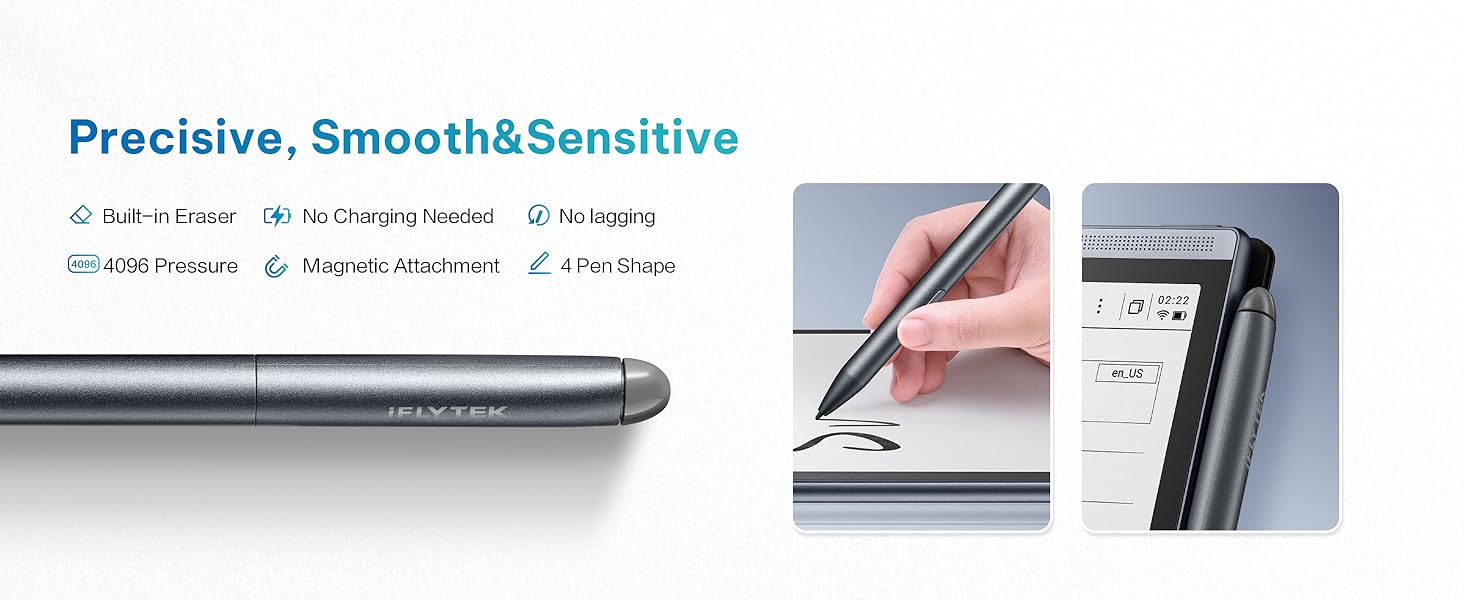
Figure 2: Contents of the AINOTE Air 2 package.
Your AINOTE Air 2 package should contain the following items:
- AINOTE Air 2 Note Taking Tablet (8.2-inch)
- Stylus Pen
- Charging Cable (USB-C)
- User Manual (this document)
- Package Box
1.2 Initial Charging
Before first use, fully charge your AINOTE Air 2 tablet. Connect the provided USB-C charging cable to the tablet's charging port and plug the other end into a compatible USB power adapter (not included). The battery indicator on the screen will show charging progress. A full charge typically provides continuous performance for an extended period.
1.3 Powering On/Off
- To Power On: Press and hold the power button located on the side of the device until the screen illuminates.
- To Power Off: Press and hold the power button until a power-off menu appears on the screen. Select 'Power Off' to shut down the device.
1.4 Stylus Pen Setup
The AINOTE Air 2 comes with a Wacom pen that requires no charging. It attaches magnetically to the side of the tablet for convenient storage and access. The pen features a built-in eraser and supports four different pen styles for varied writing experiences.

Figure 3: The Wacom stylus pen, designed for natural writing and magnetic attachment.
1.5 Initial Configuration
Upon first power-on, follow the on-screen prompts to configure basic settings such as language, Wi-Fi connection, and account synchronization. The device supports secure cloud sync with OneDrive and integrates with Google Play for app access.
2. Operating the AINOTE Air 2
2.1 General Navigation
The AINOTE Air 2 features an intuitive E-Ink touchscreen display. Navigate through menus and applications by tapping, swiping, and using the stylus for precise input. The interface is designed for ease of use, allowing quick access to notes and other functions.
2.2 Note-Taking Features
The AINOTE Air 2 excels in note-taking, offering a paper-like writing experience and advanced AI capabilities.
- Handwritten Notes to Text: Effortlessly convert handwritten notes to text in 83 languages. This feature allows for easy keyword searchability and secure cloud synchronization of your notes.
- Wacom Pen: Enjoy a seamless, natural writing experience. The pen includes a built-in eraser and supports four distinct pen styles. No charging is required for the stylus.
- AI-Powered Recording & Transcription: Record and transcribe in real-time across 15 languages (EN/ES/CN/FR/SA/VN/KR/RU/DE/JP/HK/TH/ID/MY/HU). The device features ChatGPT-powered instant playback and summaries. You can record up to 280 minutes per session, ideal for meetings and lectures.
- Schedule Management: Organize meetings, to-dos, and weekly reports in one centralized location, enhancing productivity.

Figure 4: The Schedule Assistant helps organize tasks and notes.
2.3 Reading Experience
The AINOTE Air 2 provides an immersive and eye-friendly reading experience.
- E-Ink Display: The 8.2-inch E-Ink screen features a dual-color reading light with 24 adjustable brightness levels, offering a strain-free viewing experience suitable for various lighting conditions.
- Audiobook Narration: Enjoy human-like audiobook narration in four languages without the need to download separate voice packages.
- Document Support: Import and annotate books across various formats, including PDF, EPUB, and TXT.

Figure 5: Reading on the AINOTE Air 2 offers a comfortable, paper-like experience.
2.4 AI Features and Connectivity
Leverage the advanced AI features to enhance your productivity and creativity.
- ChatGPT Compatibility: The device is powered by advanced AI features like ChatGPT compatibility, providing smart suggestions and instant information retrieval.
- AI Search & Highlight: Quickly find information within your notes and documents.
- AI-generated Summaries: Generate concise summaries of your recorded meetings or notes with a single tap.
- Cloud Sync: Features secure cloud sync with OneDrive and integration with Google Play, enabling access across multiple devices and safe storage of historical notes.

Figure 6: AI integration and app support on the AINOTE Air 2.
2.5 Official Product Video
For a visual guide on the key features and benefits of the AINOTE Air 2, please watch the official product video below.
Video 1: Why Choose iFLYTEK AINOTE Air 2. This video provides an overview of the tablet's main functionalities and advantages.
3. Maintenance
3.1 Cleaning Your Device
To maintain the longevity and appearance of your AINOTE Air 2, follow these cleaning guidelines:
- Use a soft, lint-free cloth to gently wipe the screen and body of the device.
- For stubborn smudges, slightly dampen the cloth with water. Avoid using harsh chemicals, abrasive cleaners, or aerosol sprays.
- Ensure the device is powered off and unplugged before cleaning.
3.2 Battery Care
The AINOTE Air 2 is powered by a 2600mAh battery designed for continuous performance. To optimize battery life:
- Avoid exposing the device to extreme temperatures.
- Charge the device regularly, but avoid leaving it fully discharged for extended periods.
- If storing the device for a long time, charge it to about 50% before storage.
3.3 Storage
The device comes with 32GB of internal storage and offers unlimited cloud backup for your notes. Regularly synchronize your notes to the cloud to ensure your work is safely stored and accessible across multiple devices.
3.4 Software Updates
Periodically check for software updates to ensure your device has the latest features and performance improvements. Updates can typically be found in the device's settings menu under 'System Update' or similar. Ensure a stable Wi-Fi connection and sufficient battery charge before initiating an update.
4. Troubleshooting
This section addresses common issues you might encounter with your AINOTE Air 2.
4.1 Common Issues and Solutions
- Device Not Powering On: Ensure the device is fully charged. If the battery is completely drained, it may take a few minutes of charging before it can power on.
- Stylus Not Responding: The Wacom pen does not require charging. Ensure the pen tip is clean and free from debris. If the issue persists, try restarting the tablet.
- Wi-Fi Connectivity Issues: Check your Wi-Fi router and ensure it is functioning correctly. Try forgetting the network on your tablet and reconnecting.
- Slow AI Features/Performance: Ensure your device has a stable internet connection for optimal AI performance. Close any unnecessary background applications.
- Handwritten Text Conversion Inaccuracy: Ensure your handwriting is clear and legible. The device supports 83 languages for conversion; verify the correct language setting is selected.
4.2 Factory Reset
If you experience persistent issues, a factory reset may resolve them. Warning: A factory reset will erase all data on your device. Ensure you have backed up all important notes and files to the cloud before proceeding. Consult the device's settings menu for the factory reset option.
5. Specifications
Below are the technical specifications for the AINOTE Air 2 AI Note-Taking Tablet:
| Feature | Specification |
|---|---|
| Standing Screen Display Size | 8.2 Inches |
| Screen Resolution | 1920 x 1440 pixels (293 PPI) |
| Processor | 1.8 GHz ARM |
| Operating System | Android |
| Item Weight | 8 ounces |
| Product Dimensions | 7 x 0.1 x 5 inches |
| Color | Grey |
| Flash Memory Size | 32 GB |
| Battery | 2600mAh (1 AA battery included, likely referring to internal battery) |
| Wireless Type | 802.11ac |
| Connectivity Technology | USB |
| Special Feature | Portable |
6. Warranty and Support
6.1 Product Warranty
The manufacturer provides warranty support for the AINOTE Air 2. For specific details regarding warranty coverage, duration, and terms, please refer to the warranty card included in your product packaging or visit the official iflytek website.
6.2 Customer Support
For technical assistance, troubleshooting beyond this manual, or inquiries about your device, please contact iflytek customer support through their official channels. You may find contact information on the product packaging, the official iflytek website, or through your point of purchase.
6.3 Online Resources
Additional resources, including FAQs, updated manuals, and software downloads, may be available on the official iflytek support website. Regularly checking these resources can provide solutions to new issues or offer further guidance on using your device.
Related documentsAINOTE Air 2


Ask a question about this manual
Ask about setup, troubleshooting, compatibility, parts, safety, or missing instructions. Manuals+ will review the question and use this page’s manual context to help answer it.