
1. Introduction
Welcome to the user manual for your new Lenovo ThinkPad E14 Gen 6 Business Laptop, bundled with a Targus USB-C 100W Docking Station. This guide provides essential information to help you set up, operate, maintain, and troubleshoot your device. Please read this manual thoroughly to ensure optimal performance and longevity of your laptop and docking station.
The Lenovo ThinkPad E14 Gen 6 is designed for business professionals, offering robust performance with an AMD Ryzen 5 7535U processor, ample 16GB DDR5 RAM, and a fast 512GB SSD. Its 14-inch FHD+ display, comprehensive connectivity options, and Windows 11 Pro operating system make it a versatile tool for productivity.
2. Product Overview and Features
The ThinkPad E14 Gen 6 combines powerful hardware with a durable design, ensuring reliable performance for daily tasks and demanding workloads.

Figure 2.1: Lenovo ThinkPad E14 Gen 6 Laptop with Targus USB-C 100W Docking Station.

Figure 2.2: Overview of key specifications and features, highlighting the AMD Ryzen 5 7535U processor, DDR5 RAM, PCIe NVMe SSD, FHD+ IPS display, Windows 11 Pro, and Wi-Fi 6.
Key Features:
- Powerful Processing: Equipped with an AMD Ryzen 5 7535U processor (6 cores, 12 threads, up to 4.55GHz) and AMD Radeon Graphics for efficient multitasking and graphics performance.
- Massive RAM and Ultra-Fast Storage: 16GB DDR5 RAM (4800MHz) for smooth operation and a 512GB PCIe NVMe M.2 SSD for rapid boot times and data access.
- Immersive Visuals: 14-inch WUXGA (1920 x 1200) IPS Anti-glare Display with 16:10 aspect ratio, 300 nits brightness, and TÜV Low Blue Light certification for comfortable viewing.
- Comprehensive Connectivity: Multiple USB-A and USB-C ports (including USB 3.2 Gen 1 and Gen 2), HDMI 2.1, Ethernet (RJ45), and a headphone/microphone combo jack. Features Wi-Fi 6 for high-speed wireless connections.
- Enhanced Productivity with Windows 11 Pro: Streamlined user interface, customizable app layouts, and advanced security features.
- Bundled Targus USB-C 100W Docking Station: Offers dual 4K display support, fast data transfer, Gigabit Ethernet, and 100W power delivery for expanded connectivity and workstation setup.
- Superior Audiovisuals: Harman- and Dolby audio with Dolby Atmos support, complemented by an FHD 1080p webcam with privacy shutter for clear video calls.
- Robust Security: Features ThinkShield security, including a touch fingerprint reader integrated into the power button and match-on-chip technology, to safeguard your data.
- Built to Withstand: Certified to MIL-STD 810H standards, undergoing 26 procedures and 200+ quality checks for durability in extreme conditions.
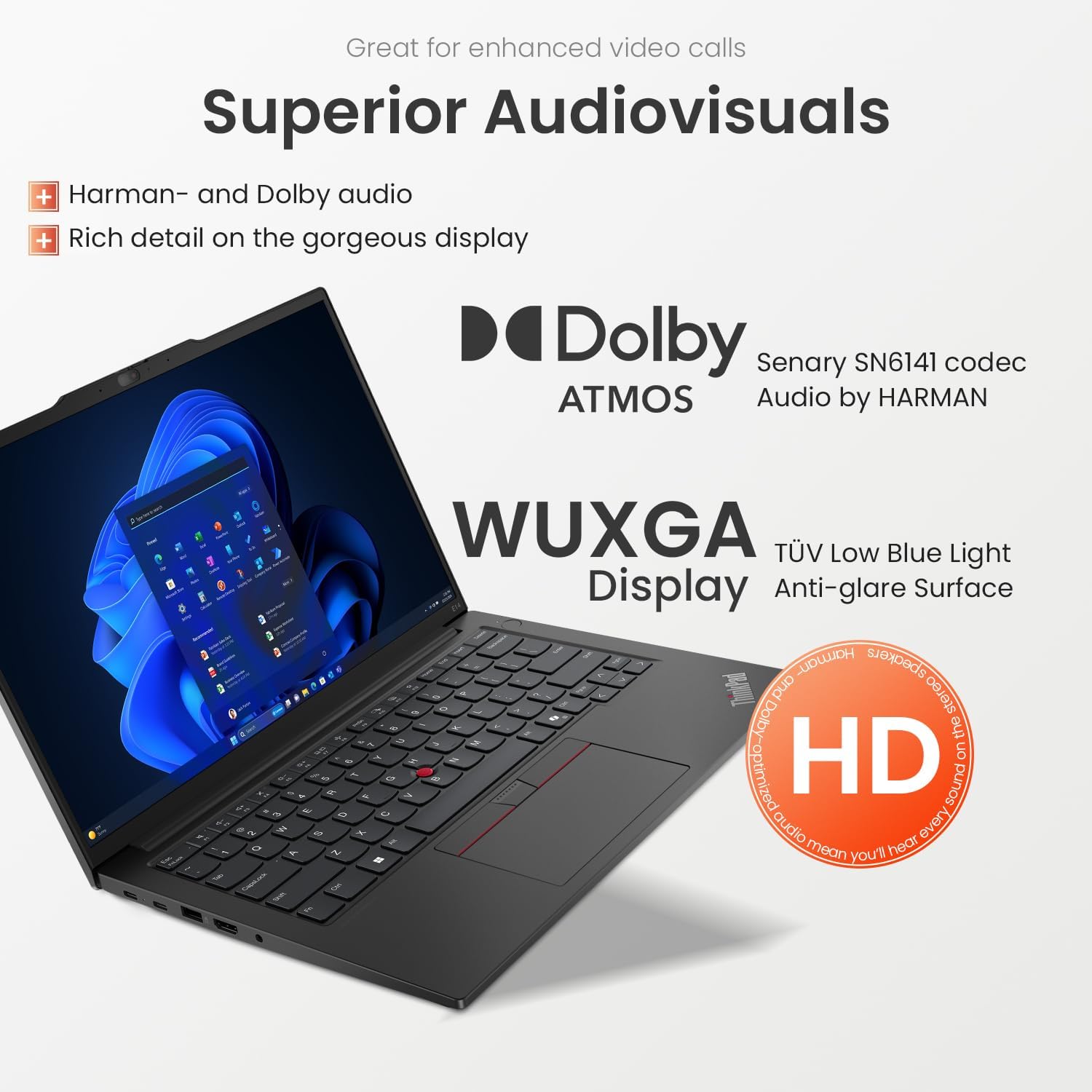
Figure 2.3: Details on the laptop's audio and display capabilities, including Dolby Atmos and the WUXGA anti-glare screen.

Figure 2.4: Illustration of the laptop's data and system protection features, such as ThinkShield and the integrated fingerprint reader.

Figure 2.5: Visual representation of the laptop's MIL-STD 810H certification, indicating its robust build quality and ability to withstand harsh environments.

Figure 2.6: The laptop in a typical work environment, demonstrating its suitability for daily business tasks and productivity.
3. Setup
3.1 Unboxing and Initial Inspection
Carefully remove the laptop and all accessories from the packaging. Check for any visible damage. The package should include:
- Lenovo ThinkPad E14 Gen 6 Laptop
- AC Power Adapter
- Targus USB-C 100W Docking Station
- Targus Docking Station Power Adapter
- Documentation (this manual, warranty card)
3.2 Connecting Power
- Connect the AC power adapter to the laptop's USB-C power input port.
- Plug the power cord into a wall outlet.
- Allow the battery to charge for at least 30 minutes before initial use, or until the battery indicator shows sufficient charge.
3.3 Initial Boot-Up and Windows 11 Pro Setup
- Open the laptop lid or press the power button (integrated with the fingerprint reader) to turn on the laptop.
- Follow the on-screen instructions to complete the Windows 11 Pro setup. This typically involves selecting your region, language, connecting to a Wi-Fi network, and creating a user account.
- Ensure you have an active internet connection during setup for updates and account synchronization.
3.4 Connecting the Targus USB-C 100W Docking Station
The docking station expands your laptop's connectivity and allows for a single-cable connection to multiple peripherals.

Figure 3.1: Detailed view of the laptop's and docking station's various ports for comprehensive connectivity.
- Connect the Targus docking station's power adapter to the docking station and a wall outlet.
- Connect the USB-C cable from the docking station (labeled 'USB 3.2 Gen 1 Type-C to Host') to one of the USB-C ports on your ThinkPad E14 Gen 6.
- Connect your external monitors to the HDMI ports on the docking station.
- Connect any other peripherals (keyboard, mouse, external drives, Ethernet cable) to the appropriate ports on the docking station.
- Your laptop should automatically detect the docking station and connected devices.
4. Operating Instructions
4.1 Basic Operation
- Power On/Off: Press the power button (located on the side, integrated with the fingerprint reader) to turn on the laptop. To shut down, click the Start button in Windows, then Power > Shut down.
- Keyboard: The laptop features a backlit keyboard. Use the Fn + Spacebar shortcut to cycle through backlight brightness levels (off, low, high).
- Touchpad and TrackPoint: Use the multi-touch touchpad for navigation or the iconic TrackPoint pointing device located in the center of the keyboard.
- Function Keys: The F1-F12 keys have dual functions. Press Fn + F-key for the secondary function (e.g., volume, brightness). You can configure the default behavior in BIOS settings.
4.2 Fingerprint Reader
The integrated fingerprint reader provides secure and convenient login. To set up:
- Go to Windows Settings > Accounts > Sign-in options.
- Under 'Windows Hello Fingerprint', click 'Set up' and follow the on-screen instructions to register your fingerprints.
4.3 Webcam with Privacy Shutter
The FHD 1080p webcam includes a physical privacy shutter for enhanced security. Slide the shutter to cover or uncover the camera lens as needed.
4.4 Audio Features
Your ThinkPad E14 Gen 6 features Harman- and Dolby audio with Dolby Atmos support for an enhanced audio experience. Adjust audio settings via the Windows Sound settings or the Dolby Access application.
5. Connectivity
5.1 Laptop Ports
The ThinkPad E14 Gen 6 offers a variety of ports for connecting peripherals:
- USB-A (USB 5Gbps / USB 3.2 Gen 1): Standard USB port for connecting devices like mice, keyboards, or USB drives.
- USB-A (USB 10Gbps / USB 3.2 Gen 2): Faster USB port for high-speed data transfer.
- USB-C (USB 5Gbps / USB 3.2 Gen 1): Versatile port for data, video output, and power delivery.
- USB-C (USB 10Gbps / USB 3.2 Gen 2): High-speed USB-C port for data, video, and power.
- HDMI 2.1: For connecting to external displays or projectors.
- Ethernet (RJ45): For wired network connection.
- Headphone/Microphone Combo Jack: For connecting headsets or external audio devices.
5.2 Wireless Connectivity
- Wi-Fi 6 (802.11ax): Provides fast and reliable wireless internet connection. Manage Wi-Fi settings through Windows Network & Internet settings.
- Bluetooth: For connecting wireless peripherals such as headphones, speakers, or mice. Enable and manage Bluetooth devices through Windows Bluetooth & devices settings.
5.3 Targus USB-C 100W Docking Station
The docking station significantly expands your connectivity options:
- Dual 4K Display Support: Connect two external 4K monitors via the HDMI ports for an extended desktop experience.
- Gigabit Ethernet: Provides a stable and fast wired network connection.
- Multiple USB Ports: Additional USB-A and USB-C ports for all your peripherals.
- 100W Power Delivery: Charges your laptop while connected, simplifying cable management.
6. Maintenance
6.1 Cleaning Your Laptop
- Screen: Use a soft, lint-free cloth lightly dampened with water or a screen cleaner. Do not spray liquid directly onto the screen.
- Keyboard and Chassis: Use a soft, dry cloth. For stubborn dirt, a slightly damp cloth with mild soap solution can be used, ensuring no liquid enters openings.
- Ports: Use compressed air to gently clear dust from ports. Avoid inserting objects into ports.
6.2 Battery Care
- Avoid extreme temperatures.
- Do not fully discharge the battery frequently.
- For long-term storage, charge the battery to about 50-60%.
6.3 Software Updates
- Windows Updates: Regularly check for and install Windows updates via Settings > Windows Update to ensure system stability and security.
- Driver Updates: Use the Lenovo Vantage application or visit the official Lenovo support website to download and install the latest drivers for your system components.
6.4 Data Backup
Regularly back up your important data to an external drive or cloud storage to prevent data loss in case of system failure.
7. Troubleshooting
This section addresses common issues you might encounter with your ThinkPad E14 Gen 6 laptop.
7.1 Power Issues
- Laptop does not turn on: Ensure the AC adapter is securely connected to both the laptop and a working power outlet. Try a different outlet. If the battery is completely drained, it may take a few minutes to show signs of life after connecting power.
- Battery not charging: Verify the power adapter is functioning. Check the charging port for debris. Ensure the battery drivers are up to date via Lenovo Vantage or Device Manager.
7.2 Display Issues
- No display on external monitor: Ensure the monitor is powered on and set to the correct input source. Check the HDMI cable connection to both the laptop/dock and the monitor. Press Windows key + P to cycle through display modes.
- Screen flickering or distorted: Update your graphics drivers. Try adjusting the display resolution and refresh rate in Windows Display settings.
7.3 Connectivity Problems
- Wi-Fi not connecting: Ensure Wi-Fi is enabled in Windows settings. Restart your router and laptop. Run the Windows Network Troubleshooter.
- Bluetooth device not pairing: Ensure Bluetooth is enabled on both devices. Make sure the device is in pairing mode. Remove and re-add the device in Windows Bluetooth settings.
- USB device not recognized: Try connecting the device to a different USB port. Ensure USB drivers are up to date. Restart the laptop.
7.4 Performance Issues
- Laptop is slow: Close unnecessary applications. Check Task Manager for high CPU/RAM usage. Ensure sufficient free space on the SSD. Run a disk cleanup.
- Overheating: Ensure ventilation vents are not blocked. Use the laptop on a hard, flat surface. Consider cleaning the vents with compressed air.
For more complex issues, refer to the Lenovo support website or contact customer service.
8. Specifications
| Feature | Specification |
|---|---|
| Brand | Lenovo |
| Model Name | 21M4 |
| Screen Size | 14 Inches |
| Screen Resolution | 1920 x 1200 pixels (WUXGA) |
| Processor | AMD Ryzen 5 7535U (up to 4.55 GHz) |
| RAM | 16 GB DDR5 (4800 MHz) |
| Hard Drive | 512 GB PCIe NVMe M.2 SSD |
| Graphics Coprocessor | AMD Radeon Graphics (Integrated) |
| Operating System | Windows 11 Pro |
| Wireless Type | 802.11ax (Wi-Fi 6) |
| Number of USB 3.0 Ports | 4 (mix of USB-A and USB-C) |
| Item Weight | 6 pounds |
| Product Dimensions | 12.32 x 8.63 x 0.71 inches |
| Color | Black |
| Special Features | Anti Glare Coating, Backlit Keyboard, HD Audio, Fingerprint Reader, Privacy Shutter |
9. Warranty and Support
9.1 Warranty Information
Your Lenovo ThinkPad E14 Gen 6 Business Laptop comes with a standard manufacturer's warranty. The specific terms and duration of the warranty may vary by region and purchase agreement. Please refer to the warranty card included in your product packaging or visit the official Lenovo support website for detailed warranty information.
Keep your proof of purchase (receipt or invoice) as it will be required for any warranty claims.
9.2 Technical Support
For technical assistance, troubleshooting beyond this manual, or service requests, please contact Lenovo customer support:
- Lenovo Support Website: Visit support.lenovo.com for drivers, manuals, FAQs, and online support tools.
- Phone Support: Refer to the contact information provided on the Lenovo support website for your specific region.
- Lenovo Vantage: Utilize the pre-installed Lenovo Vantage application on your laptop for system health checks, updates, and direct access to support resources.
When contacting support, please have your laptop's serial number (usually found on a sticker on the bottom of the laptop or in the BIOS) and the model number (21M4) ready.