1. Introduction
This manual provides essential information for setting up, operating, and maintaining your HP 15.6-inch Touchscreen Laptop, model 15-fd1055cl. Please read this guide thoroughly to ensure proper use and to maximize the lifespan of your device.
1.1. What's in the Box
- HP 15.6-inch Touchscreen Laptop
- Power Adapter and Cable
- Stylus
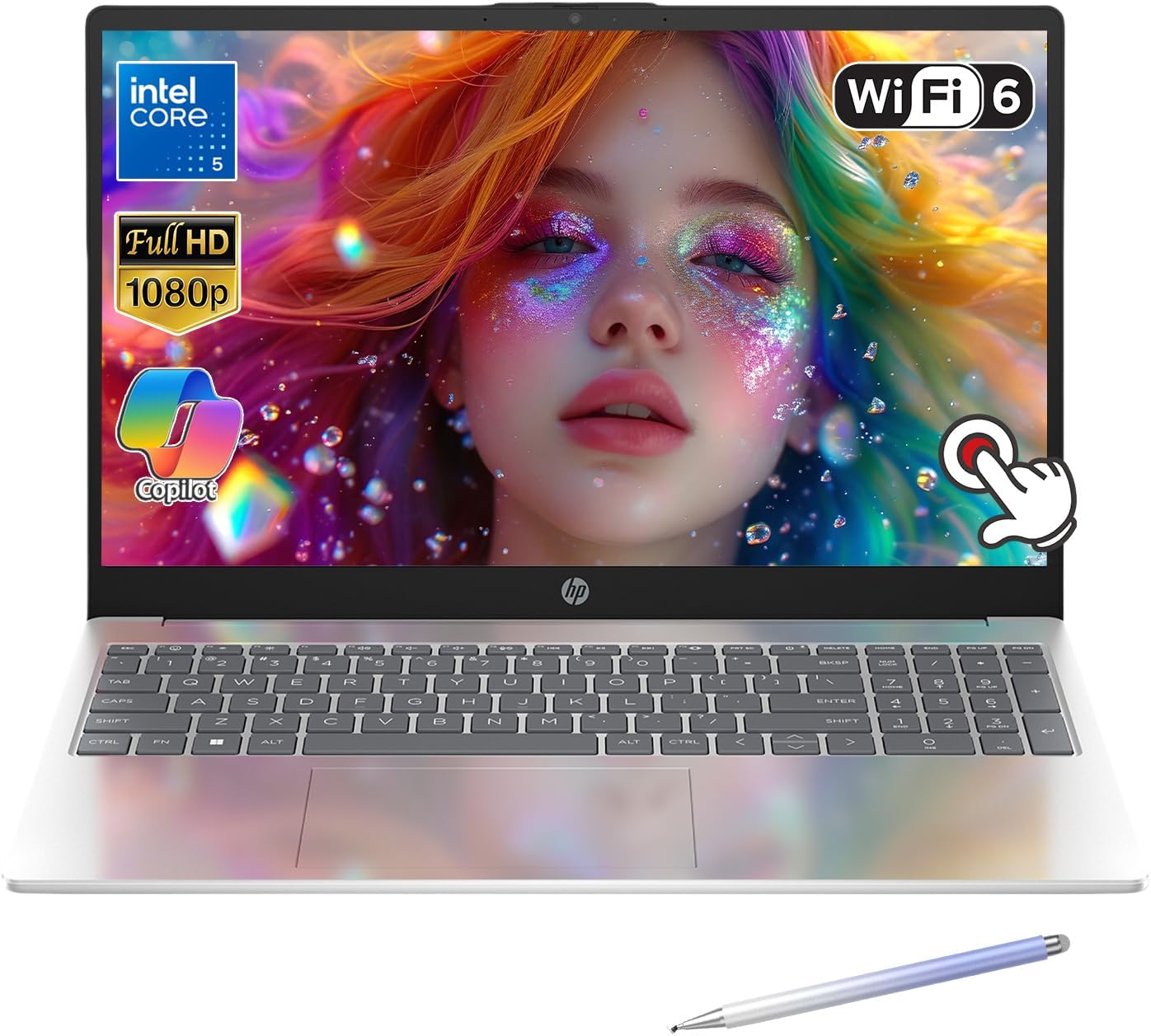
Image 1.1: The HP 15.6-inch Touchscreen Laptop, featuring Intel Core 5 processor, Wi-Fi 6, Full HD 1080p display, and Windows Copilot integration. A stylus is also shown.
2. Setup
2.1. Initial Power On
- Unpack the laptop and all accessories from the box.
- Connect the power adapter to the laptop's AC smart pin port and then plug it into a power outlet.
- Open the laptop lid. The laptop may power on automatically, or you may need to press the power button, typically located on the keyboard deck.
- Follow the on-screen instructions to complete the initial Windows 11 setup, including language selection, network connection, and user account creation.
2.2. Connecting Peripherals
Your laptop is equipped with various ports for connecting external devices. Refer to Section 4 for a detailed diagram of available ports.
- USB Devices: Connect USB flash drives, external hard drives, or other USB peripherals to the USB Type-A or USB Type-C ports.
- External Display: Use the HDMI 1.4b port to connect an external monitor or projector.
- Audio Devices: Plug headphones or external speakers into the headphone/microphone combo jack.
3. Operating Your Laptop
3.1. Basic Functions
- Keyboard: The full-size keyboard includes a numeric keypad for efficient data entry.
- Touchpad: Use the integrated touchpad for navigation and gestures.
- Power Button: Press to turn on/off or put the laptop to sleep.
3.2. Touchscreen Usage
The 15.6-inch Full HD IPS touchscreen allows for intuitive interaction with your device. Use your fingers or the included stylus for navigation, drawing, and other touch-enabled functions.
3.3. Windows Copilot
Your laptop features a dedicated Copilot key, providing quick access to the AI-powered intelligent assistant in Windows 11. Press the Copilot key to launch Copilot and enhance your productivity and creativity.

Image 3.1: The HP laptop screen showing the Windows 11 desktop with the Copilot interface active, demonstrating the AI assistant's integration.
3.4. Wi-Fi Connectivity
The laptop supports Wi-Fi 6 (2x2) for fast and reliable wireless internet access.
- Click the Wi-Fi icon in the Windows taskbar.
- Select your desired Wi-Fi network from the list.
- Enter the network password if prompted and click 'Connect'.
3.5. Webcam and Audio
The HP True Vision 720p FHD camera and integrated microphone allow for video calls and recordings. The laptop also features advanced noise reduction software for clear audio communication. A manual privacy shutter is included for the webcam.

Image 3.2: The HP laptop screen showing a video call in progress and audio editing software, highlighting the webcam and audio capabilities.
4. Ports and Connections
Familiarize yourself with the various ports available on your HP laptop:

Image 4.1: A visual representation of the laptop's side profiles, detailing the location and type of each port, including AC smart pin, USB Type-A, HDMI 1.4b, USB Type-C, and headphone/microphone combo jack.
- AC Smart Pin: For connecting the power adapter.
- USB Type-A Ports (x2): Standard USB ports for connecting peripherals.
- HDMI 1.4b: For connecting to external displays.
- USB Type-C Port: Versatile port for data transfer and connecting compatible devices.
- Headphone/Microphone Combo Jack: For connecting headsets or external audio devices.
5. Maintenance
5.1. Battery Care
- Charging: Use only the provided HP power adapter. The laptop supports HP Fast Charge, allowing it to charge from 0% to 50% in approximately 45 minutes.
- Battery Life: Expected battery life is up to 6 hours and 45 minutes for mixed usage and up to 10 hours and 15 minutes for video playback. Actual battery life varies depending on usage.
- Storage: If storing the laptop for an extended period, ensure the battery is charged to about 50% to prolong its lifespan.
5.2. Cleaning
- Screen: Use a soft, lint-free cloth lightly dampened with water or a screen cleaner specifically designed for electronics. Avoid harsh chemicals.
- Keyboard and Chassis: Use a soft, dry cloth. For stubborn dirt, a slightly damp cloth can be used, ensuring no liquid enters the device.
- Vents: Periodically check and clean the ventilation openings to prevent dust buildup, which can affect performance.
6. Troubleshooting
This section addresses common issues you might encounter with your HP laptop.
- Laptop Does Not Power On: Ensure the power adapter is securely connected to both the laptop and a working power outlet. Try a different outlet. If the battery is completely drained, allow it to charge for a few minutes before attempting to power on.
- No Wi-Fi Connection: Check if Wi-Fi is enabled in Windows settings. Verify that your router is working correctly and that you are entering the correct network password. Restarting both the laptop and the router can often resolve connectivity issues.
- Screen is Blank: Connect an external monitor to check if the display output is working. If an external monitor works, there might be an issue with the laptop's internal display. Try adjusting the screen brightness.
- Slow Performance: Close unnecessary applications. Check for available Windows updates and driver updates. Ensure there is sufficient free space on your storage drive.
- Touchscreen Not Responding: Restart the laptop. Ensure the screen is clean and free of debris. Check for any driver updates for the touchscreen.
7. Specifications
| Feature | Detail |
|---|---|
| Model Name | 15-fd1055cl |
| Display | 15.6-inch Full HD (1920 x 1080) IPS Touchscreen, micro-edge, anti-glare, 300 nits, 62.5% sRGB |
| Processor | Intel Core 5 120U (up to 3.8 GHz) |
| RAM | 32 GB DDR4 (3200 MHz) |
| Storage | 1 TB PCIe Gen4 NVMe M.2 SSD |
| Graphics | Integrated Intel Graphics |
| Operating System | Windows 11 Home |
| Wireless Connectivity | Wi-Fi 6 (2x2) and Bluetooth 5.3 |
| Ports | 2x USB Type-A, 1x USB Type-C, 1x HDMI 1.4b, 1x Headphone/microphone combo, 1x AC smart pin |
| Webcam | HP True Vision 720p FHD camera with manual privacy shutter |
| Battery Life | Up to 6 hours 45 minutes (mixed usage), Up to 10 hours 15 minutes (video playback) |
| Dimensions (LxWxH) | 14.17 x 9.29 x 0.73 inches |
| Weight | 7 pounds |
| Special Features | Support Stylus, Copilot Key |

Image 7.1: A diagram illustrating the physical dimensions (height, width, depth) and weight of the HP 15.6-inch laptop, along with battery life estimates.
8. Environmental Considerations
The HP 15.6-inch PC is designed with environmental sustainability in mind, utilizing recycled metals, post-consumer, and ocean-bound plastics. It is EPEAT Gold with Climate+ certified and ENERGY STAR certified, contributing to a reduced environmental impact.

Image 8.1: The HP laptop screen displaying a vibrant forest scene, symbolizing the product's commitment to environmental sustainability through recycled materials and certifications.
9. Warranty and Support
For warranty information and technical support, please refer to the documentation included with your product or visit the official HP support website. The website provides resources such as drivers, software updates, and contact information for customer service.