Introduction
This manual provides essential information for setting up, operating, maintaining, and troubleshooting your ASUS Vivobook 17 laptop. Please read this guide thoroughly to ensure proper use and to maximize the performance and longevity of your device.
The ASUS Vivobook 17 is designed for productivity and entertainment, featuring an Intel Core i3-1215U processor, a 17.3-inch Full HD display, up to 40GB RAM, and up to 2TB PCIe NVMe M.2 SSD storage. It operates on Windows 11 Pro and includes a comprehensive set of connectivity options.
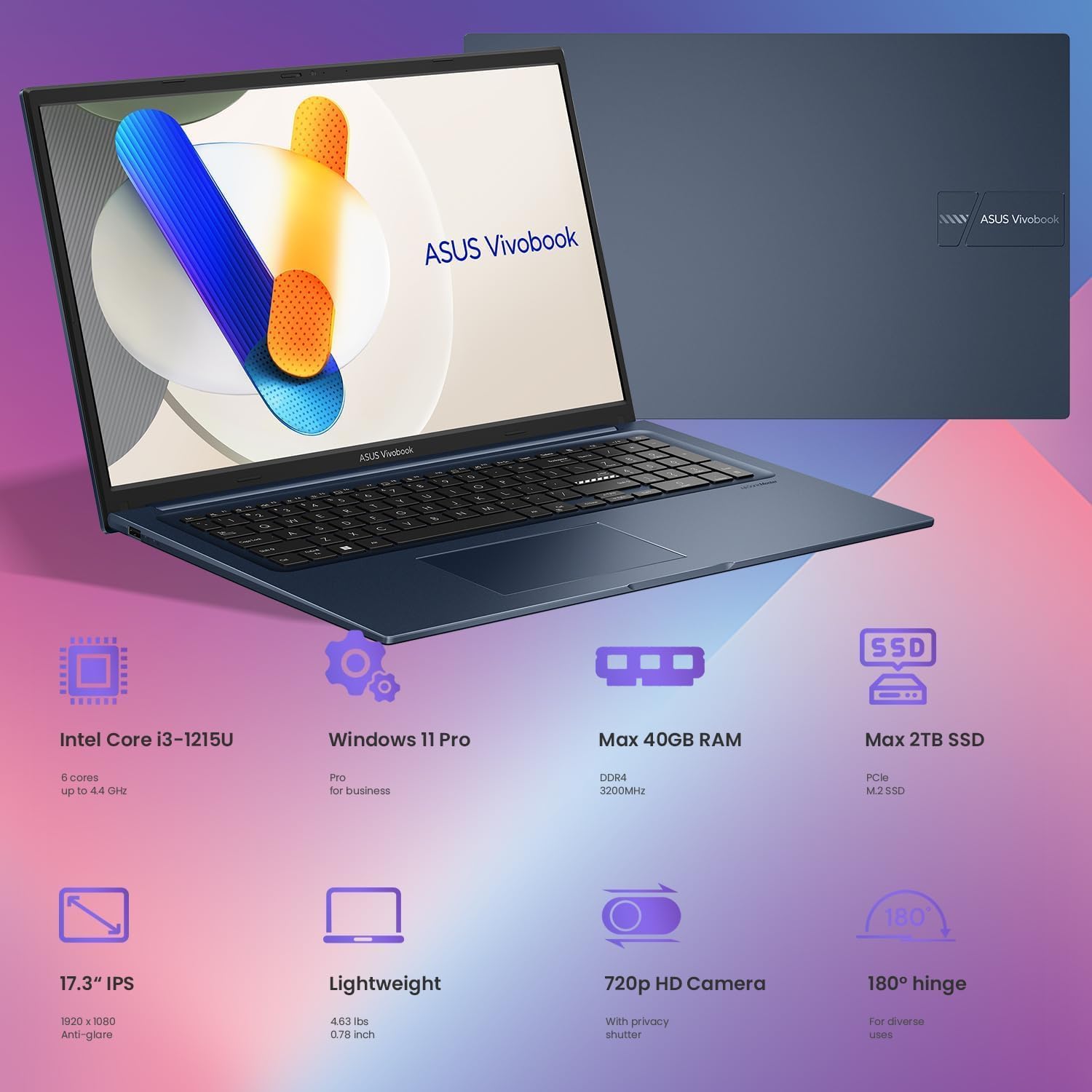
Image: ASUS Vivobook 17 laptop displaying its overall design and key specifications like Intel Core i3-1215U, Windows 11 Pro, Max 40GB RAM, Max 2TB SSD, 17.3" IPS display, lightweight design, 720p HD Camera, and 180-degree hinge.
Setup Guide
1. Initial Power-On
- Connect Power: Plug the AC adapter into the laptop's power connector and then into a power outlet.
- Open Display: Carefully open the laptop display.
- Power On: Press the power button, typically located on the keyboard deck, to start the laptop.
- Operating System Setup: Follow the on-screen instructions to complete the Windows 11 Pro setup process. This includes selecting your region, language, and setting up user accounts.
2. Connecting Peripherals
Your Vivobook 17 offers various ports for connecting external devices:
- USB Devices: Connect USB flash drives, external hard drives, mice, or keyboards to the available USB-A or USB-C ports.
- External Display: Use the HDMI port to connect an external monitor or projector.
- Audio Devices: Plug headphones or external speakers into the 3.5mm Headphone/Microphone Combo Jack.
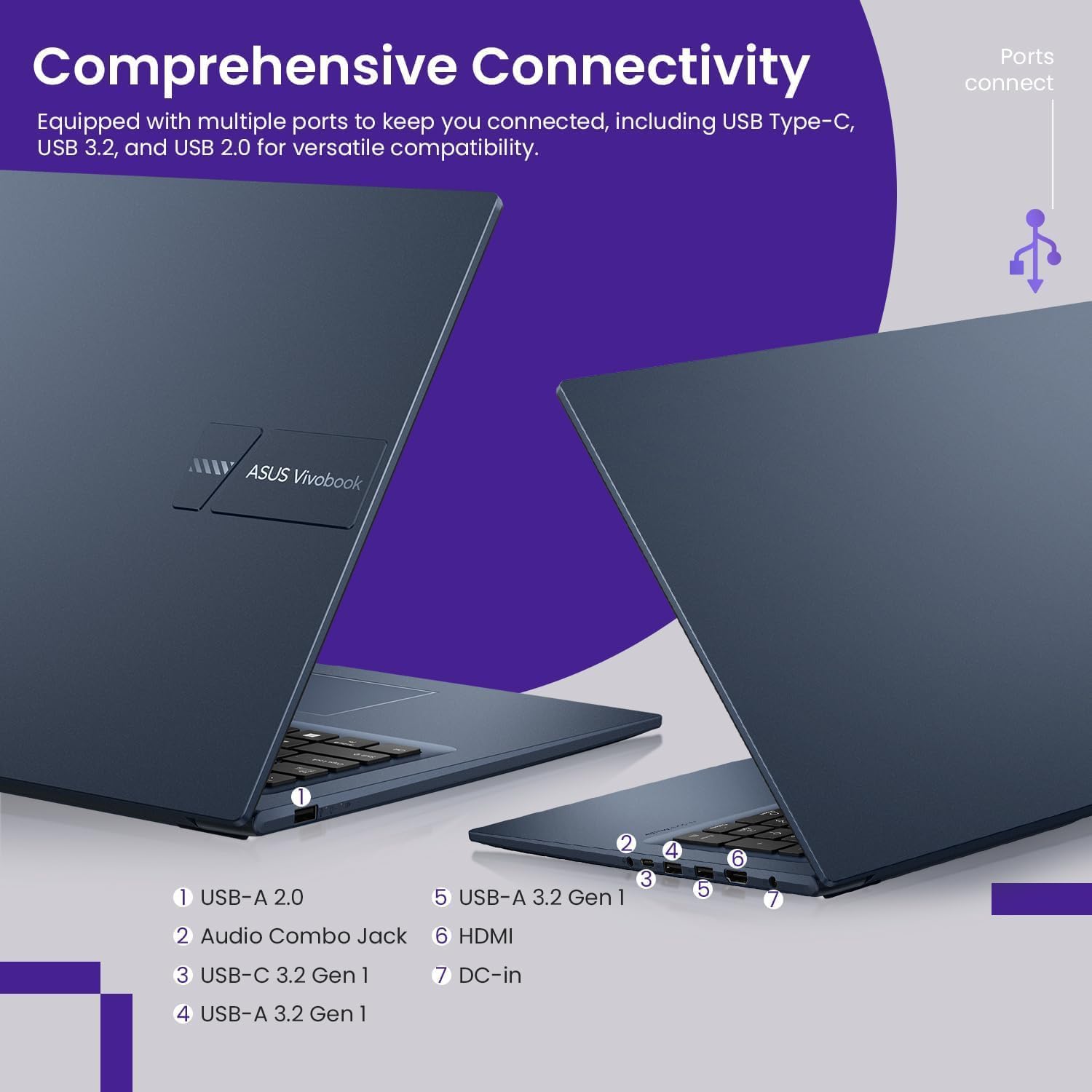
Image: Detailed view of the ASUS Vivobook 17's left and right side ports, including USB-A 2.0, Audio Combo Jack, USB-C 3.2 Gen 1, USB-A 3.2 Gen 1, HDMI, and DC-in power connector.
3. Network Connectivity
- Wi-Fi: Access network settings in Windows 11 to connect to a wireless network. The laptop supports Wi-Fi 5 (802.11ac).
- Bluetooth: Enable Bluetooth in Windows settings to pair with compatible devices such as wireless headphones or mice. The laptop supports Bluetooth 4.1.
Operating Instructions
1. Basic Usage
- Keyboard: The laptop features a US English, Full Size Backlit Keyboard with a Numeric Keypad. Use the function keys (Fn) in combination with F-keys for various shortcuts (e.g., volume, brightness).
- Touchpad: The integrated touchpad supports multi-touch gestures for navigation and interaction with the operating system.
- Fingerprint Sensor: Utilize the integrated fingerprint sensor for secure and quick login via Windows Hello.
2. Display Features
The 17.3-inch Full HD (1920 x 1080) display features ultra-slim NanoEdge bezels for an immersive viewing experience. The 180-degree hinge allows for flexible positioning of the screen.
3. Webcam
The built-in HD Webcam includes a privacy shutter. Slide the shutter to cover the camera lens when not in use to ensure privacy.
4. Performance and Storage
The Intel Core i3-1215U processor with 6 cores and 8 threads provides efficient performance for daily tasks and multitasking. The laptop supports up to 40GB DDR4 RAM and up to 2TB PCIe NVMe M.2 SSD for fast data access and ample storage.

Image: ASUS Vivobook 17 laptop with a graphic emphasizing the Intel Core i3 processor, 6 Cores, 8 Threads, and 4.4 GHz Turbo speed.

Image: ASUS Vivobook 17 laptop with a graphic emphasizing generous storage options, including up to 2TB PCIe SSD and up to 40GB RAM.
Maintenance
1. Cleaning
- Screen: Use a soft, lint-free cloth lightly dampened with water or a screen cleaner. Do not spray liquid directly onto the screen.
- Keyboard and Chassis: Use a soft, dry cloth. For stubborn dirt, a slightly damp cloth with mild soap solution can be used, ensuring no liquid enters openings.
- Ports: Keep ports free of dust and debris. Use compressed air if necessary, holding the can upright.
2. Battery Care
- Avoid extreme temperatures.
- Do not fully discharge the battery frequently.
- If storing the laptop for an extended period, ensure the battery is charged to approximately 50-60%.
3. Software Updates
Regularly update your Windows operating system and ASUS drivers to ensure optimal performance, security, and compatibility. Check for updates through Windows Settings and the MyASUS application.
Troubleshooting
Common Issues and Solutions
- Laptop does not power on: Ensure the AC adapter is securely connected and the power outlet is functional. Try a different outlet. If the battery is completely drained, it may take a few minutes to show signs of charging.
- No display: Check if the laptop is powered on. If an external monitor is connected, ensure it is properly connected and selected as the display output (Fn + F8 or similar key combination).
- Wi-Fi connectivity issues: Ensure Wi-Fi is enabled in Windows settings. Restart your router and the laptop. Check for updated network drivers.
- Slow performance: Close unnecessary applications. Check for background processes consuming high resources. Ensure sufficient free storage space. Run a disk cleanup.
- Keyboard or touchpad not responding: Restart the laptop. Ensure no external devices are interfering. Check for driver updates.
For more complex issues or problems not resolved by these steps, please refer to the ASUS support website or contact their customer service.
Specifications
| Feature | Detail |
|---|---|
| Model Name | Vivobook 17 |
| Processor | Intel Core i3-1215U (6 Cores, 8 Threads, up to 4.4 GHz) |
| Graphics | Integrated Intel UHD Graphics |
| Operating System | Windows 11 Pro |
| RAM | Up to 40GB DDR4 SDRAM |
| Storage | Up to 2TB PCIe NVMe M.2 SSD |
| Display | 17.3-inch FHD (1920 x 1080) BrightView, 250 nits, 60% NTSC |
| Connectivity | Wi-Fi 5 (802.11ac), Bluetooth 4.1 |
| Ports | 1x USB-C 3.2 Gen 2, 2x USB-A 3.2 Gen 2, 1x USB-A 2.0, 1x HDMI 1.4b, 1x Headphone/Microphone Combo Jack (3.5mm), 1x Power Connector |
| Keyboard | US English, Full Size Backlit Keyboard with Numeric Keypad and Fingerprint Sensor |
| Webcam | HD with Privacy Shutter |
| Dimensions (LxWxH) | 16 x 12 x 2 inches |
| Item Weight | 8 pounds |
| Color | Blue |
| Military-grade standard | US MIL-STD-810H compliant |
Warranty Information
ASUS provides a limited warranty for its products. The specific terms and duration of your warranty may vary by region and product. Please refer to the warranty card included with your product packaging or visit the official ASUS support website for detailed warranty information and registration procedures.
Keep your proof of purchase (receipt or invoice) as it will be required for any warranty claims.
Customer Support
For technical assistance, product inquiries, or service requests, please contact ASUS customer support through the following channels:
- ASUS Support Website: Visit www.asus.com/support/ for drivers, FAQs, troubleshooting guides, and contact information specific to your region.
- MyASUS Application: The pre-installed MyASUS application on your laptop provides easy access to customer support, system diagnostics, and software updates.
When contacting support, please have your laptop's serial number and model name (Vivobook 17, B0DW5LJLQF) ready to expedite the service process.


