
1. Introduction
This manual provides essential information for setting up, operating, maintaining, and troubleshooting your CyberpowerPC Gamer Supreme Gaming PC, model SLCAI15000A2. Please read this manual thoroughly before using your new computer to ensure proper functionality and longevity.
2. Safety Information
Observe the following safety guidelines to prevent damage to your system and ensure personal safety:
- Power Supply: Use only the power cord provided with your system. Ensure the power outlet is properly grounded.
- Ventilation: Do not block ventilation openings. Ensure adequate airflow around the computer to prevent overheating.
- Liquid and Moisture: Keep the computer away from liquids and excessive moisture. Do not operate the computer with wet hands.
- Placement: Place the computer on a stable, flat surface. Avoid placing it near heat sources or in direct sunlight.
- Servicing: Do not attempt to service the computer yourself. Refer all servicing to qualified service personnel.
3. Package Contents
Verify that all items are present in the package:
- CyberpowerPC Gamer Supreme Gaming PC (SLCAI15000A2)
- Power Cord
- Gaming Keyboard
- Gaming Mouse
- Documentation (Quick Start Guide, Driver Discs if applicable)
4. Setup
4.1. Physical Setup
- Unpack the PC: Carefully remove the computer and all accessories from the packaging.
- Connect Peripherals:
- Connect your monitor(s) to the graphics card ports (HDMI or DisplayPort) located at the rear of the PC.
- Connect the keyboard and mouse to any available USB ports.
- Connect speakers or headphones to the audio jacks if desired.
- For wired internet, connect an Ethernet cable to the LAN port. For wireless, ensure antennas are attached if provided.
- Connect Power: Plug the power cord into the power supply unit (PSU) at the rear of the PC, then plug the other end into a grounded electrical outlet.
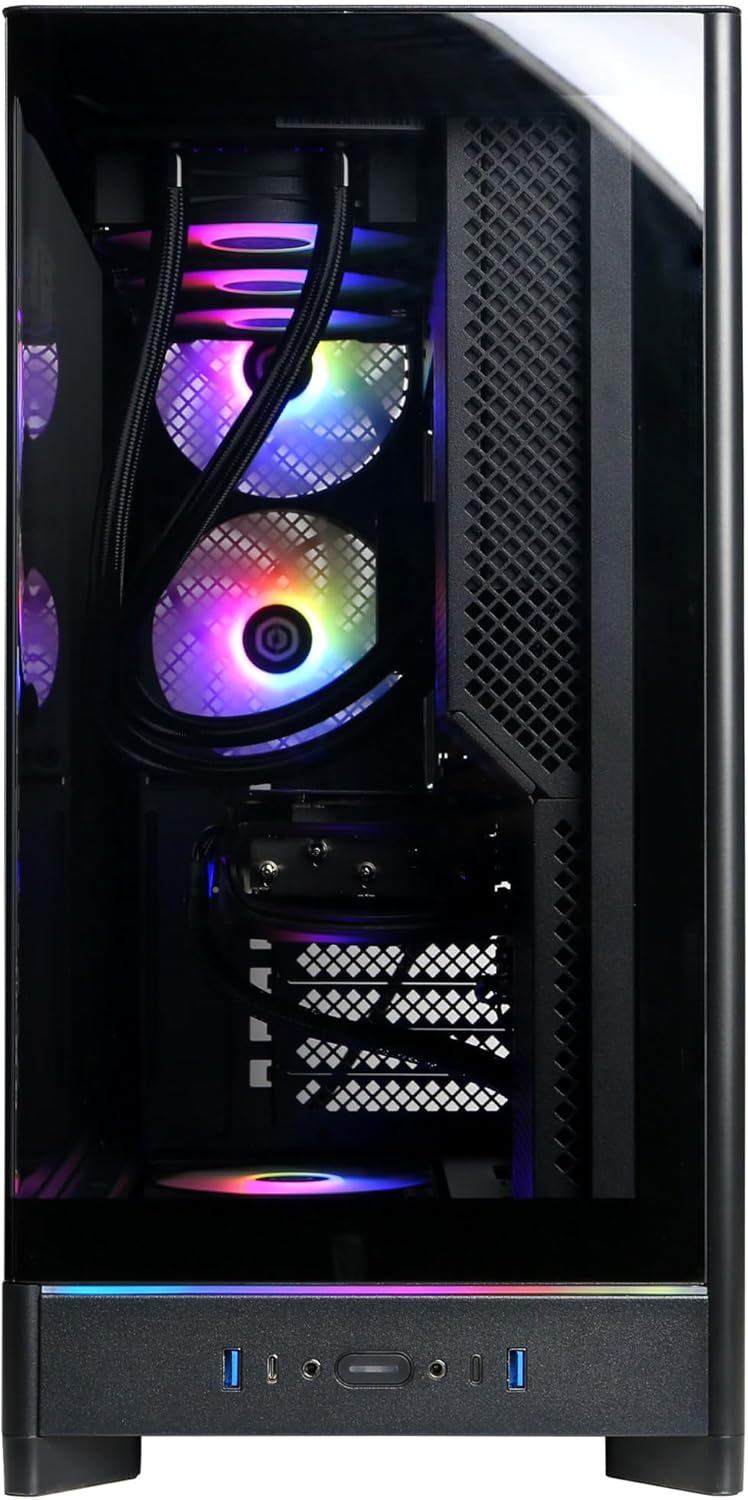
Image: Front panel connections including USB ports and power button.

Image: Detailed view of the front input/output ports for easy access.
4.2. Initial Power On
- Press the power button located on the front of the PC.
- The system will boot up, and you should see the operating system loading on your monitor.
4.3. Operating System Setup
Your CyberpowerPC comes with Windows 11 Home pre-installed. Follow the on-screen instructions to complete the initial setup, which includes:
- Selecting your region and keyboard layout.
- Connecting to a network (wired or wireless).
- Signing in with a Microsoft account or creating a local account.
- Setting up privacy settings.
5. Operating Your PC
5.1. General Usage
Once the operating system setup is complete, your PC is ready for use. You can install applications, browse the internet, and engage in gaming. Familiarize yourself with the Windows 11 interface for optimal experience.

Image: Internal components of the PC, showcasing the liquid cooling and RGB lighting.

Image: A different angle of the PC's interior, showing the high-performance graphics card and memory.
5.2. Connectivity
Your PC offers a variety of connectivity options:
- USB Ports: Includes 2 x USB-C 3.1, 4 x USB-A 3.1, and 2 x USB-A 2.0 for connecting various devices.
- Video Outputs: 1 x HDMI and 3 x DisplayPort for multiple monitor setups.
- Network: 1 x LAN port for wired internet and WiFi 6 for high-speed wireless connectivity.
- Bluetooth: Bluetooth 5.3 for connecting wireless peripherals.
- Audio: 7.1 Channel Audio for immersive sound experiences.
6. Maintenance
Regular maintenance helps ensure the longevity and performance of your PC:
- Cleaning: Periodically clean the exterior of the case with a soft, dry cloth. Use compressed air to clear dust from ventilation grilles and internal components (ensure the PC is powered off and unplugged).
- Software Updates: Keep your operating system, drivers (especially graphics drivers), and applications updated to the latest versions for security and performance improvements.
- Data Backup: Regularly back up important data to an external drive or cloud storage.

Image: Top view of the PC chassis, illustrating the ventilation design.

Image: Side view of the PC, showing the solid panel and potential rear airflow.
7. Troubleshooting
If you encounter issues with your PC, consider the following basic troubleshooting steps:
- No Power: Ensure the power cord is securely connected to both the PC and the wall outlet. Check if the power supply switch at the back of the PC is in the 'ON' position.
- No Display: Verify that your monitor is powered on and correctly connected to the graphics card ports (not the motherboard video outputs). Try a different video cable or monitor if available.
- System Freezes/Crashes: Restart the PC. Ensure all drivers are updated. Check for overheating by monitoring temperatures with software.
- Peripheral Not Working: Try connecting the peripheral to a different USB port. Ensure drivers for the peripheral are installed.
- Slow Performance: Close unnecessary applications. Check for malware or viruses. Ensure sufficient free space on your primary drive.
For more complex issues, refer to the CyberpowerPC support website or contact technical support.
8. Specifications
| Component | Specification |
|---|---|
| Model Number | SLCAI15000A2 |
| Operating System | Windows 11 Home |
| CPU | AMD Ryzen 9 9950X 4.3GHz (16 Cores) |
| Chipset | AMD B850 |
| Graphics Card | NVIDIA GeForce RTX 5090 32GB |
| RAM | 64GB DDR5 |
| Storage | 4TB PCIe 4.0 NVMe SSD |
| Connectivity | WiFi 6, Bluetooth 5.3, 1x LAN |
| USB Ports | 2x USB-C 3.1, 4x USB-A 3.1, 2x USB-A 2.0 |
| Video Output | 1x HDMI, 3x DisplayPort |
| Audio | 7.1 Channel Audio |
| Cooling | Liquid Cool CPU |
| Dimensions | 17.6 x 9.2 x 20 inches |
9. Warranty and Support
Your CyberpowerPC Gamer Supreme Gaming PC is covered by a 1 Year Parts & Labor Warranty. Additionally, you receive Free Lifetime Technical Support.
For warranty claims, technical assistance, or further inquiries, please visit the official CyberpowerPC support website or contact their customer service department. Keep your purchase receipt and product serial number readily available when seeking support.
Online Support: www.cyberpowerpc.com/support


