
1. Safety Information
Please read all safety instructions carefully before installation and use. Failure to follow these instructions may result in product damage, property damage, or personal injury.
- Weight Capacity: Do not exceed the maximum weight capacity of 59.4 lbs (27 kg) per monitor arm. Ensure your monitors are within this limit.
- Screen Size: This arm supports monitors from 17 inches to 57 inches.
- VESA Compatibility: Ensure your monitors have VESA mounting patterns of 75x75mm or 100x100mm.
- Stable Surface: Install the monitor arm on a sturdy desk or surface capable of supporting the combined weight of the arm and monitors.
- Gas Spring Adjustment: Adjust the gas spring tension only after the monitor is installed. Always hold the arm horizontally during adjustment to prevent sudden movement.
- Children: Keep small parts away from children to prevent choking hazards.
2. Package Contents
Verify that all components are present before beginning installation.
- Main Pole and Base
- Dual Monitor Arms (2 units)
- VESA Plates (2 units)
- C-Clamp and Grommet Mounting Hardware
- Cable Management Clips
- Hex Keys and Screws (various sizes)
- Instruction Manual

Image: All components included in the monTEK Dual Monitor Arm package.
3. Specifications
| Model Number | MA1001PBK-D |
| Supported Screen Size | 17" - 57" (Flat & Curved) |
| Weight Capacity | 4.4 lbs to 59.4 lbs (2 kg to 27 kg) per arm |
| VESA Compatibility | 75x75mm, 100x100mm |
| Material | Steel, Aluminum, Plastic |
| Mounting Options | C-Clamp, Grommet |
| Tilt Range | +75° to -75° |
| Swivel Range | ±90° |
| Screen Rotation | ±90° |
| Pole Height Adjustment | Up to 19.2 inches (48.8 cm) |
| Arm Extension Range | Up to 22.2 inches (56.4 cm) |
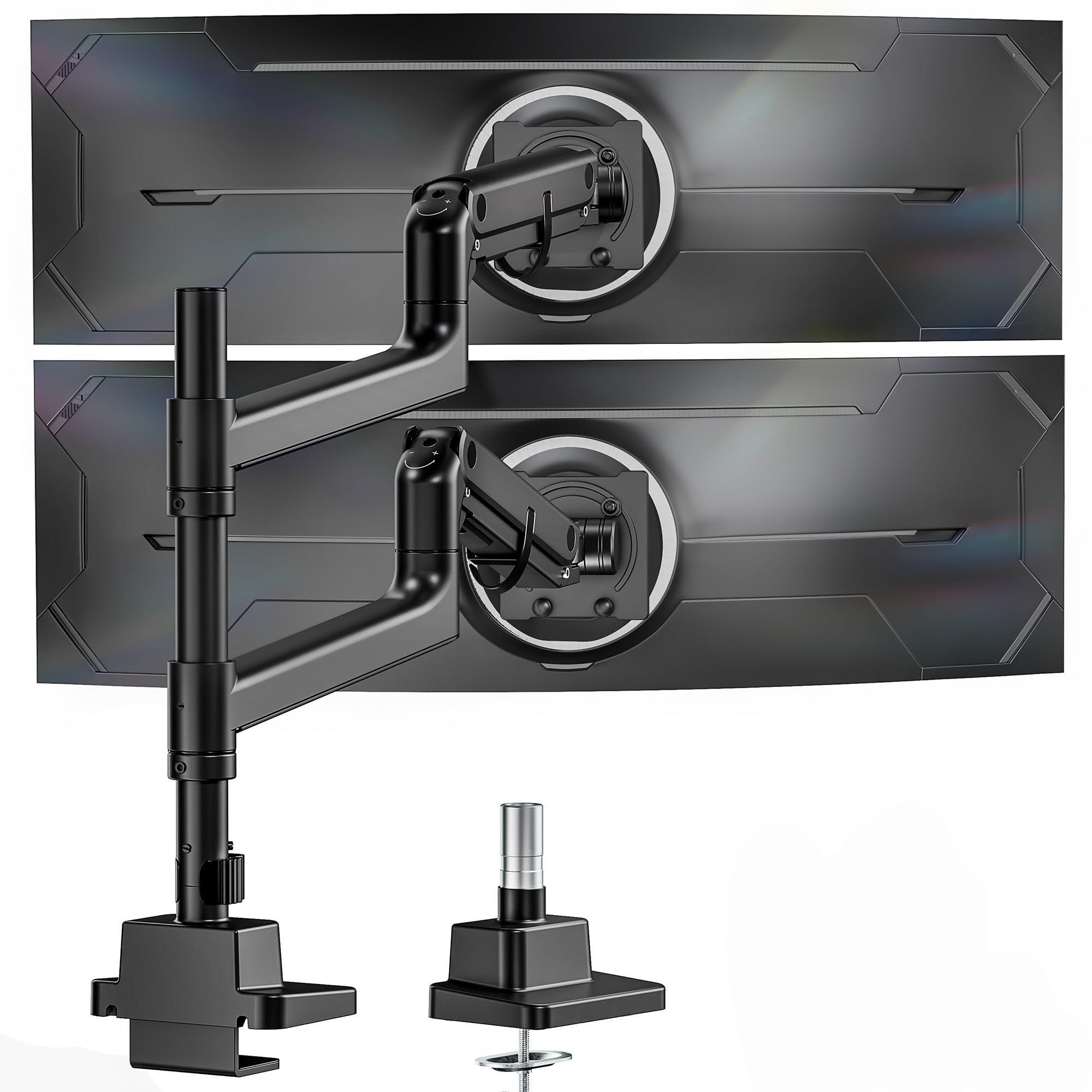
Image: The monTEK Dual Monitor Arm in use, demonstrating its compatibility with large and ultrawide screens.
4. Setup Guide
4.1 Choose Your Mounting Option
The monTEK Dual Monitor Arm supports two installation methods: C-clamp and Grommet mount. Select the method best suited for your desk.
- C-Clamp: For desk thickness between 0.47" and 1.8" (12-45mm).
- Grommet: For desk thickness between 0.47" and 2" (12-50mm). Requires an existing desk hole or drilling a new one (diameter 0.39" to 2.36" / 10-60mm).

Image: Visual guide for C-clamp and grommet mounting, including compatible desk thickness ranges.
4.2 Installation Steps
Follow these steps to install your monitor arm. For a visual guide, please refer to the installation video below.
- Assemble the chosen desk mount (C-clamp or grommet) to your desk.
- Attach the main pole to the mounted base.
- Slide the monitor arms onto the main pole and secure them at your desired height.
- Attach the VESA plates to the back of your monitors using the provided screws and washers. Ensure VESA compatibility (75x75mm or 100x100mm).
- Carefully slide the monitors (with VESA plates attached) onto the monitor arms until they click into place.
- Secure the monitors to the VESA plates with the safety screws.
Video: Detailed installation guide for the monTEK Dual Monitor Arm, demonstrating step-by-step assembly for both C-clamp and grommet mounting options.
5. Operating Your Monitor Arm
5.1 Adjusting Monitor Height and Position
The gas spring mechanism allows for smooth and effortless adjustment of your monitors. You can adjust the height, tilt, swivel, and rotation to achieve an ergonomic viewing experience.
- Height Adjustment: The arms can be moved up and down along the 19.2-inch pole.
- Extension: The arms extend up to 22.2 inches for optimal viewing distance.
- Tilt: Adjust the screen tilt from +75° to -75° to reduce glare and improve viewing angles.
- Swivel: Swivel your monitors ±90° horizontally.
- Rotation: Rotate your screens ±90° for portrait or landscape orientation.

Image: Visual representation of the monitor arm's flexible adjustment capabilities for tilt, swivel, and rotation.
5.2 Gas Spring Tension Adjustment
If your monitor arm does not hold its position or moves too easily/stiffly, you may need to adjust the gas spring tension. Use the provided hex key.
- Arm Drops: Turn the adjustment screw in the "+" direction to increase tension.
- Arm Rises: Turn the adjustment screw in the "-" direction to decrease tension.
- Important: Always hold the arm horizontally during adjustment. Do not adjust tension before monitor installation.
Video: Instructions on how to adjust the gas spring tension of the monitor arm to ensure it holds the monitor's position correctly.
5.3 Cable Management
Utilize the integrated cable management clips along the arms and pole to keep your cables organized and maintain a tidy workspace.
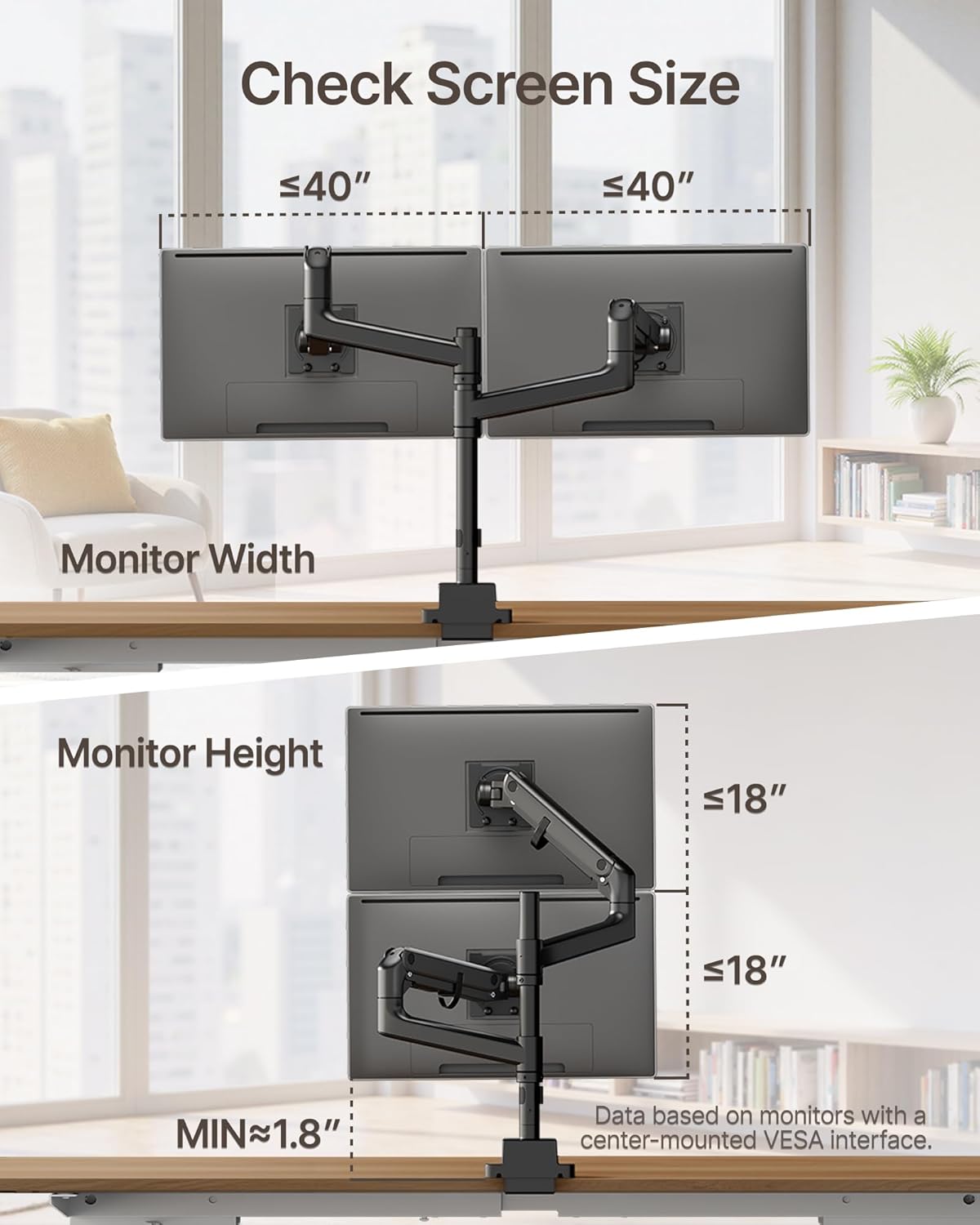
Image: The monitor arm with cables neatly routed through its integrated cable management system.
6. Maintenance
Regular maintenance ensures the longevity and optimal performance of your monTEK Dual Monitor Arm.
- Cleaning: Wipe the surface with a soft, damp cloth. Avoid abrasive cleaners or solvents.
- Inspection: Periodically check all screws and connections to ensure they are tight and secure. Re-tighten if necessary.
- Lubrication: No regular lubrication is required for the gas spring mechanism.
7. Troubleshooting
If you encounter any issues, refer to the following common problems and solutions.
- Monitor Sags or Rises Unexpectedly: Adjust the gas spring tension as described in Section 5.2. Refer to the "How to Adjust the Gas Spring Tension" video.
- Monitor Cannot Tilt or Swivel: Ensure all adjustment screws for tilt and swivel are not overtightened. Loosen slightly if movement is restricted. Refer to the "Tips for screen adjustment" video.
- Monitor is Unstable: Check that the desk mount (C-clamp or grommet) is securely fastened to the desk and all VESA plate screws are tightened. Ensure the monitor weight is within the specified capacity.
- Cables are Disorganized: Re-route cables through the integrated cable management clips.
Video: Practical tips for adjusting your screen's position and movement, addressing common issues like tilting and swiveling.
8. Warranty and Support
monTEK products are designed for durability and performance. For specific warranty details, please refer to the warranty card included with your product or visit the official monTEK website.
If you require further assistance or have questions not covered in this manual, please contact monTEK customer support through the following channels:
- Website: Visit the official monTEK website for FAQs and support resources.
- Email: Refer to your product packaging or warranty card for customer service email.
- Phone: Refer to your product packaging or warranty card for customer service phone number.
