
1. Introduction
This manual provides instructions for the installation, operation, and maintenance of your autoabc Wireless CarPlay/Android Auto Module. This module integrates advanced smartphone connectivity into your Mercedes Benz vehicle's existing infotainment system, enhancing your driving experience with navigation, communication, and entertainment features.
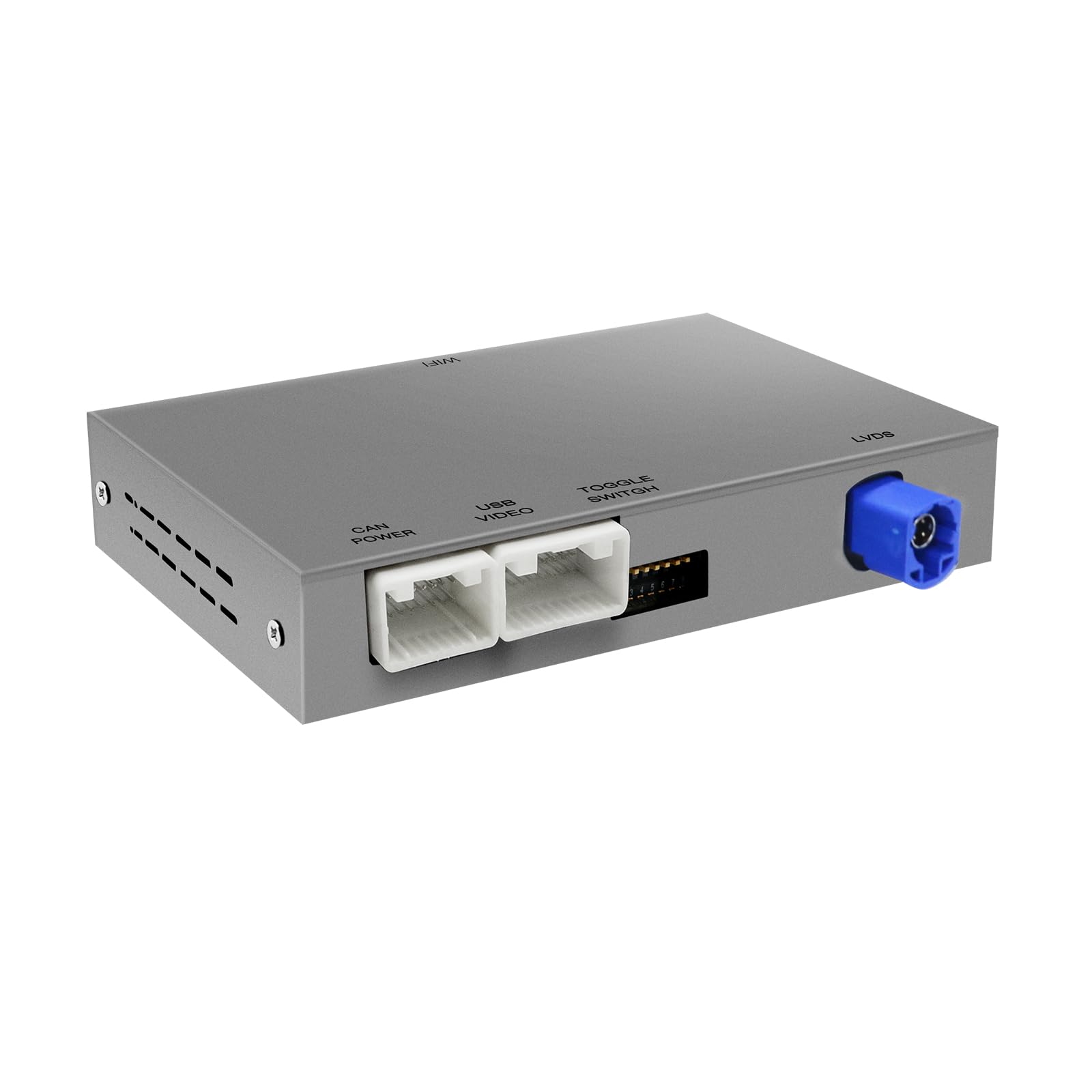
Image 1.1: The autoabc Wireless CarPlay/Android Auto Module shown above a Mercedes Benz dashboard displaying the CarPlay interface.
2. Compatibility
This module is designed for specific Mercedes Benz vehicles equipped with the NTG4.5/4.7 system. Please verify your vehicle's compatibility before installation.
Compatible Models (NTG4.5/4.7 System with 5.8-inch/7-inch Screen):
- A-Klasse W176 (2012-2014)
- B-Klasse W246 (2011-2014)
- C-Klasse W204/S204/C204 (2011-2014)
- E-Klasse W212/S212/C207/A207 (2011-2014)
- CLA C117/GLA X156 (2013-2014)
- CLS C218/SLK R172 (2011-2014)
Note: This interface is not compatible with NTG4.0/5.0/5.5/6.0 systems. Consult customer service if unsure about your system version.

Image 2.1: Visual compatibility chart indicating applicable Mercedes Benz models and NTG system versions.
3. Package Contents
Verify that all items are present in the package before proceeding with installation:
- Wireless CarPlay/Android Auto Module (Adapter)
- Power Cable
- RCA/USB Cable
- LVDS Cable
- Wi-Fi Antenna

Image 3.1: Overview of the module and included cables: Power Cable, RCA/USB Cable, LVDS Cable, Wi-Fi Antenna, and the main Adapter unit with dimensions.
4. Setup and Installation
Installation of this module requires technical knowledge and experience with car electronics. It is highly recommended to seek professional installation to avoid damage to your vehicle or the product.
General Installation Overview:
- Preparation: Ensure the vehicle's ignition is off and the battery is disconnected before starting.
- Access: Carefully remove the necessary trim panels and the original head unit to access the wiring.
- Connections: Connect the module's power cable, RCA/USB cable, and LVDS cable to the corresponding ports on the vehicle's head unit and the module. The module typically connects in-line with the existing display and head unit wiring.
- Antenna: Connect the Wi-Fi antenna to the module and position it for optimal signal reception.
- Testing: Before reassembling, reconnect the battery and test the module's functionality.
- Reassembly: Once confirmed working, carefully reassemble all removed panels.
Warning: Incorrect installation can lead to vehicle damage, electrical malfunctions, or personal injury. If you are not confident in your ability to install this product, please consult a qualified professional.
5. Operating Instructions
The module integrates seamlessly with your car's original system, allowing you to switch between the original interface and the CarPlay/Android Auto interface.
5.1 Wireless CarPlay and Android Auto
Once installed, the module enables wireless Apple CarPlay and Android Auto. Connect your smartphone via Bluetooth and Wi-Fi to access features directly on your car's display.
- Navigation: Use your preferred map applications.
- Communication: Make calls, send messages, and access contacts.
- Entertainment: Stream music, podcasts, and audiobooks.

Image 5.1: Examples of Wireless Apple CarPlay and Wireless Android Auto interfaces on the vehicle's display.
5.2 Mirror Projection (Mirror Link)
The module supports screen mirroring for both Apple (AirPlay) and Android (AutoLink) devices. This allows you to display your phone's screen content, including videos and other applications, directly on the car's infotainment display.
Note: Digital Rights Management (DRM) policies may limit mirroring functionality for certain subscription streaming services like Netflix.

Image 5.2: Demonstrates Mirror Link functionality, USB media playback, front/rear camera view, and online music streaming.
5.3 Voice Control
Utilize intelligent voice assistants (Siri for CarPlay, Google Assistant for Android Auto) to control functions hands-free. This includes making calls, playing music, getting directions, and asking questions.

Image 5.3: Examples of voice commands for navigation, communication, and music playback using the integrated voice assistant.
5.4 Camera Support
The module retains support for your vehicle's original reverse camera and 360° camera systems. It also supports aftermarket reverse cameras, front view cameras, and DVRs (CVBS 720P).

Image 5.4: A car dashboard screen showing a reverse camera feed with parking assist lines, demonstrating camera support.
6. Specifications
| Feature | Specification |
|---|---|
| Brand | autoabc |
| Model Number | SF20251004B0DW3XD7V5 |
| Connectivity Technology | Bluetooth |
| Special Features | Android Auto, Apple CarPlay, Built-In Bluetooth, Mirror Projection |
| Compatible Devices | Smartphone, Bluetooth-enabled devices |
| Total HDMI Ports | 2 |
| Connector Type | HDMI, RCA |
| Audio Output Mode | Stereo, Surround |
| Number of Channels | 2 |
| Built-In Media | USB-C |
7. Troubleshooting
If you encounter issues with your autoabc Wireless CarPlay/Android Auto Module, refer to the following common troubleshooting steps:
- No Power/No Display:
- Check all power connections to ensure they are secure.
- Verify that the vehicle's battery is properly connected and charged.
- Ensure the module is correctly seated in its connectors.
- CarPlay/Android Auto Not Connecting:
- Ensure your phone's Bluetooth and Wi-Fi are enabled.
- Forget the device from your phone's Bluetooth settings and re-pair.
- Restart your smartphone and the car's infotainment system.
- Check for any software updates for your phone's operating system.
- Audio Issues:
- Verify that the car's audio input is set to the correct source (e.g., AUX).
- Check volume levels on both your phone and the car's system.
- Mirror Link Problems:
- Ensure your phone is connected via Wi-Fi to the module.
- Some apps may restrict mirroring due to DRM. Try mirroring a different app or local content.
- Intermittent Connection:
- Ensure the Wi-Fi antenna is securely connected and not obstructed.
- Minimize other wireless interference sources in the vehicle.
If these steps do not resolve the issue, please contact customer support for further assistance.
8. Maintenance
The autoabc Wireless CarPlay/Android Auto Module requires minimal maintenance. Follow these guidelines to ensure longevity:
- Cleaning: Keep the module and its connections free from dust and debris. Use a soft, dry cloth for cleaning. Do not use liquid cleaners directly on the module.
- Environment: Avoid exposing the module to extreme temperatures, direct sunlight for prolonged periods, or excessive moisture.
- Connections: Periodically check that all cables are securely connected and free from damage.
9. Warranty and Support
Your autoabc Wireless CarPlay/Android Auto Module comes with a comprehensive warranty and dedicated technical support.
9.1 Warranty Information
The product includes a One-Year Global Warranty from the date of purchase. This warranty covers manufacturing defects and malfunctions under normal use.
9.2 Technical Service Support
LIFETIME Technical Service Support is provided for this product. For any questions, installation assistance, or troubleshooting issues, please contact us via Amazon Email. Our support team is available to provide reliable online technical assistance.