1. Introduction
This manual provides detailed instructions for the installation, operation, and maintenance of your AMprime 8-Core Android 13 Double Din Car Stereo. Please read this manual thoroughly before using the product to ensure proper function and to prevent damage.
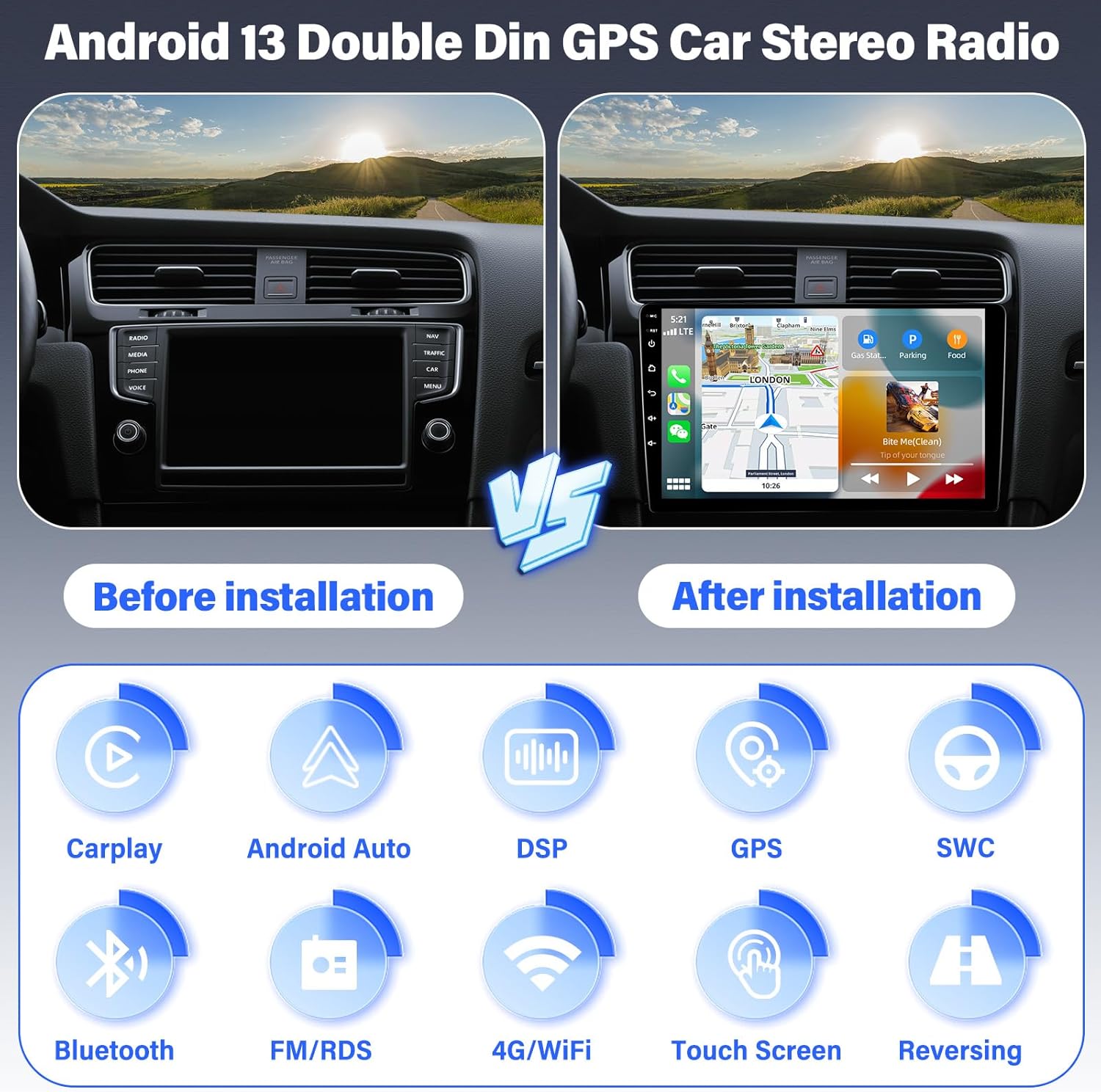
The AMprime Android Car Stereo features a 9-inch touchscreen, an 8-core processor, 4GB RAM, and 64GB ROM, running on Android 13. It supports wireless CarPlay and Android Auto, GPS navigation, Bluetooth, Wi-Fi, 4G connectivity, FM/AM/RDS radio, EQ/DSP sound processing, steering wheel control (SWC), and AHD backup camera input.
2. Safety Information
- Professional Installation Recommended: Due to the complexity of car audio systems, professional installation is highly recommended. Incorrect wiring can cause damage to the device or your vehicle.
- Power Supply: Ensure the car stereo is connected to a 12V DC power supply with negative grounding.
- Avoid Water and Moisture: Do not expose the device to water or excessive moisture.
- Temperature: Operate the device within the recommended temperature range.
- Driving Safety: Do not operate the device in a way that distracts you from driving. Always prioritize road safety.
- Ventilation: Ensure adequate ventilation around the unit to prevent overheating.
3. Package Contents
Verify that all items are present in the package:
- AMprime Android Car Stereo Unit
- Power Cable
- USB Cable (x2)
- Rear Camera
- Rear Camera Input Cable
- User Manual
- 4G Module
- GPS Antenna
- RCA Cable Set
- Microphone (MIC)
- Mounting Brackets

4. Product Overview
The AMprime Android Car Stereo is designed to upgrade your vehicle's infotainment system with advanced features and a user-friendly interface.

5. Setup & Installation
Proper installation is crucial for optimal performance. It is recommended to have this unit installed by a qualified professional.
5.1 Wiring Diagram
Refer to the included wiring diagram for specific connections. General connections include:
- Power: Connect the yellow wire to constant 12V, red wire to accessory 12V, and black wire to ground.
- Speakers: Connect speaker wires to the corresponding vehicle speaker wires (e.g., Front Left +, Front Left -).
- Antenna: Connect the radio antenna and GPS antenna.
- USB: Connect USB cables for external devices or data transfer.
- Rear Camera: Connect the rear camera input cable and power the camera from the reverse light circuit.
- Steering Wheel Control (SWC): Connect SWC wires to your vehicle's SWC wires. Configuration will be done via the unit's settings.
5.2 Rear Camera Installation
The included AHD rear view camera provides a 170-degree ultra-wide angle view and is waterproof. Connect the camera's video output to the unit's 'CAM IN' or 'VIDEO IN' port. Power the camera by connecting its red wire to the vehicle's reverse light positive (+) and its black wire to ground (-). The unit will automatically display the rear view when the vehicle is in reverse gear.

6. Basic Operation
6.1 Power On/Off
The unit will power on automatically when the vehicle's ignition is turned on. To manually power off or restart, press and hold the power button on the unit or use the corresponding option in the system settings.
6.2 Touchscreen Interface
Navigate the system using the capacitive touchscreen. Swipe, tap, and drag gestures are supported for interacting with applications and settings.
6.3 Radio (FM/AM/RDS)
Access the radio application to listen to FM or AM stations. The RDS (Radio Data System) feature displays station information where available. You can scan for stations, save presets, and manually tune frequencies.

6.4 Bluetooth Connectivity
Pair your smartphone via Bluetooth for hands-free calling and audio streaming. Navigate to the Bluetooth settings on the stereo, enable Bluetooth on your phone, and select the stereo from the list of available devices. Confirm the pairing code if prompted.

7. Advanced Features
7.1 Wireless CarPlay & Android Auto
Connect your iPhone or Android smartphone wirelessly to access CarPlay or Android Auto. This allows for seamless integration of navigation, communication, and music apps from your phone onto the stereo display.
- For iPhone (CarPlay): Ensure Bluetooth is enabled on both devices. Pair your iPhone with the car stereo via Bluetooth. CarPlay should launch automatically.
- For Android (Android Auto): Ensure Bluetooth is enabled on both devices. Pair your Android phone with the car stereo via Bluetooth. Android Auto should launch automatically.


7.2 Mirror Link
Mirror Link allows you to display your smartphone's screen directly on the car stereo. This feature supports both iOS and Android devices via Wi-Fi or USB cable.

7.3 GPS Navigation
The unit comes with a built-in GPS module and supports both online and offline navigation. Install your preferred navigation apps (e.g., Google Maps, Waze) from the Google Play Store. For offline maps, download map data in advance.

7.4 4G/Wi-Fi Connectivity
Connect to the internet via Wi-Fi or by inserting a 4G SIM card (if supported by your model and region). This enables online navigation, app downloads, and internet browsing.

7.5 EQ Setting & DSP
The built-in Digital Sound Processor (DSP) and Equalizer (EQ) allow for precise audio customization. Adjust frequency bands, balance, fader, and sound effects to optimize the audio output to your preference and compensate for vehicle acoustics.

7.6 Steering Wheel Control (SWC)
After proper wiring, configure the steering wheel controls through the unit's settings. This allows you to control basic functions like volume, track changes, and mode switching directly from your steering wheel, enhancing convenience and safety.

8. Maintenance
- Screen Cleaning: Use a soft, lint-free cloth to clean the touchscreen. Do not use abrasive cleaners or solvents.
- Software Updates: Periodically check for software updates to ensure optimal performance and access to new features. Updates can typically be found on the manufacturer's website or through the device's system settings.
- Avoid Extreme Temperatures: Do not expose the unit to prolonged direct sunlight or extreme cold, as this can affect its lifespan and performance.
- Fuse Replacement: If the unit does not power on, check the fuse in the power cable. Replace with a fuse of the same rating if blown.
9. Troubleshooting
| Problem | Possible Cause | Solution |
|---|---|---|
| Unit does not power on. | Incorrect wiring; Blown fuse; No power supply. | Check power connections (yellow, red, black wires). Verify fuse integrity and replace if necessary. Ensure vehicle ignition is on. |
| No sound. | Speaker wires incorrectly connected; Volume too low; Mute activated. | Check speaker wiring. Increase volume. Deactivate mute function. Check audio settings (balance/fader). |
| Bluetooth not connecting. | Bluetooth not enabled; Device not in pairing mode; Interference. | Ensure Bluetooth is enabled on both the stereo and your phone. Put phone in pairing mode. Try restarting both devices. Clear previous pairings. |
| GPS signal weak or lost. | GPS antenna not properly installed; Obstruction. | Ensure GPS antenna is installed in a clear location, away from metal obstructions. Check antenna connection. |
| Rear camera not displaying. | Camera wiring incorrect; Camera power issue; Incorrect camera settings. | Check camera video input and power connections. Ensure the camera is receiving power when reverse gear is engaged. Verify camera type settings in the stereo menu. |
| Unit is slow or unresponsive. | Too many apps running; Low memory; Software issue. | Close unnecessary applications. Clear cache. Perform a system restart. Consider a factory reset if issues persist (backup data first). |
10. Specifications
- Operating System: Android 13
- CPU: 8-Core Processor
- RAM: 4GB
- ROM: 64GB
- Screen Size: 9 Inches
- Display Type: Capacitive Touchscreen, LCD
- Connectivity: Wi-Fi, 4G (via SIM card), Bluetooth
- Navigation: Built-in GPS, supports online/offline maps
- Radio: FM/AM/RDS
- Audio Processing: EQ (36-band equalization), DSP
- Video Input: AHD Camera Support (for rear view)
- Special Features: Wireless CarPlay, Wireless Android Auto, Mirror Link, Steering Wheel Control (SWC)
- Power Supply: 12V DC (Negative Ground)
- Dimensions: 228mm*218mm*130mm (approximate, refer to Figure 3.1 for detailed measurements)
11. Warranty
This product comes with a manufacturer's warranty. Please refer to the warranty card included in your package or contact AMprime customer support for detailed warranty terms and conditions.
12. Customer Support
For technical assistance, troubleshooting, or any inquiries regarding your AMprime car stereo, please contact our customer support team:
- Email: AmprimeTechSupport@yeah.net
When contacting support, please provide your product model and a detailed description of the issue.