
1. Product Overview
The iFFALCON 55U65 is a 55-inch 4K Google TV designed to deliver an immersive entertainment experience. Featuring a frameless design, AI PQ processor for enhanced picture quality, Dolby Audio for rich sound, and integrated Google TV for smart functionality, this television offers a comprehensive viewing solution. It includes built-in Chromecast, voice search capabilities, and a dedicated game mode for optimal performance.
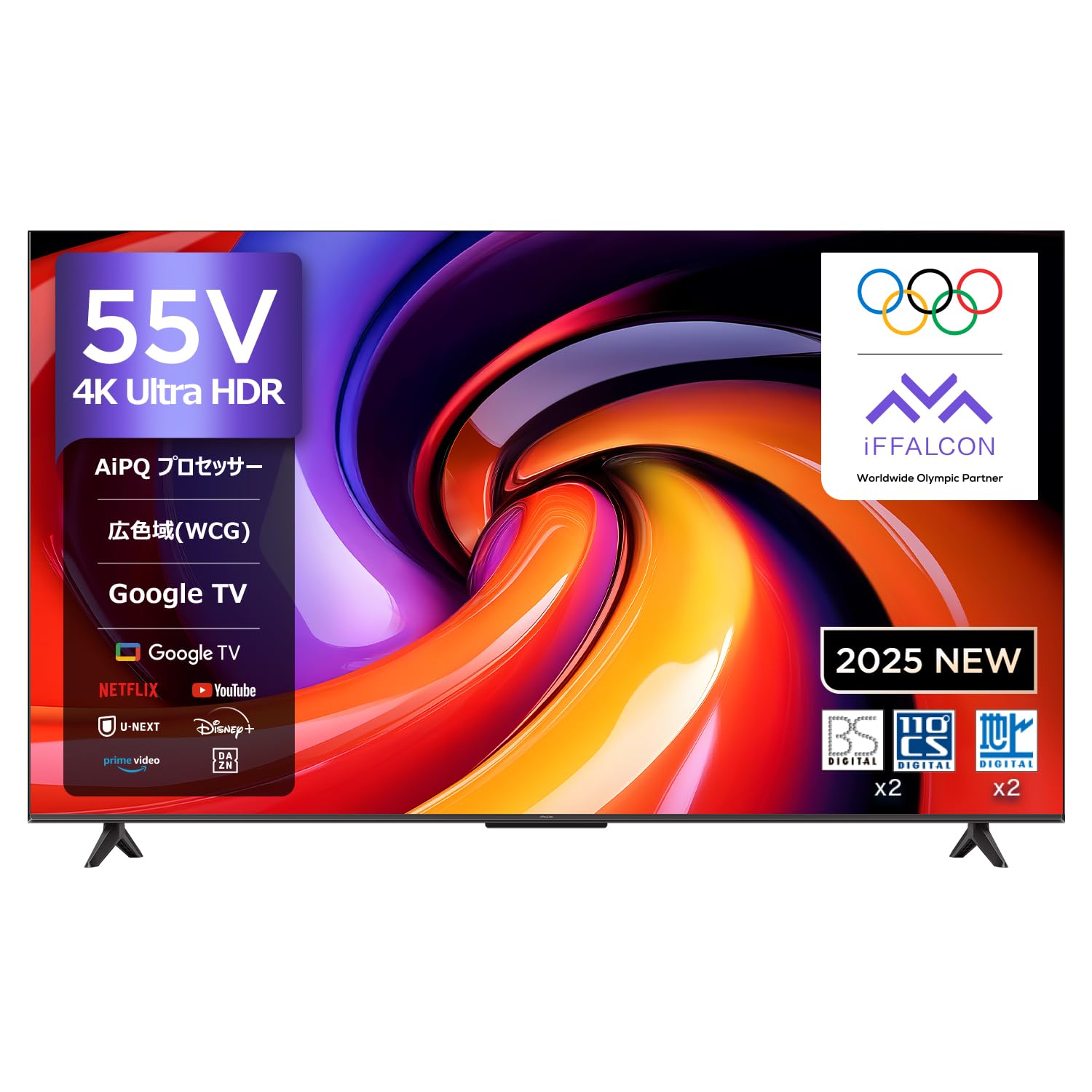
Front view of the iFFALCON 55U65 55-inch 4K Google TV, showcasing its frameless design.
2. Setup Guide
2.1 Unboxing and Stand Installation
Follow these steps to safely unbox your iFFALCON TV and attach the stand.
- Carefully cut the tape on the top of the TV box and open it.
- Remove the two stands from the box.
- Remove the top protective foam.
- Lift the TV out of the box and place it face down on the protective foam.
- Identify the included screws for the stand.
- Align each stand with the corresponding slots on the TV's bottom panel.
- Securely fasten the stands using the provided screws and a screwdriver.
This video demonstrates the unboxing process and how to attach the stand to the FPD Canvas 43/50/55 inch TV. It guides users through carefully opening the package, identifying components, removing protective foam, securing the stands with screws, and connecting the power cable.
2.2 Connecting Power
Once the stand is attached, connect the power cable.
- Connect the power cable to the TV's power input.
- Plug the other end of the power cable into a nearby electrical outlet.
- Remove the protective film from the TV screen.
2.3 Initial Setup (Google TV)
Upon first power-on, the TV will guide you through the initial setup process for Google TV. This includes connecting to Wi-Fi, signing in with your Google account, and configuring basic settings.
3. Operating Instructions
3.1 Remote Control
The iFFALCON 55U65 comes with a remote control that supports voice operation. Dedicated buttons provide quick access to popular streaming services.
- Power Button: Turns the TV on or off.
- Navigation Pad (OK button): Navigates menus and confirms selections.
- Volume Buttons: Adjusts the volume.
- Voice Assistant Button: Activates Google Assistant for voice commands.
- Quick Access Buttons: Direct access to services like Netflix, Prime Video, YouTube, and more.
3.2 Google TV Interface
Google TV organizes all your favorite content from various streaming services into one personalized interface. It offers recommendations based on your viewing habits.

A screenshot of the Google TV interface, displaying a wide array of streaming content from YouTube, Netflix, Prime Video, Disney+, and more.
3.3 Voice Search with 'Hey Google'
Use the built-in Google Assistant to quickly find content, get information, or control your smart home devices.
- Press the Voice Assistant button on your remote.
- Say "Hey Google" followed by your command, such as "Find action movies" or "Open Netflix."

An image showing a user interacting with the TV using 'Hey Google' voice commands to search for content or control smart home devices.
3.4 Chromecast Built-in & AirPlay 2
Easily cast content from your smartphone or tablet to the TV screen.
- Ensure your mobile device and TV are connected to the same Wi-Fi network.
- Open a compatible app on your mobile device (e.g., YouTube, Netflix).
- Tap the Cast icon (for Chromecast) or AirPlay icon (for Apple devices) within the app and select your iFFALCON TV.

An illustration demonstrating AirPlay 2 and Chromecast built-in, allowing users to easily cast videos, photos, and music from Apple and Android devices to the TV.
This video highlights the key features of the FPD Google TV, including its smart interface, seamless streaming experience, and integration with various apps and services.
4. Key Features
4.1 AI PQ Processor
The AI PQ processor incorporates numerous picture quality adjustment algorithms. With intelligent perception capabilities like AI Clarity, AI Color, AI Contrast, AI Motion, and AI HDR, it optimizes picture quality at the pixel level.

An illustration of the AI PQ processor, emphasizing its role in optimizing picture quality at the pixel level through intelligent perception capabilities.

Visual representation of AI PQ processor's sub-features including AI Clarity for clear images, AI Color for natural colors, AI Contrast for detailed darks and brights, AI Motion for smooth movement, and AI HDR for multi-HDR format processing.
4.2 HDR10 Support
Experience stunning brightness, superior shadow detail, and vivid colors with HDR10 technology, enhancing your streaming resolution.

A split image demonstrating the impact of HDR10, revealing superior detail in shadows and vibrant colors compared to non-HDR content.
4.3 MEMC Technology
Motion Estimation, Motion Compensation (MEMC) technology reduces motion blur and image tearing, providing silky-smooth visuals, especially in fast-paced scenes.

A side-by-side comparison showing the effect of MEMC technology, reducing motion blur and image tearing for smoother visuals.
4.4 Game Master & ALLM
The Game Master feature, combined with Auto Low Latency Mode (ALLM), ensures a smooth and responsive gaming experience by minimizing input lag and eliminating blur or stuttering.

An image depicting a gaming scene on the iFFALCON TV, highlighting the Game Master feature for an optimized gaming experience.

A collage illustrating gaming features like ALLM for smooth console gaming, Wide Game View for expanded field of vision, and the Game Bar for quick access to settings.
4.5 Dolby Audio
Enjoy a rich, clear, and detailed sound experience with Dolby Audio. It delivers an immersive, three-dimensional sound that fills your room, making every scene more engaging.
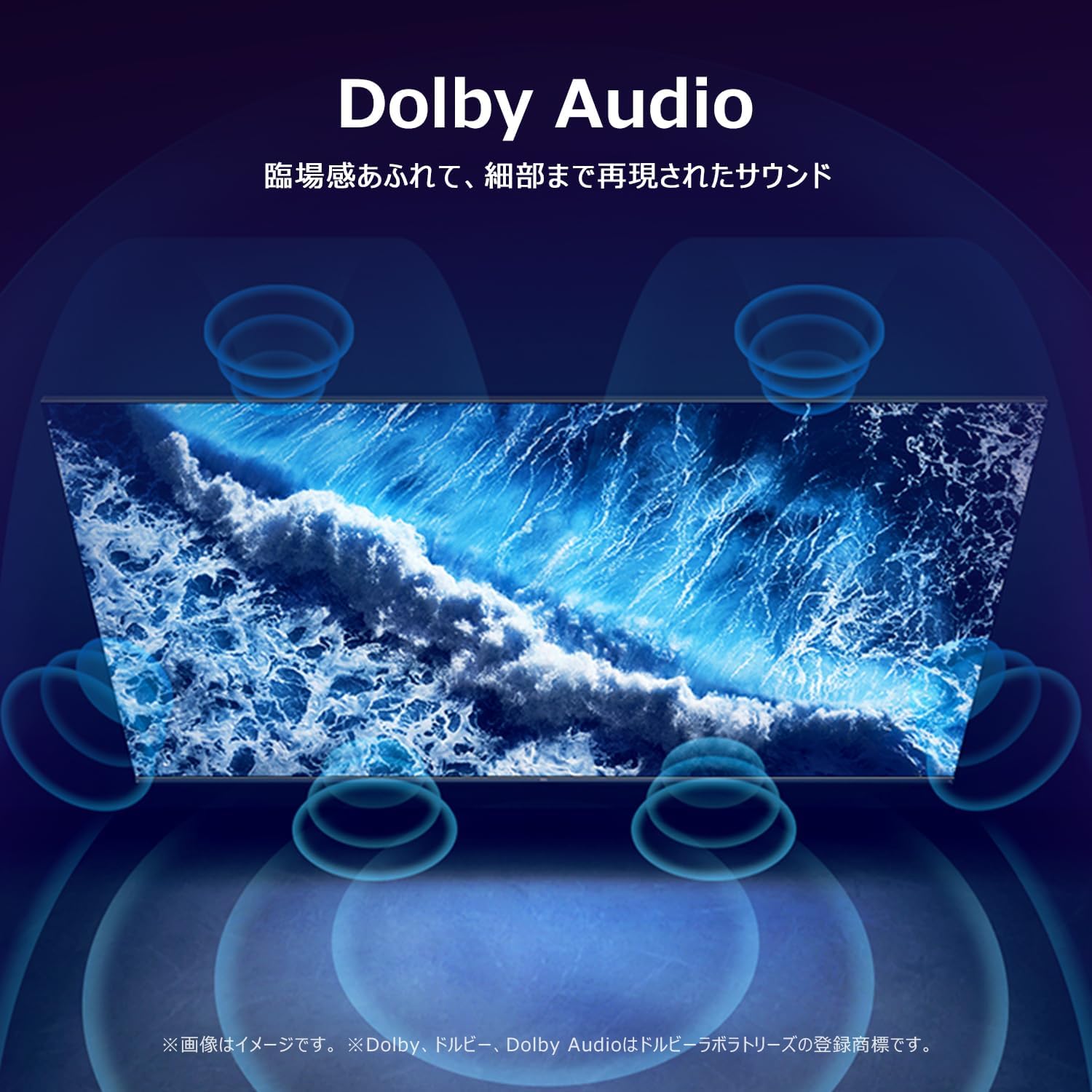
A visual representation of Dolby Audio creating an immersive, three-dimensional sound experience around the viewer.
4.6 Multi-Eye Care
The TV features Multi-Eye Care technology, including low blue light and flicker-free viewing, to provide a comfortable and healthy viewing environment for movies and games.

Images demonstrating the benefits of Multi-Eye Care technology, including low blue light and flicker-free viewing for comfortable movie and gaming sessions.
4.7 Frameless Design
The TV boasts a sleek, frameless design that minimizes bezels, allowing the screen to blend seamlessly into your living space and provide a more expansive viewing area.

A close-up of the iFFALCON TV highlighting its slim, bezel-less design that blends seamlessly into any room.
This video provides an overview of the FPD Tunerless 4K Google TV, showcasing its high-resolution display, smart functionalities, and modern design for an immersive entertainment experience.
5. Specifications
| Feature | Detail |
|---|---|
| Screen Size | 55 inches |
| Display Type | VA LCD |
| Resolution | 4K UHD |
| Refresh Rate | 60 Hz |
| Aspect Ratio | 16:9 |
| Contrast Ratio | 1000:1 |
| Viewing Angle | 178 degrees |
| Smart TV Platform | Google TV |
| Internet Services | Google TV, Netflix, Rakuten TV, Hulu, U-NEXT, ABEMA, DAZN, FOD, AWA, Prime Video, dTV, TELASA, VideoMarket, YouTube |
| Connectivity | Bluetooth, HDMI (3 ports), USB (2 ports), Wi-Fi |
| Audio Features | Dolby Audio, 2.0 Channel Speakers |
| Special Features | Chromecast, Game Mode, Wide Viewing Angle |
| Dimensions (W x H x D) | 122.6 x 75 x 25.5 cm |
| Product Weight | 9.1 kg |
| Annual Power Consumption | 105 kWh/year |
| Included Accessories | User Manual, Remote Control, Warranty Card, Power Cable |
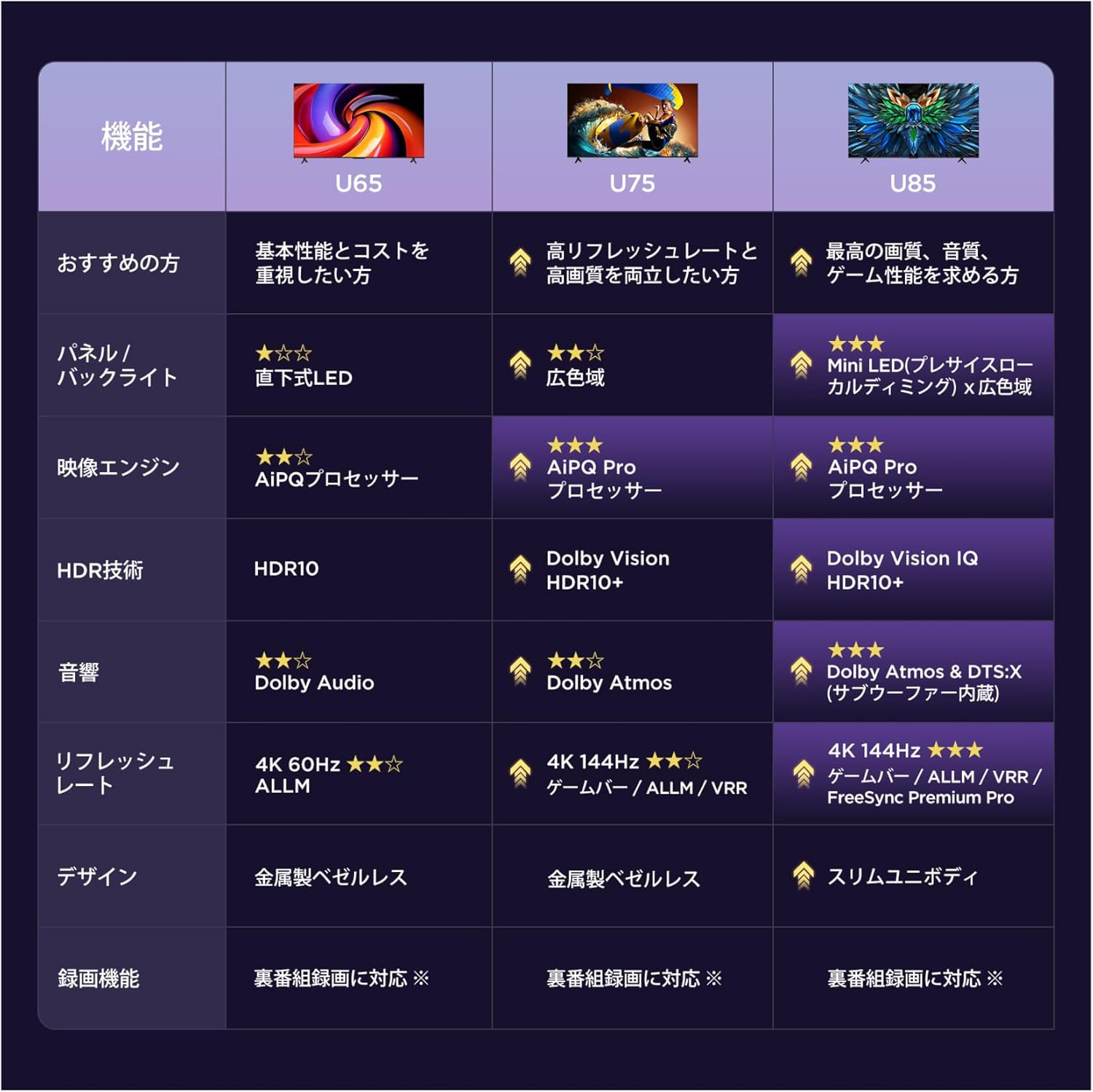
A table comparing key features across iFFALCON's U65, U75, and U85 TV series, highlighting panel type, image engine, HDR technology, audio, refresh rate, and design.

Diagram showing the dimensions of the 55-inch iFFALCON TV, including width (122.6cm), height (75.0cm), and depth (25.5cm), with a recommended viewing distance of approximately 1 meter.
6. Maintenance
6.1 Cleaning the Screen
To clean the screen, gently wipe it with a soft, lint-free cloth. For stubborn marks, lightly dampen the cloth with water or a screen-cleaning solution specifically designed for electronics. Avoid using harsh chemicals or abrasive materials.
6.2 Cleaning the TV Body
Wipe the TV body with a soft, dry cloth. Do not use liquid cleaners directly on the TV to prevent damage to internal components.
7. Troubleshooting
7.1 No Power
- Ensure the power cable is securely plugged into both the TV and the electrical outlet.
- Check if the power outlet is working by plugging in another device.
- Press the power button on the remote control or on the TV itself.
7.2 No Picture/Sound
- Verify that the correct input source is selected (e.g., HDMI 1, HDMI 2).
- Check all cable connections (HDMI, audio) between the TV and external devices.
- Ensure the volume is not muted or set to a very low level.
7.3 Remote Control Not Working
- Replace the batteries in the remote control.
- Ensure there are no obstructions between the remote control and the TV's IR sensor.
- Try pairing the remote control again if it's a Bluetooth remote (refer to the on-screen instructions during initial setup or in the TV settings).
7.4 Network Connection Issues
- Check your Wi-Fi router and ensure it is powered on and functioning correctly.
- Restart your TV and router.
- Go to the TV's network settings to re-enter your Wi-Fi password or connect to a different network.
8. Warranty and Support
Your iFFALCON 55U65 TV comes with a warranty card included in the package. Please refer to the warranty card for detailed terms and conditions.
8.1 Customer Support
For technical assistance, repairs, or any inquiries regarding your iFFALCON product, please contact TCL customer support. iFFALCON is a sub-brand of TCL, and their support team is equipped to assist you.

TCL customer support details, including a phone number (0120-955-517) and website (https://www.tcl.com/jp/ja/support) for repair and assistance.
- Phone: 0120-955-517
- Operating Hours: 09:00 - 18:00
- Website: https://www.tcl.com/jp/ja/support


