
Introduction
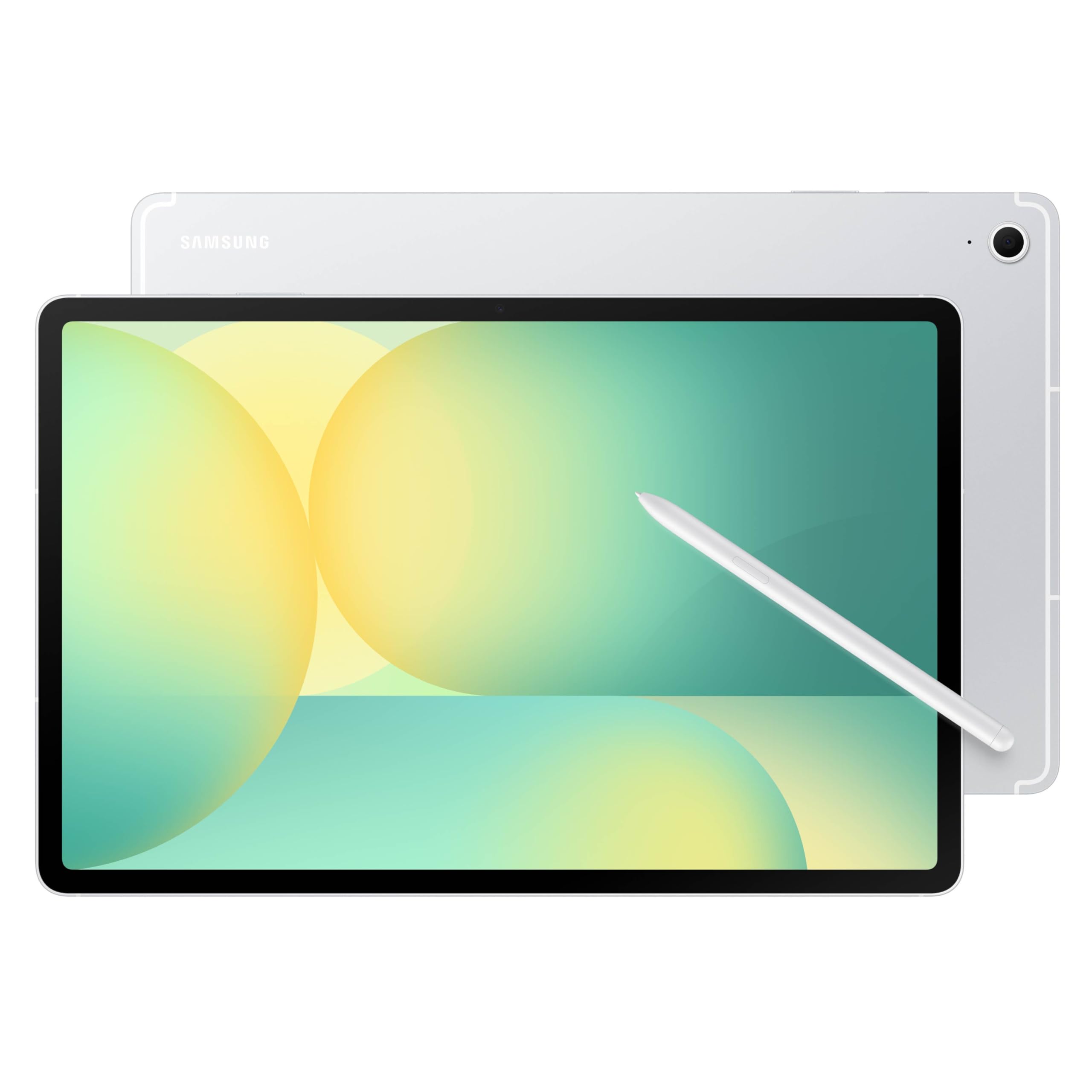
Welcome to the comprehensive user manual for your Samsung Galaxy Tab S10 FE+ 13.1” WiFi Android Tablet. This guide provides essential information on setting up, operating, maintaining, and troubleshooting your device to ensure optimal performance and user experience. Please read through this manual carefully to familiarize yourself with all the features and functionalities of your new tablet.
What's in the Box
Upon unboxing your Samsung Galaxy Tab S10 FE+, you should find the following items:
- Tablet
- S-Pen
- Data Cable
- Ejection Pin
- Quick Start Guide

Setup
Follow these steps to set up your new Samsung Galaxy Tab S10 FE+:
- Charge the Tablet: Connect the included USB-C cable to your tablet and a compatible power adapter (sold separately). Allow the tablet to charge fully before initial use.
- Power On: Press and hold the Power button located on the side of the tablet until the Samsung logo appears.
- Initial Setup Wizard: Follow the on-screen instructions to select your language, connect to a Wi-Fi network, sign in with your Google account, and set up security features like a PIN or fingerprint.
- S Pen Setup: The S Pen is included and ready for use. It magnetically attaches to the back of the tablet for charging and storage.
Setup Video Guide
Operating Your Galaxy Tab S10 FE+
Your Galaxy Tab S10 FE+ is designed for intuitive and powerful performance. Here are some key operational highlights:
- Expansive 13.1” Screen: Enjoy your favorite content with stunning detail on the large display. Dual speakers enhance the audio experience.
- Circle to Search with Google: Easily search for anything on your screen by simply circling it with your S Pen.
- Handwriting Assist & Math Solver: Tidy up handwritten notes and solve math problems directly on your screen using the S Pen.
- Durable and Water-Resistant: The IP68-rated design ensures durability against water exposure (up to 5 feet for 30 minutes).
- Powerful Performance: The Exynos 1580 processor provides smooth experiences for gaming, multitasking, and other demanding tasks.
- S Pen Precision: Write, draw, and sketch with a natural, pen-on-paper feel.
- Long-Lasting & Fast-Charging Battery: Enjoy up to 21 hours of video playback and quickly recharge with Super Fast Charging (45W charger sold separately).
- AI on Your Keyboard: Utilize AI features via a quick access hot key on compatible tablet keyboards.
- Ample Storage: Up to 256GB internal storage, expandable by up to 1TB with a microSD card.


360° View
Maintenance
To ensure the longevity and optimal performance of your Samsung Galaxy Tab S10 FE+, consider the following maintenance tips:
- Screen Care: Use a soft, lint-free cloth to clean the screen. Avoid harsh chemicals or abrasive materials.
- Software Updates: Regularly check for and install software updates to benefit from the latest features, security patches, and performance improvements. Navigate to Settings > Software update to check for updates.
- Battery Health: To prolong battery life, avoid extreme temperatures and do not leave the tablet fully charged or fully discharged for extended periods. Use only Samsung-approved chargers and cables.
- Water Resistance: While your tablet is IP68 water-resistant, it is not waterproof. Avoid intentional submersion and ensure all ports are dry before charging. Rinse residue/dry after wet exposure.
- Storage Management: Periodically clear unnecessary files and apps to free up storage space and maintain smooth operation.
Troubleshooting
If you encounter issues with your Samsung Galaxy Tab S10 FE+, try these common troubleshooting steps:
- Tablet Not Responding: Press and hold the Power button for about 10 seconds to force a restart.
- Wi-Fi/Bluetooth Connectivity Issues: Toggle Wi-Fi or Bluetooth off and on from the Quick Settings panel. If the issue persists, restart your tablet and/or your router.
- Apps Crashing: Clear the cache and data for the problematic app (Settings > Apps > [App Name] > Storage > Clear cache/Clear data). If the issue continues, uninstall and reinstall the app.
- Slow Performance: Close unused apps, clear cache, and ensure sufficient storage space. A factory reset (Settings > General management > Reset > Factory data reset) can resolve persistent performance issues, but back up your data first.
- S Pen Not Working: Ensure the S Pen is properly attached to the tablet's magnetic charging area to confirm it's charged. If issues persist, restart the tablet.
Specifications
| Brand | Samsung |
| Model Name | Galaxy Tab S10 FE+ |
| Model Number | SM-X620NZSNXAR |
| Memory Storage Capacity | 128 GB |
| RAM Memory Installed | 8 GB |
| Screen Size | 13.1 Inches |
| Display Resolution Maximum | 2880 x 1800 Pixels |
| Display Refresh Rate | 90 Hz |
| Operating System | Android |
| Processor | Samsung Exynos 1580 (S5E8855) |
| Connectivity Technology | Bluetooth, USB, Wi-Fi |
| Item Weight | 1.49 Pounds |
| Battery Average Life | 21 Hours |
| Special Features | Fast Charging, Stylus Support (S Pen included) |
Warranty and Support
Your Samsung Galaxy Tab S10 FE+ comes with a 2 Year Manufacturer Warranty. For detailed terms and conditions, please refer to the warranty card included in your product packaging or visit the official Samsung support website.
For further assistance, technical support, or service inquiries, please contact Samsung Customer Service through their official website or designated support channels. Have your model number (SM-X620NZSNXAR) and serial number ready when contacting support.


