
1. Introduction
This manual provides detailed instructions for the setup, operation, maintenance, and troubleshooting of your AG Neovo EM2451 24-inch 4K UHD monitor. Please read this manual thoroughly before using the product to ensure proper functionality and to maximize your viewing experience.
The AG Neovo EM2451 is a 24-inch (23.8-inch viewable) 4K UHD monitor featuring a 3840 x 2160 resolution, IPS panel technology, 10-bit color depth, 100% sRGB, and 93% DCI-P3 coverage. It offers versatile connectivity including USB-C with 65W power delivery, HDMI, and DisplayPort, along with an ergonomic stand for adjustable comfort.
2. Package Contents
Verify that all items listed below are present in your package. If any items are missing or damaged, please contact your retailer or AG Neovo customer support.
- AG Neovo EM2451 24 Inch 4K Monitor
- Monitor Stand (Base and Neck)
- Power Cable
- USB-C Cable
- User Manual (this document)
- Warranty Card
Note: HDMI and DisplayPort cables are not explicitly listed as included components. Please ensure you have the necessary cables for your desired connection.
3. Setup Instructions
3.1 Assembling the Monitor Stand
- Carefully remove the monitor and stand components from the packaging.
- Attach the stand neck to the monitor panel. Ensure it clicks securely into place or is fastened with screws as indicated in the quick start guide.
- Attach the stand base to the stand neck. Tighten any screws if necessary.
- Place the assembled monitor on a stable, flat surface.

Image: The AG Neovo EM2451 monitor showcasing its ergonomic stand, which allows for height, tilt, and pivot adjustments. This image illustrates the flexibility of the stand for personalized comfort.
3.2 Connecting to a Computer or Device
The EM2451 monitor offers multiple connectivity options. Choose the appropriate cable for your device.
- USB-C Connection: For devices supporting DisplayPort Alt Mode, connect one end of the provided USB-C cable to the monitor's USB-C port and the other end to your computer's USB-C port. This single cable can transmit video, data, and provide up to 65W of power delivery to charge your device.
- HDMI Connection: Connect one end of an HDMI cable (not included) to one of the monitor's HDMI ports and the other end to your computer's HDMI output.
- DisplayPort Connection: Connect one end of a DisplayPort cable (not included) to the monitor's DisplayPort and the other end to your computer's DisplayPort output.
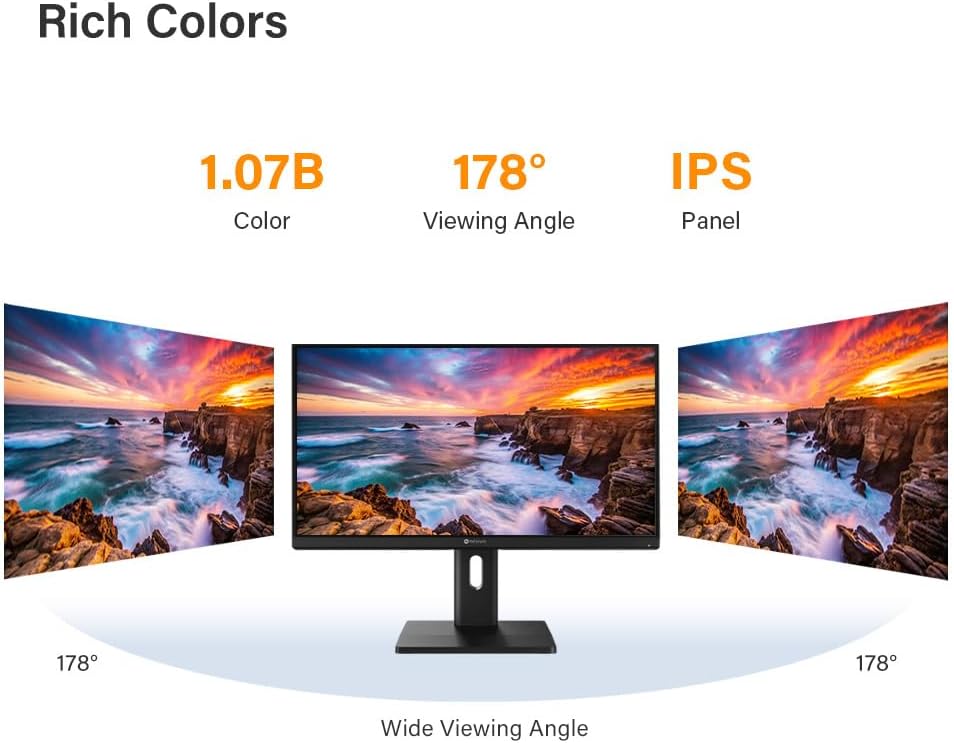
Image: The AG Neovo EM2451 monitor connected to a laptop via a single USB-C cable, demonstrating the streamlined setup and power delivery capability.

Image: A close-up rear view of the AG Neovo EM2451 monitor, highlighting the various input ports including dual HDMI, DisplayPort, and USB-C for flexible device connectivity.
3.3 Powering On the Monitor
- Connect the power cable to the monitor's power input and then to a power outlet.
- Press the power button located on the monitor (usually on the bottom bezel or rear). The power indicator light will illuminate.
- Turn on your connected computer or device. The monitor should automatically detect the input signal. If not, you may need to manually select the input source using the On-Screen Display (OSD) menu.
4. Operating Instructions
4.1 On-Screen Display (OSD) Menu Navigation
The OSD menu allows you to adjust various monitor settings.
- Accessing the OSD: Press the OSD menu button (refer to your monitor's physical buttons for exact location).
- Navigation: Use the directional buttons to move through menu options.
- Selection: Press the select button to enter a sub-menu or confirm a setting.
- Exit: Press the exit button to go back or close the OSD menu.
4.2 Display Settings
Adjust these settings for optimal visual performance.
- Brightness/Contrast: Adjust these to suit your lighting conditions and personal preference.
- Color Temperature: Select from preset options (e.g., Warm, Cool, User) or fine-tune RGB values.
- Input Source: Manually select between HDMI1, HDMI2, DisplayPort, or USB-C if the monitor does not auto-detect.
- Aspect Ratio: Choose between Full, 4:3, or 16:9 depending on your content.
4.3 Ergonomic Adjustments
The EM2451 features an ergonomic stand for enhanced comfort and productivity.
- Height Adjustment: Gently push or pull the monitor panel up or down to adjust the height (up to 130mm).
- Tilt Adjustment: Tilt the monitor panel forward or backward (-5° to 20°) to find your preferred viewing angle.
- Pivot Adjustment: Rotate the monitor panel 90° clockwise for portrait mode viewing. Ensure sufficient clearance before pivoting.

Image: The AG Neovo EM2451 monitor demonstrating its full range of ergonomic adjustments, including height, tilt, and pivot, for optimal user comfort.
4.4 Special Viewing Modes
The monitor includes optimized modes for various content types.
- Mac Mode: Optimizes color accuracy and resolution for seamless integration with Mac devices.

Image: The AG Neovo EM2451 monitor showcasing its Mac Mode, designed to provide optimal color and resolution for Mac users.
- Movie Mode: Enhances entertainment by adjusting display settings for rich colors and deep contrast.

Image: The AG Neovo EM2451 monitor displaying a movie scene, illustrating the enhanced colors and contrast provided by Movie Mode.
- Web Mode: Optimizes the display for online browsing, ensuring clear text and vibrant images.

Image: The AG Neovo EM2451 monitor showing a news website, demonstrating the optimized clarity for text and images in Web Mode.
- Text Mode: Reduces eye strain by optimizing contrast and clarity for text-heavy content.

Image: The AG Neovo EM2451 monitor displaying a document with text, highlighting the eye-comfort features of Text Mode.
5. Maintenance
5.1 Cleaning the Monitor
- Always power off the monitor and unplug the power cable before cleaning.
- Use a soft, lint-free cloth slightly dampened with water or a mild, non-abrasive screen cleaner.
- Do not spray cleaner directly onto the screen. Apply it to the cloth first.
- Avoid using harsh chemicals, alcohol, or abrasive materials, as these can damage the screen surface.
- Wipe the screen gently to remove dust and smudges.
5.2 General Care
- Keep the monitor away from direct sunlight, excessive heat, and humidity.
- Ensure proper ventilation around the monitor to prevent overheating.
- Avoid placing heavy objects on the monitor or its cables.
- If the monitor will not be used for an extended period, unplug it from the power outlet.
6. Troubleshooting
If you encounter issues with your monitor, refer to the following common problems and solutions.
| Problem | Possible Cause | Solution |
|---|---|---|
| No image on screen |
|
|
| Flickering or unstable image |
|
|
| Colors appear incorrect |
|
|
| USB-C not charging device |
|
|
If the problem persists after trying these solutions, please contact AG Neovo customer support for further assistance.
7. Specifications
Detailed technical specifications for the AG Neovo EM2451 monitor.

Image: The AG Neovo EM2451 monitor displaying its key features and specifications, such as 4K UHD resolution, IPS panel, and various connectivity options.
| Feature | Description |
|---|---|
| Brand | AG Neovo |
| Model Name | EM2451 |
| Model Number | EM2450 |
| Screen Size | 23.8 inches (24'' viewable) |
| Resolution | 4K UHD 3840 x 2160p |
| Aspect Ratio | 16:9 |
| Panel Type | IPS, LCD |
| Refresh Rate | 60 Hz |
| Response Time | 5 milliseconds |
| Brightness | 350 cd/m² |
| Contrast Ratio | 80,000,000:1 (Dynamic) |
| Viewing Angle | 178 degrees (Horizontal/Vertical) |
| Color Depth | 10-bit (1.07 billion colors) |
| Color Gamut | 100% sRGB, 93% DCI-P3 |
| Pixel Pitch | 185 PPI |
| Connectivity | 2x HDMI, 1x DisplayPort, 1x USB-C (with 65W Power Delivery) |
| Ergonomics | Height Adjustable (130mm), Tilt (-5° to 20°), Pivot (0-90°) |
| Mounting Type | VESA Mount Compatible |
| Power Consumption | 20 watts |
| Item Dimensions (DxWxH) | 8.9"D x 21.2"W x 20"H |
| Item Weight | 11 pounds |
| Included Components | USB-C Cable |
8. Warranty and Support
The AG Neovo EM2451 monitor comes with a 3-Year Warranty. For warranty claims or technical support, please contact AG Neovo customer service.
You can find more information and support resources on the official AG Neovo website or their Amazon store page: AG Neovo Amazon Store