
Introduction
The GXTrust Mylox Wireless Mobile Controller is designed to elevate your mobile gaming experience. This versatile gamepad features Bluetooth 5.0 for a low-latency connection, dual vibration feedback for immersive gameplay, and customizable RGB LED lighting. It is compatible with a wide range of devices, including iPhone, Android smartphones, and supports remote play for PlayStation 5 and Xbox consoles, as well as PC game streaming.

Image: The GXTrust Mylox Mobile Gaming Controller highlighting its key features: included travel case, low-latency Bluetooth 5.0, dual vibration feedback, included rechargeable battery, and RGB LED lighting.
Setup
Package Contents
- GXTrust Mylox Wireless Mobile Controller
- USB Charging Cable
- Fabric Carrying Case
Charging the Controller
Before initial use, fully charge the controller. Connect the provided USB charging cable to the controller's charging port and plug the other end into a USB power source (e.g., a computer USB port or a USB wall adapter). The LED indicator will show charging status and turn off when fully charged. A full charge provides up to 12 hours of playtime.
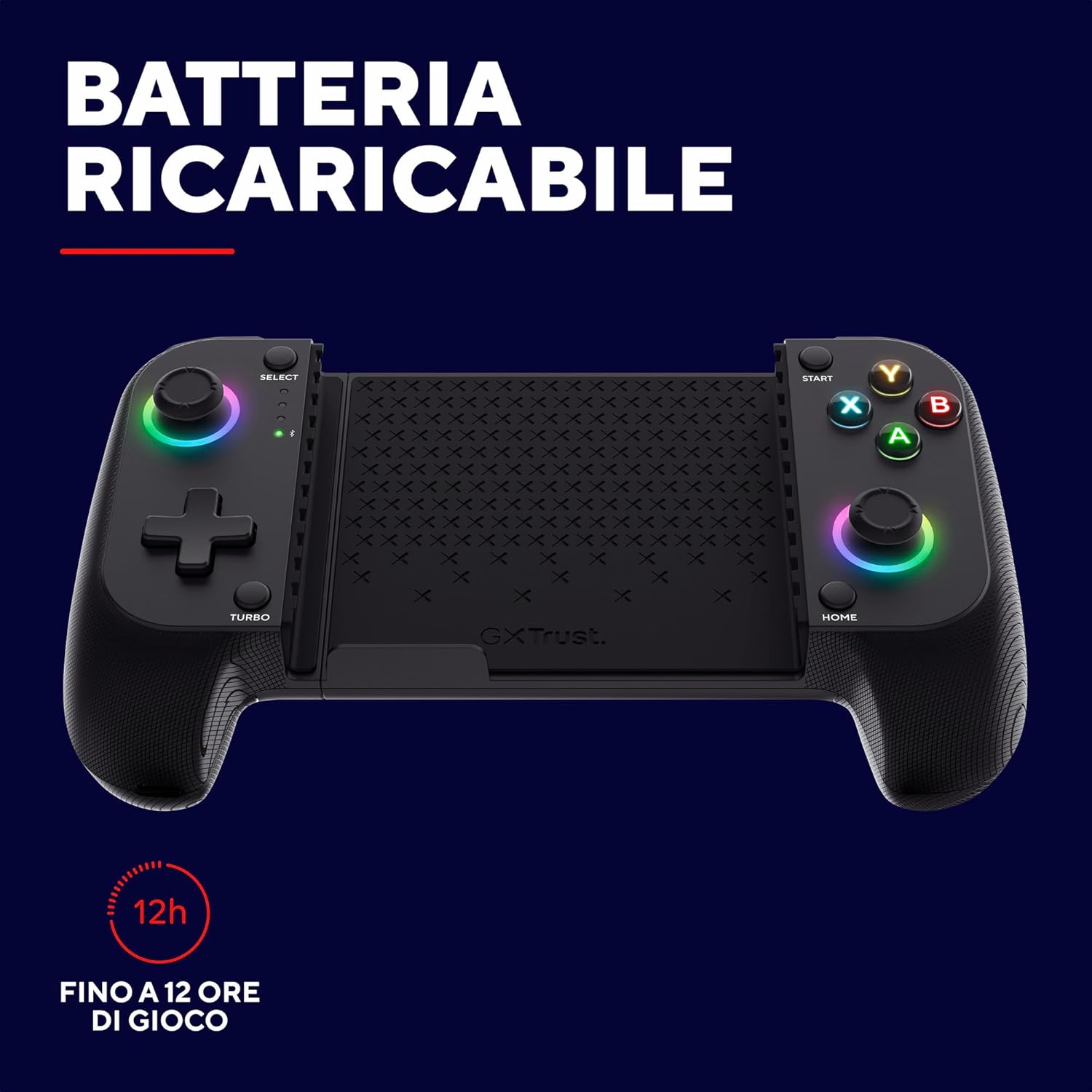
Image: The GXTrust Mylox Controller with an overlay indicating up to 12 hours of playtime on a single charge.
Pairing via Bluetooth 5.0
- Ensure your smartphone or compatible device has Bluetooth enabled.
- Press and hold the Bluetooth pairing button on the GXTrust Mylox controller until the indicator light begins to flash rapidly.
- On your device, search for available Bluetooth devices and select 'GXTrust Mylox' from the list.
- Once connected, the indicator light on the controller will become solid.
Mounting Your Smartphone
The controller features a rubberized spring clamp designed to securely hold smartphones. Gently extend the clamp and insert your smartphone. The clamp accommodates devices up to 17cm in length, even with most phone cases attached.

Image: The GXTrust Mylox Controller with a smartphone mounted, illustrating its adjustable clamp that fits phones up to 17cm, even with a case.
Operating Instructions
Power On/Off
- To power on, press the Home button.
- To power off, press and hold the Home button for a few seconds until the controller shuts down.
Multi-Platform Compatibility
The Mylox controller offers broad compatibility for various gaming scenarios:
- Mobile Gaming: Play native iOS and Android games that support external controllers.
- Cloud Gaming: Compatible with services like Xbox Cloud Gaming, Nvidia GeForce Now, and Amazon Luna.
- Remote Play: Utilize PlayStation Remote Play and Xbox Remote Play to stream console games to your smartphone.
- PC Streaming: Stream PC games to your smartphone using compatible applications.
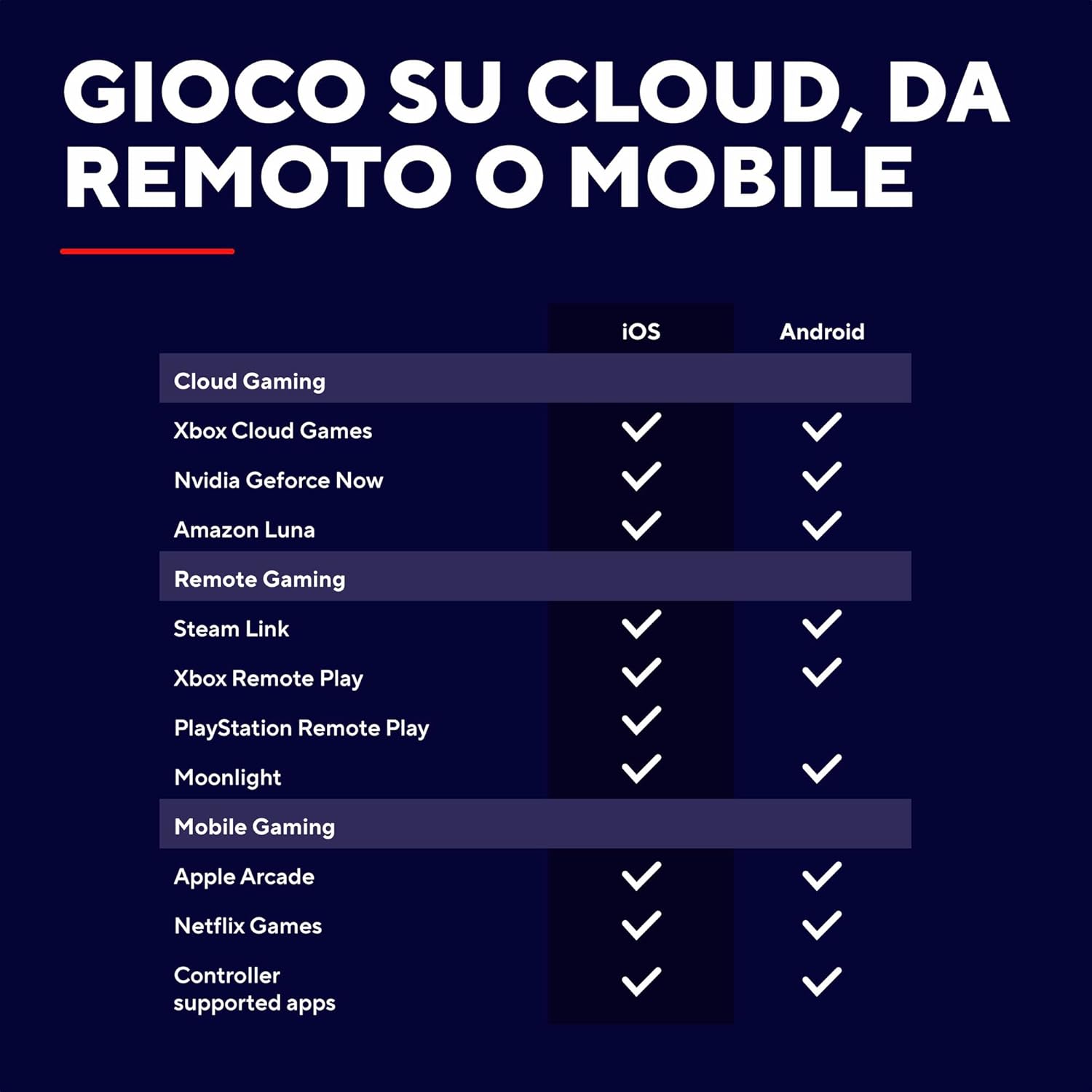
Image: A compatibility chart detailing support for various cloud gaming, remote gaming, and mobile gaming platforms on both iOS and Android devices.

Image: Icons indicating multi-platform compatibility for PC, PlayStation, Xbox, and Mobile, with a note that remote applications are required for console play.
Immersive Features
- Dual Vibration Feedback: Experience enhanced immersion with haptic feedback that responds to in-game actions.
- RGB LED Lighting: The joysticks feature customizable RGB LED lighting. Refer to the quick start guide for instructions on changing lighting modes or turning them off.

Image: The GXTrust Mylox Controller in use with a smartphone, showcasing the active RGB LED lighting on the joysticks during gameplay.

Image: A person smiling and actively playing a mobile game using the GXTrust Mylox Controller, demonstrating low-latency gaming.
Maintenance
Cleaning
To clean the controller, use a soft, dry, lint-free cloth. Avoid using abrasive cleaners, solvents, or harsh chemicals, as these can damage the surface and internal components.
Storage
When not in use, store the controller in a cool, dry place away from direct sunlight and extreme temperatures. Utilize the included fabric carrying case to protect the controller from dust and scratches.
Troubleshooting
- Controller not connecting or disconnecting frequently:
Ensure Bluetooth is enabled on your device and the controller is within range. Verify the controller is sufficiently charged. Try unpairing and re-pairing the controller with your device. Check for any potential wireless interference from other devices. - Input lag or delayed response:
Confirm that the controller is connected via Bluetooth 5.0. Reduce the distance between the controller and your device. Close any unnecessary background applications on your smartphone that might consume resources. - Buttons or joysticks not responding:
Ensure the controller is powered on and properly paired. Check for any physical obstructions or debris around the buttons or joysticks. If the issue persists, try resetting the controller (refer to the quick start guide for specific reset instructions). - Short battery life:
Ensure the controller is fully charged before use. Reduce the intensity or turn off the RGB LED lighting to conserve battery power. Battery performance may degrade over time with prolonged use. - Controller not working with a specific game:
Not all mobile games natively support external controllers. Check the game's settings or the developer's information to confirm controller compatibility. Some games may require specific controller mapping or third-party applications. Note that some games like Call of Duty Mobile or FIFA Mobile may have limited or no support for this controller.
Specifications
| Brand | GXTrust |
| Model Name | GXT 735 Mylox |
| Connectivity Technology | Bluetooth 5.0 |
| Compatible Devices | Android, iOS Smartphones, PlayStation 5 (via Remote Play), Xbox One (via Remote Play), Xbox Series X (via Remote Play), PC (via Streaming) |
| Battery Life | Up to 12 hours |
| Special Features | Dual Vibration Feedback, RGB LED Lighting, Adjustable Spring Clamp (fits phones up to 17 cm) |
| Number of Buttons | 12 |
| Item Weight | 220 Grams |
| Item Dimensions (L x W x H) | 10.6 x 18.5 x 4.6 cm |
Warranty Information
The GXTrust Mylox Wireless Mobile Controller comes with a 2-year manufacturer's warranty from the date of purchase. This warranty covers defects in materials and workmanship under normal use. It does not cover damage caused by misuse, accidents, unauthorized modifications, or normal wear and tear. Please retain your proof of purchase for warranty claims.
Support
For additional support, frequently asked questions, or to download the latest drivers and software, please visit the official GXTrust website. If you require further assistance or have specific questions not covered in this manual, please contact GXTrust customer support through their website's contact section.
You can find more information and support at the GXTrust Brand Store.
