
1. Product Overview
The Fanvil V60P is a professional IP phone designed for business communication. It features a color display, programmable keys, and Power over Ethernet (PoE) support for simplified installation and operation. This manual provides essential information for setting up, operating, and maintaining your device.
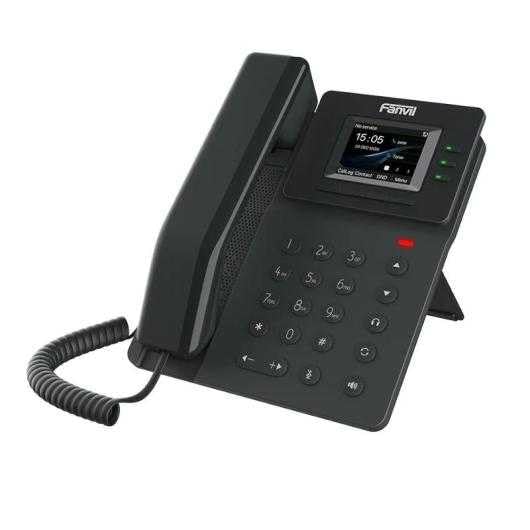
Figure 1: Fanvil V60P Professional IP Phone. This image shows the black IP phone with its handset, color display, and numeric keypad. The display shows "15:05" and menu options.
2. Setup and Installation
2.1 Package Contents
Before installation, verify that all items are present in the package:
- Fanvil V60P IP Phone unit
- Handset and coiled cord
- Ethernet cable
- Stand
- Quick Installation Guide (if included)
2.2 Physical Connection
- Attach the Stand: Securely attach the desk stand to the back of the phone unit.
- Connect the Handset: Plug one end of the coiled cord into the handset and the other end into the handset port on the phone base.
- Connect to Network and Power (PoE):
- Connect one end of the Ethernet cable to the LAN port on the phone.
- Connect the other end of the Ethernet cable to a Power over Ethernet (PoE) enabled switch or injector. The phone will power on automatically.
- Connect to PC (Optional): If you need to connect a computer through the phone, connect an Ethernet cable from your PC to the PC port on the phone.
Note: If PoE is not available, a separate power adapter (not included) may be required. Refer to the product specifications for compatible power adapter details.
3. Operating Instructions
3.1 Basic Call Functions
- Making a Call:
- Pick up the handset or press the Speakerphone button.
- Dial the desired number using the keypad.
- Press the Dial soft key or wait for the automatic dialing timeout.
- Answering a Call:
- Pick up the handset.
- Alternatively, press the Speakerphone button or the Answer soft key.
- Ending a Call: Hang up the handset or press the Speakerphone button.
3.2 Using Programmable DSS Keys
The Fanvil V60P features 6 programmable DSS (Direct Station Select) keys. These keys can be configured for various functions such as speed dial, line keys, busy lamp field (BLF), or other custom features as defined by your system administrator.
- To use a programmed DSS key, simply press the corresponding button.
- Configuration of DSS keys is typically done via the phone's web interface or your IP PBX system.
3.3 Local Phonebook
The phone supports a local phonebook with up to 1000 entries.
- Access the phonebook via the Directory or Contacts soft key on the display.
- Use the navigation keys to browse entries.
- Select an entry and press the Dial soft key to initiate a call.
3.4 Audio Conferencing
The V60P supports local 6-party audio conferencing.
- Establish a call with the first participant.
- Press the Conf soft key. The first participant will be put on hold.
- Dial the number of the second participant and establish the call.
- Press the Conf soft key again to merge all participants into a conference.
- Repeat steps 2-4 to add more participants, up to a total of 6.
4. Maintenance
4.1 Cleaning the Device
To maintain the appearance and functionality of your Fanvil V60P IP Phone (made of plastic material), follow these cleaning guidelines:
- Disconnect the phone from its power source (PoE) before cleaning.
- Use a soft, slightly damp, lint-free cloth to wipe the surfaces.
- Avoid using harsh chemicals, abrasive cleaners, or solvents, as these can damage the plastic and display.
- Do not spray cleaners directly onto the phone.
4.2 Firmware Updates
Firmware updates may be released periodically to improve performance, add features, or fix bugs. Consult your IT administrator or Fanvil's official website for information on available updates and instructions for installation.
5. Troubleshooting
This section addresses common issues you might encounter with your Fanvil V60P IP Phone.
| Problem | Possible Cause | Solution |
|---|---|---|
| Phone does not power on. | No PoE connection or faulty Ethernet cable. | Ensure the Ethernet cable is securely connected to the LAN port and a PoE-enabled switch/injector. Verify the PoE source is active. |
| No dial tone. | SIP registration failure or network issue. | Check network connectivity. Verify SIP account settings with your IT administrator. Restart the phone. |
| Cannot make/receive calls. | Network issues, incorrect SIP configuration, or firewall blocking. | Confirm network connection. Check SIP registration status on the phone's display. Contact your IT administrator for network and SIP configuration verification. |
| Poor audio quality. | Network congestion or faulty handset/speaker. | Check network bandwidth and latency. Try using a different handset or speaker mode. If the issue persists, contact support. |
6. Specifications
| Feature | Detail |
|---|---|
| Model | V60P |
| System | Linux |
| Display | 2.4-inch, 320 x 240 Color Screen |
| DSS Keys | 6 Programmable Keys |
| SIP Lines | 4 |
| Local Phonebook | 1000 Entries |
| Handset | Wired Handset |
| Audio Conferencing | 6-party Local Conference |
| Wideband Codecs | G.722, Opus |
| Narrowband Codecs | G.711, G.723.1, G.726, G.729, G.729A, G.729B, G.729AB, iLBC |
| PoE | Yes |
| Network Ports | 2 x 10/100 Mbps Ethernet Ports |
| EHS Support | Yes |
| IPv6 Support | Yes |
| Material | Plastic |
| Dimensions (LxWxH) | 15 x 200 x 15 cm |
| Weight | 600 Grams |
| Caller ID | Yes |
| Multi-line Operation | Yes |
| Conference Call Functionality | Support Multiple Conferences |
| Standby Duration (if applicable) | 10 hours |
7. Warranty and Support
7.1 Product Warranty
The Fanvil V60P IP Phone comes with a three-year warranty against manufacturing defects. This warranty covers defects in materials and workmanship under normal use. Please retain your proof of purchase for warranty claims.
7.2 Technical Support
For technical assistance, troubleshooting beyond this manual, or warranty inquiries, please contact your reseller or Fanvil's official customer support channels. You may need to provide your product model (V60P) and serial number.


