
Introduction
This manual provides essential information for the proper setup, operation, and maintenance of your LG 24U421A-B 24-inch Full HD Curved Computer Monitor. Please read this manual thoroughly before using the product to ensure safe and efficient use. Keep this manual for future reference.
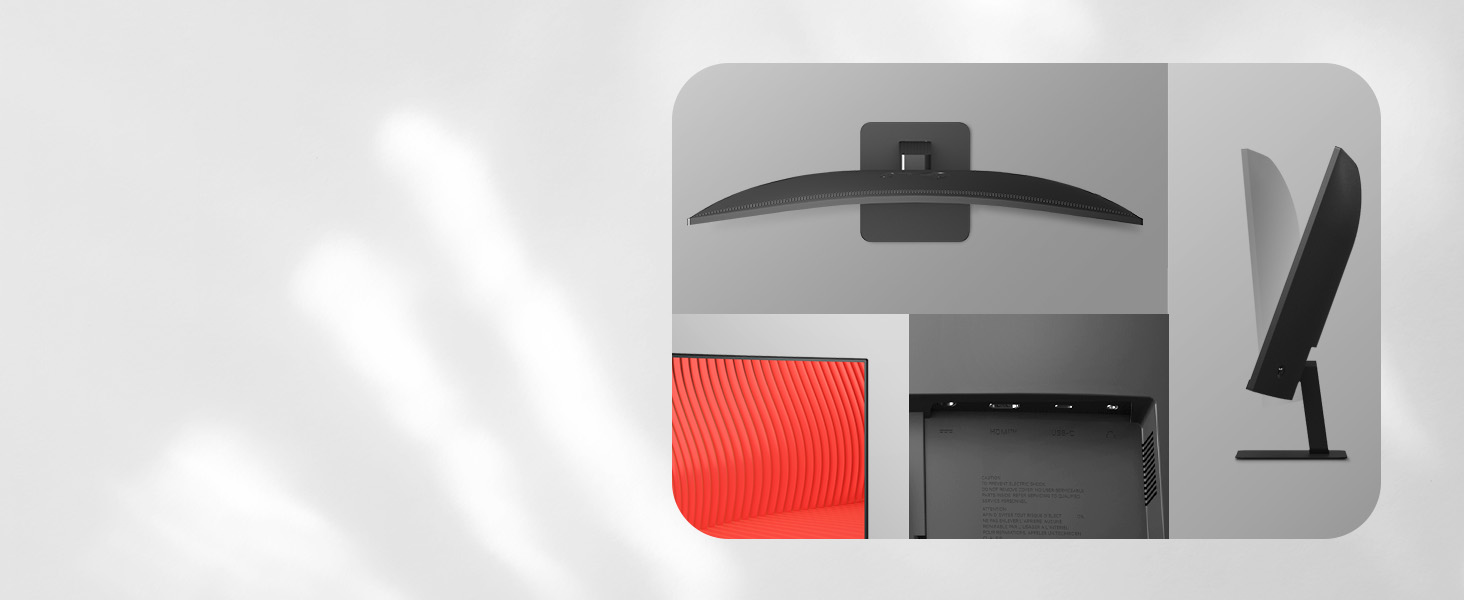
The LG 24U421A-B monitor features a 23.8-inch Full HD (1920 x 1080) curved display, offering a 100Hz refresh rate and 5ms (GtG) response time for smooth visuals. It supports HDR10 and includes versatile connectivity options such as HDMI and USB Type-C with 15W power delivery. Its 3-side borderless design and tilt slim stand enhance desktop efficiency and viewing experience.
1. Setup
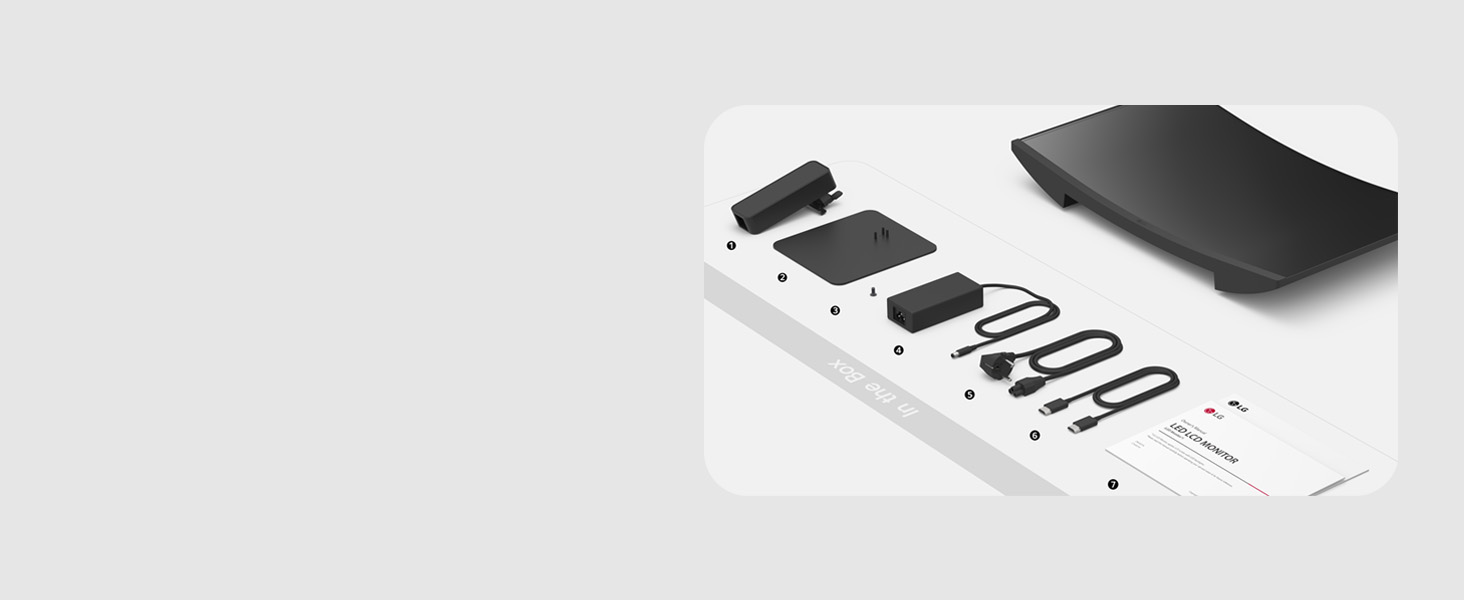
1.1 What's in the Box
Before you begin, ensure all components are present:
- Monitor
- Stand Body
- Stand Base
- Screws
- Power Adapter
- Power Cord
- HDMI Cable
- Quick Setup Guide
1.2 Stand Assembly
- Carefully place the monitor face down on a soft, clean surface to prevent scratches.
- Attach the Stand Body to the back of the monitor. Ensure it clicks securely into place.
- Connect the Stand Base to the Stand Body using the provided screws. Tighten the screws firmly.

1.3 Connecting the Monitor
Connect the monitor to your computer and power source using the following steps:
- Power Connection: Connect the Power Adapter to the monitor's power input, then plug the Power Cord into the adapter and a wall outlet.
- Video Connection (HDMI): Connect one end of the HDMI cable to the HDMI port on your computer and the other end to the HDMI port on the monitor.
- Video/Data/Power Connection (USB Type-C): For compatible devices, connect a USB Type-C cable from your device to the monitor's USB Type-C port. This single cable can transmit video, data, and deliver up to 15W of power to your device.

2. Operating Instructions
2.1 Power On/Off
Press the power button (usually located on the bottom center or rear of the monitor) to turn the monitor on or off. The power indicator light will illuminate when the monitor is on.
2.2 On-Screen Display (OSD) Menu
The OSD menu allows you to adjust various monitor settings. Access it by pressing the joystick button (or dedicated OSD buttons) on the monitor. Navigate through the menu using the joystick/buttons to adjust settings such as brightness, contrast, color, input source, and picture modes.
2.3 Key Features and Settings
- Full HD Resolution (1920x1080): Experience clear visuals and vibrant colors on the 23.8-inch curved display. This resolution is ideal for everyday tasks, browsing, and streaming.
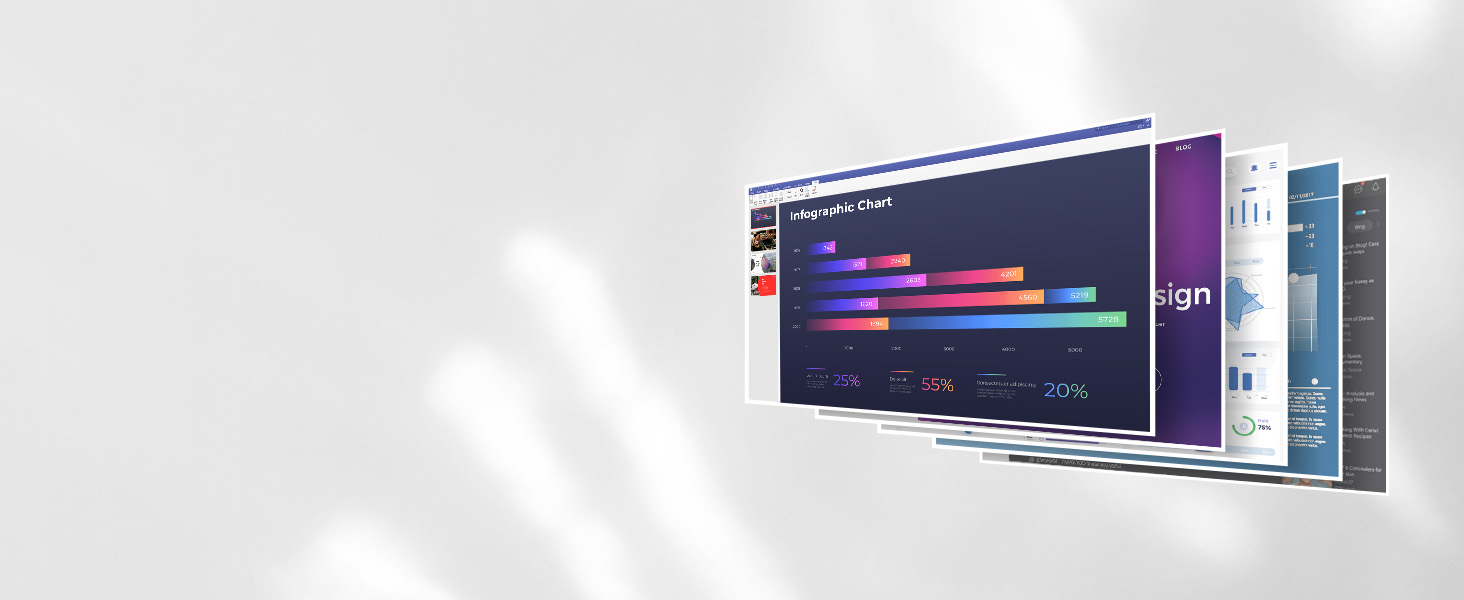
Image: The LG monitor showcasing its Full HD display capabilities. - 100Hz Refresh Rate & 5ms Response Time: Enjoy smoother, more fluid visuals, whether you are scrolling through documents, watching videos, or engaging in casual gaming. This reduces motion blur and ghosting.
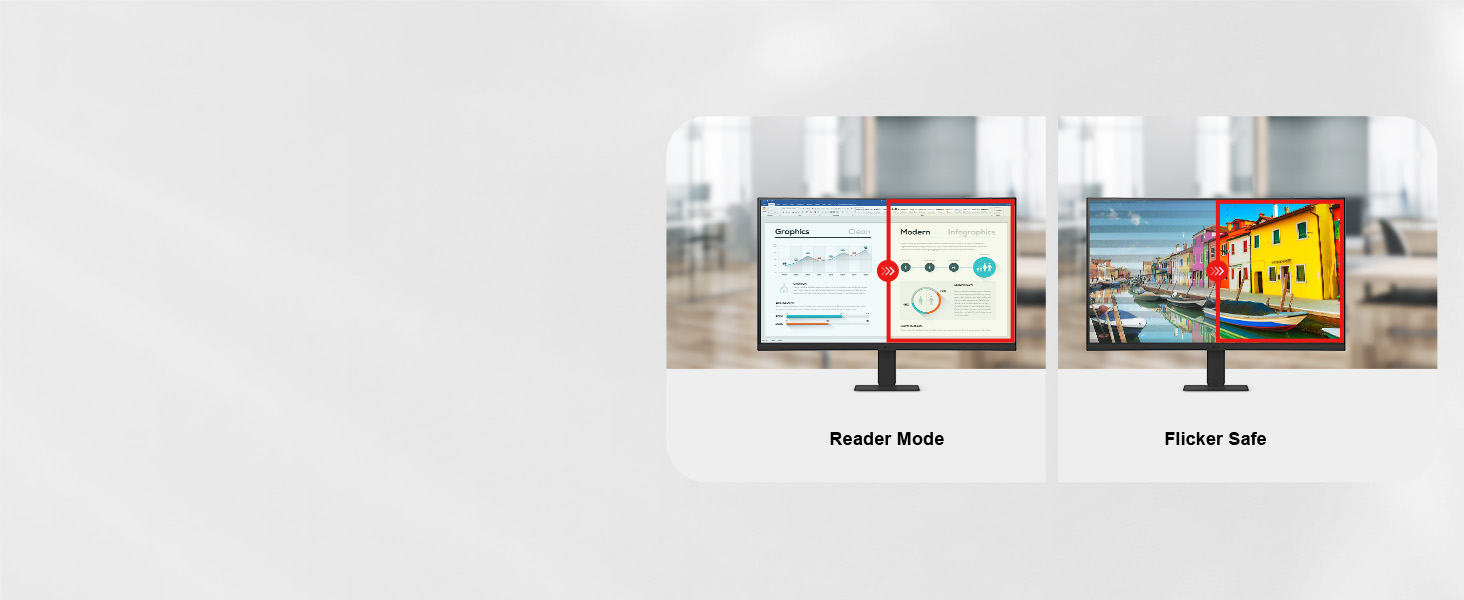
Image: Depiction of seamless visual transitions, highlighting the 100Hz refresh rate. - Reader Mode: This mode lowers blue light levels, providing a more comfortable viewing experience, especially beneficial for reading documents or working for extended periods. Activate it through the OSD menu.

Image: Side-by-side comparison illustrating the reduced blue light effect of Reader Mode. - Dynamic Action Sync: Minimizes input lag, allowing for faster reactions in games or other time-sensitive applications. This feature ensures that actions are displayed almost instantly.
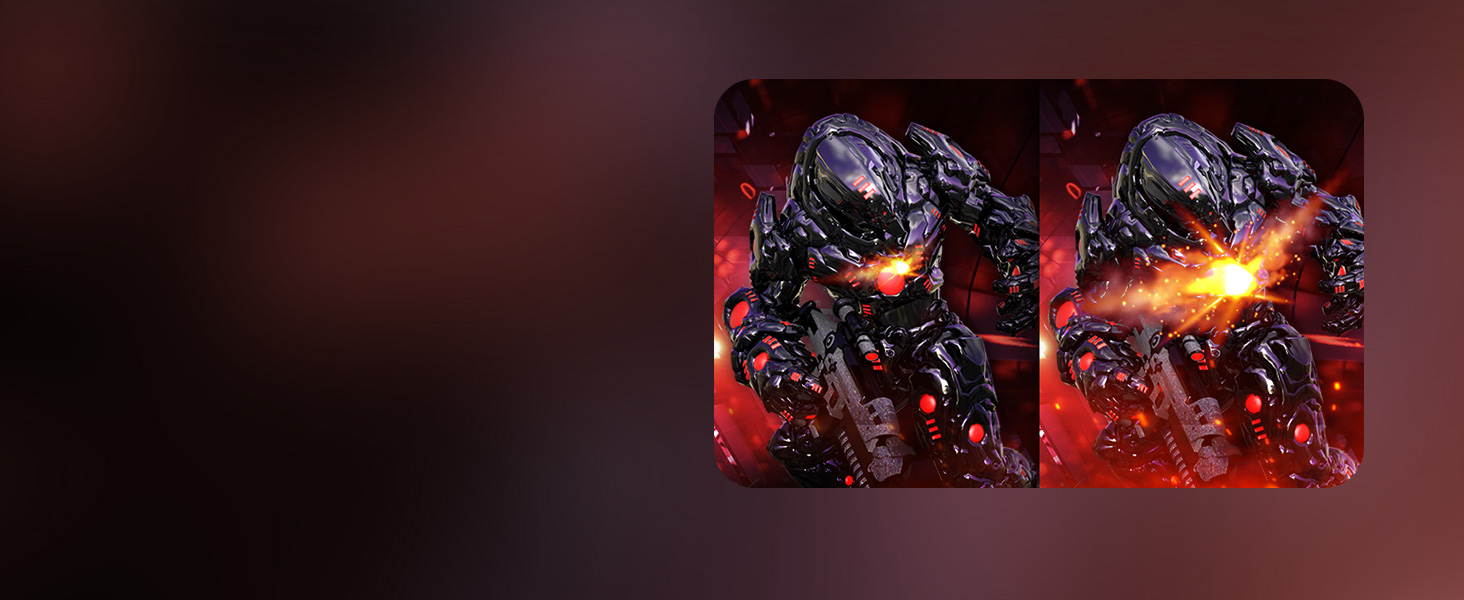
Image: A gaming scene demonstrating the responsiveness provided by Dynamic Action Sync. - Black Stabilizer: Brightens dark scenes to help you spot details in shadowy areas, giving you an advantage in games or improving visibility in dark media content.
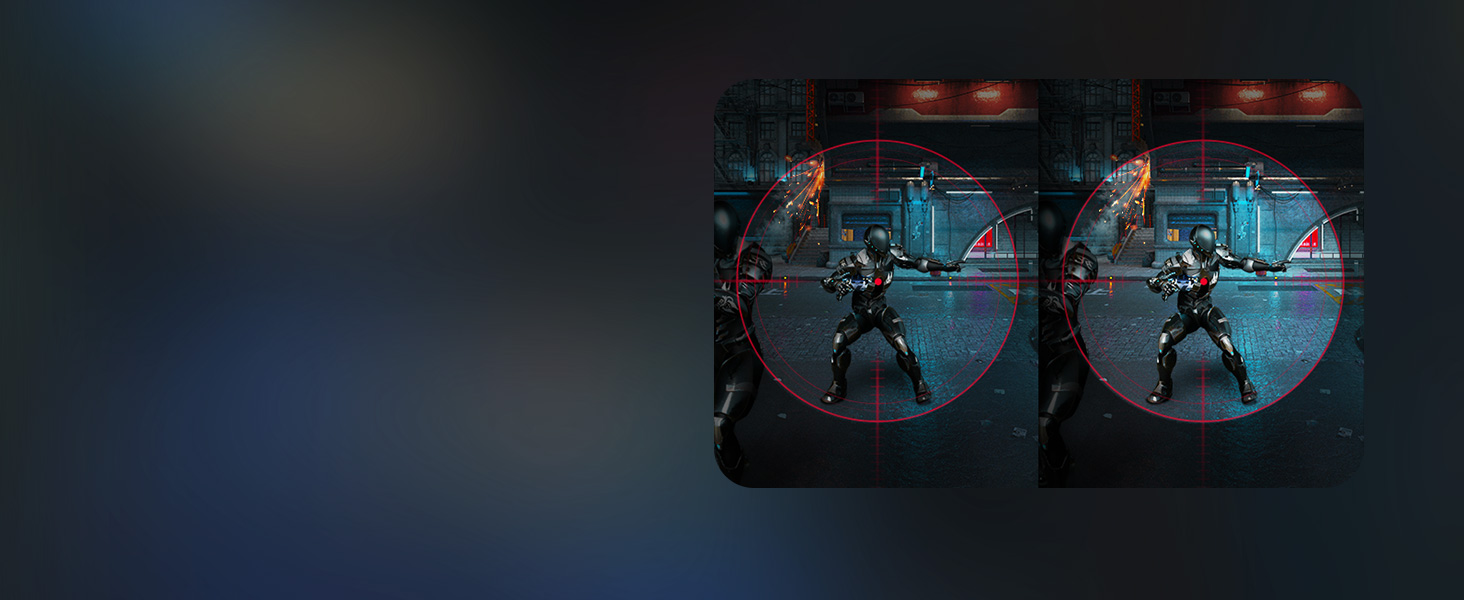
Image: A dark gaming environment showing enhanced visibility with Black Stabilizer activated. - Switch App: This application allows you to customize your screen view for multitasking. You can effortlessly split the screen into up to 6 sections, customize display layouts, or launch video calls with a single hotkey. Download the Switch app from LG.com/support.

Image: The Switch App interface demonstrating various screen layout options for multitasking.
3. Maintenance
3.1 Cleaning the Monitor
To maintain the monitor's performance and appearance, follow these cleaning guidelines:
- Always unplug the monitor from the power outlet before cleaning.
- Use a soft, lint-free cloth slightly dampened with water or a mild, non-abrasive screen cleaner.
- Gently wipe the screen and exterior surfaces. Avoid applying excessive pressure.
- Do not use alcohol, benzene, thinners, or other volatile substances, as they may damage the screen or casing.
- Ensure no liquid enters the monitor's openings.
4. Troubleshooting
If you encounter issues with your monitor, refer to the following common solutions:
4.1 No Power
- Check if the power cord is securely connected to the monitor and the wall outlet.
- Verify that the power outlet is functioning by plugging in another device.
- Ensure the power button on the monitor is pressed.
4.2 No Signal / Blank Screen
- Confirm that the video cable (HDMI or USB Type-C) is securely connected to both the monitor and your computer.
- Check if your computer is powered on and not in sleep mode.
- Use the OSD menu to ensure the correct input source (HDMI, USB Type-C) is selected.
- Try connecting the monitor to another device or using a different video cable to rule out cable or source issues.
4.3 Image Issues (Distorted, Flickering, Incorrect Colors)
- Adjust the resolution and refresh rate settings on your computer to match the monitor's native resolution (1920 x 1080) and supported refresh rate (100Hz).
- Check the video cable for damage or loose connections.
- Reset the monitor to factory default settings via the OSD menu.
- Update your computer's graphics card drivers.
5. Specifications
| Feature | Specification |
|---|---|
| Screen Size | 23.8 Inches |
| Resolution | FHD 1080p (1920 x 1080 Pixels) |
| Aspect Ratio | 16:9 |
| Screen Surface | Matte |
| Contrast Ratio | 3000:1 |
| Refresh Rate | 100 Hz |
| Response Time | 5 Milliseconds (GtG) |
| Display Type | LED (VA Panel) |
| Viewing Angle | 178 Degrees |
| Brightness | 250 Candela |
| Color Gamut | 99.0% |
| Picture Quality Enhancement | HDR10 |
| Connectivity | 1x HDMI, 1x USB Type-C (15W PD) |
| Additional Features | Curved, Dynamic Action Sync, Tilt Adjustment, Reader Mode, Black Stabilizer |
| Item Dimensions (D x W x H) | 6.69"D x 21.11"W x 16.22"H |
| Item Weight | 6.4 Pounds |
| Power Consumption | 14.4 Watts |
| Voltage | 240 Volts |
| Adaptive Sync | FreeSync, G-Sync Compatible |
6. Warranty Information
This LG monitor comes with a 1 Year Manufacturer Warranty. For specific terms and conditions, please refer to the warranty documentation included with your product or visit the official LG website.
7. Support
For additional support, software downloads (such as the Switch App), driver updates, or service inquiries, please visit the official LG support website:
You can also find frequently asked questions and contact information for customer service on their website.