
1. Setup
This section guides you through the initial setup of your Lenovo ThinkPad P1 Gen 3 Workstation Laptop.
1.1 Unpacking and Initial Inspection
Carefully remove the laptop and all accessories from the packaging. Inspect for any signs of damage during transit. Retain the packaging for future transport or service needs.
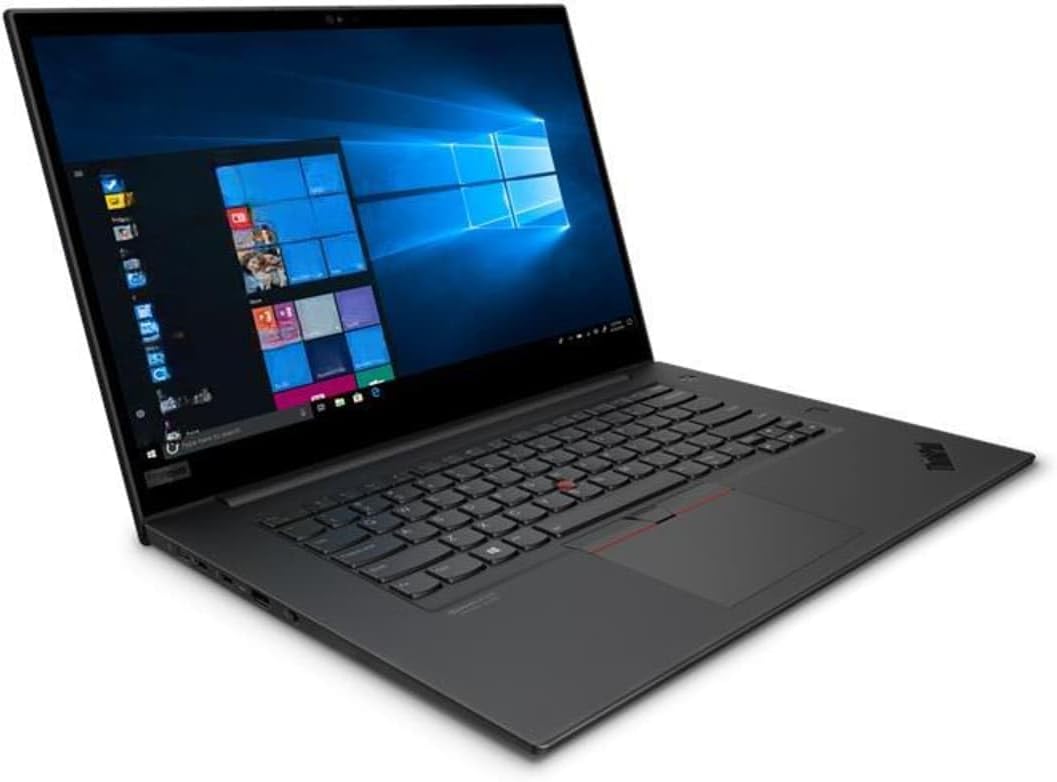
Image: The Lenovo ThinkPad P1 Gen 3 Workstation Laptop, showcasing its display and keyboard. The screen displays a Windows operating system interface.
1.2 Connecting to Power
- Connect the power adapter to the laptop's power input port.
- Plug the power cord into a grounded electrical outlet.
- Allow the battery to charge for at least 30 minutes before initial use, or until the battery indicator shows a sufficient charge.
1.3 First Boot and Operating System Configuration
- Press the power button to turn on the laptop.
- Follow the on-screen instructions to complete the Windows 11 Pro setup. This includes selecting your region, language, accepting license agreements, and creating a user account.
- Connect to a Wi-Fi network when prompted to ensure the operating system can download necessary updates.
2. Operating Instructions
This section provides guidance on using your ThinkPad P1 Gen 3 Workstation Laptop.
2.1 Power Management
- Turning On: Press the power button located on the top right of the keyboard.
- Shutting Down: Click the Start button, then Power, and select "Shut down".
- Sleep Mode: Close the lid or click the Start button, then Power, and select "Sleep".
- Restarting: Click the Start button, then Power, and select "Restart".
2.2 Keyboard and TrackPoint/Touchpad Usage
The laptop features a full-size keyboard, a TrackPoint pointing device, and a multi-touch touchpad.
- TrackPoint: Use the red cap in the center of the keyboard for precise cursor control. The three buttons below the spacebar function as left-click, scroll, and right-click for the TrackPoint.
- Touchpad: Use the multi-touch surface for navigation. Tap to click, use two fingers to scroll, and pinch to zoom.
2.3 Connecting External Devices
Your ThinkPad P1 Gen 3 includes various ports for connecting peripherals:
- USB Ports: For connecting USB drives, mice, keyboards, and other USB accessories.
- HDMI Port: For connecting to external displays or projectors.
- Audio Jack: For connecting headphones or external speakers.
- Thunderbolt Ports: For high-speed data transfer, external displays, and charging.
3. Maintenance
Proper maintenance ensures the longevity and optimal performance of your laptop.
3.1 Cleaning the Laptop
- Screen: Use a soft, lint-free cloth lightly dampened with water or a screen-cleaning solution. Do not spray liquid directly onto the screen.
- Keyboard and Chassis: Use a soft, dry cloth. For stubborn dirt, a slightly damp cloth with mild soap solution can be used, ensuring no liquid enters openings.
- Ventilation Grilles: Use compressed air to remove dust from the ventilation grilles to prevent overheating.
3.2 Software Updates
Regularly update your operating system and drivers to ensure security and performance.
- Windows Updates: Go to Settings > Windows Update and check for updates.
- Driver Updates: Visit the Lenovo support website for your specific model to download the latest drivers for graphics, chipset, and other components.
3.3 Battery Care
- Avoid fully discharging the battery frequently.
- Store the laptop in a cool, dry place if not used for extended periods.
- For optimal battery health, avoid prolonged exposure to extreme temperatures.
4. Troubleshooting
This section addresses common issues you might encounter with your ThinkPad P1 Gen 3.
| Problem | Possible Cause | Solution |
|---|---|---|
| Laptop does not power on. | No power, discharged battery, faulty power adapter. | Ensure power adapter is securely connected and outlet is functional. Charge battery. Try a different power adapter if available. |
| Screen remains black. | Display issue, external monitor connected, sleep mode. | Press any key or move the mouse to wake from sleep. Disconnect external monitors. Try adjusting screen brightness. |
| Wi-Fi connection issues. | Incorrect password, router issue, driver problem. | Verify Wi-Fi password. Restart router. Update Wi-Fi drivers from Lenovo support website. |
| System is slow or unresponsive. | Too many applications open, low disk space, malware. | Close unnecessary applications. Free up disk space. Run a system scan for malware. Restart the laptop. |
5. Specifications
Detailed technical specifications for the Lenovo ThinkPad P1 Gen 3 Workstation Laptop.
- Brand: Lenovo
- Model Name: ThinkPad P1 Gen 3 Laptop
- Processor: Intel Core i7-10850H (6-core, up to 5.1GHz)
- RAM: 16GB DDR4 @ 3200MHz
- Storage: 512GB PCIe NVMe M.2 Solid State Drive
- Display: 16-inch Non-Touch Screen, FHD (1920x1080) resolution
- Graphics: Dedicated Nvidia Quadro T1000 with 4GB GDDR6
- Operating System: Windows 11 Pro
- Connectivity: Wi-Fi, Bluetooth
- Special Features: Integrated Webcam, Keyboard
6. Warranty & Support
Information regarding product warranty and how to obtain technical support.
6.1 Warranty Information
This product is sold as "Renewed". Please refer to the specific warranty terms provided by the seller (VR Laptops) or the Amazon Renewed program for details on coverage and duration. Typically, renewed products come with a limited warranty.
For details on the Amazon Renewed program, visit: Amazon Renewed Store
6.2 Technical Support
For technical assistance, please contact the seller directly or refer to the official Lenovo support website for driver downloads and general product information.
- Seller Support: Contact VR Laptops through your Amazon order history.
- Lenovo Support: Visit support.lenovo.com for drivers, manuals, and troubleshooting guides.


