
1. Introduction
The Fanvil V66 is a professional IP videophone designed for business environments, offering advanced communication features and a modern design. It features a 7-inch color touchscreen, Bluetooth, and WiFi 6 connectivity, ensuring versatile and high-quality communication.
What's in the Box
- Fanvil V66 IP Phone
2. Product Overview
Familiarize yourself with the components of your Fanvil V66 Prime Business Phone.
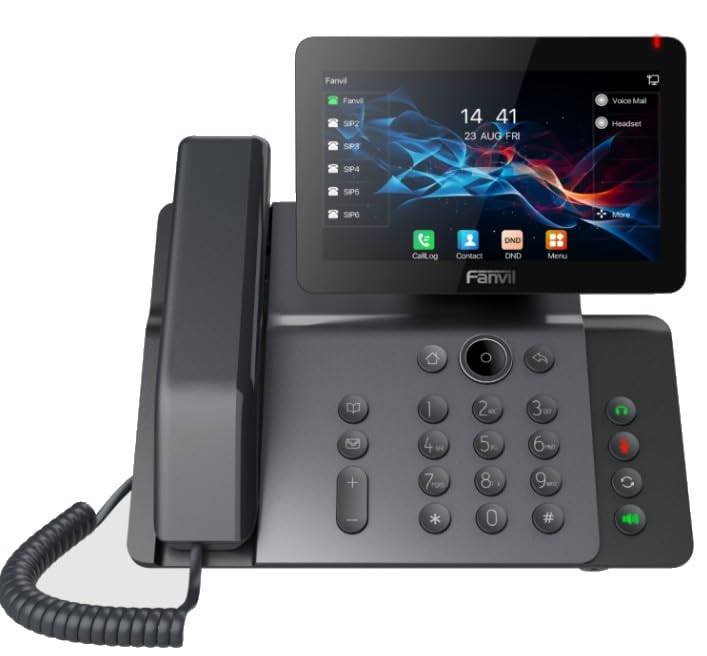
Figure 1: Front view of the Fanvil V66 Prime Business Phone, showing the 7-inch color display, numeric keypad, and function keys.
Key Features
- 7-inch HD Color LCD Screen: Inclinable design for optimal viewing.
- Bluetooth & WiFi 6 Connectivity: For fast and stable wireless connections.
- 116-Key Numeric Keypad: Provides comprehensive control over phone functions.
- Integrated Audio and Video System: Supports high-quality professional calls and videoconferences.
- Intuitive User Interface: Quick menu access for calls, contacts, and main functions.
3. Setup
3.1 Assembling the Phone
- Attach the Desk Stand: Align the stand with the slots on the back of the phone and push until it clicks into place.
- Connect the Handset: Plug one end of the coiled handset cord into the handset and the other end into the handset port on the phone base.
3.2 Connecting to Network and Power
- Ethernet Connection: Plug one end of the Ethernet cable into the LAN port on the back of the phone and the other end into your network switch or router.
- Power Connection (Choose one):
- Power over Ethernet (PoE): If your network switch supports PoE, the phone will power on automatically once connected via the Ethernet cable. No separate power adapter is needed.
- Power Adapter: If PoE is not available, connect a compatible power adapter to the DC 12V port on the phone and then plug it into a power outlet.
- The phone will automatically power on and begin the boot-up sequence.
3.3 Initial Configuration
Upon first boot, the phone may prompt you for initial network settings or firmware updates. Follow the on-screen instructions. For advanced network settings or SIP account configuration, consult your network administrator or IT support.
4. Operating Instructions
4.1 Making Calls
- Dialing: Pick up the handset, press the Speaker button, or press the New Call soft key. Dial the desired number using the keypad.
- Speed Dial: If configured, press the assigned speed dial key.
- From Contacts: Tap the "Contacts" icon on the display, select a contact, and tap the call icon.
4.2 Receiving Calls
When an incoming call rings, you can:
- Answer: Pick up the handset, press the Speaker button, or tap the "Answer" soft key on the display.
- Decline: Tap the "Decline" soft key.
4.3 Using the 7-inch Color Display
The touchscreen display provides access to various functions and settings:
- Home Screen: Displays time, date, line status, and quick access icons.
- Navigation: Swipe left/right or tap icons to navigate through menus.
- Soft Keys: Context-sensitive buttons displayed at the bottom of the screen.
- Settings: Access phone settings, network configuration, and user preferences.
4.4 Bluetooth and WiFi Connectivity
- Bluetooth: Go to "Settings" > "Bluetooth" to enable and pair with Bluetooth headsets or other devices.
- WiFi 6: Go to "Settings" > "Wi-Fi" to enable, scan for available networks, and connect. Enter the password if required.
5. Maintenance
5.1 Cleaning the Phone
- Use a soft, dry, anti-static cloth to clean the phone's surface.
- For the screen, use a screen-specific cleaning solution and a microfiber cloth.
- Avoid using harsh chemicals, abrasive cleaners, or excessive moisture.
5.2 Software Updates
Periodically check for firmware updates to ensure optimal performance and security. Updates can usually be found in the phone's "Settings" menu under "System" or "Firmware Update," or provided by your IT department.
6. Troubleshooting
| Problem | Possible Cause | Solution |
|---|---|---|
| Phone does not power on. | No power connection or faulty power source. | Check power adapter connection or Ethernet cable for PoE. Ensure power outlet is functional. |
| Cannot connect to network. | Ethernet cable disconnected, incorrect network settings, or Wi-Fi issues. | Verify Ethernet cable is securely connected. Check Wi-Fi settings and password. Contact network administrator for IP configuration. |
| No dial tone or audio during calls. | Handset/headset not connected properly, volume too low, or SIP registration issue. | Ensure handset/headset is plugged in correctly. Adjust volume. Verify SIP account registration status on the display. |
| Display is unresponsive. | Temporary software glitch. | Restart the phone by disconnecting and reconnecting power. If issue persists, contact support. |
7. Specifications
| Feature | Detail |
|---|---|
| Brand | Fanvil |
| Model Number | V62 PRO (Note: Product series is V66) |
| Color | Black |
| Display | 7-inch HD Color LCD, Inclinable |
| Connectivity | Bluetooth, WiFi 6, Ethernet (PoE support) |
| Keypad | 116 keys |
| Material | Plastic |
| Power Source | Power Adapter / PoE |
| Dimensions (L x W x H) | 20 x 20 x 15 cm |
| Item Weight | 600 Grams |
| Compatible Devices | EHS (Electronic Hook Switch) headsets |
8. Warranty and Support
For warranty information, please refer to the warranty card included with your product or visit the official Fanvil website. If you encounter any issues not covered in this manual or require further assistance, please contact your vendor or Fanvil technical support.
- Online Support: Visit the Fanvil official website for FAQs, documentation, and support resources.
- Technical Assistance: Contact your authorized Fanvil reseller or service provider.


