
OPPO OPPO Reno 13 F 5G 8/256 Graphite Grey
OPPO Reno13 F 5G User Manual
Model: OPPO Reno 13 F 5G 8/256 Graphite Grey
1. Introduction
Welcome to the user manual for your new OPPO Reno13 F 5G smartphone. This guide provides essential information on setting up, operating, maintaining, and troubleshooting your device. Please read this manual thoroughly to ensure optimal performance and longevity of your smartphone.
What's in the Box
- OPPO Reno13 F 5G Smartphone
- USB Cable
- Quick Start Guide
- Safety Information

Figure 1.1: Front view of the OPPO Reno13 F 5G smartphone with its display active.
2. Setup
2.1 Inserting SIM Cards
The OPPO Reno13 F 5G supports Dual-SIM functionality. Use the provided SIM ejector tool to open the SIM tray. Insert your Nano-SIM cards into the designated slots. Ensure the gold contacts face downwards and the notched corner aligns correctly. Gently push the tray back into the phone.
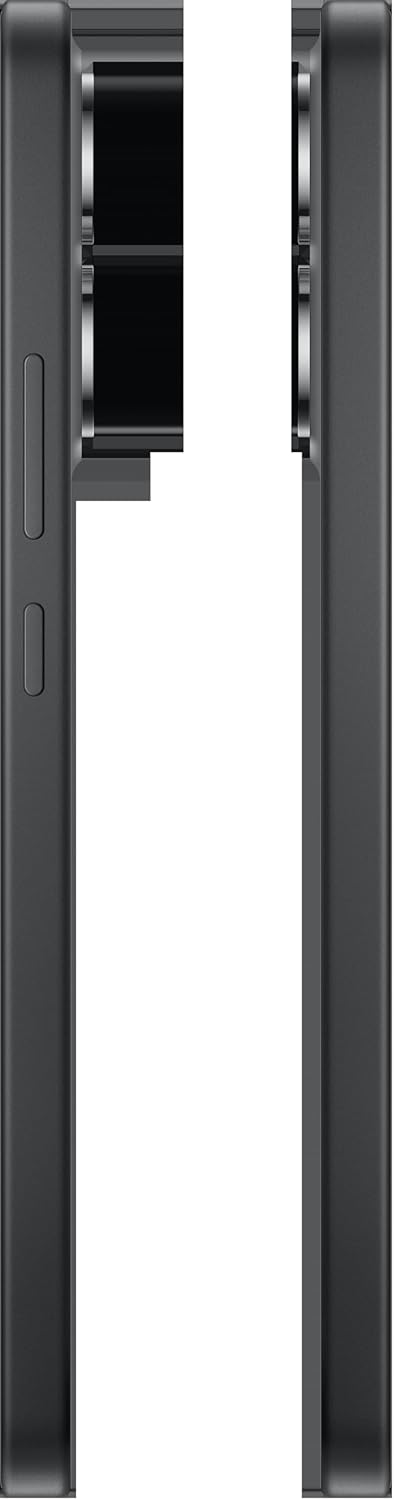
Figure 2.1: Side view of the OPPO Reno13 F 5G, highlighting the SIM card tray and volume buttons.
2.2 Initial Power On and Setup
- Press and hold the Power button (located on the right side) until the OPPO logo appears.
- Follow the on-screen prompts to select your language, region, connect to Wi-Fi, and set up your Google account.
- You can transfer data from an old device or set up as a new phone.
2.3 Charging the Device
Before first use, it is recommended to fully charge your device. Connect the USB cable to the phone's USB-C port and the other end to a compatible power adapter (not included) or a computer's USB port. The battery indicator on the screen will show charging status.

Figure 2.2: Bottom view of the OPPO Reno13 F 5G, showing the USB-C charging port, speaker grille, and microphone.
3. Operating Your Smartphone
3.1 Basic Navigation
- Home Screen: Swipe left or right to navigate between home screens.
- App Drawer: Swipe up from the bottom of the screen to access all installed applications.
- Notifications & Quick Settings: Swipe down from the top of the screen to view notifications and access quick settings toggles.
- Recent Apps: Swipe up from the bottom and hold to view recently used applications.
3.2 Calls and Messaging
- Making a Call: Open the Phone app, enter the number, and tap the call icon.
- Sending a Message: Open the Messages app, tap 'Start chat', enter recipient(s), and type your message.
3.3 Camera Usage
The OPPO Reno13 F 5G features a versatile camera system. Open the Camera app to access various modes like Photo, Video, Portrait, Night, and more. Tap the shutter button to capture photos or start/stop video recording.

Figure 3.1: Back view of the OPPO Reno13 F 5G, showcasing the dual-camera module and OPPO branding.
3.4 Connectivity
- Wi-Fi: Go to Settings > Wi-Fi to connect to available networks.
- Bluetooth: Go to Settings > Bluetooth to pair with other Bluetooth devices.
- Mobile Data (5G): Ensure your SIM card is active and mobile data is enabled in Quick Settings or Network settings.
4. Maintenance
4.1 Cleaning Your Device
Use a soft, lint-free cloth to clean the screen and body of your phone. Avoid using harsh chemicals or abrasive materials. For stubborn smudges, slightly dampen the cloth with water or a screen cleaner designed for electronics.
4.2 Software Updates
Regularly check for software updates to ensure your device has the latest features, security patches, and performance improvements. Go to Settings > About device > Up to date or Software update.
4.3 Battery Care
- Avoid extreme temperatures, which can degrade battery life.
- Do not let the battery drain completely before recharging frequently.
- Use only compatible chargers and cables.
4.4 Storage Management
Periodically review your device's storage. Delete unnecessary files, uninstall unused apps, and clear cache data to free up space and maintain optimal performance. You can expand storage via microSDXC.
5. Troubleshooting
| Problem | Possible Solution |
|---|---|
| Phone does not turn on | Ensure the battery is charged. Press and hold the Power button for at least 10 seconds to force restart. |
| Cannot connect to Wi-Fi | Restart your phone and router. Forget the network and try reconnecting. Check Wi-Fi settings. |
| Apps are crashing or freezing | Clear the app's cache and data (Settings > Apps > [App Name] > Storage). Update the app. Reinstall the app. |
| Poor network signal | Check SIM card insertion. Move to an area with better coverage. Restart the phone. Contact your network provider. |
| Battery drains quickly | Reduce screen brightness. Close background apps. Turn off unused features like Bluetooth/GPS. Check battery usage in settings. |
6. Specifications
| Feature | Detail |
|---|---|
| Model Name | OPPO Reno13 F |
| Operating System | Android 15, ColorOS 15 |
| Processor | Qualcomm SM6450 Snapdragon 6 Gen 1 (4 nm), Octa-core (4x2.2 GHz Cortex-A78 & 4x1.8 GHz Cortex-A55) |
| RAM | 8 GB |
| Internal Storage | 256 GB (expandable via microSDXC) |
| Display | 6.67 inches AMOLED, 1080 x 2400 pixels, Asahi Glass AGC DT-Star2 |
| Rear Camera | 50 MP (wide, PDAF, OIS), 8 MP (ultrawide), 2 MP (macro) |
| Front Camera | 32 MP (wide) |
| Battery | Li-Po 5800 mAh, non-removable |
| SIM Type | Dual-SIM |
| Network Compatibility | 2G GSM: 850/900/1800/1900 3G WCDMA: 800(B6)/800(B19)/850(B5)/900(B8)/1700|2100(B4)/1900(B2)/2100(B1) 4G LTE FDD: 700(B12)/700(B13)/700(B17)/700(B28)/800(B20)/850(B5)/850(B18)/850(B19)/850(B26)/900(B8)/1700|2100(B4)/1800(B3)/1900(B2)/2100(B1)/2100(B66)/2600(B7) 4G LTE TDD: 1900(B39)/2300(B40)/2500(B41)/2600(B38) 5G NR: N1/N2/N3/N5/N7/N8/N12/N20/N26/N28/N38/N40/N41/N66/N77/N78 |
| Color | Graphite Grey |
| Weight | 0.5 Kilograms (1.1 pounds) |
7. Warranty and Support
7.1 Warranty Information
Your OPPO Reno13 F 5G smartphone comes with a limited manufacturer's warranty. Please refer to the warranty card included in your product packaging for specific terms, conditions, and duration. Keep your proof of purchase for warranty claims.
7.2 Customer Support
For technical assistance, service, or further inquiries, please visit the official OPPO support website or contact their customer service hotline. Details can typically be found on the OPPO official website or in the warranty documentation.
Related documentsOPPO Reno 13 F 5G 8/256 Graphite Grey


Ask a question about this manual
Ask about setup, troubleshooting, compatibility, parts, safety, or missing instructions. Manuals+ will review the question and use this page’s manual context to help answer it.