1. Introduction
Welcome to the user manual for your new Tiqvi 7-inch Digital Photo Frame. This device is designed to help you easily display and share your cherished photos and videos with family and friends, no matter where they are. Featuring a vibrant IPS touch screen, WiFi connectivity, and compatibility with the intuitive Frameo app, your digital photo frame offers a modern way to relive memories. Please read this manual carefully to ensure proper setup, operation, and maintenance of your device.

This image illustrates the Tiqvi digital photo frame in use, showcasing a vibrant family photo on its screen. Next to it, a smartphone displays the Frameo application, highlighting the seamless integration for sharing memories directly to the frame.
2. What's in the Box?
Please check the package contents to ensure all items are present and in good condition.
- Tiqvi 7-inch Digital Photo Frame
- Power Adapter
- Detachable Stand
- User Manual (this document)

This image displays all items typically found inside the product packaging: the Tiqvi digital photo frame itself, its power adapter, and a detachable stand. Key dimensions of the frame are also provided for reference.
3. Setup Guide
3.1 Powering On Your Frame
Connect the provided power adapter to the DC port on the back of the digital photo frame. Plug the adapter into a standard electrical outlet. The frame will automatically power on.
3.2 Connecting to Wi-Fi
Upon first power-on, the frame will guide you through the initial setup process, including connecting to your Wi-Fi network.
- Select your preferred language.
- Choose your time zone.
- Select your Wi-Fi network from the list.
- Enter your Wi-Fi password using the on-screen keyboard and tap "Connect".
- Once connected, the frame will display a unique Frameo ID.
3.3 Installing the Frameo App
To send photos and videos to your frame, you need to download the Frameo app on your smartphone or tablet.
- Search for "Frameo" in the Apple App Store (for iOS devices) or Google Play Store (for Android devices).
- Download and install the app.
- Open the app and create an account or log in.
- Add your frame by entering the unique Frameo ID displayed on your digital photo frame.

This image emphasizes the integration with the Frameo app, showing the frame alongside the Google Play and App Store logos, indicating where users can download the necessary application for managing and sharing photos.
4. Operating Your Digital Photo Frame
4.1 Sending Photos and Videos
Once your frame is connected to the Frameo app, you can easily send photos and short videos (up to 15 seconds) from your smartphone.
- Open the Frameo app on your smartphone.
- Select the photos or videos you wish to send.
- Choose your Tiqvi frame as the recipient.
- Add a caption if desired, then tap "Send".
Photos and videos will appear on your frame shortly after being sent, provided the frame is connected to Wi-Fi. You can connect up to 500 users to share memories with your frame.

This image illustrates the ease of sharing photos and videos with the Tiqvi digital photo frame. It shows a photo being sent from a smartphone to the frame, symbolizing the ability to connect and share memories with loved ones anywhere.
4.2 Touch Screen Navigation
The Tiqvi digital photo frame features an intuitive touch screen for easy navigation.
- Swipe Left/Right: Navigate through photos.
- Tap: Access settings, view photo details, or pause slideshow.
- Pinch to Zoom: Zoom in or out on photos.
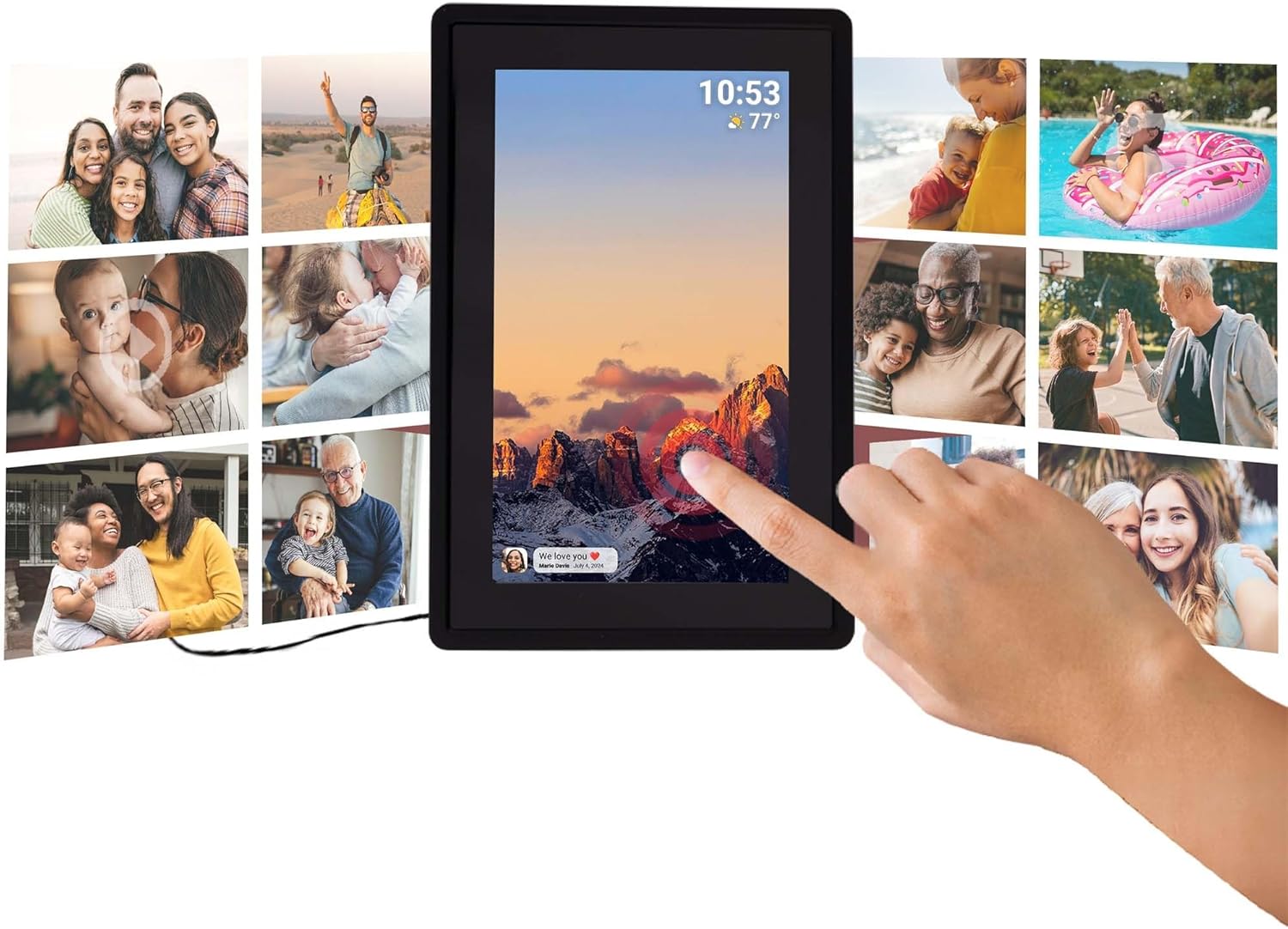
This image illustrates the intuitive touch screen functionality of the digital photo frame, showing a hand interacting directly with the display to navigate through photos and settings.
4.3 Auto-Rotate Function
The frame automatically detects its orientation (landscape or portrait) and adjusts the display of photos accordingly, ensuring your memories are always shown correctly.

Two Tiqvi digital photo frames are shown, one in landscape and one in portrait orientation, demonstrating how the auto-rotate function automatically adjusts the photo display for perfect viewing.
5. Storage
Your Tiqvi digital photo frame comes with 16GB of internal memory, capable of storing thousands of photos and short videos.
For additional storage, the frame includes a microSD card slot, supporting cards up to 32GB. This allows you to expand the frame's capacity significantly.

This detailed view of the frame's screen highlights its key technical specifications and features, including WiFi connectivity, 16GB internal storage, the 7-inch IPS display with 1024x600 resolution, support for microSD cards up to 32GB, and compatibility with the Frameo application.

This visual demonstrates the extensive storage capability of the digital photo frame, showing a screen filled with a diverse collage of photos.
6. Specifications
| Feature | Specification |
|---|---|
| Brand | Tiqvi |
| Model Number | TVH10005 |
| Screen Size | 7 Inches |
| Display Type | IPS Touch Screen |
| Resolution | 1024x600 (16:9 aspect ratio) |
| Internal Memory | 16 GB |
| External Storage | MicroSD card slot (max. 32GB) |
| Connectivity | WiFi |
| App Compatibility | Frameo App |
| Color | Black |
| Power Source | Electric (AC Adapter) |
| Product Dimensions (L x W x H) | 22 x 15 x 2.51 cm |
| Product Weight | 600 Grams |
7. Maintenance
7.1 Cleaning the Frame
To keep your digital photo frame in optimal condition, follow these cleaning guidelines:
- Screen: Use a soft, lint-free cloth (e.g., microfiber cloth) to gently wipe the screen. For stubborn smudges, slightly dampen the cloth with water or a screen-cleaning solution specifically designed for electronics. Avoid harsh chemicals or abrasive materials.
- Frame Body: Wipe the body of the frame with a dry or slightly damp soft cloth. Do not use excessive moisture.
- Power Off: Always unplug the power adapter before cleaning.
7.2 General Care
- Avoid placing the frame in direct sunlight or near heat sources.
- Keep the frame away from water and high humidity.
- Do not drop or subject the frame to strong impacts.
8. Troubleshooting
If you encounter any issues with your Tiqvi digital photo frame, please refer to the table below for common problems and their solutions.
| Problem | Possible Cause | Solution |
|---|---|---|
| Frame does not power on. | Power adapter not connected or faulty outlet. | Ensure the power adapter is securely plugged into the frame and a working electrical outlet. Try a different outlet. |
| Cannot connect to Wi-Fi. | Incorrect password, weak signal, or router issue. | Double-check the Wi-Fi password. Move the frame closer to the router. Restart your Wi-Fi router. |
| Photos are not appearing on the frame. | Frame not connected to Wi-Fi, incorrect Frameo ID, or app issue. | Verify Wi-Fi connection on the frame. Ensure the correct Frameo ID is entered in the app. Restart the Frameo app on your phone. |
| Screen is unresponsive. | Temporary software glitch. | Unplug the power adapter, wait 10 seconds, then plug it back in to restart the frame. |
| Photos are blurry or low quality. | Original photo resolution is low. | Ensure you are sending high-resolution photos to the frame for best display quality. |
9. Warranty and Support
9.1 Manufacturer's Warranty
Your Tiqvi digital photo frame is covered by a 1-year manufacturer's warranty from the date of purchase. This warranty covers defects in materials and workmanship under normal use. It does not cover damage caused by misuse, accidents, unauthorized modifications, or external causes. Please retain your proof of purchase for warranty claims.
9.2 Customer Support
For further assistance, technical support, or warranty inquiries, please refer to the product packaging or the official Tiqvi website for contact information. When contacting support, please have your product model number (TVH10005) and purchase details ready.


