
Important Safety Information
Please read all instructions carefully before using this monitor. Keep this manual for future reference.
- Do not expose the monitor to rain or moisture to avoid fire or shock hazards.
- Do not open the monitor casing. There are no user-serviceable parts inside. Refer all servicing to qualified personnel.
- Ensure proper ventilation around the monitor. Do not block ventilation openings.
- Use only the power adapter and cables provided by the manufacturer.
- Disconnect the power plug from the outlet if the monitor will not be used for an extended period.
Package Contents
Verify that all items are present in your package:
- GIGABYTE MO32U Monitor
- Power cable
- HDMI 2.1 cable
- DP cable (DisplayPort cable)
- USB cable (USB Type-A to Type-B upstream cable)
- Quick Start Guide / User Manual (this document)
Setup
1. Stand Assembly
Carefully remove the monitor and stand components from the packaging. Attach the stand neck to the monitor panel, ensuring it clicks securely into place. Then, attach the base to the stand neck and tighten the screws if necessary. The stand allows for height adjustment (up to 130mm) and tilt (-5° to +21°).
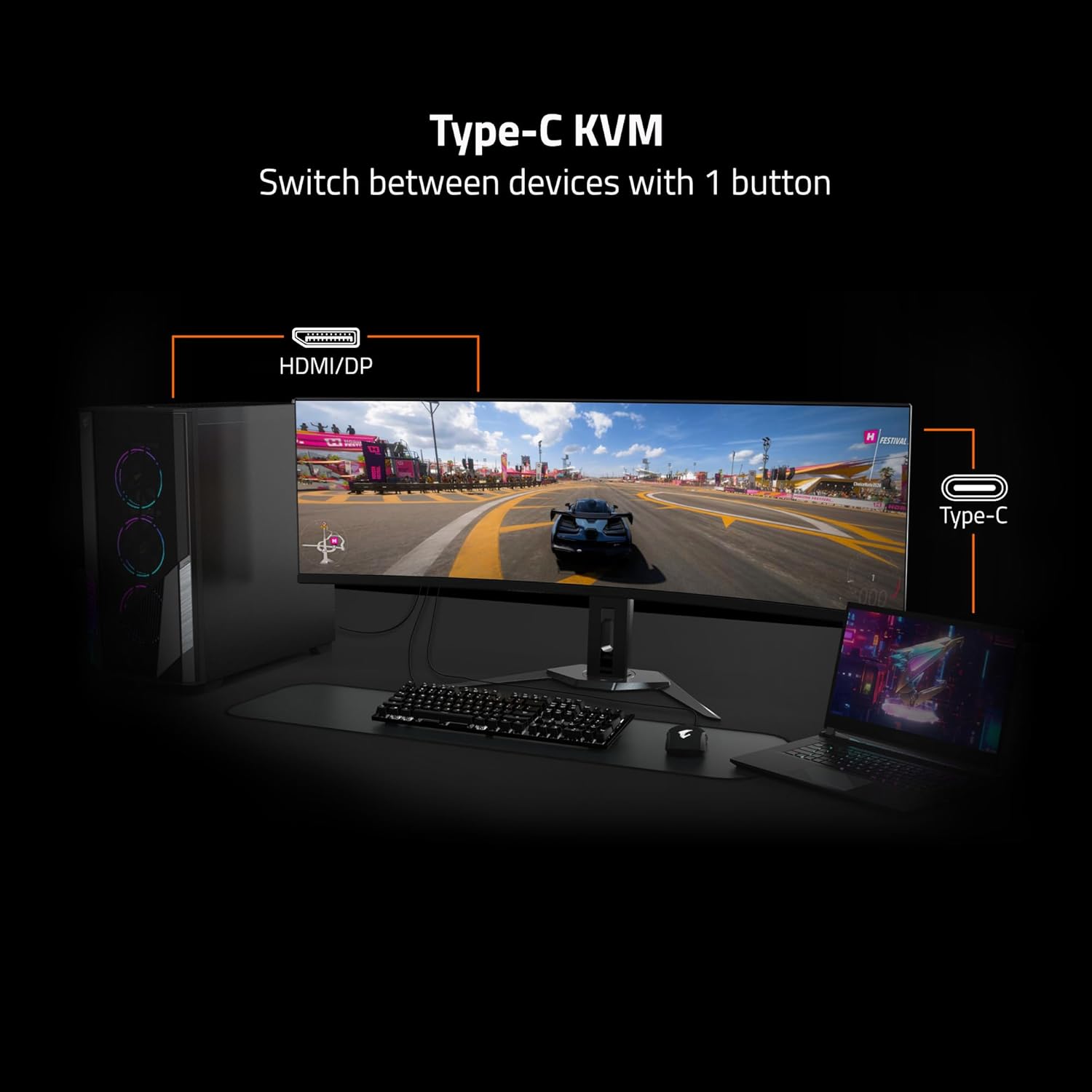
Image: Adjustable Stand and VESA Wall Mount points.
2. VESA Wall Mount Installation
The monitor supports VESA 100x100mm mounting. If using a VESA compatible wall mount or arm, remove the stand from the monitor. Secure the VESA mount to the monitor using appropriate screws (not included) according to the mount manufacturer's instructions. Refer to the image above for VESA mount point location.
3. Connecting Your Monitor
Connect the necessary cables to the corresponding ports on the back of the monitor and to your computer or other devices. Ensure all connections are secure.
- Power: Connect the power cable to the monitor and a power outlet.
- Video Input: Use the provided HDMI 2.1 or DisplayPort 1.4 cables to connect to your graphics card. The monitor also supports USB Type-C for video input.
- USB Upstream: Connect the USB upstream cable (USB Type-A to Type-B) from your computer to the monitor's USB 3.0 Upstream port to enable the monitor's USB downstream ports and KVM functionality.
- USB Downstream: Connect USB devices (keyboard, mouse, USB drives) to the USB 3.0 Downstream ports.
- Earphone Jack: Connect headphones or external speakers.

Image: I/O Ports diagram on the back of the monitor.
Operating Your Monitor
1. Power On/Off
Press the power button, usually located on the back or bottom of the monitor, to turn the monitor on or off. The power indicator light will illuminate when the monitor is on.
3. KVM Functionality
The GIGABYTE MO32U features a built-in KVM (Keyboard, Video, Mouse) switch, allowing you to control multiple devices (e.g., a desktop PC and a laptop) with a single set of keyboard and mouse connected to the monitor. To use KVM, ensure both devices are connected to the monitor via video inputs (HDMI/DP and Type-C) and the USB upstream cable is connected to the primary device. You can switch between devices using a dedicated KVM button or through the OSD menu.

Image: Type-C KVM setup for switching between devices.
4. Display Settings and Features
The MO32U monitor offers advanced display features for an optimized viewing experience:
- Resolution & Refresh Rate: Enjoy a 4K UHD (3840x2160) resolution with a 165Hz refresh rate for smooth visuals.
- Response Time: Experience ultra-fast 0.03ms GTG (Gray-to-Gray) response time, minimizing motion blur.
- AMD FreeSync Premium Pro: Synchronizes the monitor's refresh rate with your GPU's frame rate to eliminate screen tearing and stuttering.
- QD-OLED Panel: Delivers vibrant colors, deep blacks, and high contrast (1.5M:1) with 99% DCI-P3 color gamut and 10-bit color depth.
- VESA DisplayHDR True Black 400: Provides enhanced contrast and color accuracy for HDR content.
- VESA ClearMR 9000: Ensures high motion clarity.
- Eye Care Features: Includes Flicker-Free and Low Blue Light technologies, certified by Eyesafe, to reduce eye strain during prolonged use.

Image: Key display features and certifications.

Image: Visual comparison of 0.03ms/165Hz performance versus 5ms/60Hz.
5. GIGABYTE OLED Care
The monitor incorporates GIGABYTE OLED Care, an AI-based algorithm designed to minimize the risk of OLED burn-in issues. This suite of technologies operates in the background with minimal user interference. OLED Care includes various adjustable settings within the OSD menu to help protect the panel and extend its lifespan.
Maintenance
Proper maintenance ensures the longevity and optimal performance of your monitor.
- Cleaning the Screen: Gently wipe the screen with a soft, lint-free cloth. For stubborn marks, lightly dampen the cloth with water or a non-abrasive screen cleaner. Do not spray liquid directly onto the screen.
- Cleaning the Casing: Use a soft, dry cloth to wipe the monitor casing. Avoid using strong detergents or abrasive cleaners.
- OLED Care: Allow the monitor to perform its automatic OLED Care functions. Avoid prolonged display of static images at high brightness settings.
Troubleshooting
If you encounter issues with your monitor, refer to the following common solutions:
- No Power: Ensure the power cable is securely connected to both the monitor and a working power outlet. Check if the power indicator light is on.
- No Signal: Verify that the video cables (HDMI, DisplayPort, USB-C) are correctly connected to both the monitor and your source device. Ensure the correct input source is selected in the monitor's OSD menu.
- Flickering or Distorted Image: Check cable connections. Ensure your graphics card drivers are up to date. Try adjusting the refresh rate in your operating system's display settings.
- Image Retention/Burn-in: While OLED Care minimizes this risk, prolonged static images can contribute. Utilize OLED Care features and avoid displaying static content for extended periods.
- KVM Not Switching: Ensure the USB upstream cable is connected to the active source device and that the KVM function is properly configured in the OSD menu.
If the problem persists after trying these steps, contact GIGABYTE customer support.
Specifications
| Feature | Detail |
|---|---|
| Brand | GIGABYTE |
| Model Number | MO32U |
| Screen Size | 32 Inches |
| Display Type | QD OLED |
| Resolution | 4K UHD (3840 x 2160) |
| Refresh Rate | 165 Hz |
| Response Time | 0.03 Milliseconds GTG |
| Aspect Ratio | 16:9 |
| Contrast Ratio | 1.5M:1 |
| Brightness | 1000 Candela per Square Meter (Peak) |
| Color Gamut | 99% DCI-P3 |
| Viewing Angle | 178 Degrees |
| Connectivity | 2x HDMI 2.1, 1x DisplayPort 1.4, 1x USB Type-C, 1x USB 3.0 Upstream, 3x USB 3.0 Downstream, 1x Earphone Jack |
| Adaptive Sync | AMD FreeSync Premium Pro |
| HDR Support | VESA DisplayHDR True Black 400 |
| KVM | Yes, Type-C KVM |
| Mounting Type | VESA 100x100mm, Height Adjustable Stand |
| Power Consumption | 54 Watts |
| Color | Black |
Warranty Information
This GIGABYTE MO32U monitor comes with a 3 Years Manufacturer Warranty. For detailed terms and conditions, please refer to the warranty card included in your product packaging or visit the official GIGABYTE website.
Support
For technical assistance, troubleshooting beyond this manual, or warranty claims, please contact GIGABYTE customer support. You can find contact information and additional resources on the official GIGABYTE website.
Online Resources: Visit the GIGABYTE support page for drivers, FAQs, and further documentation.


