
Introduction
Thank you for choosing the Havit Gamenote MS966WB Professional RGB Wireless Gaming Mouse. This manual provides detailed instructions for setting up, operating, maintaining, and troubleshooting your new gaming mouse. Please read this manual carefully before use to ensure optimal performance and longevity of your device.
Package Contents
- Havit Gamenote MS966WB Wireless Gaming Mouse
- USB-C Charging Cable
- User Manual
Setup
1. Charging the Mouse
Before first use, fully charge the mouse using the provided USB-C cable. Connect the USB-C end to the mouse and the USB-A end to a power source (e.g., computer USB port, USB wall adapter).
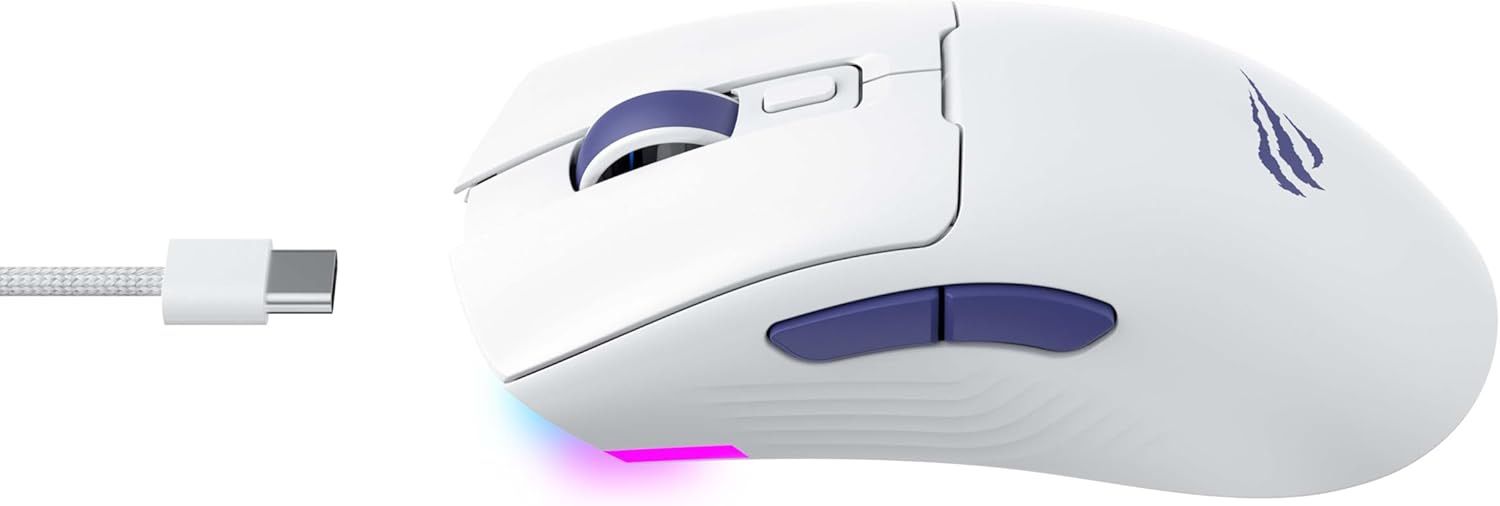
Image: The Havit Gamenote MS966WB mouse with its USB-C charging cable connected, illustrating the charging process.
2. Connecting via Bluetooth
- Turn on the mouse using the power switch located on the bottom.
- Press and hold the Bluetooth pairing button (usually on the bottom) until the LED indicator on the mouse starts blinking, indicating it is in pairing mode.
- On your computer or device, navigate to Bluetooth settings.
- Search for new devices and select "Havit MS966WB" from the list.
- Once connected, the LED indicator will stop blinking and remain solid or turn off, depending on the mouse's design.

Image: An angled view of the Havit Gamenote MS966WB mouse, highlighting its ergonomic shape and the placement of its side buttons.
Operating the Mouse
Button Functions
The Havit MS966WB features 4 programmable buttons:
- Left Click Button: Standard primary click function.
- Right Click Button: Standard secondary click function.
- Scroll Wheel: Scrolls up/down, and acts as a middle click button.
- Side Buttons (2): Typically used for forward/backward navigation in web browsers or customizable in gaming software.
DPI Adjustment (4 Modes)
The mouse supports multiple DPI (Dots Per Inch) settings, allowing you to adjust cursor sensitivity. The "4-mode" feature refers to these adjustable DPI levels. To cycle through DPI settings, press the dedicated DPI button (if available, or a combination of buttons as specified in advanced settings). Each change may be indicated by a different LED color or flash pattern.
RGB Lighting Control
The mouse features RGB lighting. Specific controls for changing lighting modes or colors may be available through a dedicated button or via software. Refer to the manufacturer's website for any available software to customize RGB effects.

Image: A side profile of the Havit Gamenote MS966WB mouse, clearly displaying the vibrant RGB lighting strip along its bottom edge.
Maintenance
Cleaning
- Use a soft, dry cloth to wipe the surface of the mouse.
- For stubborn dirt, slightly dampen the cloth with water or a mild cleaning solution.
- Avoid using harsh chemicals or abrasive materials that could damage the mouse's finish.
- Regularly clean the optical sensor on the bottom of the mouse with a cotton swab to ensure accurate tracking.
Battery Care
- Charge the mouse regularly to maintain battery health.
- Avoid completely draining the battery frequently.
- Store the mouse in a cool, dry place when not in use for extended periods.
Troubleshooting
Mouse Not Connecting
- Ensure the mouse is powered on and fully charged.
- Verify that Bluetooth is enabled on your device.
- Put the mouse into pairing mode again and re-attempt connection.
- Remove the mouse from your device's Bluetooth list and try pairing again.
- Test the mouse with another Bluetooth-enabled device to rule out device-specific issues.
Lag or Disconnection
- Ensure the mouse is within the effective range of your Bluetooth device (typically up to 10 meters).
- Check for interference from other wireless devices (Wi-Fi routers, other Bluetooth devices).
- Ensure the mouse battery is sufficiently charged.
- Update your device's Bluetooth drivers.
RGB Lighting Not Working
- Check if the RGB lighting is turned off or set to a very dim mode.
- Ensure the mouse battery has sufficient charge.
- If using software, verify that the lighting settings are correctly configured.
Specifications
| Feature | Detail |
|---|---|
| Brand | Havit |
| Model Name | MS966WB |
| Color | White |
| Connectivity Technology | Bluetooth |
| Number of Buttons | 4 |
| Compatible Devices | Laptop, Desktop Computer, Tablet |
| Power Source | Battery Powered |
Warranty and Support
Warranty Information
The Havit Gamenote MS966WB Wireless Gaming Mouse comes with a 2-Year Distributor Warranty. Please retain your proof of purchase for warranty claims. The warranty covers manufacturing defects and malfunctions under normal use. It does not cover damage caused by misuse, accidents, unauthorized modifications, or normal wear and tear.
Customer Support
For technical assistance, warranty claims, or further inquiries, please contact Havit customer support through their official website or the retailer where you purchased the product. You may need to provide your product model number (MS966WB) and proof of purchase.


