
Akko 5108B Plus
Akko 5108B Plus Mechanical Keyboard User Manual
Model: 5108B Plus | Brand: Akko
Introduction
The Akko 5108B Plus is a high-performance mechanical keyboard designed for both gaming and productivity. It features a unique "Lord of Mysteries" theme, tri-mode connectivity (Bluetooth, 2.4GHz wireless, and wired Type-C), hot-swappable switches, customizable RGB backlighting, and durable PBT dye-sub keycaps. This manual provides detailed instructions for setup, operation, maintenance, and troubleshooting to ensure optimal use of your keyboard.

Figure 1: Akko 5108B Plus Mechanical Keyboard overview.
Setup
1. Package Contents
- Akko 5108B Plus Mechanical Keyboard
- USB Type-C Cable
- 2.4GHz Wireless Receiver
- Keycap Puller
- Switch Puller
- User Manual (this document)
2. Connecting Your Keyboard
The Akko 5108B Plus supports three connection modes: wired (USB Type-C), 2.4GHz wireless, and Bluetooth.

Figure 2: Tri-mode connection options for the keyboard.
2.1. Wired Mode
- Locate the USB Type-C port on the keyboard.
- Connect one end of the provided USB Type-C cable to the keyboard and the other end to an available USB port on your computer.
- The keyboard will be automatically recognized by your operating system.

Figure 3: Detachable USB Type-C port for wired connection.
2.2. 2.4GHz Wireless Mode
- Locate the 2.4GHz wireless receiver (dongle) in the keyboard packaging.
- Plug the 2.4GHz receiver into an available USB port on your computer.
- Switch the mode selector on the keyboard to 2.4G mode. The keyboard should automatically connect.
2.3. Bluetooth Mode
- Switch the mode selector on the keyboard to Bluetooth mode.
- On your computer or device, enable Bluetooth and search for new devices.
- Select "Akko 5108B Plus" from the list of available devices.
- Follow any on-screen prompts to complete the pairing process. The keyboard can store up to three Bluetooth profiles.
Operation
1. Hot-Swappable Switches
The Akko 5108B Plus features premium gaming 5-pin hot-swappable sockets, allowing you to easily change mechanical switches without soldering. This enables customization of typing feel and sound.

Figure 4: Illustration of the hot-swappable switch feature.
1.1. Replacing Switches
- Using the provided switch puller, gently grip the switch from the top and bottom.
- Pull the switch straight up to remove it from the socket.
- Align the pins of the new switch with the holes in the socket.
- Press the new switch firmly and straight down until it clicks into place. Ensure pins are not bent.
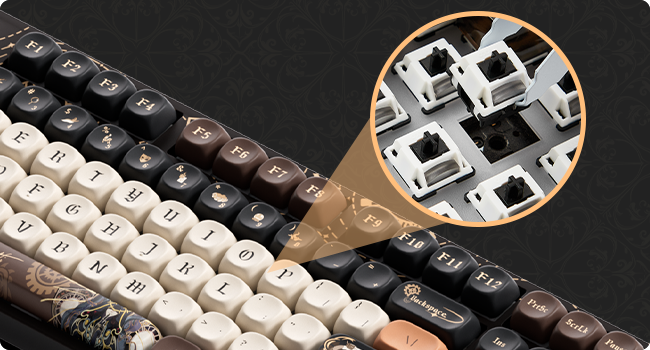
Figure 5: Detailed view of a switch being removed from the keyboard socket.
2. RGB Backlighting
The keyboard features customizable RGB backlighting with over 20 preset modes. You can also create custom lighting effects using the Akko Cloud Driver software.

Figure 6: Keyboard displaying various RGB lighting effects.
2.1. Adjusting Backlight Modes
Refer to the keyboard's function key combinations (Fn + specific keys) for cycling through preset RGB modes, adjusting brightness, and changing animation speed. These combinations are typically printed on the keycaps or detailed in the quick start guide.
3. Programmable Keys (Akko Cloud Driver)
All keys on the 5108B Plus can be programmed using the Akko Cloud Driver software. This allows for macro creation, key remapping, and custom lighting profiles.
- Download the Akko Cloud Driver from the official Akko website.
- Install and launch the software.
- Connect your keyboard in wired mode for best compatibility with the software.
- Follow the software's interface to customize key functions and lighting.
4. PBT Dye-Sub Keycaps
The keyboard is equipped with PBT dye-sublimated keycaps, known for their durability and resistance to wear and shine. The legends are infused into the plastic, ensuring they will not fade over time.

Figure 7: MOA Profile keycap height diagram, illustrating the ergonomic design.
Maintenance
- Cleaning Keycaps: Use a soft, damp cloth to wipe down keycaps. For deeper cleaning, remove keycaps using the provided keycap puller and wash them with mild soap and water. Ensure they are completely dry before reattaching.
- Cleaning the Keyboard Body: Use a dry, soft cloth to wipe the keyboard body. Avoid using harsh chemicals or abrasive materials.
- Dust Removal: Use compressed air to remove dust and debris from between the keycaps and switches.
- Storage: When not in use for extended periods, store the keyboard in a dry, cool place away from direct sunlight.
Troubleshooting
| Problem | Possible Cause | Solution |
|---|---|---|
| Keyboard not responding (Wired) | Loose cable connection, faulty USB port, driver issue. |
|
| Keyboard not responding (Wireless) | Low battery, incorrect mode, receiver not plugged in, interference. |
|
| RGB backlight not working | Backlight turned off, software conflict. |
|
| Keys not registering or double-typing | Faulty switch, debris under keycap. |
|
Specifications
| Feature | Detail |
|---|---|
| Model | Akko 5108B Plus |
| Connectivity | Tri-mode (Bluetooth 5.0, 2.4GHz Wireless, USB Type-C Wired) |
| Switches | Hot-swappable 5-pin sockets (compatible with most mechanical switches) |
| Keycaps | PBT Dye-Sublimated, MOA Profile |
| Backlight | RGB (20+ preset modes, customizable via software) |
| Programmability | Akko Cloud Driver support for key remapping and macros |
| Layout | 108-key Full-size (approx.) |
| Dimensions | 19.25 x 8.95 x 2.45 inches (Package Dimensions) |
| Item Weight | 3.93 pounds |
| Manufacturer | Akko |

Figure 8: Approximate dimensions of the Akko 5108B Plus keyboard.
Warranty and Support
For warranty information, technical support, or to download the latest Akko Cloud Driver software, please visit the official Akko website or contact Akko customer service. Keep your purchase receipt for warranty claims.
Official Akko Website: www.akkogear.com
Related documents5108B Plus


Ask a question about this manual
Ask about setup, troubleshooting, compatibility, parts, safety, or missing instructions. Manuals+ will review the question and use this page’s manual context to help answer it.