
1. Introduction
This manual provides essential information for setting up, operating, maintaining, and troubleshooting your Lenovo IdeaPad 15.6-inch FHD Touchscreen Laptop. Please read this manual thoroughly to ensure optimal performance and longevity of your device.
2. Product Overview
The Lenovo IdeaPad 15.6-inch FHD Touchscreen Laptop is designed for versatile use, from professional tasks to entertainment. It features a powerful Intel Core i5 processor, ample memory and storage, and a vibrant Full HD touchscreen display.
Key Features:
- Processor: Intel Core i5 (10 Cores, 12 Threads, Max Boost Clock Up to 4.40Ghz, 12MB Cache) with Intel Iris Xe Graphics for efficient performance.
- Display: 15.6" FHD LED Backlit Anti-Glare, Narrow-bezel, 1920 x 1080 resolution touchscreen for clear visuals and intuitive interaction.
- Memory & Storage: Up to 40GB DDR4 RAM and a 2TB Solid State Drive for fast multitasking and extensive storage.
- Operating System: Pre-installed Windows 11 Pro, ideal for various applications including education, business, and casual use. Microsoft Office Lifetime License included.
- Connectivity: 1 x USB-C, 2 x USB-A, 1 x HDMI, 1 x Headphone/Microphone Combo Jack, 1 x SD Card Reader, Wi-Fi 6, and Bluetooth 5.
- Enhanced Features: Numeric Keypad, Camera Privacy Shutter, Dual Array Microphones, up to 10 hours of battery life with rapid charge, Flip to Start for instant bootup, and Dolby Audio.
Product Visuals:


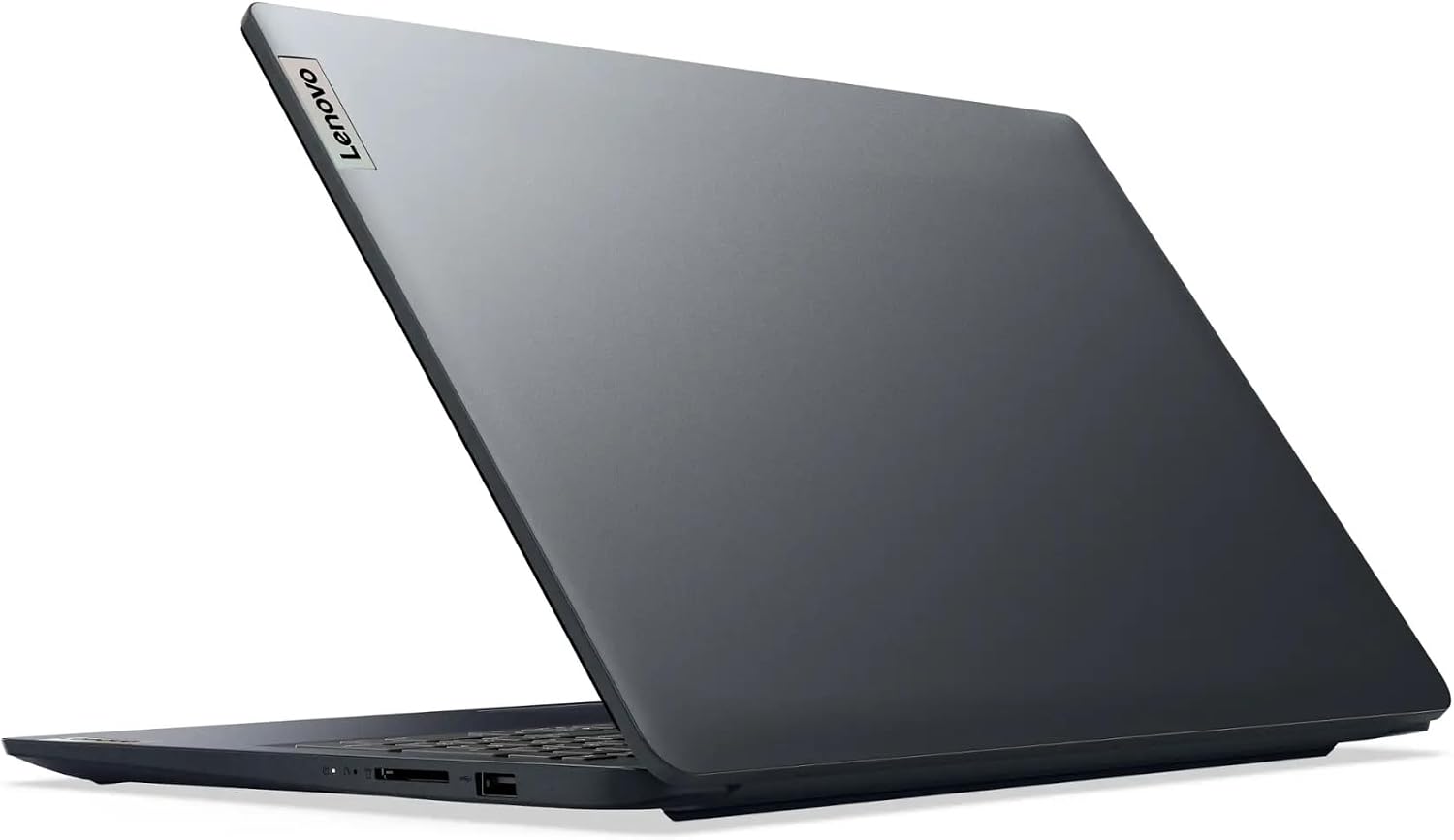


Product Video:
Video showcasing the Lenovo IdeaPad Touchscreen Laptop's display and storage capabilities.
3. Setup
3.1 Unboxing and Initial Power On
- Carefully remove the laptop and all accessories from the packaging.
- Connect the power adapter to the laptop's power port and then to a wall outlet.
- Open the laptop lid. The "Flip to Start" feature may automatically power on the device. If not, press the power button located on the top right of the keyboard.
3.2 Windows 11 Pro Setup
Follow the on-screen prompts to complete the Windows 11 Pro initial setup. This includes selecting your region, connecting to a Wi-Fi network, creating a user account, and accepting the license agreement. Your laptop comes with a Microsoft Office Lifetime License; follow the instructions provided with your device to activate it.
3.3 Connecting Peripherals
Utilize the available ports to connect external devices:
- USB-C Port: For modern USB-C devices and data transfer.
- USB-A Ports: For standard USB devices like mice, keyboards, or external drives.
- HDMI Port: To connect to an external monitor or TV.
- Headphone/Microphone Combo Jack: For audio input/output.
- SD Card Reader: For transferring data from SD cards.
4. Operating Instructions
4.1 Touchscreen Usage
The 15.6-inch FHD display supports touch input. Use gestures similar to a smartphone or tablet for navigation, zooming, and scrolling. Ensure your screen is clean for optimal touch responsiveness.
4.2 Keyboard and Numeric Keypad
The full-size keyboard includes a dedicated numeric keypad for efficient data entry. Familiarize yourself with function keys (Fn) for quick access to system settings like volume, brightness, and Wi-Fi.
4.3 Camera Privacy Shutter
For enhanced privacy, your laptop is equipped with a physical camera privacy shutter. Slide the shutter to cover or uncover the webcam lens as needed.
4.4 Wireless Connectivity
- Wi-Fi 6: Connect to high-speed wireless networks. Access Wi-Fi settings via the Windows taskbar or Settings app.
- Bluetooth 5: Pair with Bluetooth-enabled devices such as headphones, speakers, or mice. Manage Bluetooth devices through Windows Settings.
4.5 Audio and Multimedia
Experience rich sound with Dolby Audio. Adjust volume levels using the dedicated function keys or through the Windows sound settings. The dual array microphones provide clear audio input for calls and recordings.
4.6 Battery Management
The laptop offers up to 10 hours of battery life. Utilize the rapid charge feature to quickly replenish battery power when needed. Monitor battery status via the taskbar icon.
5. Maintenance
5.1 Cleaning Your Laptop
- Use a soft, lint-free cloth slightly dampened with water or a screen cleaner to clean the display.
- For the keyboard and chassis, use a soft cloth. Avoid harsh chemicals or abrasive materials.
- Regularly clean air vents to prevent dust buildup and ensure proper cooling.
5.2 Software Updates
Keep your Windows 11 Pro operating system and drivers updated to ensure security, stability, and optimal performance. Access updates through Windows Settings > Windows Update.
5.3 Battery Care
To prolong battery lifespan, avoid consistently discharging it completely or keeping it at 100% charge for extended periods. Store the laptop in a cool, dry place when not in use.
5.4 Storage Management
With 2TB SSD storage, you have ample space. Regularly review and delete unnecessary files to maintain system speed. Consider cloud storage for backups of important data.
6. Troubleshooting
If you encounter issues with your Lenovo IdeaPad laptop, refer to the following common troubleshooting steps:
- No Power: Ensure the power adapter is securely connected and the outlet is functional. Try a different outlet.
- Display Issues: If the screen is blank, try pressing the display brightness keys or connecting to an external monitor to check if the issue is with the internal display.
- Slow Performance: Close unnecessary applications, check for background updates, and ensure sufficient free storage space. Restarting the laptop can often resolve temporary slowdowns.
- Connectivity Problems: For Wi-Fi or Bluetooth issues, try toggling the respective settings off and on. Restart your router for Wi-Fi problems.
- Touchscreen Unresponsive: Restart the laptop. Ensure the screen is clean and free from obstructions.
For more complex issues or persistent problems, please contact Lenovo customer support or consult the official Lenovo support website.
7. Specifications
| Feature | Detail |
|---|---|
| Brand | Lenovo |
| Model Name | Lenovo 15 |
| Screen Size | 15.6 inches |
| Screen Resolution | 1920 x 1080 pixels (FHD) |
| Processor | Intel Core i5 (10 Cores, up to 4.4 GHz) |
| RAM | 40 GB DDR4 |
| Hard Drive | 2 TB SSD |
| Graphics Coprocessor | Intel Iris Xe Graphics |
| Operating System | Windows 11 Pro |
| Special Features | Camera Privacy Shutter, Numeric Keypad, Touchscreen |
| Wireless Type | 802.11ax (Wi-Fi 6) |
| Bluetooth | Bluetooth 5 |
| Ports | 1x USB-C, 2x USB-A, 1x HDMI, 1x Headphone/Microphone Combo Jack, 1x SD Card Reader |
| Item Weight | 4.6 pounds |
| Product Dimensions | 14.14 x 9.31 x 0.78 inches |
| Battery | 1 Lithium Ion battery (included), up to 10 hours battery life, rapid charge |
8. Warranty and Support
Your Lenovo IdeaPad laptop typically comes with a 12-month manufacturer's warranty. For detailed warranty information, product support, driver downloads, and service requests, please visit the official Lenovo support website or contact Lenovo customer service directly.
Lenovo Support Website: support.lenovo.com