
Introduction
This manual provides comprehensive instructions for the installation, operation, and maintenance of your Ubiquiti UVC-G5-DOME-3 Surveillance Camcorder. Please read this manual thoroughly before using the device to ensure proper setup and functionality. Keep this manual for future reference.
Product Overview
The Ubiquiti UVC-G5-DOME-3 is a high-performance dome surveillance camera designed for reliable indoor security monitoring. It features 1080p video capture, Wi-Fi connectivity, and a durable plastic construction. This camera integrates seamlessly with the UniFi Protect ecosystem for centralized management and recording.
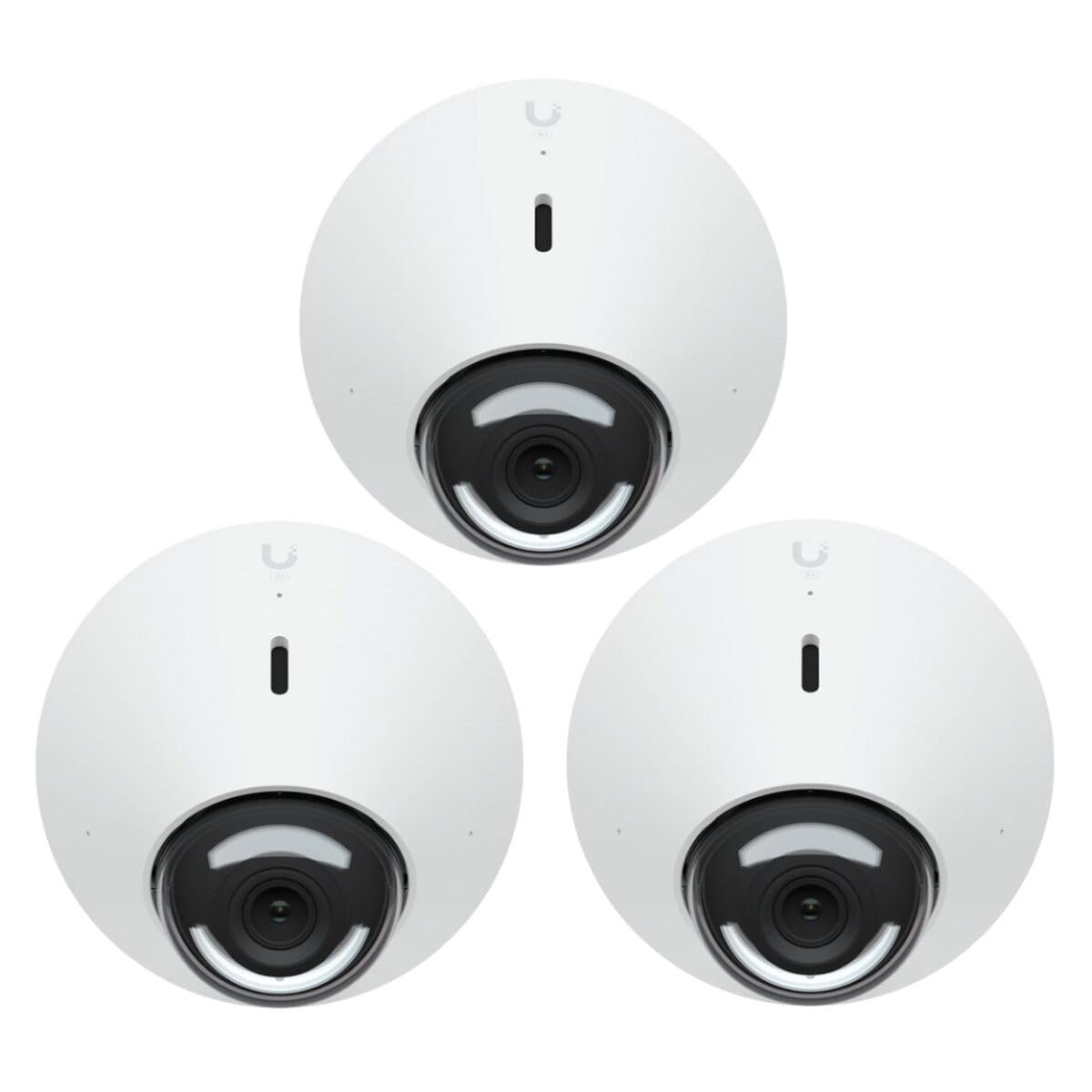
Figure 1: Multiple Ubiquiti UVC-G5-DOME-3 Dome Cameras.
Figure 2: Front view of a single Ubiquiti UVC-G5-DOME-3 Dome Camera.
Specifications
| Feature | Detail |
|---|---|
| Model Name | UVC-G5-DOME-3 |
| Manufacturer | UBIQUITI |
| Video Capture Resolution | 1080p |
| Effective Video Resolution | 1080 MP |
| Effective Still Resolution | 50 MP |
| Optical Zoom | 5x |
| Viewing Angle | 20 Degrees |
| Wireless Communication Technology | Wi-Fi |
| Material | Plastic |
| Dimensions (L x W x H) | 4.3 x 4.3 x 2.54 inches |
| Water Resistance Level | Water Resistant |
| Item Weight | 0.41 Kilograms (14.4 ounces) |
| Batteries Required | No (1 AA battery included for specific function, e.g., clock/memory backup) |
| UPC | 810084690215 |
Setup
Follow these steps to set up your UVC-G5-DOME-3 camera:
- Unpack the Camera: Carefully remove the camera and all accessories from the packaging. Verify that all components are present.
- Choose a Mounting Location: Select an appropriate indoor location for the camera. Ensure the surface is stable and provides the desired viewing angle. The camera is water-resistant, but primarily designed for indoor security.
- Mount the Camera:
- Use the provided mounting hardware to securely attach the camera base to the chosen surface.
- Orient the camera to cover the desired surveillance area.
- Power Connection: Connect the camera to a power source. The UVC-G5-DOME-3 typically uses Power over Ethernet (PoE) for both power and data. Connect an Ethernet cable from a PoE-enabled switch or injector to the camera's Ethernet port.
- Network Connection: Ensure the camera is connected to your network via the Ethernet cable. For Wi-Fi connectivity, you will configure this after initial setup through the UniFi Protect application.
- UniFi Protect Integration:
- Download and install the UniFi Protect application on your mobile device or access the UniFi Protect interface via a web browser on a computer connected to the same network.
- Follow the on-screen instructions within UniFi Protect to discover and adopt your new UVC-G5-DOME-3 camera.
- Configure network settings, including Wi-Fi if desired, and set up recording preferences.
Operating Instructions
Once the UVC-G5-DOME-3 camera is set up and adopted into your UniFi Protect system, you can begin monitoring and managing your surveillance feed.
- Accessing Live View: Open the UniFi Protect application or web interface. Navigate to the "Live View" section to see real-time video feeds from all your connected cameras, including the UVC-G5-DOME-3.
- Recording and Playback:
- Recordings are managed automatically by the UniFi Protect system based on your configured settings (e.g., continuous, motion-triggered).
- Use the "Playback" or "Timeline" feature in UniFi Protect to review past recordings. You can filter by date, time, and event type.
- Motion Detection and Alerts:
- Configure motion detection zones and sensitivity settings within the camera's settings in UniFi Protect.
- Enable push notifications or email alerts to be informed of detected motion events.
- Camera Settings: Adjust various camera settings such as image quality, frame rate, night vision mode, and privacy zones through the UniFi Protect interface.
Maintenance
Regular maintenance ensures optimal performance and longevity of your UVC-G5-DOME-3 camera.
- Cleaning the Lens: Periodically clean the camera lens with a soft, lint-free cloth. For stubborn dirt, use a lens cleaning solution designed for optics. Avoid abrasive materials or harsh chemicals.
- Firmware Updates: Regularly check for and apply firmware updates through the UniFi Protect interface. Firmware updates often include performance improvements, new features, and security patches.
- Physical Inspection: Occasionally inspect the camera's mounting and cabling to ensure everything is secure and free from damage.
- Network Health: Ensure your network connection to the camera is stable. A poor network connection can affect video quality and reliability.
Troubleshooting
If you encounter issues with your UVC-G5-DOME-3 camera, refer to the following common troubleshooting steps:
- Camera Not Powering On:
- Verify the PoE connection. Ensure the Ethernet cable is securely plugged into both the camera and the PoE switch/injector.
- Confirm that the PoE switch/injector is powered on and functioning correctly.
- Try a different Ethernet cable or PoE port.
- No Video Feed in UniFi Protect:
- Check if the camera is powered on (refer to "Camera Not Powering On" above).
- Ensure the camera is adopted and connected in the UniFi Protect interface. If it shows as "Disconnected" or "Offline," check network connectivity.
- Verify network connectivity between the camera and your UniFi Protect controller.
- Restart the camera by disconnecting and reconnecting its power source.
- Restart your UniFi Protect controller.
- Poor Video Quality:
- Clean the camera lens (see Maintenance section).
- Check network bandwidth. Insufficient bandwidth can lead to choppy or low-quality video.
- Adjust image quality settings in UniFi Protect.
- Ensure the camera's firmware is up to date.
- Motion Detection Not Working:
- Verify that motion detection is enabled for the camera in UniFi Protect.
- Check the configured motion detection zones and sensitivity settings. Adjust as needed.
- Ensure there are no obstructions blocking the camera's view in the detection zones.
Warranty and Support
For warranty information, technical support, and additional resources, please visit the official Ubiquiti Networks website. You can find detailed product documentation, FAQs, and community forums to assist with any further questions or issues.
Official Website: www.ui.com


