1. Introduction
This manual provides comprehensive instructions for the Qubo X-247BKC 2.4" Mobile Phone, designed with ease of use for seniors in mind. Please read this manual carefully before using your device to ensure proper operation and to maximize its lifespan. Keep this manual for future reference.
2. Safety Information
- Battery Safety: Use only Qubo approved batteries and chargers. Do not short-circuit, puncture, or expose the battery to extreme temperatures. Dispose of batteries according to local regulations.
- Charging: Ensure the charger is connected to a compatible power source. Do not use damaged chargers or cables.
- Water Resistance: This phone is not water-resistant. Avoid exposure to liquids.
- Hearing Protection: Avoid prolonged listening at high volume levels to prevent hearing damage.
- Driving Safety: Do not use the phone while driving. Always prioritize road safety.
- Medical Devices: Maintain a safe distance between the phone and medical devices like pacemakers. Consult your physician and medical device manufacturer for specific guidelines.
3. Package Contents
Verify that your package contains the following items:
- Qubo X-247BKC Mobile Phone
- Rechargeable Battery (1000 mAh)
- Charging Adapter (EU Plug)
- USB Charging Cable
- User Manual
4. Device Overview
Familiarize yourself with the physical features of your Qubo X-247BKC phone.
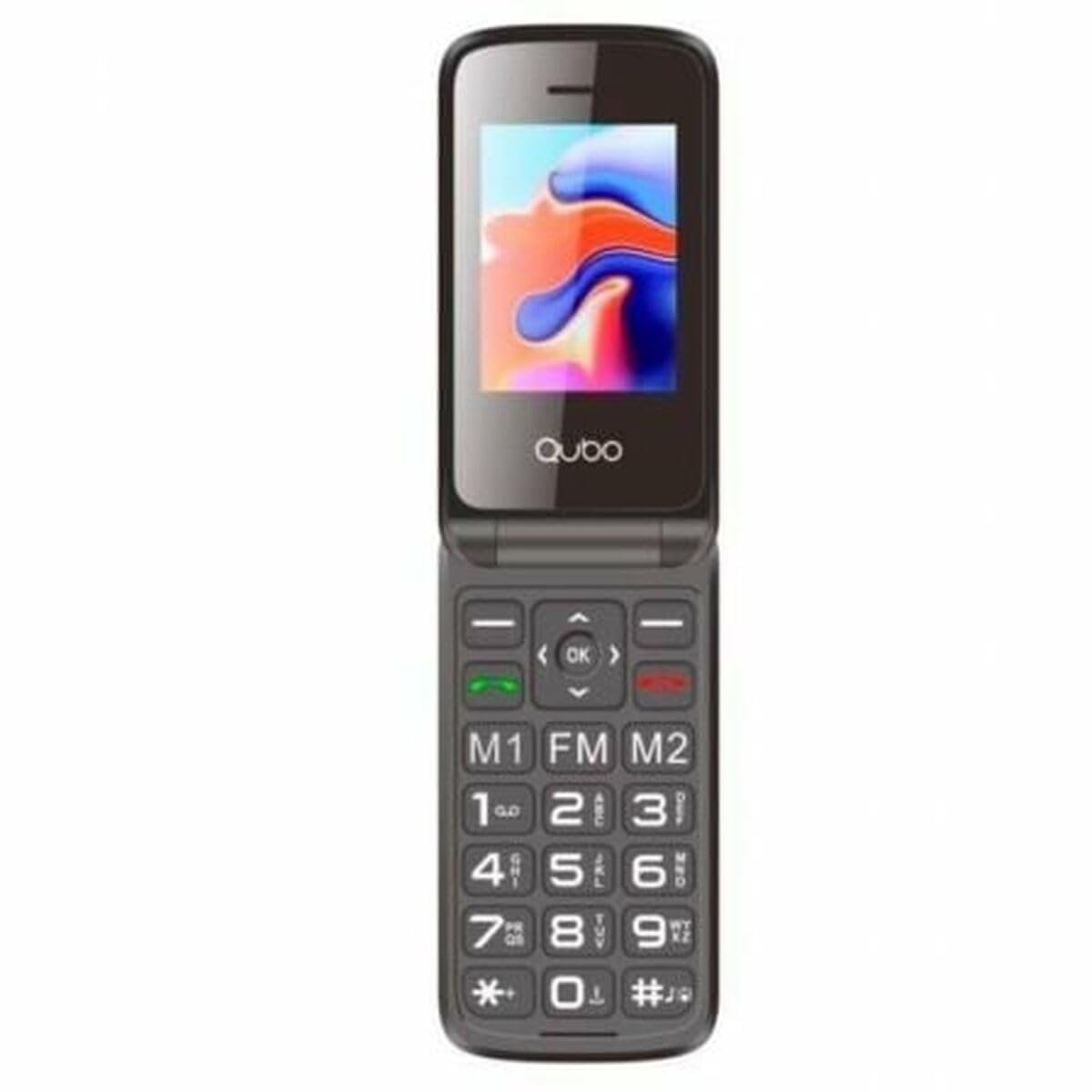
Image 1: Front and side view of the Qubo X-247BKC mobile phone. The image displays the 2.4-inch screen, the physical keypad with large buttons, and the overall compact design of the device. The phone is shown in a black color.
- 2.4" Display: Color screen for clear visibility of menus, contacts, and messages.
- Large Keypad: Ergonomically designed buttons for easy dialing and navigation.
- SOS Button: Dedicated button on the back for emergency calls.
- Volume Keys: Located on the side for adjusting call and media volume.
- Charging Port: Standard port for connecting the charger.
- Flashlight: Built-in LED flashlight for convenience.
5. Setup
5.1. Installing the Battery and SIM Card
- Remove Back Cover: Gently slide or pry open the back cover of the phone.
- Insert SIM Card: Locate the SIM card slot. Insert your standard-sized SIM card with the gold contacts facing down and the cut corner aligned as indicated.
- Insert Battery: Place the 1000 mAh battery into the battery compartment, ensuring the gold contacts on the battery align with the contacts in the phone.
- Replace Back Cover: Carefully snap the back cover into place until it is secure.
5.2. Charging the Phone
- Connect the small end of the USB charging cable to the charging port on the phone.
- Connect the larger end of the USB cable to the charging adapter.
- Plug the charging adapter into a wall outlet.
- The battery icon on the screen will indicate charging status. Allow the phone to charge fully before first use.
5.3. Powering On/Off
- To Power On: Press and hold the End Call/Power button (usually red) until the screen lights up.
- To Power Off: Press and hold the End Call/Power button until the power-off options appear, then select "Power off" or simply hold until the phone shuts down.
6. Operating Instructions
6.1. Making and Receiving Calls
- To Make a Call: Enter the phone number using the keypad and press the Call button (usually green).
- To Answer a Call: Press the Call button when the phone rings.
- To End a Call: Press the End Call button.
6.2. Contacts
- Saving a Contact: Navigate to the "Contacts" menu, select "Add New," enter the name and number, then save.
- Calling a Contact: Go to "Contacts," select the desired contact, and press the Call button.
6.3. Sending and Receiving Messages (SMS)
- To Send a Message: Go to the "Messages" menu, select "Write Message," enter the recipient's number and your message, then send.
- To Read a Message: New messages will typically display a notification. Access them through the "Messages" menu.
6.4. SOS Emergency Function
The SOS button is designed for quick access to emergency contacts.
- Setting Up SOS Contacts: Navigate to the "SOS Settings" menu. Add up to 5 emergency contact numbers.
- Using the SOS Button: In an emergency, press and hold the dedicated SOS button on the back of the phone for a few seconds. The phone will automatically call the pre-set emergency contacts in sequence until one answers. It will also send an emergency SMS to these contacts.
6.5. Camera
- Access the "Camera" application from the main menu.
- Frame your shot using the screen.
- Press the designated camera button or the center navigation key to take a photo.
6.6. FM Radio
- Plug in a wired headset (not included) to act as an antenna.
- Navigate to the "FM Radio" application.
- Use the navigation keys to scan for stations or manually tune to a frequency.
7. Maintenance
- Cleaning: Use a soft, dry cloth to clean the phone's screen and body. Avoid using harsh chemicals or abrasive materials.
- Battery Care: To prolong battery life, avoid fully discharging the battery frequently. Charge the phone regularly.
- Storage: Store the phone in a cool, dry place away from direct sunlight and extreme temperatures.
- Software Updates: Periodically check for available software updates (if applicable) to ensure optimal performance and security.
8. Troubleshooting
| Problem | Possible Solution |
|---|---|
| Phone does not power on. | Ensure the battery is correctly inserted and charged. Connect the charger and try again. |
| No network signal. | Check if the SIM card is properly inserted. Move to an area with better network coverage. Contact your service provider. |
| Battery not charging. | Verify the charger and cable are not damaged and are properly connected. Try a different outlet. |
| Cannot hear caller / Caller cannot hear me. | Adjust the volume. Ensure the microphone is not blocked. Check network signal strength. |
| SOS button not working. | Ensure SOS contacts are correctly set up in the phone's settings. Check if the phone has network signal. |
9. Specifications
- Model: X-247BKC
- Brand: Qubo
- Screen Size: 2.4 inches
- Battery Capacity: 1000 mAh
- Color: Black
- SIM Card Type: Standard SIM
- Features: SOS Button, Large Keypad, FM Radio, Camera, Flashlight
- Charger Type: EU Plug (included)
10. Warranty and Support
The Qubo X-247BKC Mobile Phone comes with a standard manufacturer's warranty. For specific warranty terms and conditions, please refer to the warranty card included in your package or contact Qubo customer support.
For technical support, troubleshooting assistance, or service inquiries, please visit the official Qubo website or contact their customer service hotline. Contact information can typically be found on the product packaging or the brand's official website.