
1. Setup
1.1 Unboxing and Initial Inspection
Carefully remove all components from the packaging. Ensure all items listed below are present and inspect for any physical damage before proceeding.
- ThinkCentre M90a Gen 5 Business PC
- Power Adapter
- USB Keyboard
- USB Mouse
- Documentation
1.2 Connecting Peripherals
Connect your keyboard, mouse, and any other necessary peripherals to the available ports on your ThinkCentre M90a Gen 5.

Figure 1.1: Front view of the ThinkCentre M90a Gen 5, showing the display and integrated webcam.
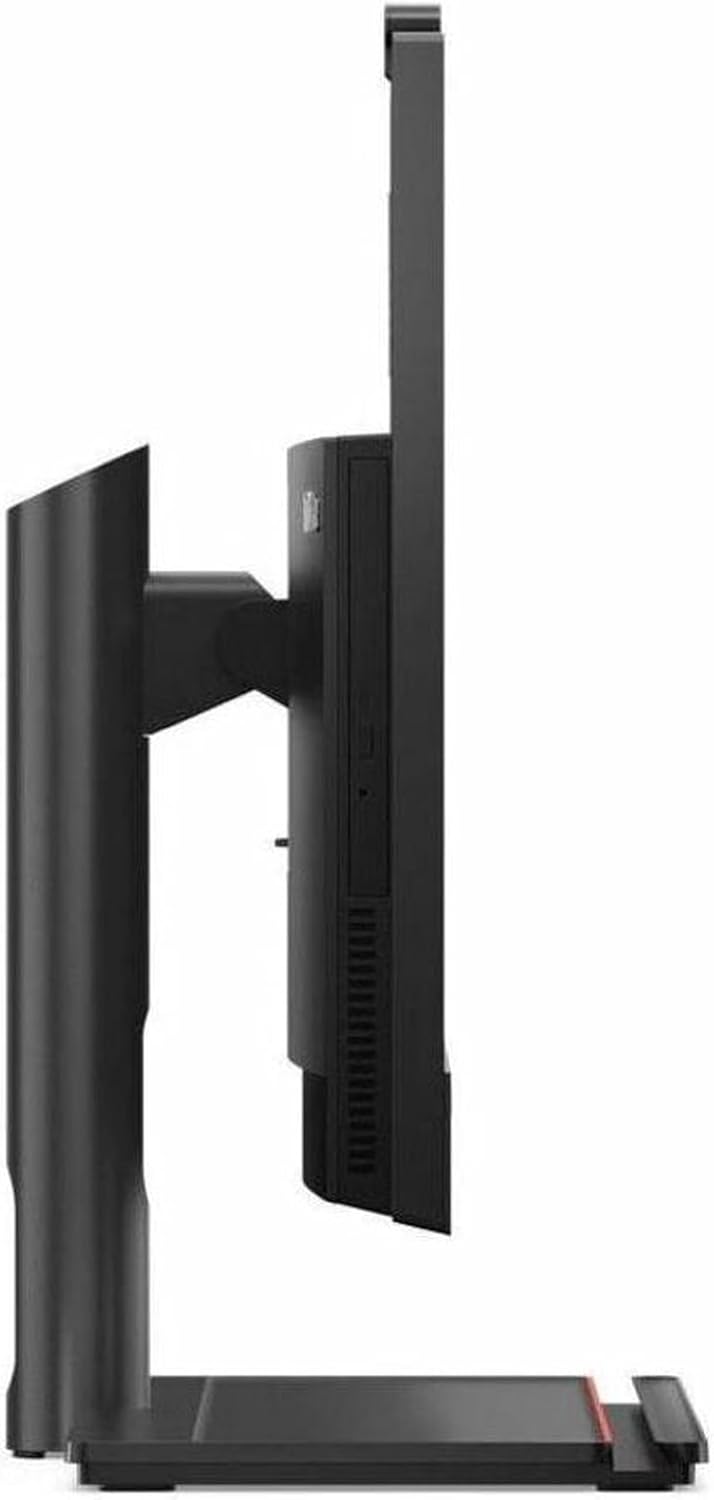
Figure 1.2: Right side view of the PC, featuring 3x USB-A (USB 10Gbps / USB 3.2 Gen 2) ports and a 3.5mm headphone/microphone combo jack.

Figure 1.3: Rear view of the PC, highlighting the connectivity options including USB-C, USB-A, HDMI, DisplayPort, and Ethernet (RJ-45).
- Right Ports: 3x USB-A (USB 10Gbps / USB 3.2 Gen 2), 1x headphone / microphone combo jack (3.5mm).
- Rear Ports: 1x USB-C (USB 10Gbps / USB 3.2 Gen 2) with 15W charging, 3x USB-A (USB 5Gbps / USB 3.2 Gen 1), 1x HDMI (HDMI in 1.4 / HDMI out 2.1 TMDS combo port), 1x DisplayPort 1.4, 1x Ethernet (RJ-45).
1.3 Powering On
Connect the power adapter to the PC and a power outlet. Press the power button, typically located on the side or front of the unit, to turn on your ThinkCentre M90a Gen 5.
2. Operating Your ThinkCentre M90a Gen 5
2.1 Operating System Overview
Your ThinkCentre M90a Gen 5 comes pre-installed with Windows 11 Pro 64-bit. Familiarize yourself with the Windows 11 interface for optimal use.
2.2 Using the Camera
The integrated 5MP RGB/IR camera with dual microphones is ideal for video conferencing. For privacy, utilize the physical shutter to cover the webcam when not in use.
2.3 Intelligent Cooling Engine
The Intelligent Cooling Engine allows you to select various power modes to suit your computing needs:
- Performance Mode: Provides a 15% power boost for demanding tasks.
- Quiet Mode: Reduces system noise by up to three decibels for a quieter environment.
- Maximum Cooling Mode: Ensures optimal thermal performance during heavy workloads.
2.4 Connectivity
The system supports advanced wireless connectivity:
- Wi-Fi: Intel Wi-Fi 6E AX211 2x2 AX vPro for high-speed wireless networking.
- Bluetooth: Bluetooth 5.3 for connecting wireless peripherals.

Figure 2.1: The ThinkCentre M90a Gen 5 shown with its accompanying USB keyboard and mouse, ready for use.
3. Maintenance and Care
3.1 Cleaning
To maintain the appearance and functionality of your PC:
- Use a soft, lint-free cloth slightly dampened with water or a non-abrasive screen cleaner for the display.
- Wipe the chassis with a dry, soft cloth. Avoid harsh chemicals or abrasive materials.
- Ensure vents are clear of dust and debris to maintain proper airflow.
3.2 Software Updates
Regularly update your operating system and drivers to ensure optimal performance, security, and compatibility. Windows Update can manage most OS updates, and Lenovo provides driver updates through their support website.
3.3 Storage Management
Your system is equipped with a 1 TB SSD. To maximize its lifespan and performance:
- Avoid filling the drive to full capacity; leave some free space for optimal operation.
- Regularly delete unnecessary files and uninstall unused applications.
- Consider using cloud storage for large files to free up local disk space.
4. Troubleshooting Common Issues
4.1 Power Issues
- No Power: Ensure the power cable is securely connected to both the PC and the power outlet. Test the outlet with another device.
- System Not Starting: If the PC does not power on, try holding the power button for 10-15 seconds to perform a hard reset, then press it again.
4.2 Display Problems
- No Display: Check if the PC is powered on. If an external monitor is connected, ensure its cable is secure and the monitor is powered on.
- Flickering/Distorted Display: Update graphics drivers. If the issue persists, contact support.
4.3 Connectivity Problems
- Wi-Fi Disconnection: Restart your router and the PC. Ensure Wi-Fi is enabled in Windows settings.
- Bluetooth Device Not Connecting: Ensure the Bluetooth device is in pairing mode and within range. Check Bluetooth settings on the PC.
4.4 Performance Issues
- Slow Performance: Close unnecessary applications. Check Task Manager for high CPU/RAM usage. Ensure sufficient free space on the SSD.
- Overheating: Ensure vents are not blocked. Consider using the Intelligent Cooling Engine's maximum cooling mode.
4.5 Camera Functionality
- Camera Not Working: Ensure the physical privacy shutter is open. Check camera privacy settings in Windows. Update camera drivers if necessary.
5. Technical Specifications
| Feature | Specification |
|---|---|
| Processor | 14th Generation Intel Core i7-14700 vPro Processor (up to 5.30 GHz) |
| Memory (RAM) | 32 GB DDR5-5600MHz (2 x 16 GB SODIMM) |
| Storage | 1 TB SSD M.2 2280 PCIe Gen4 Performance TLC Opal |
| Display | 23.8" FHD All-in-One Non-Touch (1920 x 1080) |
| Graphics | Integrated Graphics |
| Camera | 5MP RGB/IR with Dual Microphone |
| Wireless Connectivity | Intel Wi-Fi 6E AX211 2x2 AX vPro & Bluetooth 5.3 |
| Operating System | Windows 11 Pro 64 |
| Dimensions (H x W x D) | 21.24 x 8.40 x 17.85 inches |
| Weight | Approximately 16.8 lbs (7.62 kg) |
| Ports (Right) | 3x USB-A (USB 10Gbps / USB 3.2 Gen 2), 1x headphone / microphone combo jack (3.5mm) |
| Ports (Rear) | 1x USB-C (USB 10Gbps / USB 3.2 Gen 2) with 15W charging, 3x USB-A (USB 5Gbps / USB 3.2 Gen 1), 1x HDMI (HDMI in 1.4 / HDMI out 2.1 TMDS combo port), 1x DisplayPort 1.4, 1x Ethernet (RJ-45) |
6. Warranty and Support
6.1 Warranty Information
Your Lenovo ThinkCentre M90a Gen 5 includes a One Year Onsite Lenovo Warranty. For extended coverage, you may add up to 5 years of Lenovo Premier Support when you register your computer with Lenovo.
6.2 Obtaining Support
For technical assistance, driver downloads, or further information, please visit the official Lenovo support website. Have your product's serial number ready when contacting support.


