
Ubiquiti Networks USW-Flex-2.5G-8-PoE
Ubiquiti USW-Flex-2.5G-8-PoE UniFi Switch Flex 2.5G PoE User Manual
Model: USW-Flex-2.5G-8-PoE
Introduction
This manual provides detailed instructions for the installation, operation, and maintenance of the Ubiquiti USW-Flex-2.5G-8-PoE UniFi Switch Flex 2.5G PoE. This device is a flexible, 8-port 2.5 GbE PoE++ switch with a 10 GbE RJ45/SFP+ combination uplink port. It can be powered with PoE+++ or an AC power adapter (sold separately).
Key features include:
- (8) 2.5 GbE PoE++ output ports
- (1) 10 GbE PoE+++ input port for power / SFP+ port combo
- 196W PoE availability with optional AC power adapter
Package Contents
Verify that your package contains the following items:
- Ubiquiti USW-Flex-2.5G-8-PoE Switch
- Mounting accessories
Note: An AC power adapter is sold separately and is required for certain power configurations, especially for full PoE++ availability.
Hardware Overview

Figure 1: Angled front view of the USW-Flex-2.5G-8-PoE switch, highlighting the 8 2.5G PoE++ ports and the 10G combo port for uplink/power input.

Figure 2: Front view of the switch, detailing the layout of the 2.5G ports (1-8) and the 10G combo port (9), along with LED indicators and the DC input.
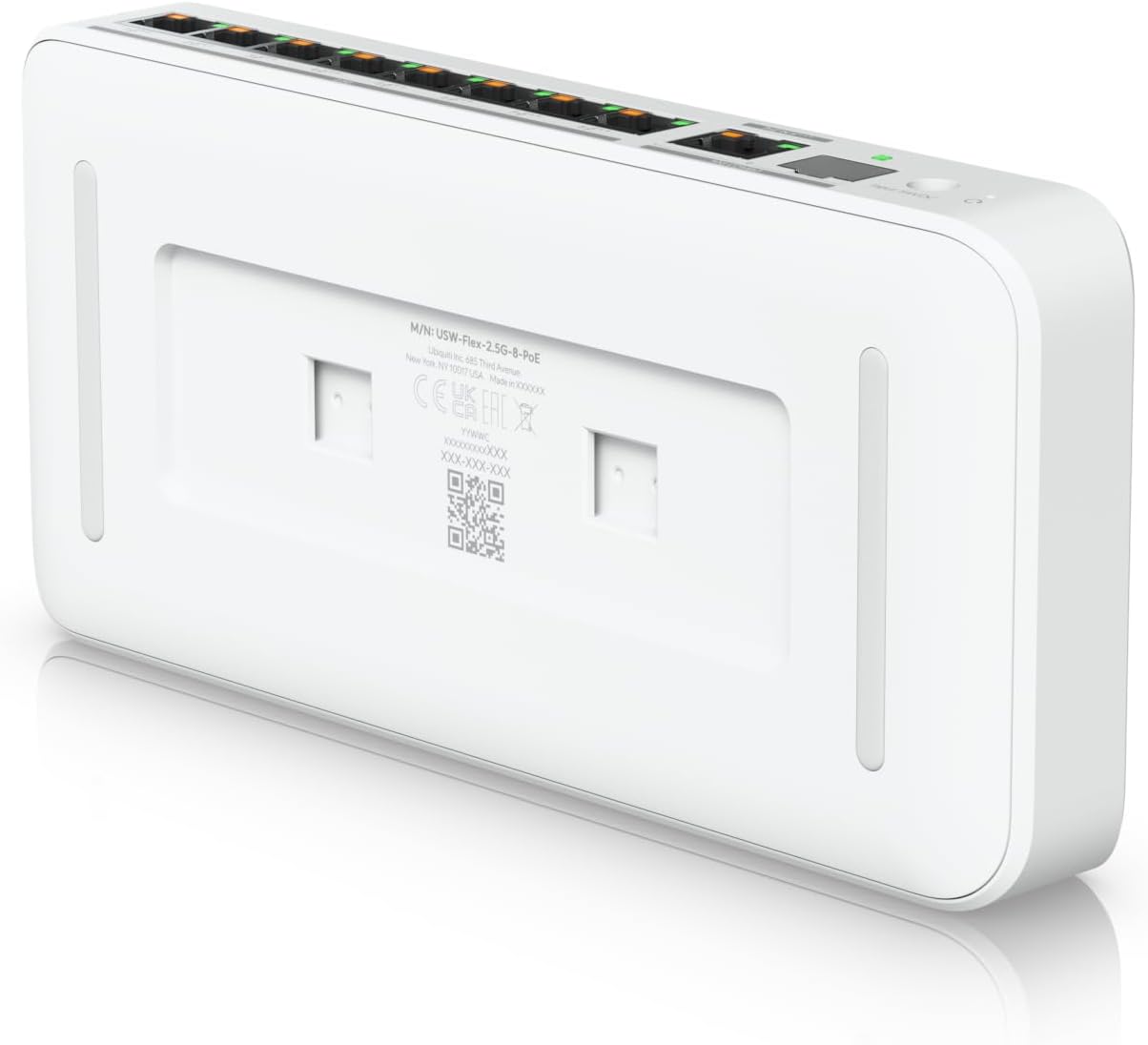
Figure 3: Bottom view of the switch, displaying the product label with model information and QR code, as well as mounting screw holes.
Setup
Powering the Device
The USW-Flex-2.5G-8-PoE can be powered in two ways:
- PoE+++ Input: Connect a PoE+++ (802.3bt) compliant power source to the 10 GbE RJ45/SFP+ combination uplink port (Port 9). This method provides power to the switch and allows for data uplink.
- AC Power Adapter: Connect an optional 54V DC AC power adapter (sold separately) to the DC input port. This method is necessary to achieve the full 196W PoE availability for connected devices.
Important: Ensure the power source meets the device's requirements to prevent damage.
Connecting Network Devices
Once powered, connect your network devices (e.g., computers, access points, cameras) to the 2.5 GbE PoE++ output ports (Ports 1-8) using standard Ethernet cables. These ports provide both data connectivity and Power over Ethernet (PoE) to compatible devices.
Use the 10 GbE RJ45/SFP+ combination uplink port (Port 9) to connect the switch to your main network infrastructure (e.g., router, core switch) for high-speed data transfer.
Operating Instructions
LED Indicators
The switch features LED indicators to provide status information:
- System LED: Indicates device status (e.g., booting, ready, error). Refer to the Ubiquiti UniFi documentation for specific LED patterns.
- Port LEDs: Each 2.5 GbE port has LEDs indicating link/activity and PoE status.
- Link/Activity: Solid green for active link, blinking for activity.
- PoE Status: Indicates if PoE is being supplied to the connected device.
Network Management
The USW-Flex-2.5G-8-PoE is part of the Ubiquiti UniFi ecosystem. It is managed through the UniFi Network Application, which can be run on a UniFi Cloud Key, UniFi Dream Machine, or a self-hosted server. For initial setup and advanced configuration, refer to the UniFi Network Application documentation available on the Ubiquiti support website.
Through the UniFi Network Application, you can:
- Monitor port status and traffic.
- Configure PoE settings for individual ports.
- Update firmware.
- View network topology.
- Manage VLANs and other network settings.
Maintenance
To ensure optimal performance and longevity of your USW-Flex-2.5G-8-PoE switch, follow these maintenance guidelines:
- Cleaning: Periodically clean the exterior of the device with a soft, dry cloth. Do not use liquid cleaners or aerosols. Ensure ventilation openings are free from dust and debris.
- Firmware Updates: Regularly check for and apply firmware updates through the UniFi Network Application. Firmware updates often include performance improvements, bug fixes, and security enhancements.
- Environmental Conditions: Operate the device within its specified environmental ranges (temperature, humidity) to prevent overheating or damage.
- Cable Management: Ensure all connected cables are properly routed and secured to prevent accidental disconnections or damage.
Troubleshooting
If you encounter issues with your USW-Flex-2.5G-8-PoE switch, consider the following troubleshooting steps:
- No Power:
- Verify that the PoE+++ input or the optional AC power adapter is securely connected and providing power.
- Check the power source (e.g., PoE injector, PoE switch, wall outlet) for functionality.
- No Link/Connectivity:
- Ensure Ethernet cables are properly seated in both the switch port and the connected device.
- Test with a different Ethernet cable.
- Verify that the connected device is powered on and functioning correctly.
- Check the UniFi Network Application for port status and error messages.
- PoE Not Working:
- Confirm that the connected device is PoE compatible and within the power budget of the switch.
- If using PoE+++ input, ensure the power source provides sufficient power for all connected PoE devices. Consider using the optional AC power adapter for maximum PoE availability.
- Check PoE settings for the specific port in the UniFi Network Application.
- Device Unresponsive:
- Perform a power cycle by disconnecting and reconnecting the power source.
- If the issue persists, consider performing a factory reset (refer to Ubiquiti documentation for the reset procedure).
For further assistance, consult the Ubiquiti support resources or community forums.
Specifications
| Feature | Detail |
|---|---|
| Brand | Ubiquiti Networks |
| Model Number | USW-Flex-2.5G-8-PoE |
| Number of Ports | 8 (2.5 GbE PoE++ output) + 1 (10 GbE RJ45/SFP+ combo input) |
| Data Transfer Rate | 60 Gigabits Per Second (total switching capacity) |
| Voltage | 54 Volts (DC) |
| Item Weight | 0.77 Kilograms |
| Product Dimensions | 21.29 x 3.35 x 9.94 cm |
| Included Components | Device, Mounting accessories |
| Manufacturer | Ubiquiti Inc. |
| UPC | 810084695968 |
Warranty and Support
Ubiquiti Networks products typically come with a limited warranty. For specific warranty terms and conditions applicable to your region and product, please refer to the official Ubiquiti website or the warranty card included with your purchase.
For technical support, product documentation, and community forums, visit the official Ubiquiti support portal:
It is recommended to register your product on the Ubiquiti website to receive important updates and support notifications.
Ask a question about this manual
Ask about setup, troubleshooting, compatibility, parts, safety, or missing instructions. Manuals+ will review the question and use this page’s manual context to help answer it.