
1. Introduction
This manual provides essential information for setting up, operating, and maintaining your ASUS ROG G22CH Small Form Factor (SFF) Desktop Computer. Please read this guide thoroughly before using your device to ensure proper functionality and longevity.

Figure 1: Front view of the ASUS ROG G22CH Gaming SFF Desktop Computer, showcasing its compact design and integrated RGB lighting accents.
2. What's in the Box
Verify that all items are present in the packaging:
- ASUS ROG G22 Gaming Desktop
- USB Full-Size Keyboard
- USB Mouse
- Power Cable
- Quick Setup Guide
3. Setup
Follow these steps to set up your ASUS ROG G22CH desktop computer:
- Unpacking: Carefully remove the computer and all accessories from the packaging.
- Placement: Place the desktop on a stable, flat surface with adequate ventilation. Ensure no vents are obstructed.
- Connect Peripherals:
- Connect the USB Keyboard and Mouse to available USB ports on the rear or front of the computer.
- Connect your monitor(s) to the graphics card's DisplayPort or HDMI ports. The NVIDIA GeForce RTX 4060 supports up to four monitors.
- Connect speakers or headphones to the audio output jacks.
- Power Connection: Connect the power cable to the power input on the rear of the desktop, then plug the other end into a grounded electrical outlet.
- Network Connection:
- For a wired connection, connect an Ethernet cable from your router or modem to the RJ45 LAN port on the rear of the computer.
- For a wireless connection, ensure the Wi-Fi antennas (if included and detachable) are securely attached. The system supports Wi-Fi 6E.
- Power On: Press the power button located on the front of the desktop.
- Initial Configuration: Follow the on-screen instructions to complete the Windows 11 Pro setup.

Figure 2: Rear panel of the ASUS ROG G22CH, illustrating the various connectivity ports for peripherals and power.
4. Hardware Overview
The ASUS ROG G22CH features a compact design with accessible ports for various connections.
4.1 Front Panel

Figure 3: Top-front view of the desktop, highlighting the easily accessible front I/O ports.
- Power Button: To turn the computer on or off.
- USB-C 3.2 Gen 2: One port for high-speed data transfer and device connectivity.
- USB-A 3.2 Gen 2: Two ports for connecting USB devices.
- Headset Audio Jack: For connecting headphones or a headset.
4.2 Rear Panel
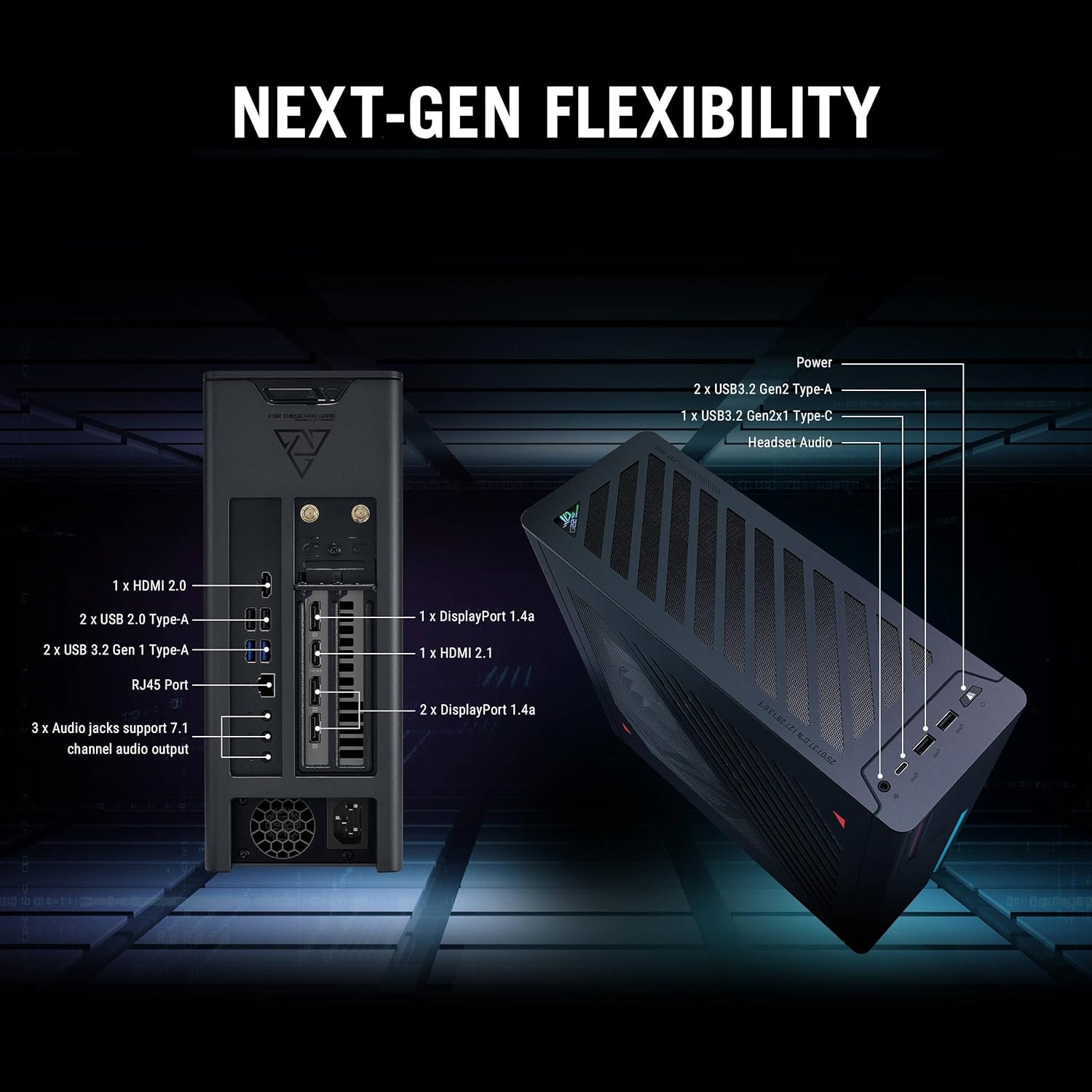
Figure 4: Detailed diagram illustrating the comprehensive port layout on the rear and top of the ASUS ROG G22CH for various connectivity needs.
- DisplayPort 1.4a: Three ports for connecting displays.
- HDMI 2.1: One port for connecting displays.
- USB-A 3.2 Gen 1: Two ports for connecting USB devices.
- USB-A 2.0: Two ports for connecting USB devices.
- RJ45 LAN Port: For wired network connection.
- Audio Jacks: Three line output jacks for 7.1 channel audio support.
- Wi-Fi Antenna Connectors: For attaching external Wi-Fi antennas (if applicable).
- Power Input: For connecting the power cable.
5. Operating Instructions
Your ASUS ROG G22CH desktop runs on Windows 11 Pro, offering a user-friendly interface and robust features.
5.1 Power On/Off
- To Power On: Press the power button on the front panel.
- To Shut Down: Click the Start button in Windows, then select Power > Shut down.
- To Restart: Click the Start button in Windows, then select Power > Restart.
- To Sleep: Click the Start button in Windows, then select Power > Sleep.
5.2 Windows 11 Pro
Windows 11 Pro provides a modern operating environment. Key features include:
- Redesigned User Interface: A clean, intuitive design with a centered Start Menu.
- Multitasking Tools: Utilize Snap Layouts, Snap Groups, and Virtual Desktops for efficient workflow management.
- Integrated Microsoft Teams: For communication and collaboration.
- Enhanced Microsoft Store: Simplified access to applications.
5.3 Armoury Crate Software
Armoury Crate is a utility for monitoring and customizing your ASUS ROG G22CH. It allows you to:
- Monitor System Performance: View real-time data for CPU, GPU, and RAM.
- Customize RGB Lighting: Adjust Aura Sync RGB lighting effects on a game-by-game basis.
- Manage Fan and Power Profiles: Modify acoustics, power delivery, and thermal settings.
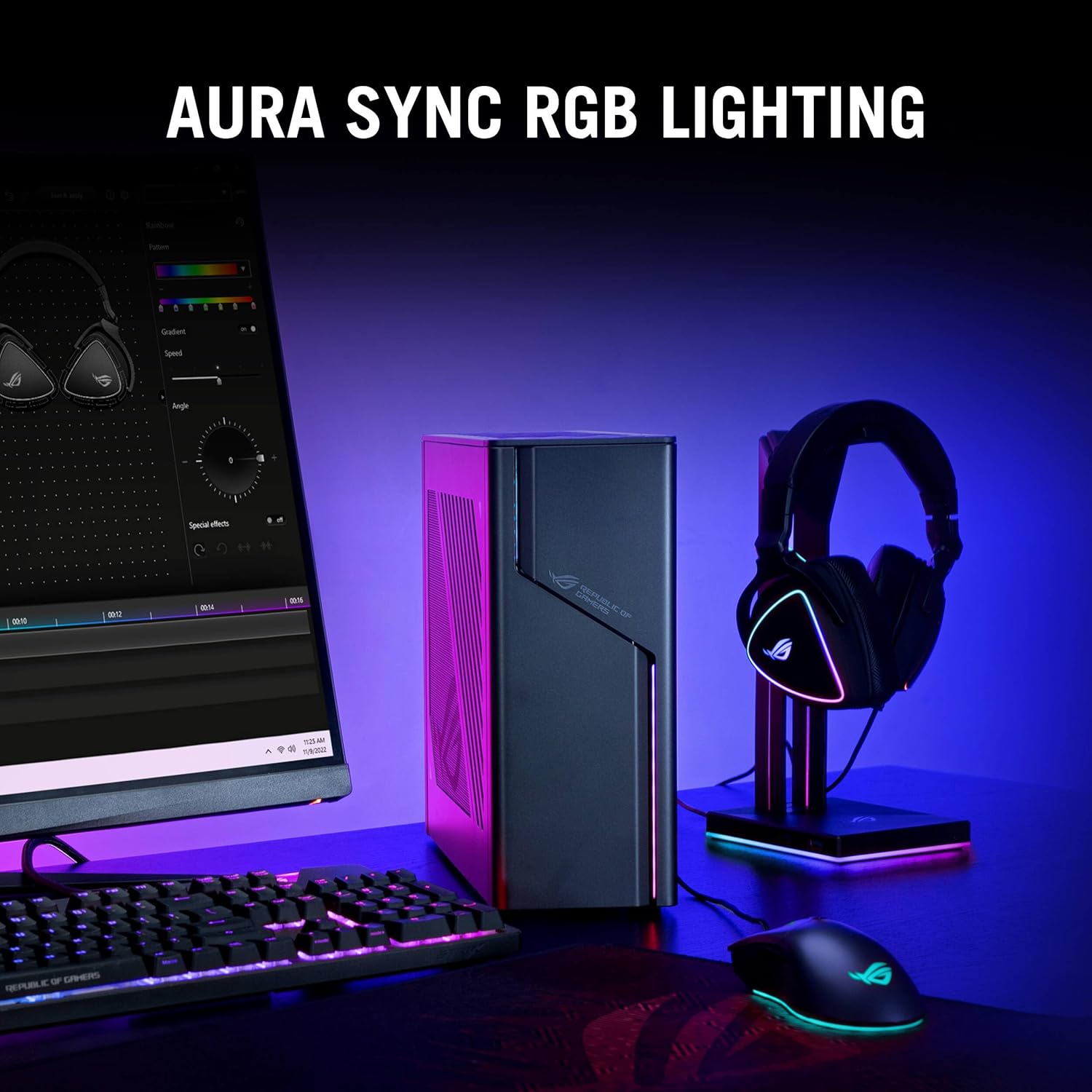
Figure 5: The ASUS ROG G22CH desktop displaying customizable Aura Sync RGB lighting, enhancing the aesthetic of your setup.
6. Maintenance
Regular maintenance helps ensure the optimal performance and longevity of your computer.
- Keep Vents Clear: Ensure all ventilation openings are unobstructed to prevent overheating.
- Dust Removal: Periodically clean dust from the exterior and vents using compressed air or a soft brush. Do not open the chassis unless you are qualified to do so.
- Software Updates: Regularly update Windows 11 Pro, graphics drivers, and Armoury Crate software to ensure stability and performance.
- Data Backup: Regularly back up important data to an external drive or cloud storage.
- Power Supply: Use only the provided power cable and ensure it is connected to a stable power source.
7. Troubleshooting
This section addresses common issues you might encounter.
7.1 No Power
- Ensure the power cable is securely connected to both the computer and the electrical outlet.
- Verify the power outlet is functional by plugging in another device.
- Check if the power supply unit (PSU) switch (if present) is in the 'On' position.
7.2 No Display on Monitor
- Confirm that the monitor is powered on and connected to the graphics card's output ports (DisplayPort or HDMI), not the motherboard's integrated graphics ports (if present).
- Try a different display cable or monitor if available.
- Ensure the correct input source is selected on your monitor.
7.3 No Internet Connection
- For wired connections, check the Ethernet cable and ensure your router/modem is working.
- For wireless connections, verify Wi-Fi is enabled in Windows settings and that you are connected to the correct network. Ensure Wi-Fi antennas are properly installed.
- Restart your router/modem and the computer.
7.4 Audio Issues
- Check speaker/headphone connections to the correct audio jacks.
- Verify audio output settings in Windows (Sound settings) and ensure the correct device is selected and not muted.
- Update audio drivers.
8. Specifications
Detailed technical specifications for the ASUS ROG G22CH Gaming SFF Desktop Computer:
| Component | Specification |
|---|---|
| Processor | 14th Gen Intel Core i9-14900K (24-Core, up to 6.0 GHz) |
| Memory (RAM) | 64GB DDR5 5600MHz |
| Storage | 2TB PCIe NVMe M.2 Solid State Drive |
| Graphics Card | NVIDIA GeForce RTX 4060 8GB GDDR6 |
| Operating System | Windows 11 Pro (64-bit) |
| Audio | Dolby Atmos 7.1 Audio Support |
| Wireless Connectivity | Wi-Fi 6E (802.11ax), Bluetooth 5.3 |
| Wired Connectivity | Gigabit Ethernet |
| Front I/O Ports | 1x USB-C 3.2 Gen 2, 2x USB-A 3.2 Gen 2, 1x Headphone Output |
| Rear I/O Ports | 3x DisplayPort, 1x HDMI, 2x USB-A 3.2 Gen 1, 2x USB-A 2.0, 1x RJ45, 3x Line Output |
| Dimensions (LxWxH) | 11.3 x 4.53 x 12.72 inches |
| Weight | 18.52 pounds |

Figure 6: A visual comparison highlighting the compact size of the ASUS ROG G22CH relative to a mid-size desktop and a gaming console.
9. Warranty and Support
Your ASUS ROG G22CH desktop computer comes with a warranty and support services.
- Warranty: A 2-Year Warranty is provided by Techno Intelligence.
- Technical Support: Free technical support is available. Refer to the Quick Setup Guide or the ASUS official website for contact information.
For further assistance, please visit the official ASUS support website or contact their customer service.