
Introduction
This manual provides detailed instructions for the Rapoo VH650 Virtual 7.1 Channel RGB Gaming Headset. Please read this guide carefully to ensure proper setup, operation, and maintenance of your headset. This will help you maximize your gaming audio experience and prolong the life of your device.
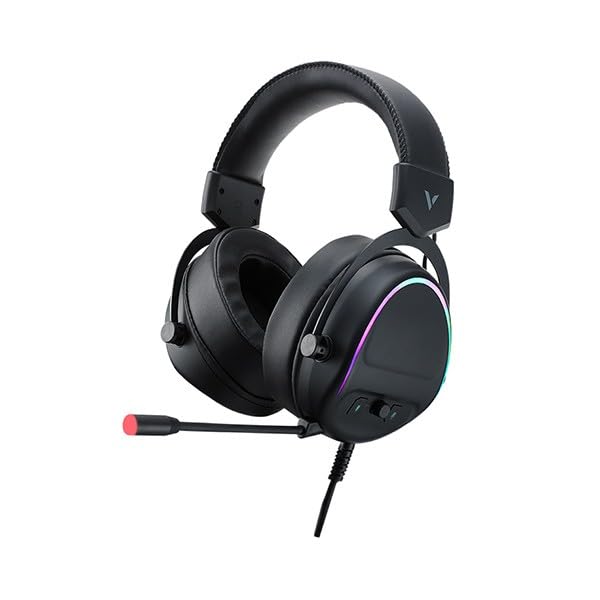
Figure 1: Rapoo VH650 Gaming Headset
Features
The Rapoo VH650 Gaming Headset is designed to deliver an immersive audio experience with its advanced features:
- Virtual 7.1 Channel Surround Sound: Experience precise positional audio, crucial for competitive gaming, allowing you to hear every detail from all directions.
- Brilliant RGB LED Backlight: Dynamic RGB lighting on the earcups enhances your gaming setup with vibrant colors and a modern aesthetic.
- Omnidirectional Noise-Canceling Microphone: The 360° adjustable microphone effectively reduces ambient noise, ensuring clear and precise communication with your teammates.
- High-Quality 50mm Sound Drivers: Equipped with powerful 50mm dynamic drivers, the headset delivers rich audio with deep bass and clear highs, optimized for gaming sound effects and music.
- Adjustable Metal Headband: The retractable single-head metal beam design ensures durability and a comfortable fit for various head sizes.
- Multi-function Ear Controls: Convenient controls located on the earcup allow for quick adjustments to volume and microphone settings.
- Over-Ear Design with Thick Ear Covers: Provides comfort during long gaming sessions and helps isolate external noise.

Figure 2: Virtual 7.1 Surround Sound for enhanced audio positioning.

Figure 3: RGB lighting on the earcups adds a vibrant gaming atmosphere.

Figure 4: The adjustable noise-canceling microphone ensures clear voice chat.

Figure 5: 50mm drivers provide powerful and clear audio.
Setup Instructions
- Connect the Headset: Plug the USB connector of the Rapoo VH650 headset into an available USB port on your computer or game console.
- Driver Installation (for PC):
- For Windows PCs, the operating system will typically install the necessary drivers automatically.
- To enable and customize the Virtual 7.1 Surround Sound and RGB lighting, download the dedicated Rapoo VH650 software from the official Rapoo website.
- Follow the on-screen instructions to complete the software installation.
- Audio Configuration:
- Windows: Go to 'Sound Settings' (right-click the speaker icon in the taskbar). Ensure 'Rapoo VH650' is selected as the default playback and recording device.
- Game Consoles: Navigate to the audio settings within your console's system menu and select the Rapoo VH650 as the audio output and input device.
- Adjust Fit: Adjust the metal headband to ensure a comfortable and secure fit over your ears. Position the microphone appropriately for clear voice capture.
Operating Instructions
- Volume Control: Use the volume wheel or buttons located on the left earcup to adjust the audio output level.
- Microphone Mute/Unmute: A dedicated button on the earcup or inline control allows you to quickly mute or unmute the microphone. An LED indicator may show the microphone status.
- RGB Lighting Control: If installed, use the Rapoo software on your PC to customize RGB lighting effects, colors, and patterns. Some headsets may have a physical button for cycling through preset lighting modes.
- Virtual 7.1 Surround Sound Activation: Activate and configure the Virtual 7.1 Surround Sound feature through the Rapoo software. This software allows for fine-tuning of audio profiles and positional sound.
Maintenance
- Cleaning: Use a soft, dry cloth to wipe down the earcups and headband. For stubborn dirt, a slightly damp cloth can be used, but ensure no moisture enters the speaker grilles or microphone. Do not use harsh chemicals or abrasive cleaners.
- Storage: When not in use, store the headset in a clean, dry place away from direct sunlight and extreme temperatures. Avoid wrapping the cable tightly to prevent damage.
- Cable Care: Handle the USB cable gently. Avoid pulling on the cable to disconnect the headset; always grasp the plug.
Troubleshooting
- No Sound from Headset:
- Ensure the USB cable is securely connected to your device.
- Check the headset's volume control and ensure it is not at minimum or muted.
- Verify that the Rapoo VH650 is selected as the default audio output device in your computer's or console's sound settings.
- Test the headset on another device to rule out a device-specific issue.
- Microphone Not Working:
- Ensure the microphone is not muted via the headset's control or software.
- Check that the Rapoo VH650 is selected as the default recording device in your sound settings.
- Adjust microphone levels in your device's sound settings.
- Ensure the microphone boom is properly positioned near your mouth.
- RGB Lighting Not Functioning:
- Ensure the headset is properly connected via USB.
- If using PC software, verify that the lighting effects are enabled and configured correctly.
- Check for any physical lighting control buttons on the headset.
Specifications
| Feature | Specification |
|---|---|
| Brand | Rapoo |
| Model | VH650 |
| Color | Black |
| Connectivity Technology | Wired (USB for 7.1 Virtual Surround Sound) |
| Audio Driver Type | Dynamic Driver |
| Driver Diameter | 50mm |
| Headphones Form Factor | Over Ear |
| Ear Placement | Over Ear |
| Impedance | 3 Ohm |
| Noise Control | None (Microphone features noise-canceling) |
| Microphone | Omnidirectional, Noise-Canceling, Rotary |
| Special Features | Virtual 7.1 Channel Sound, RGB Backlight, Gaming-specific sound engine |
| Compatible Devices | Desktop Computers, Laptops, Mobile Phones (with adapter, not included), Game Consoles |
| Specific Uses For Product | Gaming |
| Item Weight | 150 grams |
| Included Components | User Manual |
| Country of Manufacture | China |
Warranty and Support
The Rapoo VH650 Gaming Headset comes with a two-year warranty from the date of purchase, covering manufacturing defects. Please retain your proof of purchase for warranty claims.
For technical support, troubleshooting assistance, or warranty inquiries, please visit the official Rapoo website or contact their customer service department. You can usually find contact information, FAQs, and driver downloads on the support section of their website.
Online Resources:
- Official Rapoo Website (for drivers and support)
- Product registration (if available)


