
QAMY 5G&2.4GHz Light Bulb Security Camera
QAMY WiFi Light Bulb Security Camera User Manual
Model: 5G&2.4GHz Light Bulb Security Camera
1. Introduction
Thank you for choosing the QAMY WiFi Light Bulb Security Camera. This device is designed to enhance your home security with advanced features, including 3K Ultra HD resolution, 360° panoramic view, dual-band WiFi connectivity (5G & 2.4G), and intelligent motion detection. This manual provides essential information for the proper installation, operation, and maintenance of your security camera.
Please read this manual thoroughly before using the product to ensure optimal performance and safety.
2. Safety Information
- Ensure the power supply is disconnected before installation or maintenance.
- Install the camera in a location where it is protected from extreme weather conditions, unless specifically designed for outdoor exposure. This camera is weather-resistant for outdoor use.
- Do not attempt to disassemble or modify the camera. Refer all servicing to qualified personnel.
- Keep the camera away from direct sunlight, heat sources, and strong magnetic fields.
- Use only the power adapter and accessories provided or recommended by the manufacturer.
- Ensure the light socket or power outlet used for installation is stable and provides the correct voltage (AC110/240V).
3. Package Contents
Verify that all items are present in the package:
- 1 x QAMY 3K Light Bulb Security Camera
- 1 x Special Plug for Camera (for alternative installation)
- User Manual (this document)
4. Product Overview
Familiarize yourself with the components of your QAMY Light Bulb Security Camera.

Figure 4.1: QAMY Light Bulb Security Camera Components and Dimensions.
- E27 Light Socket: Standard screw-in base for power and mounting.
- Speaker: Located on the back for two-way audio communication.
- Enhanced WiFi Module: For stable 5G & 2.4G dual-band wireless connectivity.
- Mic: Built-in microphone for audio input.
- White & IR LEDs: Provide illumination for color and infrared night vision.
- HD Lens: Captures 3K Ultra HD video.
- Light Sensor: Detects ambient light for automatic night vision activation.
- Reset Button & SD Card Slot: For resetting the device and local storage.

Figure 4.2: QAMY Light Bulb Security Camera and Live View on Smartphone.
This image illustrates the camera's design, highlighting its 5G dual-band capability and 360-degree panoramic view, alongside a smartphone showing a live feed, demonstrating its remote monitoring feature.
5. Setup Guide
5.1. Installation Methods
The QAMY Light Bulb Security Camera offers flexible installation options:
- Direct Screw-in: Simply screw the camera into a standard E27 light bulb socket (AC110/240V). This method is quick and easy, utilizing existing light fixtures.
- Using the Special Plug: The package includes a special plug that allows you to install the camera anywhere there is an electrical outlet, providing more versatility for placement.

Figure 5.1: Easy and Quick Installation into an E27 Socket.
This image demonstrates the straightforward installation process of screwing the camera into a standard E27 light socket, emphasizing that no complex cabling, destruction, damages, or disassembly is required.
5.2. App Download and Connection
To connect your camera to your smartphone, follow these steps:
- Download the App: Search for "iCam365" in your mobile app store (Google Play Store for Android or Apple App Store for iOS) and download the application.
- Register/Log In: Open the iCam365 app and create a new account or log in if you already have one.
- Add Device: Follow the in-app instructions to add your new camera. This typically involves scanning a QR code on the camera or selecting the device type manually.
- Connect to WiFi: The camera supports both 5G and 2.4G dual-band WiFi. Ensure your phone is connected to the same WiFi network you intend to connect the camera to. Input your WiFi password when prompted in the app. The camera will then connect to your home WiFi network.
- Completion: Once connected, the camera will appear online in your iCam365 app, and you can begin live viewing and configuring settings.
6. Operating Instructions
6.1. Two-Way Audio Communication
The camera features a built-in microphone and speaker, enabling real-time two-way audio communication. This allows you to speak with visitors or family members through the camera via the iCam365 app, and hear their responses.

Figure 6.1: Two-Way Voice Communication Feature.
This image illustrates the camera's two-way voice feature, showing users communicating through the device, enabling real-time interaction with people near the camera.

Figure 6.2: Remote Control and Multi-User Sharing.
This image highlights the camera's remote control and two-way voice intercom capabilities, along with the ability to bind multiple devices to one phone and share access with multiple users.
6.2. Motion Detection and Alerts
The camera is equipped with a highly sensitive motion sensor and supports human body detection. When motion or a human body is detected, the camera will:
- Record the movement.
- Send real-time notifications to your phone via the iCam365 app.
- Emit a loud audible alarm and activate white light (if configured) to deter intruders.
The camera also features PTZ (Pan-Tilt-Zoom) functionality, allowing for a 355° horizontal rotation and 90° vertical flip, providing a 360° blind spot-free wide-range detection and tracking of objects. You can control the camera's movement directly from the app.

Figure 6.3: Motion Detection and Efficient Alerts.
This image illustrates the camera's motion detection capabilities, showing how it identifies movement and triggers alerts, including siren, LED light, and color night vision, with notifications sent to a smartphone.
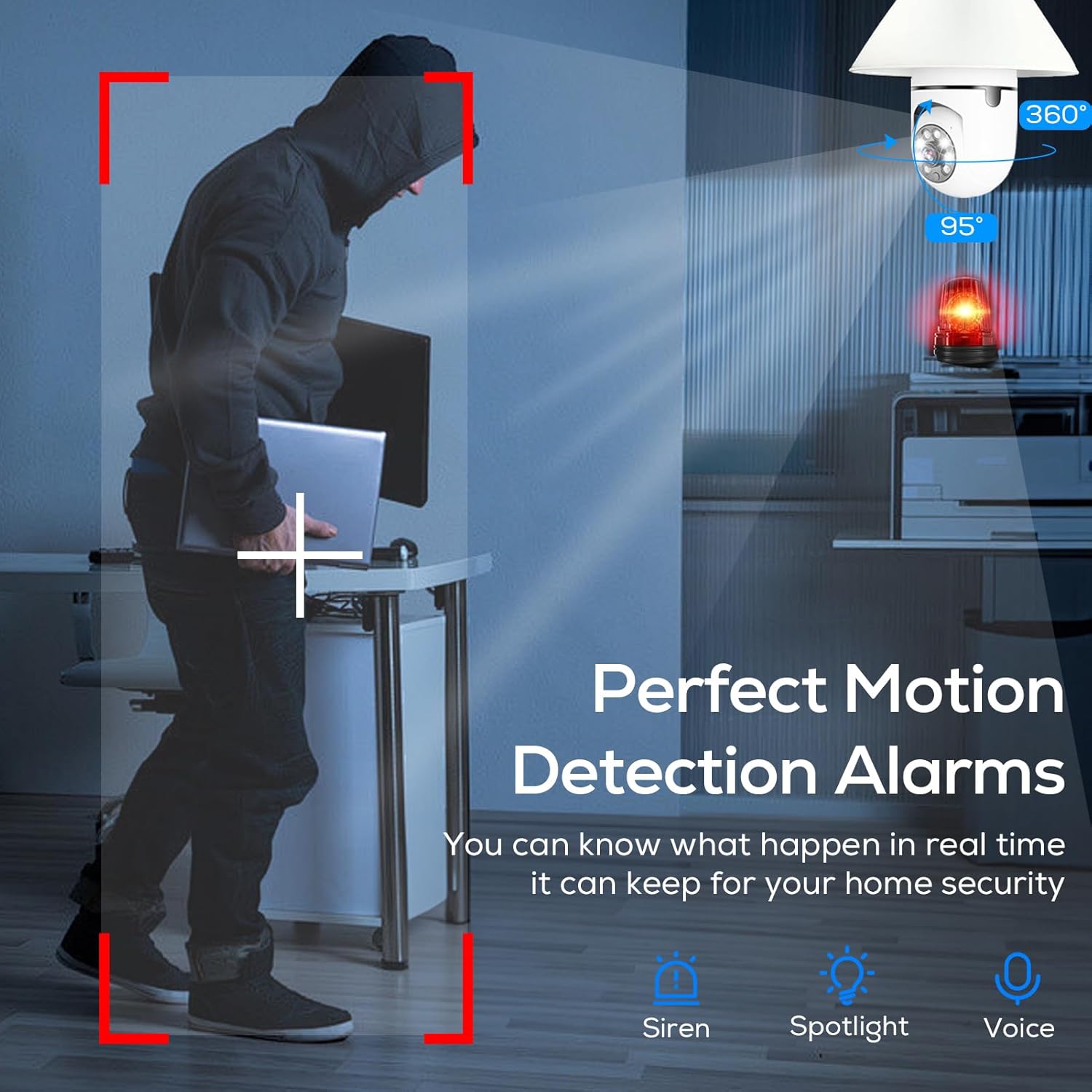
Figure 6.4: Perfect Motion Detection Alarms.
This image visually represents the camera's precise motion detection, showing how it identifies activity and can trigger alarms, spotlights, or voice alerts to enhance home security.
6.3. 3K HD Video and Night Vision
The camera provides crystal-clear 3K HD resolution video, offering superior clarity compared to 1080P. It supports both color and infrared night vision modes, allowing clear monitoring up to 33 feet even in low-light environments.

Figure 6.5: Panchromatic Night Vision.
This image showcases the camera's advanced night vision capabilities, offering intelligent, infrared, and full-color modes to ensure clear visibility in various low-light conditions.
6.4. Multi-User Sharing and Smart Storage
You can share access to your camera's live feed and recordings with multiple users (family and friends) through the iCam365 app, allowing simultaneous monitoring.
For video storage, the camera supports:
- Cloud Storage: (Paid access required) Securely store your recordings in the cloud.
- Micro SD Card Storage: Supports up to 128GB micro SD card for local storage.
7. Maintenance
- Cleaning: Gently wipe the camera lens and body with a soft, dry cloth. Do not use harsh chemicals or abrasive cleaners.
- Firmware Updates: Regularly check the iCam365 app for available firmware updates to ensure optimal performance and security.
- SD Card Management: If using an SD card, periodically check its storage capacity and format it if necessary to maintain recording efficiency.
8. Troubleshooting
| Problem | Possible Cause | Solution |
|---|---|---|
| Camera offline/Cannot connect to WiFi | Incorrect WiFi password; Camera too far from router; Router issues; Incorrect WiFi band (trying to connect to 5G only router with 2.4G camera, or vice versa). |
|
| Motion detection alerts are too frequent/infrequent | Sensitivity settings are too high/low; Environmental factors (e.g., swaying trees, shadows). |
|
| Poor video quality/Night vision issues | Dirty lens; Insufficient lighting; Obstructions. |
|
| Two-way audio not working | Microphone/speaker muted in app; App permissions; Network latency. |
|
9. Specifications
| Feature | Detail |
|---|---|
| Model Name | 5G&2.4GHz Light Bulb Security Camera |
| Brand | QAMY |
| Connectivity Technology | Wireless (Wi-Fi) |
| Connectivity Protocol | Wi-Fi (5G & 2.4G Dual Band) |
| Video Capture Resolution | 3K HD (Higher than 1080P) |
| Night Vision | Color/Infrared (up to 33 ft) |
| Pan/Tilt Range | Horizontal 355°, Vertical 90° |
| Special Feature | 2-Way Audio, Motion Detection, Body Detection Alarm, Color Night Vision |
| Storage Options | Cloud Storage (paid), Micro SD Card (up to 128GB) |
| Power Source | AC110/240V (via E27 light socket or included plug) |
| Indoor/Outdoor Usage | Indoor/Outdoor (Weather-resistant) |
| Product Dimensions | 1 x 1 x 1 inches (approximate, based on provided data) |
| UPC | 793313883629 |
| ASIN | B0DV398FN1 |
Related Documents - 5G&2.4GHz Light Bulb Security Camera
 |
VIONMIO R8 Mini WiFi Camera User Guide Get started quickly with your VIONMIO R8 mini WiFi camera. This user guide provides essential information, including a quick start video tutorial, app download instructions, user manual, and H.264 video player. |
 |
WooLink E27 Bulb Camera Quick Start Guide A quick start guide for setting up and using the WooLink E27 Bulb Camera, including app download, camera connection, and basic usage instructions. |
 |
iCSee Indoor WiFi Camera Setup Guide - Step-by-Step Instructions This guide provides step-by-step instructions for configuring your iCSee indoor WiFi camera using the iCSee app, covering network setup, device connection, and initial settings for optimal security monitoring. |
 |
eufy Security Indoor Cam 2K Pan & Tilt - 2K Indoor Security Camera Detailed overview of the eufy Security Indoor Cam 2K Pan & Tilt, featuring 2K resolution, AI detection for humans and pets, night vision, pan/tilt tracking, and smart zones. Includes hardware specifications and setup requirements. |
 |
JOOAN WiFi Camera Quick User Guide A concise guide to setting up and using the JOOAN WiFi Camera, covering installation, network connection (WiFi and wired), app usage, sharing features, playback options, and troubleshooting. |
 |
Vimtag Cloud IP Camera Quick Installation Guide A comprehensive guide for installing and setting up your Vimtag Cloud IP Camera, including app download, account setup, Wi-Fi connection, troubleshooting common issues, and warranty information. |
Ask a question about this manual
Ask about setup, troubleshooting, compatibility, parts, safety, or missing instructions. Manuals+ will review the question and use this page’s manual context to help answer it.