
Fonus Fo-FO29060K1R-342
Fonus TWS Earphones User Manual
Model: Fo-FO29060K1R-342
Introduction
This manual provides detailed instructions for the proper use, setup, and maintenance of your Fonus TWS Wireless Earbuds. Please read this manual thoroughly before using the product to ensure optimal performance and longevity.
Safety Information
- Do not disassemble or modify the product.
- Keep the earbuds and charging case away from extreme temperatures, humidity, and liquids.
- Avoid prolonged exposure to high volume levels to prevent hearing damage.
- Clean the earbuds regularly as instructed in the maintenance section.
- Dispose of the product and its battery responsibly according to local regulations.
Package Contents
Please check the package for the following items:
- Fonus TWS Wireless Earbuds (Left and Right)
- Charging Case
- USB Charging Cable
- Multiple Sizes of Silicone Ear Tips
- User Manual (this document)
Product Overview
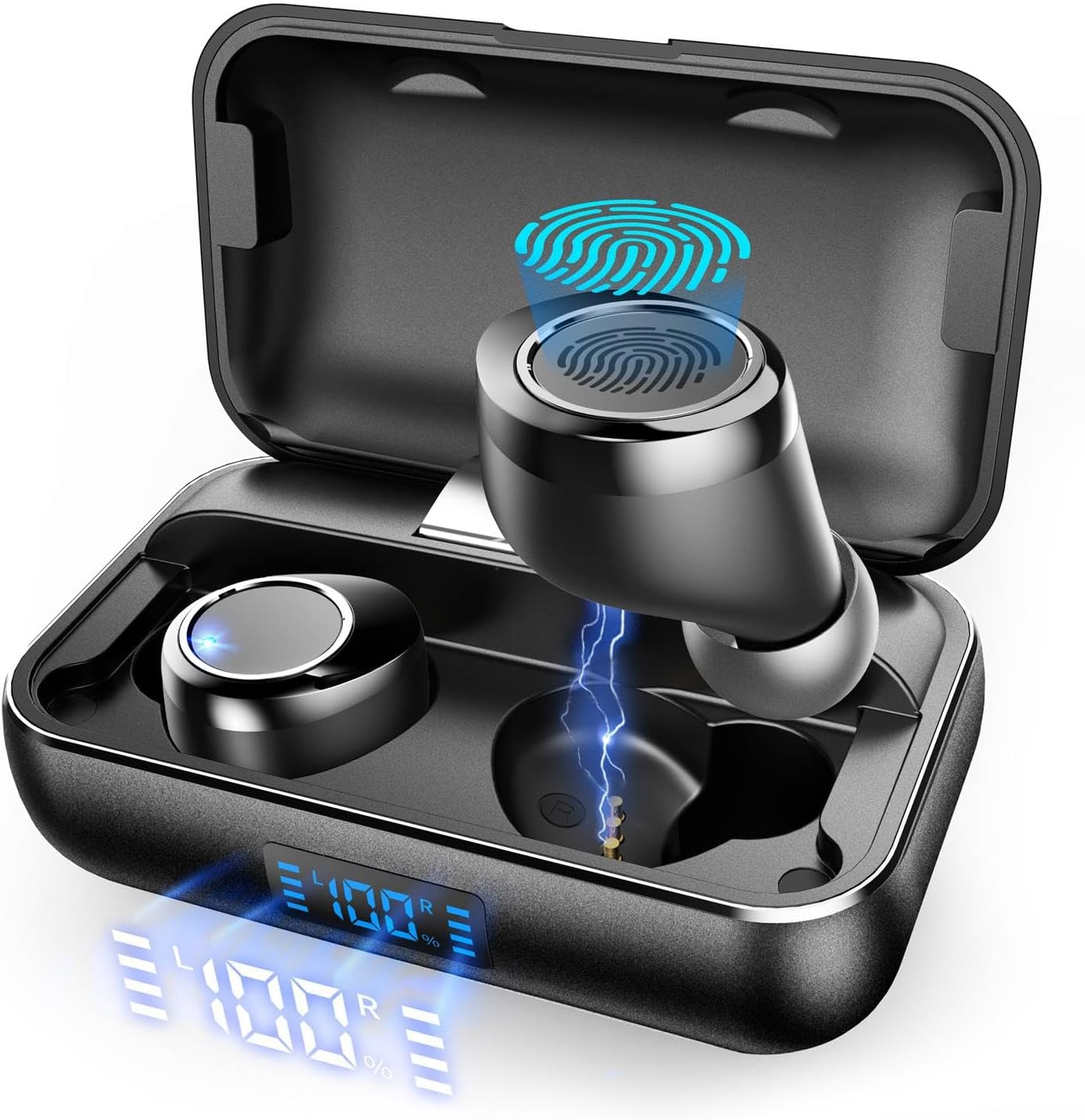
Image: The Fonus TWS Earbuds resting inside their open charging case, showcasing the digital display on the case and the design of the earbuds.
The Fonus TWS Earbuds feature a compact design with a portable charging case. Each earbud is equipped with a touch-sensitive surface for control, and the charging case includes a digital display for battery status.

Image: A diagram illustrating the touch control functions of the earbuds, including single tap for play/pause, double tap for skipping tracks, and long press for volume adjustment.
The earbuds utilize intelligent touch controls for various functions, including media playback, call management, and voice assistant activation.
Setup
1. Charging the Earbuds and Case

Image: The charging case with earbuds inside, showing a visual representation of battery capacity and quick charge capabilities.
- Initial Charge: Before first use, fully charge both the earbuds and the charging case.
- Charging Case: Connect the provided USB charging cable to the charging port on the case and a USB power source. The digital display on the case will show the charging progress.
- Charging Earbuds: Place the earbuds into their respective slots in the charging case. Ensure they are properly seated. The earbuds will automatically begin charging. The case's display may indicate earbud charging status.
2. Pairing with Your Device
- Power On: Open the charging case. The earbuds will automatically power on and enter pairing mode (indicated by flashing LED lights on the earbuds).
- Activate Bluetooth: On your smartphone or Bluetooth-enabled device, go to the Bluetooth settings and turn on Bluetooth.
- Select Device: Look for "Fonus TWS" or a similar name in the list of available devices and select it to connect.
- Confirmation: Once connected, the earbud LEDs will stop flashing, and you may hear an audible confirmation.
Note: The earbuds will automatically reconnect to the last paired device when taken out of the case, if Bluetooth is enabled on the device.

Image: A close-up diagram of an earbud highlighting its internal Bluetooth 5.0 chip, indicating stable and fast connectivity.
3. Wearing the Earbuds
- Identify the "L" (Left) and "R" (Right) markings on each earbud.
- Insert the earbud into your ear canal and gently twist it to find a comfortable and secure fit.
- Experiment with the different sizes of silicone ear tips provided to achieve the best sound quality and comfort. A good seal is crucial for optimal bass performance and noise isolation.
Operating Instructions
Power On/Off
- Power On: Open the charging case, and the earbuds will automatically power on. Alternatively, long-press the touch area on both earbuds for 3 seconds.
- Power Off: Place the earbuds back into the charging case and close the lid. They will automatically power off. Alternatively, long-press the touch area on both earbuds for 5 seconds.
Music Playback
- Play/Pause: Tap the touch area on either the Left (L) or Right (R) earbud once.
- Next Track: Double-tap the touch area on the Right (R) earbud.
- Previous Track: Double-tap the touch area on the Left (L) earbud.
- Volume Up: Long-press the touch area on the Right (R) earbud.
- Volume Down: Long-press the touch area on the Left (L) earbud.
Call Management
- Answer/End Call: Tap the touch area on either earbud once.
- Reject Call: Long-press the touch area on either earbud for 2 seconds.
Voice Assistant
- Activate Voice Assistant (Siri/Google Assistant): Triple-tap the touch area on either the Left (L) or Right (R) earbud.
Single Earbud Mode
Either earbud can be used independently. Simply take one earbud out of the charging case, and it will automatically connect to your device. The other earbud can remain in the case or be powered off.
Maintenance
Cleaning
- Earbuds: Gently wipe the earbuds, especially the ear tips and charging contacts, with a soft, dry, lint-free cloth. For stubborn dirt, slightly dampen the cloth with water or a mild, non-abrasive cleaner. Ensure earbuds are completely dry before placing them back in the charging case.
- Charging Case: Wipe the exterior of the charging case with a soft, dry cloth. Use a cotton swab to clean the charging pins inside the case if necessary.
- Do not use harsh chemicals, aerosols, or abrasive cleaners.
Storage
- When not in use, store the earbuds in their charging case to protect them and keep them charged.
- Store the product in a cool, dry place, away from direct sunlight and extreme temperatures.
Battery Care
- To prolong battery life, avoid fully discharging the earbuds and charging case frequently.
- If storing for an extended period, charge the case and earbuds to about 50% every few months.
Troubleshooting
| Problem | Possible Cause | Solution |
|---|---|---|
| Earbuds not pairing with device. | Bluetooth is off; earbuds are out of range; earbuds not in pairing mode; previously paired device interfering. | Ensure Bluetooth is on. Move earbuds closer to device. Place earbuds in case, close, then reopen to re-enter pairing mode. Forget "Fonus TWS" from device's Bluetooth list and re-pair. |
| Only one earbud is working. | One earbud is not charged; earbuds are not connected to each other (TWS mode). | Ensure both earbuds are charged. Place both earbuds back into the charging case, close the lid for 5 seconds, then open again. This should force them to re-sync. |
| No sound or low volume. | Volume too low on device/earbuds; earbuds not properly seated; ear tips blocked. | Increase volume on both your device and the earbuds. Adjust earbud position. Clean ear tips and earbud mesh. |
| Charging case not charging. | Faulty cable/adapter; charging port dirty. | Try a different USB cable and power adapter. Clean the charging port gently. |
Specifications
| Feature | Detail |
|---|---|
| Model Number | Fo-FO29060K1R-342 |
| Brand | Fonus |
| Connectivity | True Wireless Stereo (TWS), Bluetooth 5.0 |
| Speaker Driver Size | 8mm |
| Playtime (Single Charge) | Up to 6 hours |
| Total Playtime (with Charging Case) | Up to 30 hours |
| Water Resistance | IPX8 Sweat/Water-Resistant |
| Microphones | HD Microphones built-in |
| Weight | 4 ounces |
| UPC | 701052290608 |
Warranty and Support
This product is covered by a standard manufacturer's warranty. For detailed warranty terms and conditions, please refer to the warranty card included in your product packaging or contact Fonus customer support.
For technical support, troubleshooting assistance, or any inquiries regarding your Fonus TWS Earphones, please visit the official Fonus website or contact their customer service department. Contact information can typically be found on the product packaging or the brand's official online presence.
Ask a question about this manual
Ask about setup, troubleshooting, compatibility, parts, safety, or missing instructions. Manuals+ will review the question and use this page’s manual context to help answer it.