
AYANEO Pocket S
AYANEO Pocket S Android Handheld Gaming Device User Manual
Model: Pocket S
Introduction
Welcome to the user manual for your AYANEO Pocket S Android Handheld Gaming Device. This manual provides essential information for setting up, operating, maintaining, and troubleshooting your device to ensure optimal performance and longevity. Please read this manual thoroughly before using your device.
Safety Information
To prevent damage to your device or injury to yourself or others, please observe the following precautions:
- Do not expose the device to extreme temperatures, direct sunlight, or high humidity.
- Avoid dropping or subjecting the device to severe impacts.
- Use only approved chargers and accessories.
- Do not attempt to disassemble or repair the device yourself. Refer to qualified service personnel.
- Keep the device away from water and other liquids.
Device Components
Familiarize yourself with the various parts of your AYANEO Pocket S.
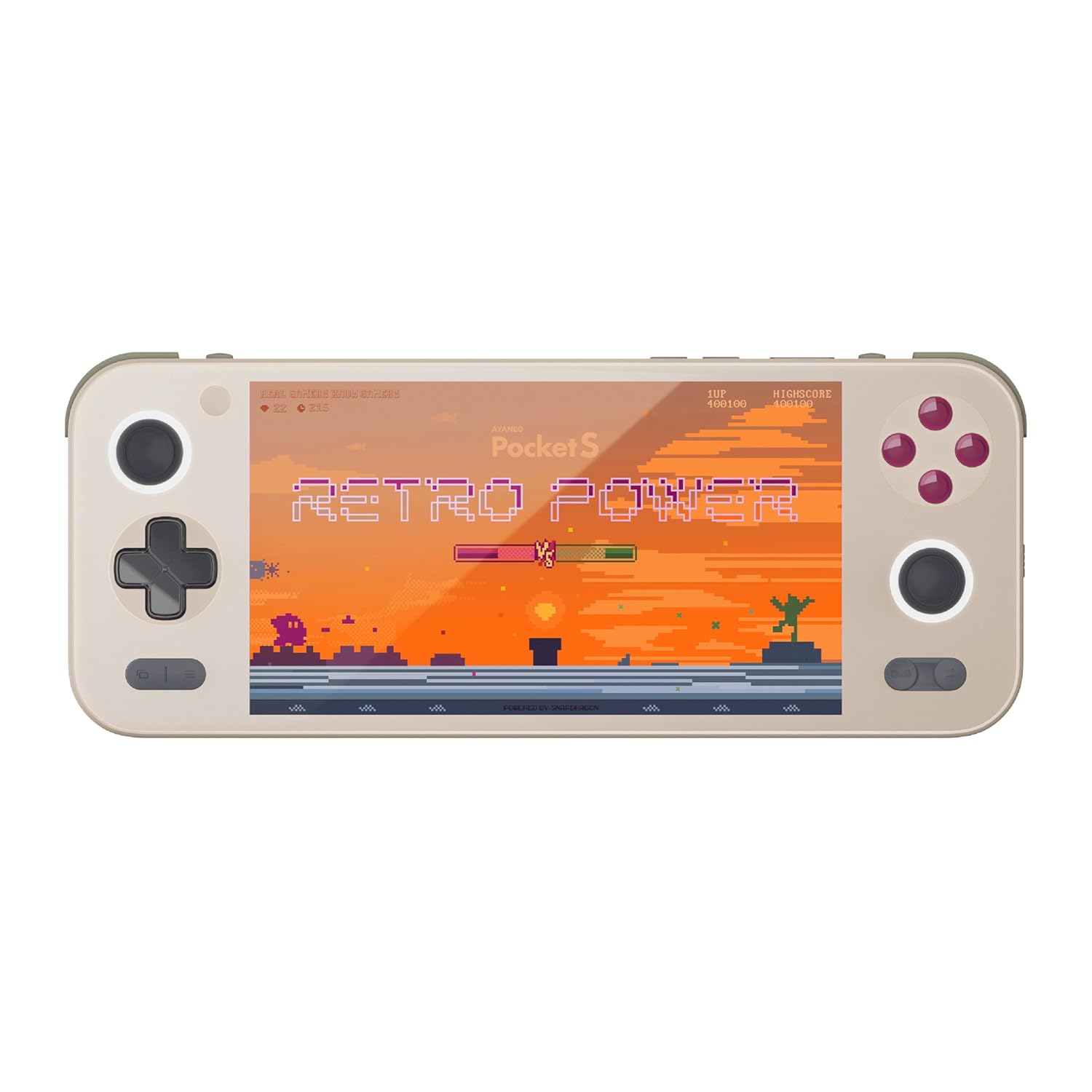
Figure 1: Front view of the AYANEO Pocket S, showing the screen, joysticks, D-pad, and action buttons.

Figure 2: Close-up of the Master Controller, highlighting the RGB Hall joysticks, Hall triggers, and crystal-textured keys.

Figure 3: Illustration of the internal VC thermal plate and active cooling system, along with the "Fishbone" biomimetic heat dissipation design on the side.

Figure 4: The AYANEO Pocket S displaying the AYASpace and AYAHOME Launcher interface, showing various game icons.
Key Features:
- Display: 6-inch 2K Borderless IPS Screen (490 PPI, 120% sRGB, 85% DCI-P3)
- Processor: Snapdragon G3x Gen 2 Gaming Platform
- Memory & Storage: Up to 16GB RAM, up to 1TB Storage (This model: 12GB RAM, 128GB Storage)
- Cooling: Large VC Heat Sink, Active Cooling System, "Fishbone" Cooling Vents
- Controls: Master Controller with RGB Hall Joysticks, Linear Hall Triggers, X-axis Vibration
- Operating System: Android 13
Setup Guide
1. Initial Charging
Before first use, fully charge your AYANEO Pocket S. Connect the provided USB-C cable to the device's charging port and the other end to a compatible power adapter. The charging indicator will illuminate.
2. Powering On/Off
- To Power On: Press and hold the Power button located on the top edge of the device until the AYANEO logo appears on the screen.
- To Power Off: Press and hold the Power button until the power options menu appears. Select "Power Off" and confirm.
- To Restart: From the power options menu, select "Restart".
3. Initial System Configuration
Upon first power-on, you will be guided through the initial Android setup process. This includes:
- Selecting your language.
- Connecting to a Wi-Fi network.
- Signing in with your Google account (optional, but recommended for app downloads).
- Setting up screen lock and other security features.
4. Software Updates
It is recommended to check for and install any available system updates after initial setup to ensure you have the latest features and security patches. Navigate to Settings > System > System update.
Operating Your Device
Navigation and Controls
The AYANEO Pocket S features both touchscreen input and physical controller input for navigation and gameplay.
- Touchscreen: Use familiar Android gestures such as tap, swipe, pinch-to-zoom.
- Joysticks: Analog input for movement and camera control in games.
- D-Pad: Digital input for menu navigation and directional controls.
- Action Buttons (A/B/X/Y): Primary input for in-game actions.
- Shoulder/Trigger Buttons (L1/L2/R1/R2): Additional input for various game functions.
- Function Buttons: Dedicated buttons for system functions, such as Home, Back, and Menu.
Performance Modes
The device offers multiple performance modes to optimize for either maximum performance or extended battery life.
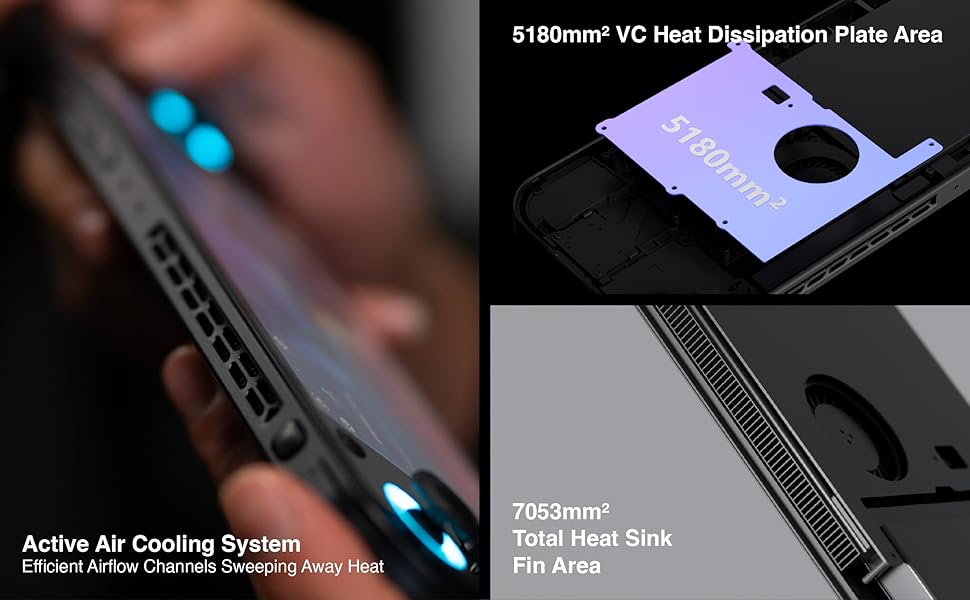
Figure 5: Diagram illustrating the three performance modes: Performance Turbo Mode, Balanced Mode, and Power-Saving Long Battery Life Mode.
- Performance Turbo Mode: Maximizes CPU, GPU, and fan speed for demanding games.
- Balanced Mode: Provides a good balance between performance and battery life for most games.
- Power-Saving Long Battery Life Mode: Optimizes for extended usage, suitable for less demanding applications or when battery conservation is critical.
You can switch between these modes via the AYASpace application or quick settings menu.
AYASpace and AYAHOME Launcher
The AYASpace application and AYAHOME Launcher provide a customized Android experience for gaming handhelds.
- Game Management: Organize and launch your games.
- Key Mapping: Customize button assignments for mobile games that do not natively support physical controllers.
- System Settings: Access performance mode settings, controller calibration, and other device-specific configurations.
Maintenance
Cleaning the Device
- Use a soft, lint-free cloth to wipe the screen and body of the device.
- For stubborn smudges, slightly dampen the cloth with water or a screen cleaner.
- Do not use harsh chemicals, abrasive cleaners, or aerosol sprays.
- Ensure all ports are free of dust and debris. Use a soft brush or compressed air if necessary, holding the can upright.
Battery Care
- Avoid fully discharging the battery frequently.
- Do not leave the device uncharged for extended periods.
- Store the device in a cool, dry place if not used for a long time, with the battery charged to around 50%.
Software Maintenance
- Regularly check for and install system updates.
- Keep your applications updated through the Google Play Store or AYASpace.
- Periodically clear cache and unnecessary files to maintain system performance.
Troubleshooting
| Problem | Possible Cause | Solution |
|---|---|---|
| Device does not power on. | Low battery; System crash. | Charge the device for at least 30 minutes. Perform a forced restart by holding the Power button for 10-15 seconds. |
| Screen is unresponsive. | Software glitch; Screen damage. | Restart the device. If the issue persists, contact customer support. |
| Games are lagging or performing poorly. | Incorrect performance mode; Background apps; Overheating. | Switch to Performance Turbo Mode. Close unnecessary background applications. Ensure cooling vents are not blocked. |
| Wi-Fi connection issues. | Incorrect password; Router issue; Device Wi-Fi module error. | Verify Wi-Fi password. Restart your router. Toggle Wi-Fi off and on on the device. |
If you encounter issues not listed here or if the suggested solutions do not resolve the problem, please contact AYANEO customer support.
Specifications
| Feature | Detail |
|---|---|
| Model | Pocket S |
| Processor | Snapdragon G3x Gen 2 Gaming Platform |
| Display | 6-inch 2K Borderless IPS Display (2560*1440 resolution, 490 PPI, 120% sRGB, 85% DCI-P3) |
| RAM | 12GB (as per current model) |
| Storage | 128GB (as per current model) |
| Operating System | Android 13 |
| Cooling System | Large VC Heat Sink, Active Cooling System, "Fishbone" Vents |
| Battery | 1 Lithium Ion battery (included) |
| Dimensions | Approximately 8.42 x 3.35 x 0.55 inches |
| Weight | Approximately 1.59 pounds (0.72 kg) |
Warranty Information
AYANEO products typically come with a limited manufacturer's warranty. Please refer to the warranty card included in your product packaging or visit the official AYANEO website for detailed warranty terms and conditions. Keep your proof of purchase for warranty claims.
Note: Protection plans may be available for purchase separately. These plans are offered by third parties and are not part of the standard manufacturer's warranty.
Customer Support
For technical assistance, troubleshooting, or warranty inquiries, please contact AYANEO customer support through their official channels:
- Official Website: www.ayaneo.com (Check for support section or contact page)
- Email Support: Refer to the official website for the most current support email address.
- Online Community/Forums: AYANEO may host online communities where users can find answers and share experiences.
When contacting support, please have your device model (Pocket S) and serial number ready.
Related documentsPocket S


Ask a question about this manual
Ask about setup, troubleshooting, compatibility, parts, safety, or missing instructions. Manuals+ will review the question and use this page’s manual context to help answer it.