
1. Introduction
Welcome to the user manual for your new Tecno Mobile MEGABOOK K16S laptop. This guide provides essential information on setting up, operating, maintaining, and troubleshooting your device. Please read this manual thoroughly to ensure optimal performance and longevity of your laptop.
The MEGABOOK K16S is a powerful and versatile laptop designed for productivity and entertainment, featuring an AMD Ryzen 5 7430U processor, 8GB RAM, a 512GB SSD, a 16-inch Full HD IPS display, and Windows 11 Home.
2. What's in the Box
Carefully unpack your MEGABOOK K16S and ensure all items are present:
- Tecno Mobile MEGABOOK K16S Laptop
- 65W Power Adapter (Charger)
- User Manual (this document)
- Warranty Card
3. Product Overview
Familiarize yourself with the physical features and ports of your MEGABOOK K16S laptop.
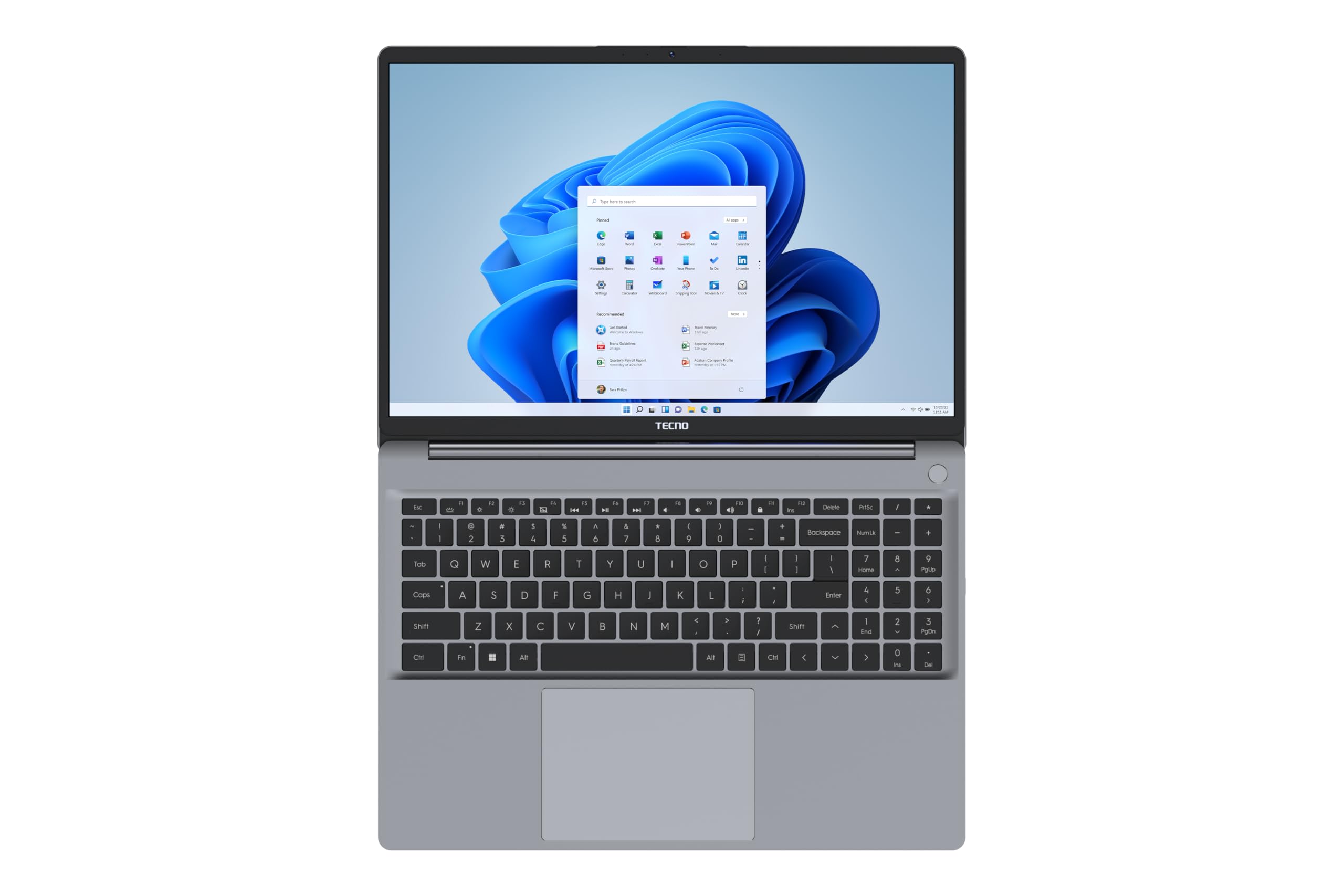
Figure 3.1: Front view of the MEGABOOK K16S laptop, showcasing the 16-inch display and keyboard.

Figure 3.2: Left side of the laptop, featuring USB-C ports, HDMI, and a headphone jack.

Figure 3.3: Right side of the laptop, featuring USB-A ports and an Ethernet port.
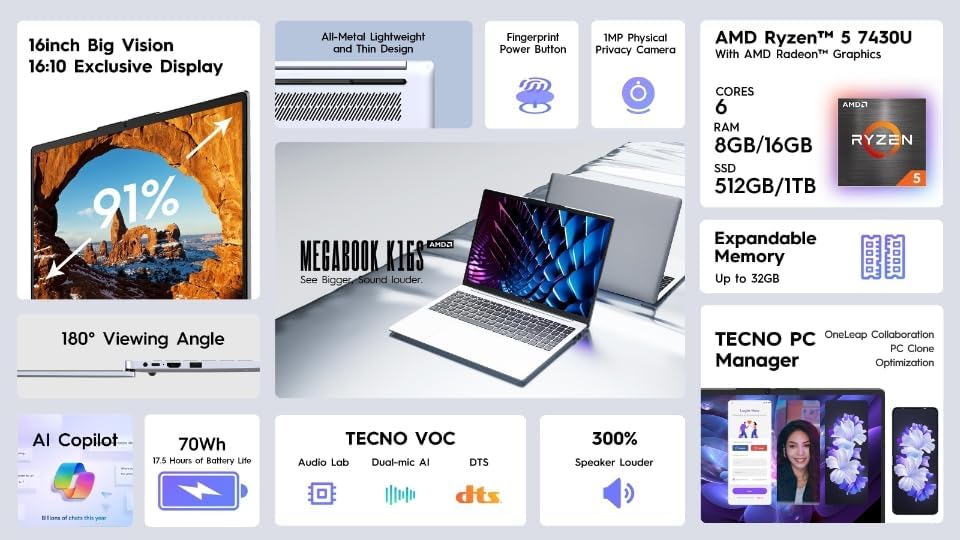
Figure 3.4: Close-up of the QWERTY Spanish keyboard with numeric keypad and integrated fingerprint sensor.
Ports and Connectors:
- USB-A Ports: For connecting USB devices such as mice, keyboards, and external storage.
- USB-C Ports: Versatile ports for data transfer, charging, and video output.
- HDMI Port: For connecting to external displays or projectors.
- 3.5mm Audio Jack: For headphones or external speakers.
- Ethernet Port: For wired network connectivity.
- Memory Card Slot: For expanding storage or transferring data from memory cards.
4. Setup
4.1 Initial Charging and Power On
- Connect the 65W power adapter to the laptop's charging port and a power outlet.
- Allow the laptop to charge for at least 30 minutes before first use, or until the battery indicator shows sufficient charge.
- Press the power button (often integrated with the fingerprint sensor) to turn on the laptop.
4.2 Windows 11 First-Time Setup
Follow the on-screen instructions to complete the Windows 11 setup process. This typically includes:
- Selecting your region and keyboard layout.
- Connecting to a Wi-Fi network.
- Signing in with or creating a Microsoft account.
- Setting up a PIN or password.
4.3 Fingerprint Sensor Setup
For enhanced security, set up the integrated fingerprint sensor:
- Go to Settings > Accounts > Sign-in options.
- Under 'Ways to sign in', select Fingerprint recognition (Windows Hello) and follow the prompts to register your fingerprint.
5. Operating Instructions
5.1 Power Management
- Power On: Press the power button.
- Sleep Mode: Close the lid or press the power button briefly.
- Shut Down: Go to Start > Power > Shut down.
- Restart: Go to Start > Power > Restart.
5.2 Keyboard and Touchpad
- Backlit Keyboard: Use the dedicated function key (Fn + F key, typically) to adjust keyboard backlight brightness.
- Numeric Keypad: The integrated numeric keypad allows for efficient data entry.
- Touchpad: Supports multi-touch gestures for navigation. Refer to Windows settings for customization.
5.3 Connectivity
- Wi-Fi: Connect to wireless networks via Windows settings. Supports Wi-Fi 6 (802.11ax).
- Bluetooth: Pair Bluetooth devices (e.g., headphones, mice) via Windows settings. Supports Bluetooth 5.1.
- External Displays: Use the HDMI port or a compatible USB-C port with an adapter to connect to external monitors.
- USB Devices: Connect USB-A and USB-C peripherals to the available ports.
5.4 Special Features
- DTS Audio: Enjoy enhanced audio quality. Adjust settings via the DTS Audio control panel.
- AI Camera: The integrated webcam may offer AI-enhanced features for video calls.
- PC Manager: Utilize the pre-installed PC Manager software for system optimization, driver updates, and device management.
- Copilot: Access Microsoft Copilot for AI-powered assistance directly from Windows 11.
6. Maintenance
6.1 Cleaning Your Laptop
- Use a soft, lint-free cloth to clean the screen and exterior.
- For stubborn marks, slightly dampen the cloth with water or a screen cleaner. Avoid harsh chemicals.
- Use compressed air to clear dust from keyboard keys and ventilation grilles.
6.2 Battery Care
- Avoid fully discharging the battery frequently.
- Store the laptop in a cool, dry place if not used for extended periods.
- Use only the original 65W power adapter provided with your laptop.
6.3 Software Updates
Regularly check for and install Windows updates to ensure your system has the latest security patches and performance improvements. Go to Settings > Windows Update.
7. Troubleshooting
This section addresses common issues you might encounter with your MEGABOOK K16S.
7.1 Power Issues
- Laptop does not turn on: Ensure the power adapter is securely connected and the battery has sufficient charge. Try holding the power button for 10-15 seconds for a hard reset.
- Battery not charging: Check the power adapter and cable for damage. Ensure the power outlet is functional.
7.2 Display Issues
- No display on screen: Connect an external monitor to check if the laptop is outputting video. If the external monitor works, there might be an issue with the laptop's internal display.
- Flickering or distorted display: Update your graphics drivers. Try adjusting the display resolution in Windows settings.
7.3 Connectivity Issues
- Wi-Fi not connecting: Ensure Wi-Fi is enabled in Windows settings. Restart your router and laptop. Check for updated Wi-Fi drivers.
- Bluetooth device not pairing: Ensure the Bluetooth device is in pairing mode and within range. Restart Bluetooth on your laptop.
7.4 Performance Issues
- Laptop is slow: Close unnecessary applications. Check Task Manager for processes consuming high CPU/RAM. Ensure sufficient free space on the SSD.
- Overheating: Ensure ventilation grilles are not blocked. Use the laptop on a hard, flat surface.
8. Specifications
Detailed technical specifications for the Tecno Mobile MEGABOOK K16S (Model 7430):
| Feature | Description |
|---|---|
| Model Name | MEGABOOK K16S |
| Product Model Number | 7430 |
| Processor | AMD Ryzen™ 5 7430U (430 GHz) |
| Graphics | Integrated Radeon™ Onboard Graphics (DDR4 SDRAM) |
| RAM | 8 GB DDR4 SDRAM (Max. 32 GB) |
| Storage | 512 GB SSD |
| Display | 16-inch Full HD (1920 x 1080) IPS LED, 60Hz refresh rate |
| Operating System | Windows 11 Home (64 Bit) |
| Wireless Connectivity | Wi-Fi 6 (802.11ax), Bluetooth 5.1 |
| Ports | 2x USB-A, 2x USB-C, 1x HDMI, 1x 3.5mm Audio Jack, Ethernet, Memory Card Slot |
| Special Features | Fingerprint Sensor, Backlit Keyboard, Numeric Keypad, DTS Audio, AI Camera, Copilot, PC Manager |
| Battery Life | Up to 17.5 Hours (65 Wh) |
| Dimensions | 35.9 x 25 x 1.8 cm |
| Weight | 1.7 kg |
| Color | Dark Grey |
9. Warranty and Support
9.1 Product Warranty
Your Tecno Mobile MEGABOOK K16S laptop comes with a 3-year warranty from the date of purchase. This warranty covers manufacturing defects and ensures repair or replacement as per the terms and conditions outlined in the included Warranty Card.
Please retain your proof of purchase for warranty claims.
9.2 Customer Support
For technical assistance, troubleshooting beyond this manual, or warranty inquiries, please contact Tecno Mobile customer support. Refer to the Warranty Card or the official Tecno Mobile website for contact information specific to your region.
Before contacting support, please have your laptop's model number (MEGABOOK K16S, Model 7430) and serial number ready.


