
1. Introduction
This manual provides essential information for the safe and efficient use of your Motorola Moto E15 smartphone. Please read this manual thoroughly before operating your device.
The Motorola Moto E15 is a powerful 4G/LTE smartphone designed for reliable communication and multimedia experiences. It features a 2.0 GHz Octa-core processor, 2GB of RAM, and 64GB of internal storage, expandable via microSDXC. The device runs on Android 14 (Go edition) and is powered by a 5200mAh non-removable battery, offering extended usage times.

Figure 1.1: Motorola Moto E15 Smartphone Overview. This image displays the front and back of the Motorola Moto E15 in Fresh Lavender, highlighting its sleek design and dual camera setup on the rear.
2. Getting Started: Setup
2.1. What's in the Box
- Motorola Moto E15 Smartphone
- USB Cable
- Quick Start Guide (not included in this manual)
2.2. Inserting SIM Cards and microSD Card
The Moto E15 supports Dual-SIM functionality and a microSDXC card for expandable storage. Locate the SIM tray on the side of the device.
- Insert the SIM ejector tool (not included, use a thin paperclip) into the small hole on the SIM tray to open it.
- Carefully pull out the SIM tray.
- Place your Nano-SIM cards into the designated slots (SIM1 and SIM2) with the gold contacts facing down.
- If using a microSD card, place it into the dedicated microSD slot.
- Gently push the tray back into the phone until it clicks into place.

Figure 2.1: SIM Tray Location. This image shows the side profile of the Moto E15, indicating the position of the SIM card tray.
2.3. Charging the Battery
Before first use, fully charge your Moto E15. Use the provided USB cable to connect your phone to a power adapter (not included) or a computer's USB port.
- Connect the USB cable to the USB-C port at the bottom of your phone.
- Connect the other end of the USB cable to a compatible power source.
- The charging indicator will appear on the screen.

Figure 2.2: USB-C Charging Port. This image provides a close-up of the bottom edge of the Moto E15, highlighting the USB-C charging port and speaker.
2.4. Powering On/Off
- To power on: Press and hold the Power button (located on the right side) until the Motorola logo appears.
- To power off: Press and hold the Power button, then select "Power off" from the options on the screen.

Figure 2.3: Power and Volume Buttons. This image shows the right side of the Moto E15, clearly displaying the power button and volume rocker.
3. Operating Your Device
3.1. Basic Navigation
The Moto E15 features a 6.67-inch IPS LCD touchscreen. Navigate using gestures:
- Tap: Select an item or open an app.
- Swipe: Scroll through screens or lists.
- Pinch: Zoom in or out on photos and web pages.
- Long Press: Access contextual menus or move icons.

Figure 3.1: Front Display. This image shows the front of the Moto E15, emphasizing its large display and front camera cutout.
3.2. Calls and Messaging
- To make a call: Open the Phone app, enter the number, and tap the call icon.
- To send a message: Open the Messages app, tap "Start chat," enter the recipient and message, then send.
3.3. Camera Usage
The Moto E15 is equipped with a 32 MP main camera and an 8 MP wide camera. To take photos or videos:
- Open the Camera app.
- Select photo or video mode.
- Tap the shutter button to capture.
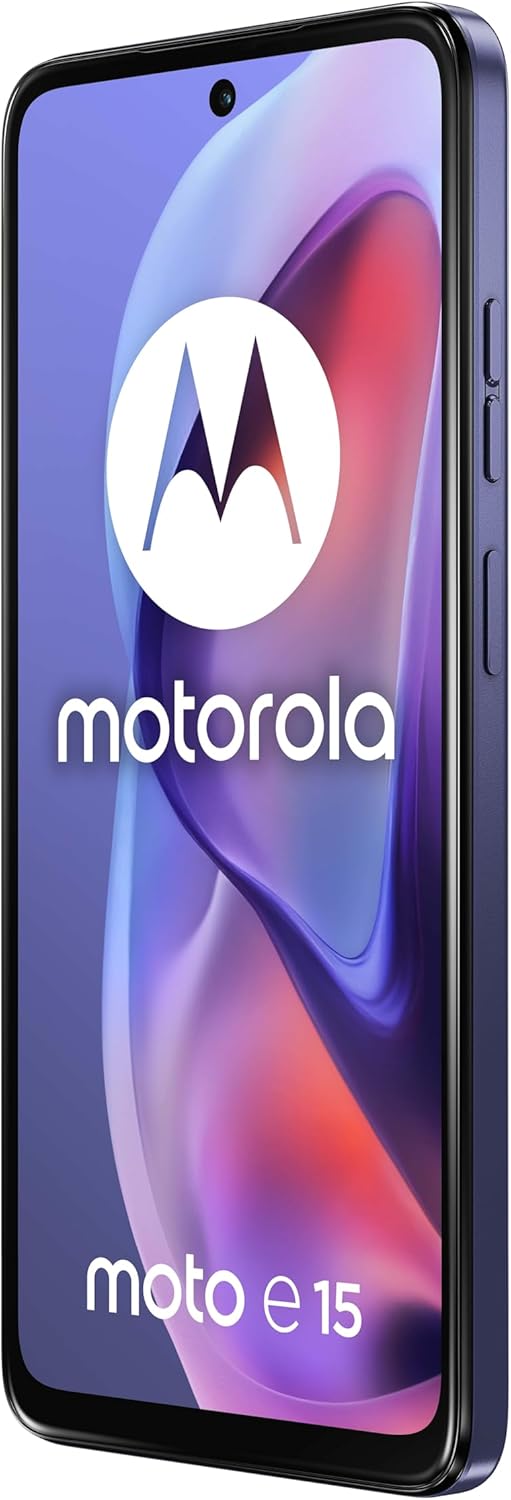
Figure 3.2: Rear Camera Module. This image displays the back of the Moto E15, focusing on the dual camera lenses and flash.
3.4. Connectivity
- Wi-Fi: Go to Settings > Network & internet > Wi-Fi to connect to wireless networks.
- Bluetooth: Go to Settings > Connected devices > Connection preferences > Bluetooth to pair with other devices.
- Mobile Data: Ensure your SIM card is active and mobile data is enabled in Settings > Network & internet > Mobile network.
4. Maintenance
4.1. Cleaning Your Device
- Use a soft, lint-free cloth to clean the screen and body.
- Avoid using harsh chemicals, abrasive cleaners, or compressed air.
- Do not expose the device to excessive moisture.
4.2. Software Updates
Keep your device's software updated for optimal performance and security. You will receive notifications for available updates. To manually check:
- Go to Settings > System > System update.
- Follow the on-screen instructions to download and install updates.
5. Troubleshooting
5.1. Common Issues and Solutions
| Issue | Possible Solution |
|---|---|
| Device not powering on | Ensure the battery is charged. Press and hold the Power button for at least 10 seconds. |
| Poor network signal | Check SIM card insertion. Move to an area with better coverage. Restart the device. |
| Battery drains quickly | Close unused apps. Reduce screen brightness. Disable Wi-Fi/Bluetooth when not in use. |
| Apps crashing or freezing | Clear app cache/data (Settings > Apps). Restart the device. Update the app or device software. |
| Cannot connect to Wi-Fi | Ensure Wi-Fi is enabled. Restart your router. Forget and reconnect to the network. |
6. Specifications
Below are the key technical specifications for the Motorola Moto E15:
| Feature | Detail |
|---|---|
| Model Name | Motorola Moto E15 |
| Operating System | Android 14 (Go edition) |
| Processor | Mediatek Helio G81 Extreme (12 nm), Octa-core (2x2.0 GHz Cortex-A75 & 6x1.7 GHz Cortex-A55) |
| RAM | 2 GB |
| Internal Storage | 64 GB (expandable via microSDXC) |
| Display Size | 6.67 Inches |
| Display Type | IPS LCD, 720 x 1604 pixels |
| Main Camera | 32 MP, f/2.2, (wide), 0.64µm, PDAF |
| Secondary Camera | 8 MP, f/2.1, (wide), 1.12µm |
| Battery Capacity | 5200 mAh (non-removable) |
| Dimensions | 6.52 x 0.32 x 2.99 inches |
| Item Weight | 6.7 ounces (188.8 Grams) |
| Color | Fresh Lavender |
| SIM Support | Dual-SIM (Nano-SIM) |
| Network Compatibility | GSM, WCDMA, LTE (FDD & TDD) - Check with provider for specific band compatibility. |
7. Warranty and Support
For warranty information, technical support, or service inquiries regarding your Motorola Moto E15, please refer to the warranty card included with your product or visit the official Motorola support website.
Official Motorola Support: www.motorola.com/support
Please have your device's model number and serial number ready when contacting support.


