
K&F Concept 50Wh V mount
Contents
K&F Concept 50Wh Mini V-Mount Battery
Model: 50Wh V mount
Introduction
This instruction manual provides detailed information on the K&F Concept 50Wh 3400mAh Mini V-Mount Battery. Please read this manual thoroughly before using the product to ensure proper operation, maximize performance, and maintain safety. Keep this manual for future reference.

Figure 1: K&F Concept 50Wh Mini V-Mount Battery
Product Features
- 65W PD3.0 Output: Supports 65W Power Delivery fast discharge and 45W fast charge for quick power delivery to cameras, laptops, and tablets.
- Multiple Interfaces: Equipped with USB-C, USB-A, DC 12V, BP, and D-TAP ports for versatile device compatibility.
- Real-time TFT Display: A clear TFT screen provides real-time battery status, including charge levels and output information.
- 50Wh High-Capacity: Offers 50Wh (3400mAh/14.8V) for extended photography and video sessions.
- Compact & Travel-Friendly: Smaller and lighter than traditional V-mount batteries, designed for portability and airline travel.
- Built-in BMS Technology: Ensures optimal performance and safeguards against short circuits, overcharging, overheating, over-voltage, over-discharge, and over-current.

Figure 2: 65W PD3.0 Fast Charging via USB-C
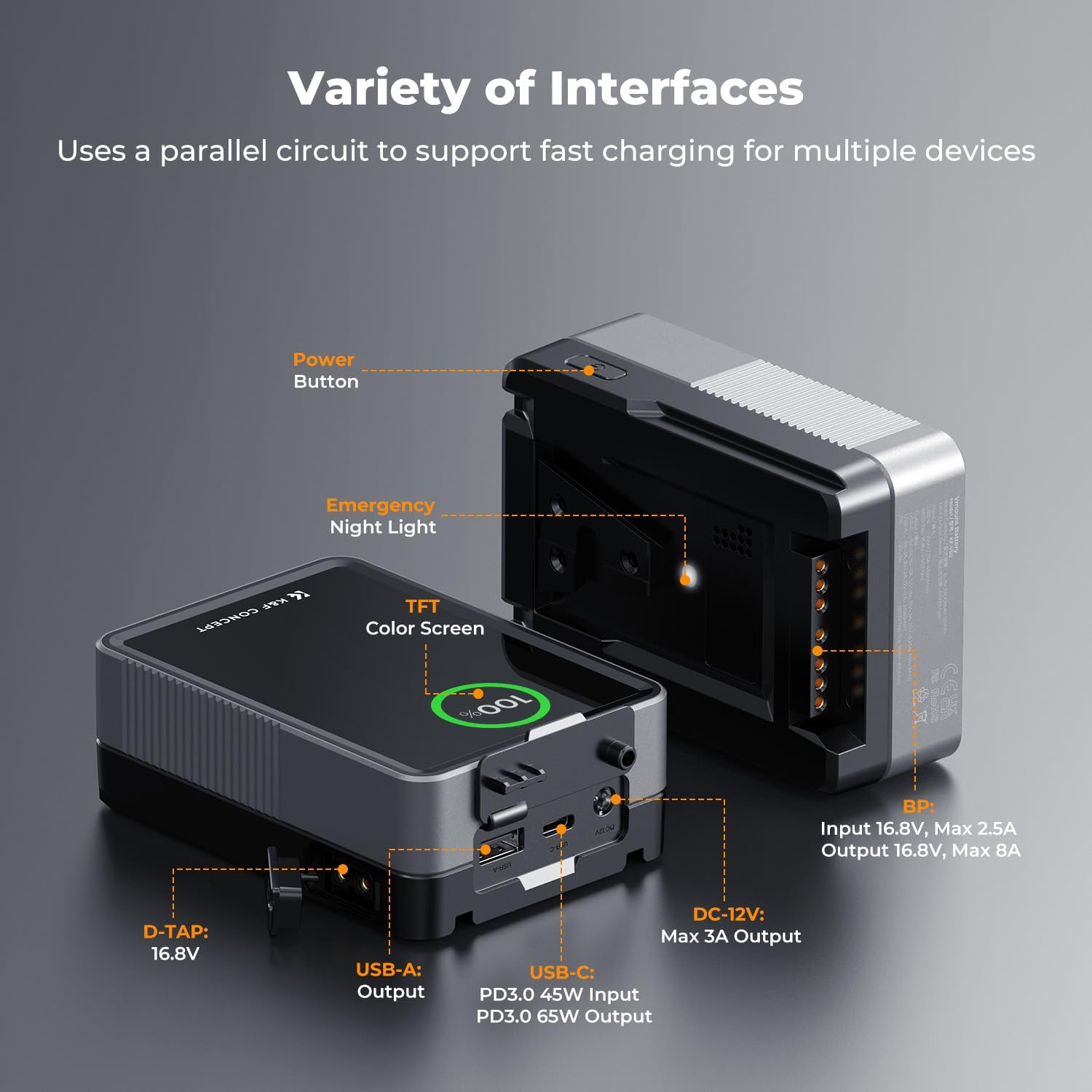
Figure 3: Variety of Interfaces for Versatile Applications
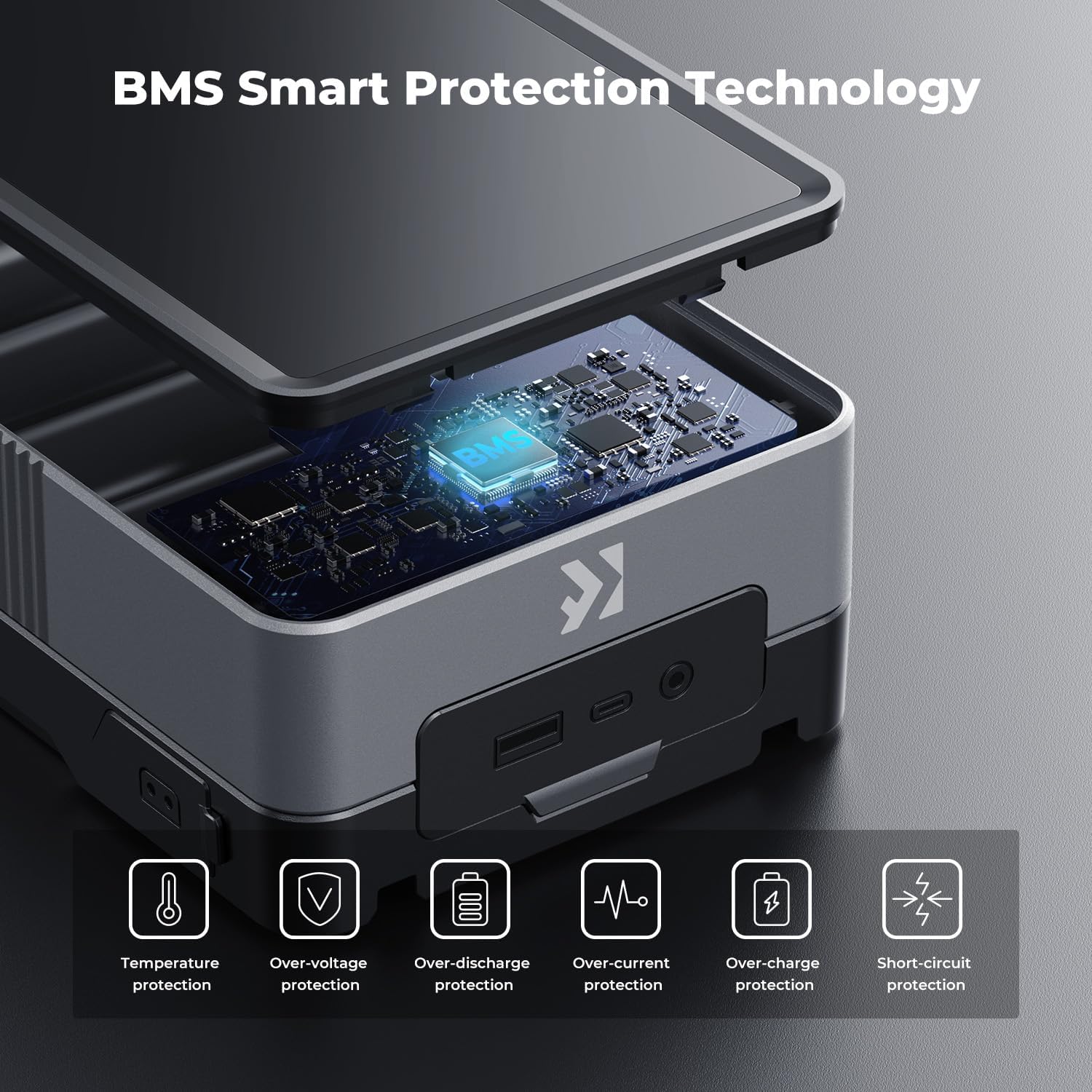
Figure 4: BMS Smart Protection Technology
Setup
Initial Charging
Before first use, fully charge the battery. Connect the provided 240W USB-C charging cable to the battery's USB-C port and a compatible 45W or higher power adapter. The TFT screen will indicate charging status.

Figure 5: Battery Charging Setup
Mounting the Battery
The V-mount battery is designed to securely attach to V-mount plates on cameras, camcorders, or other compatible equipment. Align the battery with the V-mount plate and slide it down until it clicks into place, ensuring a secure connection.
Video 1: Demonstrates attaching the K&F Concept V-Mount Battery to a camera rig and using its features.
Operating Instructions
Powering On/Off
Press and hold the power button located on the side of the battery to turn it on or off. The TFT screen will illuminate upon activation.
Understanding the TFT Display
The integrated TFT screen provides real-time information:
- Battery Percentage: Shows the remaining charge.
- Voltage/Wattage: Displays current output voltage and wattage for connected devices.
- Charging Status: Indicates if the battery is charging or discharging.

Figure 6: Intelligent TFT Screen Display
Connecting Devices
Use appropriate cables to connect your devices to the battery's various output ports (USB-C, USB-A, DC 12V, D-TAP). The battery can power multiple devices simultaneously.
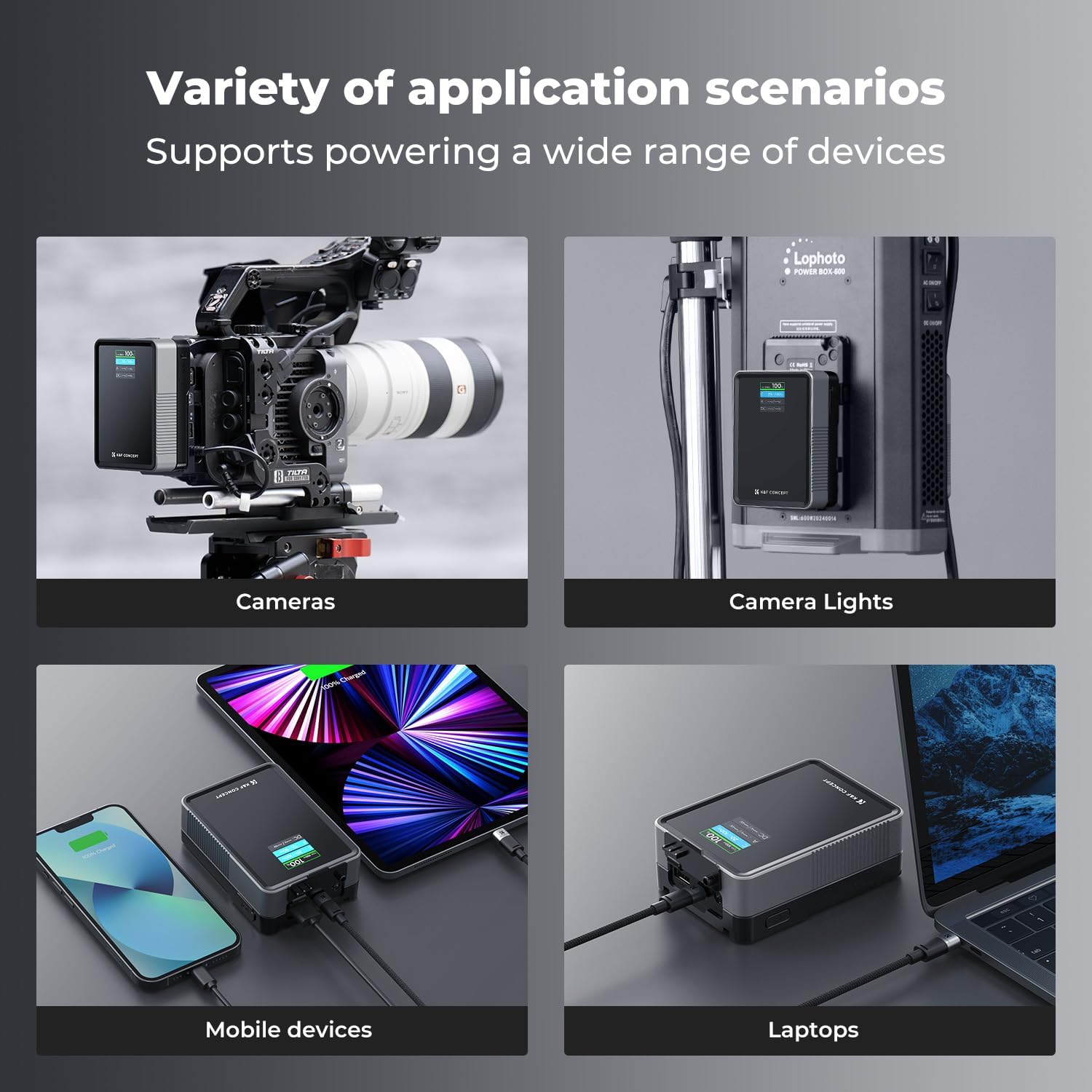
Figure 7: Variety of Application Scenarios
Emergency Night Light
The battery features a built-in emergency night light, useful in low-light environments. Activate it by pressing the designated button (refer to product diagram for location).

Figure 8: Emergency Night Light Feature
Maintenance
Cleaning
Wipe the battery with a soft, dry cloth. Do not use liquid cleaners or solvents. Ensure all ports are free of dust and debris.
Storage
Store the battery in a cool, dry place away from direct sunlight and extreme temperatures. For long-term storage, charge the battery to approximately 50-70% capacity and recharge every 3-6 months to maintain battery health.
Battery Longevity
To prolong battery life, avoid fully discharging the battery frequently. Use the appropriate charger and cables for optimal charging. The anti-slip metal design also aids in heat dissipation, contributing to longevity.

Figure 9: Anti-slip Metal Design for Durability and Heat Dissipation
Troubleshooting
Battery Not Charging
- Ensure the charging cable and power adapter are securely connected and functioning correctly.
- Verify that the power adapter meets the minimum 45W PD requirement for fast charging.
- Check the USB-C port for any obstructions or damage.
Devices Not Powering On
- Confirm the battery is sufficiently charged (check the TFT display).
- Ensure the correct output port is used for your device and the cable is securely connected.
- Verify that your device's power requirements do not exceed the battery's output capabilities.
TFT Display Issues
- If the display is unresponsive, try turning the battery off and on again.
- Ensure the battery is not exposed to extreme temperatures, which can affect screen performance.
Specifications
| Feature | Detail |
|---|---|
| Brand | K&F Concept |
| Model Number | 50Wh V mount |
| Capacity | 50Wh (3400mAh/14.8V) |
| Rated Power Output | 65W |
| Rated Power Input | 45W |
| Charging Time | 2 hours (with 45W+ charger) |
| Product Dimensions | 4.25 x 3 x 2.26 inches |
| Item Weight | 12.35 oz / 350g |
| Interfaces | USB-C, USB-A, DC 12V, BP, D-TAP |
| Display Type | TFT Screen |
| Safety Features | BMS (Temperature, Over-voltage, Over-discharge, Over-current, Over-charge, Short-circuit protection) |
Warranty and Support
K&F Concept products are designed for reliability and performance. For warranty information, technical support, or service inquiries, please refer to the official K&F Concept website or contact their customer service directly. You can find more information and contact details on the K&F Concept Store on Amazon.
Ask a question about this manual
Ask about setup, troubleshooting, compatibility, parts, safety, or missing instructions. Manuals+ will review the question and use this page’s manual context to help answer it.